Picture transforming any photograph into a smooth, cinematic video clip in just minutes—all without spending a dime. That’s exactly what Wan 2.2 delivers, and it’s running the AI video generation world right now.
But here’s the catch: most tutorials assume you already know ComfyUI, have a powerful GPU, and understand technical jargon. This leaves many creators frustrated before they even start.
This guide changes that. Whether you want to run Wan locally or prefer simpler online alternatives, you’ll learn everything needed to create your first AI video today.
What Is Wan 2.2 and Why Is It Revolutionary for Image-to-Video?
Understanding this technology opens doors to creative possibilities that were impossible just months ago.
Understanding Wan 2.2: The Open-Source Breakthrough
Wan 2.2 is a free, open-source AI model from Alibaba that transforms static images into dynamic videos. Unlike subscription-based services, you can run it on your own computer at no cost.
The community calls it “mind-bogglingly good” for open-source software. Seven months ago, generating videos this quality locally wasn’t even possible.
Why Wan Outperforms Other AI Video Models
What sets Wan apart is its exceptional prompt adherence. When you describe what you want, the model actually listens—something competitors struggle with.
Key advantages include:
- Superior character consistency compared to alternatives like LTX
- Strong community support with extensive LoRA options
- No subscription fees when running locally
- Privacy benefits since everything stays on your machine
Wan 2.2 Model Variants Explained (5B vs 14B)
Wan comes in two main sizes:
| Model | Parameters | Best For |
| Wan 5B | 5 billion | Budget GPUs, faster generation |
| Wan 14B | 14 billion | Maximum quality output |
The 14B model produces better results but demands more powerful hardware. GGUF quantized versions offer a middle ground, reducing memory requirements while maintaining quality.
Hardware Requirements for Wan Image to Video
Before investing time in setup, verify your computer can handle the workload.
Minimum VRAM Requirements by Model Size
- Wan 5B: 8-12GB VRAM
- Wan 14B GGUF Q8: 12-16GB VRAM
- Wan 14B Full: 16-24GB VRAM
If your GPU has less than 8GB, local generation becomes impractical. Consider online alternatives instead.
Recommended GPUs for Wan 2.2
For smooth operation, these cards deliver reliable performance:
- RTX 3060 12GB: Entry-level option for Wan 5B
- RTX 4060/4070: Good balance of price and capability
- RTX 4090: Ideal for 14B model and batch work
Running Wan on Low VRAM (8GB Solutions)
Budget GPU owners aren’t completely locked out. Try these optimizations:
- Use GGUF quantized models to reduce memory footprint
- Enable SageAttention for efficient memory handling
- Lower output resolution to 480p during testing
- Close other applications to maximize available VRAM
How to Set Up Wan 2.2 in ComfyUI (Step-by-Step)
This section tackles the biggest pain point users report: the complex installation process.
Installing ComfyUI and Required Dependencies
Start by installing ComfyUI from the official repository. You’ll need Python 3.10+ and several custom nodes including ComfyUI-WanVideoWrapper.
Fair warning: the community jokes that “every update breaks something.” Patience helps.
Downloading Wan Models and Checkpoints
Get official models from Hugging Face:
- Navigate to the Wan 2.2 model page
- Download your chosen variant (5B or 14B)
- Place files in ComfyUI’s
models/diffusion_modelsfolder
Verify file integrity after download—corrupted files cause cryptic errors.
Loading Your First Wan Image-to-Video Workflow
Import pre-built workflows from Civitai to skip manual node configuration. Load your workflow, connect an input image, write a simple prompt, and hit generate.
Key Takeaway: Starting with community workflows saves hours of troubleshooting.
Wan Image-to-Video Prompting Guide
Good prompts make the difference between disappointing and stunning results.
Anatomy of an Effective Wan Prompt
Structure your prompts with these elements:
- Subject description: What’s in the image
- Motion instructions: What should move and how
- Style modifiers: Cinematic, smooth, dynamic
- Camera movements: Pan, zoom, static
Example: “Woman in red dress, gentle wind blowing hair, subtle smile appearing, cinematic lighting, slow zoom in”
Negative Prompts: What Works and What Doesn’t
Users frequently complain that negative prompts get ignored. Wan processes them differently than image generators.
Instead of listing everything to avoid, focus on describing what you do want. Positive framing works better than negative lists.
Common Prompting Mistakes and How to Fix Them
| Problem | Solution |
| Unwanted mouth movement | Specify “closed mouth” or “neutral expression” |
| Color drift | Add “consistent colors, stable lighting” |
| Erratic motion | Use “subtle movement, gentle motion” |
Online Alternatives: Wan Image to Video Without ComfyUI
Not everyone wants to wrestle with technical setup—and that’s perfectly valid.
Why Consider Online Wan Tools?
Online platforms eliminate hardware requirements entirely. No GPU needed, no installation headaches, instant access from any browser.
This approach suits creators who want results without becoming system administrators.
AI Image to Video Pro: Full-Featured Online Solution
AI Image to Video provides access to Wan alongside other models like Kling and Veo. The platform outputs up to 4K resolution without watermarks, making it practical for professional content.
Social media creators, marketers, and small businesses benefit from the streamlined interface that handles all technical complexity behind the scenes.
Comparing Local vs. Online Wan Generation
| Aspect | Local (ComfyUI) | Online Platforms |
| Cost | Free after hardware | Per-generation or subscription |
| Setup | Complex | None |
| Privacy | Complete | Varies by provider |
| Hardware needed | Yes (8GB+ VRAM) | No |

Advanced Wan Techniques for Better Results
Once basics are mastered, these techniques elevate output quality.
Using LoRAs to Enhance Wan Output
LoRAs are small fine-tuned additions that modify model behavior:
- Lightx2v: Speeds up generation significantly
- Motion LoRAs: Control movement intensity
- Style LoRAs: Apply specific visual aesthetics
First and Last Frame Control
This technique lets you define exactly how videos begin and end. Upload a start frame and end frame, then let Wan interpolate the motion between them.
Creating Longer Videos with SVI Pro Workflows
Wan’s native output length is limited. SVI Pro workflows chain multiple segments together, enabling videos beyond standard clip length through intelligent interpolation.
Wan 2.2 vs. Competitors: Which AI Video Generator Should You Use?
Understanding alternatives helps you choose the right tool.
Wan 2.2 vs. LTX 2.3: Detailed Comparison
| Feature | Wan 2.2 | LTX 2.3 |
| Prompt adherence | Excellent | Poor |
| Native resolution | 720p | 1440p |
| Frame rate | 16fps | 24fps |
| Audio generation | No | Yes |
Wan wins on quality and consistency; LTX offers higher specs on paper but often fails to follow instructions.
Wan vs. Commercial Options (VEO 3, Kling, Runway)
Commercial services like VEO 3 and Runway provide polished experiences but charge significant fees. Wan delivers comparable quality for free—if you’re willing to handle setup.
Online platforms like AI Image to Video bridge this gap by offering multiple models including Wan with professional output quality.
When to Use Which Tool
- Wan local: Maximum control, unlimited generations, privacy priority
- LTX: When native audio or higher fps matters
- Commercial: Turnkey solution with support
- Online platforms: Accessibility without technical barriers
Troubleshooting Common Wan Image-to-Video Issues
These solutions address problems users encounter most frequently.
VRAM Errors and Out-of-Memory Fixes
CUDA out-of-memory errors mean your GPU is overwhelmed. Solutions:
- Switch to GGUF quantized models
- Reduce output resolution
- Enable memory-efficient attention modes
Workflow Node Errors and Compatibility Issues
Missing nodes or version mismatches cause red error boxes in ComfyUI. Update all custom nodes simultaneously and verify ComfyUI version compatibility with your workflow.
Quality Issues: Artifacts, Color Drift, and Flickering
Adjust CFG (Classifier-Free Guidance) values if output looks wrong. Lower CFG reduces artifacts; higher CFG strengthens prompt adherence. Find the balance for your specific use case.
FAQs About Wan Image to Video
How much VRAM do I need to run Wan 2.2?
Minimum 8GB for the 5B GGUF model. Recommended 12-16GB for comfortable operation. The full 14B model requires 24GB.
Is Wan 2.2 really free to use?
Yes. Wan is completely open-source and free for both personal and commercial use when running locally.
Can I use Wan without ComfyUI?
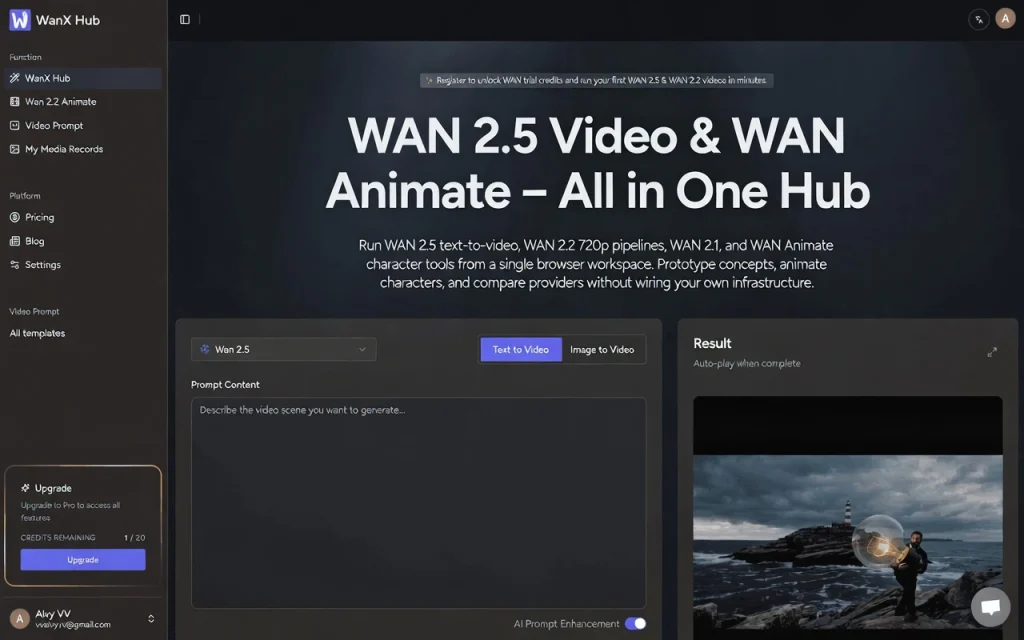
Absolutely. Online platforms like AI Image to Video provide browser-based access requiring no installation.
How does Wan compare to paid AI video generators?
Wan matches or exceeds many paid options in quality, particularly for prompt adherence. The trade-off is setup complexity unless using online platforms.
What image formats work best with Wan?
PNG and high-quality JPEG both work well. Match input resolution to your target output for best results.
Conclusion
Wan 2.2 represents a genuine breakthrough in accessible AI video generation. The technology that cost thousands in software and services just years ago now runs free on consumer hardware.
Whether you choose local ComfyUI setup for maximum control or online platforms for instant accessibility, the ability to transform still images into dynamic videos is now within reach for everyone.
Ready to start? Try an online platform for immediate results, or follow the setup steps above for unlimited local generation. Your first AI video is just an image away.