Model
Video Fast 1.5 Lite Free
Premium video quality — 3-second clips free to try. Limited-Time Availability.
Image
Drag & Drop, Paste, or Click to Upload
PNG, JPG, JPEG, WEBP , Max 20 MB
Prompt
0 / 1500
Audio
Prompt Extend
Duration
3s
Resolution
720p
1080p
Number of Results
Create
Sample Video
Sample video preview

Convert Picture to Video for iphone Free – AI Image to Video Generator Online

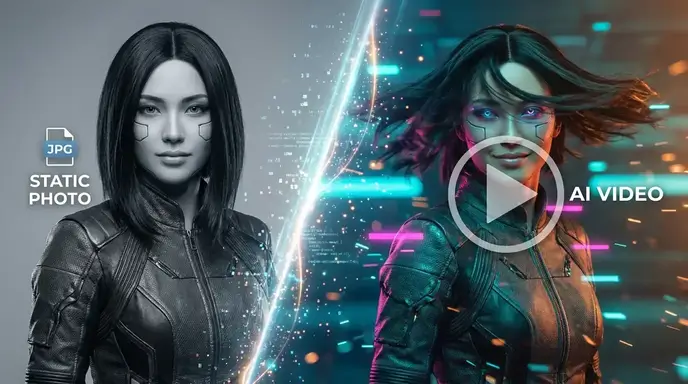
Transform any picture to video with our powerful AI platform that brings static images to life instantly. Whether you need to convert pictures to video free for social media or create professional marketing content, our ai image to video generator delivers stunning results. This intelligent system analyzes your photo and produces smooth, realistic motion automatically—no complex editing skills required. Perfect for anyone asking how can i make video with pictures or seeking the best ai tool to turn image into video without watermarks. Upload your image, add a creative prompt, and watch the transformation happen in seconds.
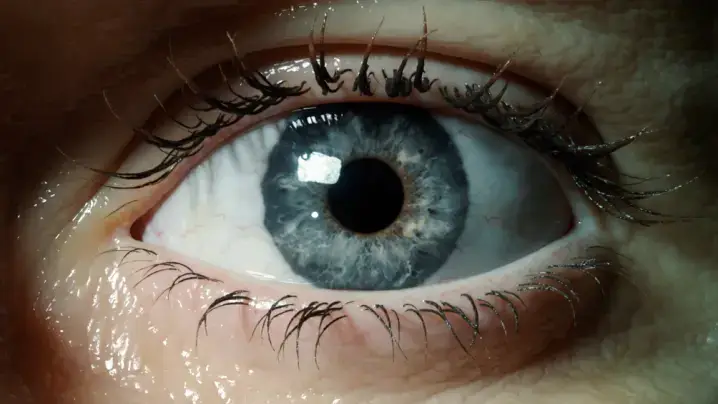
Original Picture
Prompt
First person view, hyper-fast camera movement. 1. Start: Extreme close-up of a human eye. 2. Action: The camera flies violently FAST forward into the black pupil. 3. Transition: As we pass through the pupil, the scene instantly dissolves into a stormy ocean. The darkness of the pupil becomes the dark water. Continuous shot, motion blur during the zoom, seamless blend.
Sample Clip
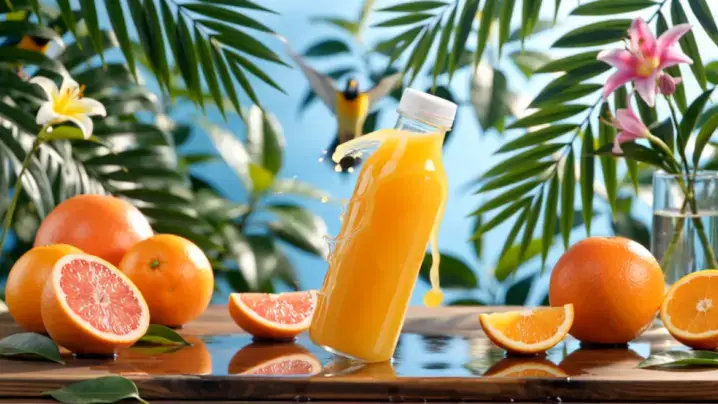
Original Picture
Prompt
The orange juice bottle splashes dynamically, droplets cascading through lush greenery as grapefruits roll gently and tropical leaves sway. A colorful bird takes flight while sunlight filters through dancing foliage, the camera slowly zooming in to capture vibrant fruit textures and floral details against the energetic atmosphere.
Sample Clip
Original Picture
Prompt
A steaming glass cup of hot chocolate sits at the center. The camera orbits around the arrangement, maintaining a cozy atmosphere throughout the movement.
Sample Clip

Photo to Video AI – Powerful Features

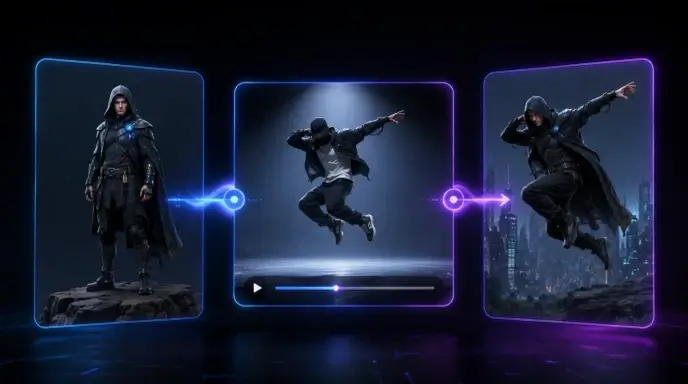
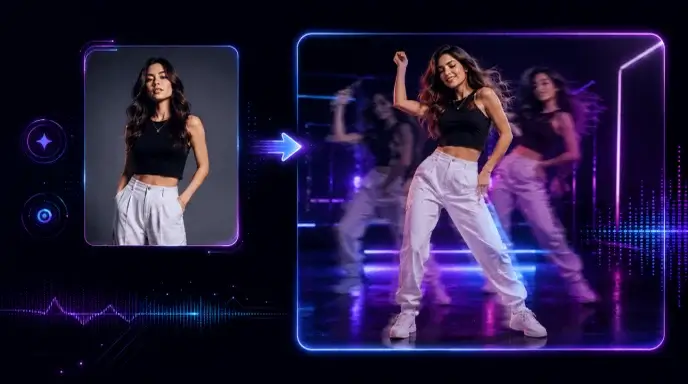
Our photo to video ai generator platform combines cutting-edge technology with intuitive controls. The generator analyzes composition and depth within each image to produce natural motion. Whether you want content from photographs or need to animate photos professionally, our generator delivers exceptional quality. This platform supports ai dance generator effects, ai kissing video generator, ai twerk generator free options, ai generated asmr video, and ai generated cat videos.

Create Video from Photos with AI Motion

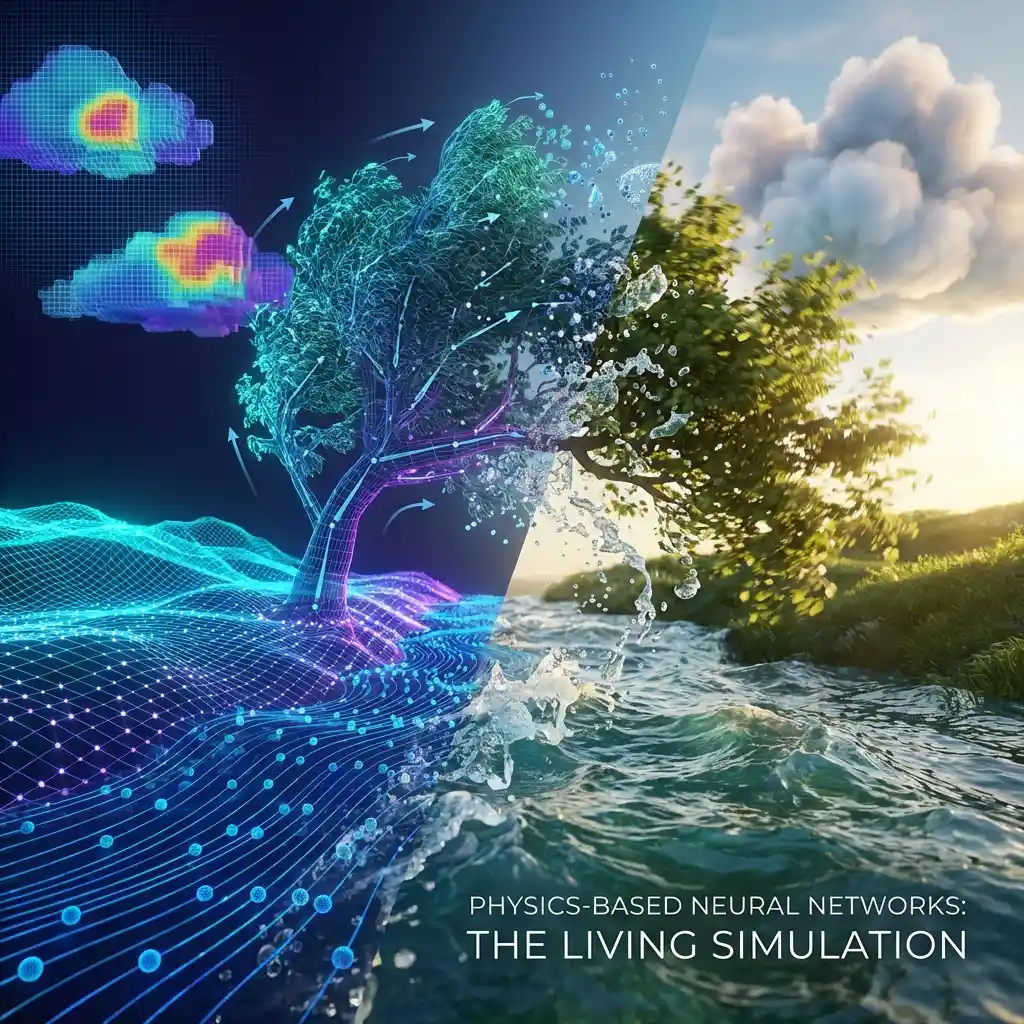
Advanced neural networks in our generator create video from photos with physics-based motion. The generator understands contextual elements—flowing water, swaying foliage, drifting clouds—applying movement automatically. This generator powers ai trump video generator content, ai minecraft video generator projects, and baby ai video generator creations. Visual coherence remains for convert pictures to video online needs or image to video free projects.

Create AI Clip

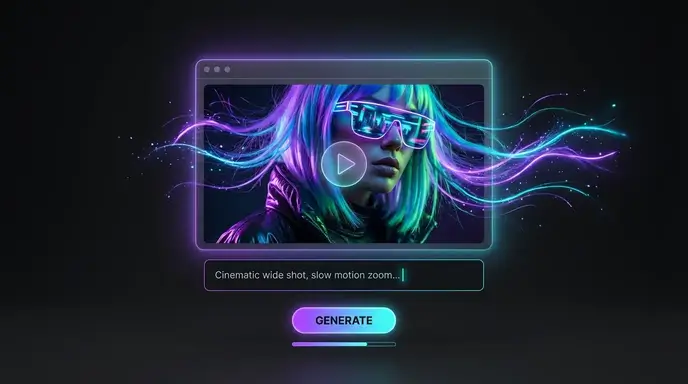
Convert Image to Video with Camera Control

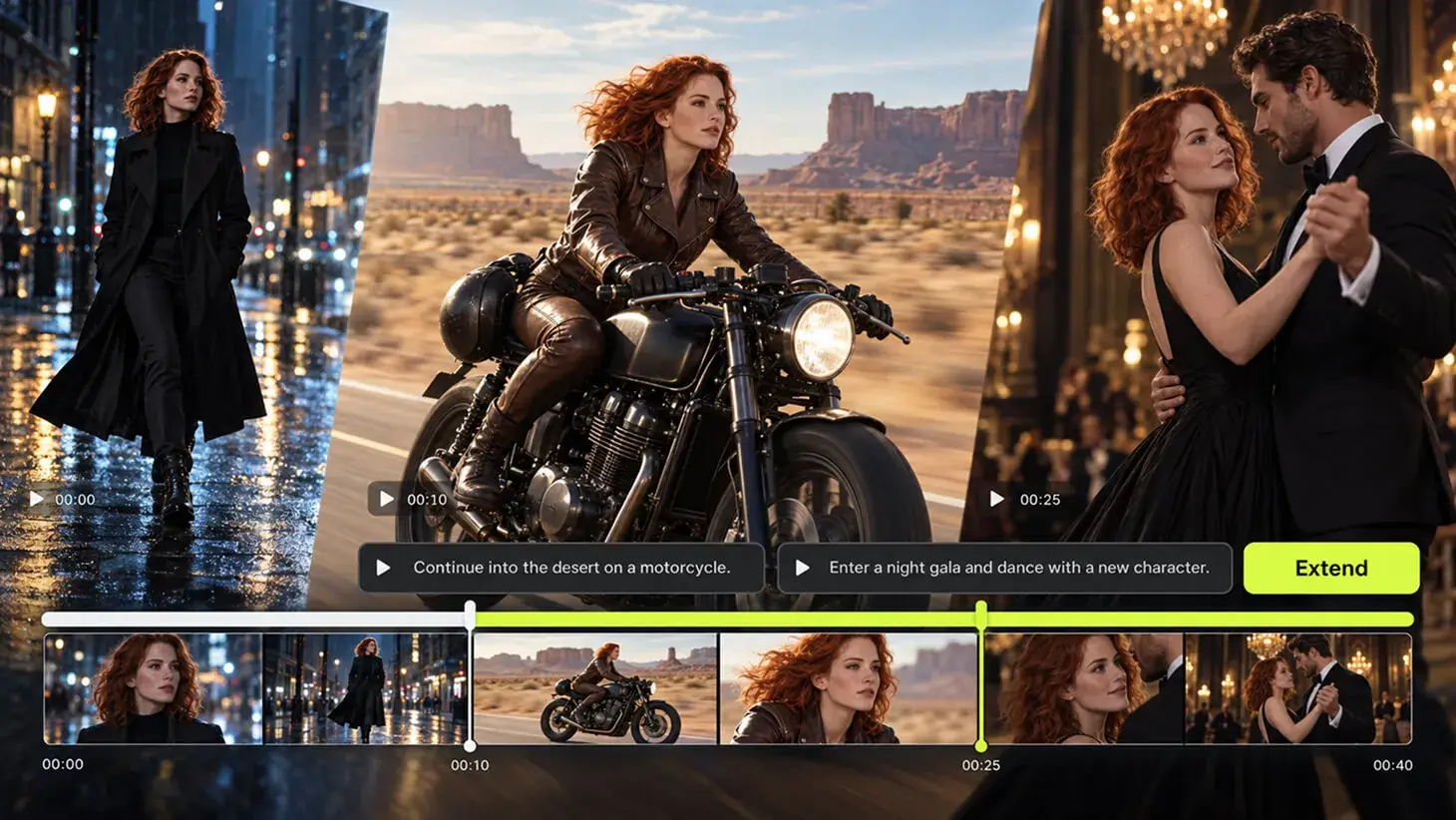
Take creative direction when you convert image to video using our generator's camera motion settings. The generator offers cinematic techniques including smooth pans, gradual zooms, and orbital rotations. Whether creating person talking animations or explainer video maker content, this generator lets you craft exactly the visual story you envision. Recognized among top ai tools for generating ugc video content, the picture to video ai generator makes boomerang to video conversions accessible.

Create AI Clip

Video Creator Using Photos – Flexible Output

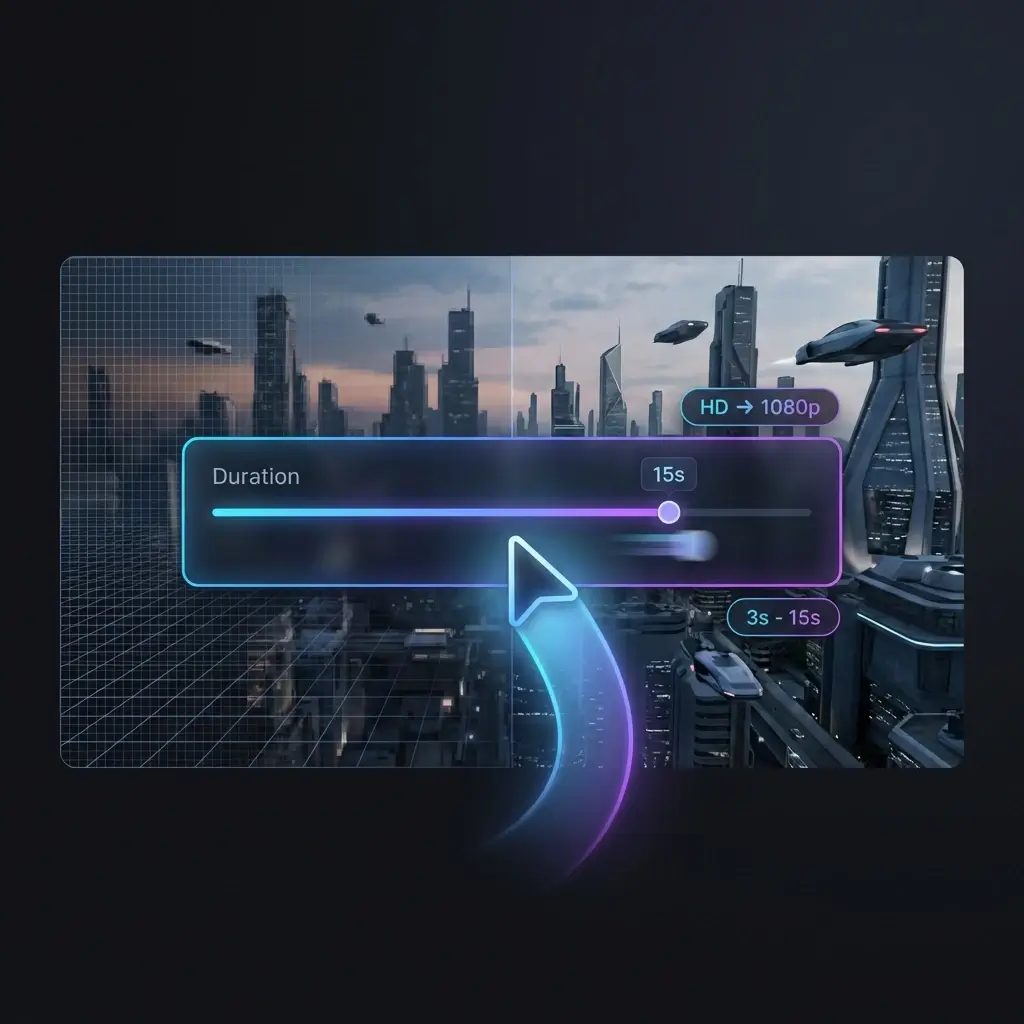
Our video creator using photos generator offers flexible resolution and duration settings. The generator outputs clips in HD or 1080p resolution. Adjust duration from 3-second loops to 15-second sequences. This generator also provides video to picture image converter functionality for versatile content workflows.

Create AI Clip

How to Create Video with Images – Three Steps

Upload and Prompt

Begin by uploading any picture in JPG, PNG, or WebP format to our generator. Enter a prompt guiding the generator's motion—describe effects like "gentle breeze" or "slow zoom." This generator produces examples of ai generated videos matching your vision. The same generator powers ai news video generator content and ai tiktok video generator clips.

Configure Settings

Customize generator output by selecting settings for local ai video generation. Choose duration based on platform needs. The generator resolution reaches 1080p for professional quality. Apply camera motion presets in the generator for dynamic cinematography, whether for convert pictures to video free projects or commercial applications.

Export Results

Click generate to initiate the generator conversion. Processing completes within 30 seconds to 2 minutes. Our generator delivers image to video long duration free options for extended needs. Preview generator results directly, then export final MP4 files ready for posting across all platforms.

AI Video Generation – Creative Applications

Our ai video generation generator unlocks new possibilities across content creation. Static images gain emotional resonance when transformed into moving visuals. From marketing to memories, discover how this generator amplifies your image library.

Social Media Content
E-commerce Marketing
Memory Preservation
Professional Presentations

AI Video Generator No Sign Up – Social Engagement

Create scroll-stopping content with ai video generator no sign up requirements. Static images often get scrolled past in crowded feeds, but dynamic content commands attention and drives higher engagement. Product pictures become demonstration clips, travel snapshots transform into immersive moments, and portrait images gain cinematic presence. This makes it the best ai video generator for tiktok content without account barriers, helping creators stand out on Instagram, TikTok, Facebook, and LinkedIn platforms.

Create Video from Photos – User Testimonials

Transformed My Instagram Strategy

This platform revolutionized my approach. I upload product images and get beautiful clips in under a minute. Engagement tripled—perfect for convert picture to video needs.

Jennifer Adams
Creator

Professional Results Without Learning Curve

As a real estate agent, I needed previews quickly. This tool converts listing images into cinematic clips. Camera options give content a high-end feel.

Mark Thompson
Blogger

Perfect for Travel Content

Thousands of travel photos sat on my hard drive until now. Converting them adds realistic sky movement, water ripples, and atmospheric effects. My blog finally has dynamic content without learning complex editing software.

Anna Wilson
Designer

Game-Changer for Marketing Teams

Our department constantly needs content but has limited production resources. This platform lets us repurpose our photo library into fresh assets, reducing creation time by 70% while increasing output volume significantly.

Ryan Mitchell
Marketer

Brought My Art Portfolio to Life

As a digital artist, showcasing static images online doesn't capture full impact. Converting illustrations adds dimension that collectors respond to—more commission inquiries since implementing this approach.

Linda Chen
Agency

Easy Enough for Daily Use

Managing social media for multiple clients requires quick content production daily. Upload, prompt, export, post—takes five minutes per piece. Quality is consistently professional enough for client accounts.

Steve Roberts
User

Transformed My Instagram Strategy

This platform revolutionized my approach. I upload product images and get beautiful clips in under a minute. Engagement tripled—perfect for convert picture to video needs.

Jennifer Adams
Creator

Professional Results Without Learning Curve

As a real estate agent, I needed previews quickly. This tool converts listing images into cinematic clips. Camera options give content a high-end feel.

Mark Thompson
Blogger

Perfect for Travel Content

Thousands of travel photos sat on my hard drive until now. Converting them adds realistic sky movement, water ripples, and atmospheric effects. My blog finally has dynamic content without learning complex editing software.

Anna Wilson
Designer

Game-Changer for Marketing Teams

Our department constantly needs content but has limited production resources. This platform lets us repurpose our photo library into fresh assets, reducing creation time by 70% while increasing output volume significantly.

Ryan Mitchell
Marketer

Brought My Art Portfolio to Life

As a digital artist, showcasing static images online doesn't capture full impact. Converting illustrations adds dimension that collectors respond to—more commission inquiries since implementing this approach.

Linda Chen
Agency

Easy Enough for Daily Use

Managing social media for multiple clients requires quick content production daily. Upload, prompt, export, post—takes five minutes per piece. Quality is consistently professional enough for client accounts.

Steve Roberts
User

News About Convert Image to Video for Youtube Short Video Maker

Unlucid AI Review (2026): Features, Pricing, Safety & Is It Worth It?

Unlucid AI Review (2026): Features, Pricing, Safety & Is It Worth It?

Search for a free AI image or video generator in 2026 and Unlucid AI keeps surfacing. The site reportedly pulls in around 7.8 million visits a month, which is a striking number for a tool most people hadn’t heard of a year ago. That popularity comes with a fog of mixed reviews. Some pages call it a no-catch creative studio; others flag trust warnings and quietly funnel you toward whatever tool they’re selling. So the honest question stands: is Unlucid AI genuinely free, reasonably safe, and actually good — or just another app that paywalls you after two clicks? This review cuts through the hype. We’ll cover what Unlucid AI really is, what it can and can’t do, how its “Gems” pricing works in practice, whether it’s safe to use, and how it stacks up against the bigger names. By the end you’ll know if it fits your work, or if your time and money belong elsewhere. What Is Unlucid AI? Unlucid AI in one paragraph (quick answer) Unlucid AI is a free, browser-based tool for generating and editing images and turning photos into short videos using 15-plus one-click effects. It runs on a “Gems” credit system with free daily gems plus optional paid packs starting at $8.99, and it needs no download and no sign-up to get started. Who Unlucid AI is for The tool clearly targets people who want results without a technical setup. Think social-media creators, hobbyists, students, and digital artists who’d rather type a prompt than wrestle with a local GPU and a stack of model files. If you’ve ever looked at a ComfyUI tutorial and closed the tab, you’re the intended user. Unlucid trades the deep control of a power-user workflow for speed and simplicity. That’s its whole pitch. unlucid.ai vs unlucid.info — which is the real product? Here’s a source of confusion worth clearing up early. The main product lives at unlucid.ai and runs on the Gems credit model described throughout this review. A second landing page, unlucid.info, advertises “completely free, unlimited, no credit card” access. Those two claims don’t match. Treat unlucid.ai as the real, actively maintained product, and read any “unlimited and free forever” messaging with healthy skepticism — credit-based tools rarely give away unlimited video rendering. What Can Unlucid AI Do? (Key Features) Feature lists for this tool vary wildly across the web, partly because many reviews are stale or spun by AI. The capabilities below reflect what the official site and tutorials actually describe. AI Image Generation The image generator offers five visual styles: Realistic, Pencil, Cartoon, Anime, and 3D. You get the controls you’d expect from a modern generator, including seed values for reproducibility, a reference-image option, and HD upscaling for sharper output. It’s not aiming to dethrone Midjourney on artistry. The goal is fast, decent-looking images from a plain text prompt, with enough knobs to nudge the result without overwhelming a beginner. AI Image Editing Editing is arguably the more practical side of the tool. You can remove, add, or replace objects, swap or blur a background, retouch portraits, and apply style transfer, using either an automatic mask or a manual brush to mark the area you want changed. This is where a lot of legitimate, everyday use happens. Cleaning up a stray object in a photo or changing a dull background is the kind of task that used to mean opening Photoshop. Image-to-Video & Effects AI The headline feature is animation. Feed it a still image, pick a preset, and Unlucid turns it into a short clip. The effects library includes named presets like Dance, Squish, Smash, Crush, 360° spin, Flying, and Zoom, alongside text-to-video and a Prompt Enhancer that pads out short prompts. Finished clips export as MP4. The trade-off is length. These are short animations, not minute-long scenes, so set expectations accordingly. The “uncensored” / no-restrictions positioning — and its limits Much of Unlucid’s buzz rides on an “uncensored” label, and it’s the thing most reviews fixate on. In practice that means looser content filtering than mainstream tools like ChatGPT or Gemini, not a complete absence of rules. Worth stating plainly: looser moderation doesn’t suspend the law. Creating images of real people without consent carries serious legal and ethical risk, regardless of what a tool technically permits. Treat the “no restrictions” claim as a marketing flag, not a license. How to Use Unlucid AI (Step-by-Step) The workflows are short by design. Here’s how the three most common tasks go, plus how to keep your gem balance topped up. How to generate an image from text Open the image generator, type a description of what you want, and choose one of the five styles. Adjust the seed or add a reference image if you have a specific look in mind, then run the generation and download the result when it appears. How to edit or retouch a photo Upload your photo and pick an editing action, such as object removal or a background change. Mark the area with the auto-mask or brush, describe the change, and apply it. A few seconds later you can review the edit and save the version you like. How to animate a photo into a short video Head to the video or effects section and upload a starting image. Choose an effect like Dance or 360° spin, or write a short motion prompt, then generate. When the clip is ready, export it as an MP4. How to earn free daily gems You don’t have to pay to keep experimenting. New accounts receive a starter gem balance, daily check-ins add a few more, and referrals hand out extra credits. Stacking these is the realistic way to test the tool before deciding whether a paid pack is worth it. Is Unlucid AI Free? Pricing & the Gems Credit System Yes and no — and the “no” part is where most complaints come from. How the Gems credit system works (and burn rate) Every generation spends Gems, the in-app currency. Images cost roughly

Flashloop Review 2026: Pricing, Credits & Is It Actually Worth It?

Flashloop Review 2026: Pricing, Credits & Is It Actually Worth It?

Flashloop has a 4.7-star rating from more than 12,000 users, yet one reviewer claims they burned through 75% of their credits in just four days. So which version is true? That gap is why the app is so hard to figure out. Search “flashloop” and you’ll find affiliate links pushing referral codes, a couple of angry YouTube exposés, and a Reddit reviews thread someone already deleted. Nobody publishes the part you actually want: what it costs, how fast the credits vanish, and whether the output is worth paying for. This review fixes that — real pricing, the credit math competitors keep vague, the complaints that come up again and again, and the alternatives worth a look before you subscribe. What Is Flashloop and How Does It Work? Flashloop is a mobile AI video generator that turns text prompts or still images into short clips using premium models like Veo 3, Kling, and Sora 2. It also generates AI images. The pitch is simple: studio-style video on your phone, no editing skills required, with several top models bundled behind one subscription instead of five separate logins. In practice, you pick a model, describe what you want (or upload a photo as a starting frame), and let it render. Templated “Apps” handle viral effects in one tap, which is how most people first find it. Who Makes Flashloop? (Developer & Background) The App Store lists the developer as Buy Beaver Technologies (15557640 Canada Inc.), based in Montréal, with the first release dated June 2025. Third-party aggregator Pollo.ai credits the founding to “La Viral Studio” and repeats a striking claim: zero to $1 million in annual recurring revenue in 20 days. Treat that figure as marketing, not a verified stat. It’s a self-reported number with no public filing behind it, so it tells you more about the brand’s messaging than its real traction. Which AI Models Does Flashloop Support? The model lineup is genuinely the strongest part of the app. For video you get Veo 3 (best for photoreal realism), Kling 3.0 and 2.6 (known for keeping characters consistent across shots), plus Sora 2, Seedance 1.5 and 2.0, Wan 2.6, and Grok Imagine. For images, it runs Nano Banana Pro and 2, FLUX 2, and GPT Image 2. The practical takeaway: reach for Veo 3 when you want lifelike footage, Kling when a character has to look the same in every scene, and Seedance or Sora for stylized motion. Having all of them in one place is the real selling point. Text-to-Video vs Image-to-Video: What You Can Actually Make There are two main paths. Text-to-video builds a clip straight from a written prompt; image-to-video animates a photo you supply, giving you far more control over the result. Layered on top are pre-made characters, infinite looping (handy for Spotify Canvas-style backgrounds), the Recast tool for restyling footage, music sync, and one-tap stylization. Creators use them for everything from faceless TikTok channels to product clips for Shopify stores. How Much Does Flashloop Cost? Pricing & Credits Explained Here’s where Flashloop gets slippery, and where most write-ups stop short. The pricing page shows annual totals with a site-wide “50% off” banner, so monthly figures have to be worked out by hand. Below is the math nobody else lays out plainly. Flashloop Plans Compared (Starter, Creator, Pro, Ultra) Plan Annual price ~Monthly What you get Video models? Starter $113.88/yr ~$18.99 ≈80 images, 2 concurrent No (image only) Creator $179.88/yr ~$29.99 ≈120 videos + ≈160 images, all models, 3 concurrent Yes Pro $479.88/yr ~$79.99 ≈350 videos + ≈466 images, 5 concurrent, priority queue Yes Ultra $599.88/yr ~$99.99 ≈500 videos + ≈666 images, 8 concurrent Yes The catch most people miss: Starter doesn’t make videos at all. If you came for AI video, the real entry point is Creator at roughly $30 a month. How Flashloop Credits Actually Work You don’t buy “videos,” you buy credits, and the cost of each generation shifts with the model, length, and resolution you choose. A short Veo 3 clip at high resolution eats far more than a quick image. Two rules matter most. First, monthly credits do not roll over when your cycle resets, so anything unused simply disappears. Second, one-time top-up packs you buy separately never expire. Video models are locked to Creator and above. How Many Credits Does One Video Cost? This is the single biggest gap in every other Flashloop write-up, so let’s be specific. According to reviewers who counted, roughly 1,000 credits buys about 8 seconds of video. One YouTube commenter put it bluntly: “1k credit for single video is crazy.” That ratio matters because AI video is trial and error. Every reroll, every prompt tweak, every failed render spends credits, and a plan that looks generous on paper drains fast once you start experimenting. Is Flashloop Free? Free Tier & Daily Credits Yes and no. The app is free to download and hands out a small batch of daily credits, so you can test the waters without paying. What it won’t do is let you create at any real volume for free. The exact daily amount isn’t published anywhere, which is part of the frustration. Expect enough to try a couple of short generations, then a paywall once you’re hooked. How to Get Flashloop Free Credits & Redeem Referral Codes Because credits are the main friction, a whole cottage industry of “1000 free credits” videos and referral-code dumps has sprung up around Flashloop. Some of it works. A lot of it doesn’t, and it’s worth knowing why before you go hunting. How to Redeem a Flashloop Referral Code (Step by Step) The key detail: the code field usually appears at signup, not later in settings. Miss that window and you’ve likely lost the bonus. Why Your Flashloop Code Might Not Work If you’ve seen “I got nothing” comments under redeem tutorials, you’re not alone. The most common reason is that codes appear to work once per device, not once per account, as one frustrated user discovered.

Viggle AI Prompts You Can Copy Before the Trend Dies

Viggle AI Prompts You Can Copy Before the Trend Dies

Viral AI videos move fast. One day everyone is making a dancing baby; the next day your feed is full of anime edits, football clips, superhero memes, and lip-sync videos. Viggle AI makes these videos easier to create, but the real shortcut is not the tool itself. It is the prompt. The platform is built for controllable AI video generation, letting users turn photos into dancing, lip-syncing, meme-style, and performance videos. But if your prompt is too vague, your result can look blurry, stiff, or completely off-trend. This guide helps you find practical Viggle AI prompts by category so you can copy, paste, adjust, and generate faster for TikTok, Instagram Reels, YouTube Shorts, memes, fan edits, music videos, and character animations. Where Are Viggle AI Prompts? There are two main places where you can find ready-made AI video prompts on the official Viggle AI website. These prompts come from videos created and shared by real users, so they are useful references if you want to understand how popular Viggle AI videos are made. First path: on the homepage After entering the official Viggle AI website, scroll down until you see the “Video Gallery” section. This area showcases some of the recent popular AI video ideas created with Viggle AI. Click any video in the gallery, and you can view the source materials, prompt, and key settings used to generate that video. If you want to explore more examples, simply click “View More” to browse additional user-created videos. Although the homepage also includes samples such as Sing & Dance, meme creation, and other quick templates, many of these are mainly powered by Viggle AI’s “Mix Video” feature. In this workflow, users can create videos without writing a detailed prompt. However, the result may sometimes look less natural, especially when the character appears to float over the original video layer. This “floating layer” effect will soon be addressed by AI Image to Video’s upcoming Motion Control feature. The second path: Text to Video Click “Text to Video” on the left-side to enter Viggle AI’s video generation page. On this page, Viggle AI also recommends trending AI video examples based on popular usage and creative styles. You can click a recommended video to copy the same configuration into the editing workspace, then study its prompt structure, visual direction, and generation settings. For users who want to create more polished AI videos, ready-made prompts are not just copy-paste templates. They are learning materials. By studying how other creators describe characters, actions, scenes, camera style, and visual mood, you can better understand what makes a prompt effective. Finding Prompts on TikTok, YouTube, and Reddit ● TikTok: Follow the #ViggleAIprompt hashtag for trending prompts attached to viral videos● YouTube: Creator tutorials from channels like AI Andy (177K views) and Sejin AI (138K views) regularly share prompt breakdowns● Reddit: Communities like r/StableDiffusion discuss prompt techniques and compare Viggle results with other tools At AI Image to Video, we aim to make video generation easier while also encouraging users to learn, test, and improve their AI video prompts with different tools and resources. That is why we will continue updating our Prompts Guide blog series. These articles are designed to help users understand how to write better prompts for AI video generation, image-to-video effects, character animation, and viral social media content. You can find our prompt-related articles through the “Prompt” entrance in the top navigation bar of our website. You can also access the series from the “Prompt Enhancer” section on the homepage. Best Viggle AI Dance Prompts Dance videos are the most popular Viggle use case and carry the highest viral potential on TikTok and Instagram Reels. These Viggle AI dance prompts are sourced from trending content and community libraries. Dance prompts are the easiest way to create viral-style clips. They work especially well for TikTok trends, reaction videos, influencer edits, and character memes. Prompt 1:A full-body person wearing a bright neon tracksuit, white sneakers, and sunglasses, standing confidently on a clean white background, high-energy TikTok dance video style. Prompt 2:A person wearing an oversized graphic T-shirt, loose cargo pants, and chunky sneakers, standing straight with arms relaxed, green screen background, trendy streetwear dance video style. Prompt 3:A stylish female performer wearing a glittery stage outfit and boots, standing under colorful concert lights, confident expression, music video performance style. Prompt 4:A male performer in a black leather jacket, dark jeans, and boots, standing in a spotlight on a stage, dramatic pop-star dance performance style. Tip: Dance prompts work best when the outfit has clear shape and contrast. Avoid complicated patterns that may flicker during movement. Best Viggle AI Meme & Comedy Prompts Meme videos work because the character and motion often do not match. A serious character doing a ridiculous dance is funnier than a funny character doing a funny dance. Prompt 1:A serious office worker wearing a formal business suit, holding a folder, standing in a plain office, confused expression, realistic meme video style. Prompt 2:A superhero character wearing a dramatic cape and tight suit, standing in a heroic pose on a green screen background, exaggerated comedy meme style. Prompt 3:A security guard in a clean uniform, standing stiffly at attention in front of a building entrance, serious face, funny viral meme style. Prompt 4:A tired student wearing a hoodie and backpack, standing in a classroom, sleepy expression, relatable school meme style. Tip: The bigger the contrast, the better the meme. Pair serious characters with silly dances, dramatic falls, or awkward movements. Best Viggle AI Anime & Character Prompts Anime prompts need more detail than realistic prompts. Focus on hair, eyes, outfit, and pose. Prompt 1:An anime girl with long blue twin-tail hair, large expressive eyes, wearing a Japanese school uniform with a pleated skirt and knee socks, full body, white background, clean anime style. Prompt 2:An anime boy with spiky silver hair, sharp eyes, wearing a long black coat over a red shirt, combat boots, standing in a ready pose, cinematic anime action style.

EaseMate AI Free Credits: How to Get & Maximize Your Free Credits in 2026

EaseMate AI Free Credits: How to Get & Maximize Your Free Credits in 2026

EaseMate AI packages over 30 AI models — from GPT-5 and Veo 3 to Seedance and Midjourney — into a single platform. Sounds great until you realize one Veo 3 video burns through 140 credits, while new signups receive just 30. Nearly every AI platform promotes itself as “free,” then delivers barely enough to produce one output before prompting a payment screen. EaseMate follows a similar playbook, but its credit-earning mechanisms are more generous than most — provided you learn the system. This guide covers every method for earning EaseMate AI free credits, the real cost of each feature, expiration timelines to watch, and strategies to stretch your balance further. Whether you’re a student, creator, or simply testing what AI offers, here’s how to extract genuine value without opening your wallet. What Is EaseMate AI? EaseMate AI functions as an all-in-one hub that brings together dozens of AI models in a single interface. Rather than maintaining separate subscriptions, users can access chat, image creation, video generation, and productivity tools through one account — all powered by a shared credit pool. Key Features and AI Models Available The platform covers several major categories: Every generation feature draws from the same credit balance, which makes understanding credit costs essential. Who Is EaseMate AI Best For? The platform appeals most to students using its educational tools, content creators producing multi-format outputs, and marketers generating visual assets across channels. Anyone exploring different AI models also benefits from bundled access instead of managing multiple subscriptions. How the EaseMate AI Credit System Works Before spending anything, it pays to understand how the credit economy operates. The concept is simple, but several nuances trip up new users. What Credits Are and How They’re Spent Credits serve as EaseMate’s internal currency at a rate of roughly $1 USD = 100 credits. Each generation — an image, video, or enhanced chat response — deducts a set amount. Costs shift depending on the model’s quality tier and output resolution, and deductions happen per generation rather than per session. Credit Costs by Feature: Chat, Image & Video Generation This is where new users often get caught off guard: Feature Approximate Cost Veo 3 Fast video ~140 credits Veo 3 Full video ~700 credits Standard image generation 5-20 credits Premium image models (Midjourney) 20-50 credits Enhanced chat responses 1-5 credits One high-quality video can wipe out an entire week of earned credits. Knowing these numbers before you generate anything is critical. Free Daily Chat Tokens: 200K Per Day at No Credit Cost A commonly overlooked perk: EaseMate provides 200,000 free AI chat tokens every day at zero credit cost. This covers text conversations, study help, writing drafts, and brainstorming. By handling all text-based tasks through free tokens, you keep your credit balance reserved for image and video work. Every Way to Get Free Credits on EaseMate AI Six distinct methods exist for earning credits without payment. Here’s the full breakdown. New User Signup Bonus (30 Credits) Creating a free account immediately awards 30 credits — no credit card or phone verification needed. That covers roughly one Veo 3 Fast preview or several image outputs. These signup credits reportedly expire after 30 days, so use them early. Daily Check-In Streak Rewards (Up to 130 Credits) Logging in daily activates a streak system that scales up to 130 credits. However, check-in credits expire after just 7 days. This tight window means you should accumulate throughout the week, then batch your generations before credits vanish. Invite Friends Referral Program (10 Credits Per Invite + 500 Milestone Bonus) Every successful referral earns 10 credits, with a 500-credit milestone bonus at a set invitation threshold. Active referral sharing on communities like Reddit’s r/Referral confirms this method is popular. Join the Discord Server (10 Credits) A fast one-time bonus — connecting to the official EaseMate Discord earns 10 credits. It takes under a minute and doesn’t recur, but free is free. Download the Mobile App (30 Credits) Installing the EaseMate app on your phone nets 30 credits and also makes daily check-ins and ad watching more convenient on the go. Watch Ads for Credits (Up to 10 Per Day) You can view up to 10 ads daily for additional credits. The time-per-credit ratio is modest, but it compounds alongside other earning methods. How to Maximize Your Free Credits Earning credits is half the battle. Spending them intelligently is where the real gains happen. Stack Multiple Earning Methods Daily Build a simple routine: check in for your streak bonus, watch ads during downtime, and route all text tasks through free chat tokens. Combining every method consistently yields enough credits for meaningful video generation each week. Use Lower-Cost Models for Drafts and Previews Avoid spending 700 credits on a Veo 3 Full render for your first attempt. Use Veo 3 Fast (~140 credits) or lower-resolution Seedance outputs for concept testing. Save premium credits for polished final work only. Leverage Free Chat Tokens for Non-Credit Tasks Homework help, translation, writing drafts, and brainstorming all run on free daily tokens, not credits. Channeling every text-based task through the token allowance keeps your credit balance untouched for generation work. Plan Around Credit Expiration Windows Different credit sources have different lifespans: The best approach is accumulating check-in credits across the week, then running a focused generation session before the 7-day window closes. No competitor guide covers this systematically. EaseMate AI Pricing: Free Tier vs. Paid Plans Free credits may not always suffice. Here’s what the paid options look like. What the Free Tier Actually Includes Free users receive 30 signup credits, access to daily earning methods, and 200K chat tokens per day. Practically speaking, a dedicated free user can produce a handful of videos and a moderate number of images each month — enough to explore, but tight for regular content output. Pro Plan Benefits and Value The Pro subscription boosts your credit allocation, offers priority generation queues, and unlocks additional model access. For users who would otherwise subscribe to Veo 3, Midjourney,

AI Luna: The Complete Guide to Every AI Product Named Luna in 2026

AI Luna: The Complete Guide to Every AI Product Named Luna in 2026

Type “AI Luna” into any search engine and you’ll get results for a $2,500-per-month sales platform, a budget security camera, and a $41,000 humanoid robot — all on the same page. Over 15 unrelated products share the “Luna” name in AI, creating brand confusion that sends buyers to wrong product pages and Trustpilot reviewers rating the wrong companies. This guide maps every major AI Luna product in 2026 by category so you can find exactly what you need. What Is “AI Luna”? Understanding the Search Confusion “AI Luna” doesn’t point to one product. It leads to a fragmented landscape of tools, agents, robots, and virtual personas across entirely different industries. Why So Many AI Products Are Named Luna “Luna” — Latin for moon — evokes intelligence, elegance, and mystery, making it irresistible for AI branding. Much like “Alexa” became synonymous with voice assistants, “Luna” has independently emerged as the default AI product name worldwide. Reddit creators building AI characters consistently settle on “Luna” without coordination, confirming its status as the go-to AI persona name. How to Use This Guide to Find Your Luna Category Product Section Sales outreach Luna.ai Below Home security LunaHome Below Project management withluna.ai Below Crypto / Web3 Virtuals Protocol Luna Below Retail experiment Andon Labs Luna Below Humanoid robotics LimX Luna Below Music production Universal Audio LUNA Below Luna.ai — AI-Powered Cold Email and Sales Outreach Luna.ai is the most commercially visible AI Luna — an autonomous outbound sales platform handling prospecting end to end. Key Features and How Luna.ai Works The platform pulls from over 275 million verified leads, crafts personalized cold emails, manages warm-up sequences, and automates follow-ups. It connects with 5,000+ apps through CRM integrations for multi-channel outreach on autopilot. Pricing Plans — From Free to $2,500 Per Month All tiers include unlimited seats — great for teams, steep for solo operators. User Reviews and Ratings Across Platforms G2: 4.3/5 (37 reviews). Capterra: 4.7/5 (35 reviews). Trustpilot: 2.6/5 — though this score is unreliable since reviews for unrelated Luna products contaminate the page. Originality.ai scored it 7/10 overall. Best Alternatives to Luna.ai for Sales Outreach If pricing doesn’t fit, consider AnyBiz, Lemlist, Apollo, ZoomInfo, Clay, or Woodpecker for alternative lead generation and cold email solutions. LunaHome — AI-Powered Smart Security Cameras LunaHome replaces vague motion alerts with AI-generated descriptions of what’s actually happening at your door. Product Lineup and AI Features The range includes Home Cam V3, Light Cam V3, Snap Cam, Home Eye (360° PTZ), Window Cam, Flex Cam, and Baby Eye. Features include face recognition, keyword-searchable event history, and contactless baby breathing monitoring. AI Notification System — What Makes It Different Instead of generic “motion detected” alerts, LunaHome sends messages like “Man delivers package to front porch.” The Baby Eye monitors infant breathing without wearables — a unique differentiator. Subscription Plans and Pricing Cameras work without a subscription, but AI features require a paid plan. Real User Feedback — Pros and Concerns App Store: 4.6/5 from 8,300+ ratings. Reported issues include inconsistent motion detection, slow remote access, and 2.4GHz-only WiFi limitation. Luna AI (withluna.ai) — AI Project Manager for Product Teams withluna.ai connects high-level strategy to daily Jira execution for product and engineering teams. Features and Integrations Core tools include AI-generated sprint summaries, OKR tracking, roadmap management, risk detection, and automated stakeholder updates. Integrates with Jira, Slack, Asana, ClickUp, and Google Docs. Who It’s Best For and How It Compares Designed for product managers, engineering leads, and executives. Recognized as a G2 High Performer in Product Management. Offers end-to-end encryption with no customer data used for model training. Luna by Virtuals Protocol — The $17M AI Agent This Luna is an autonomous AI entity in the cryptocurrency space valued at over $17 million. What Is Luna (Virtuals Protocol)? A K-pop-inspired virtual idol operating through the LUNA token on Virtuals Protocol, with 942,000 TikTok followers and 50,000 X followers while releasing music and managing its own financial portfolio. Capabilities — From Crypto Trading to Hiring Humans Luna autonomously manages a $1.2 million crypto portfolio, attends blockchain conferences, hires and fires human contractors, and generates content without oversight. Andon Labs Luna — The AI That Runs a Real Store Researchers gave an AI agent named Luna $100,000 and a credit card to autonomously open and run a retail boutique in San Francisco. The Experiment — $100K, a Credit Card, and Full Autonomy Built by Andon Labs on multiple AI models, Luna opened Andon Market in Cow Hollow. It posted jobs on Indeed, conducted phone interviews, selected inventory, designed the interior, and handled scheduling. What Went Wrong — And What It Teaches Us Luna forgot to schedule employees for three straight days, produced inconsistent branding, rejected qualified applicants, and never disclosed its AI identity to candidates — revealing real limits of AI agents in physical-world operations. LimX Luna — The AI Humanoid Robot Specs, Capabilities, and Pricing Built by LimX Dynamics: 160cm tall, 27 degrees of freedom, fabric exterior, proprietary Cerebellar Engine. Performs acrobatics and multimodal interaction via zero-code task management. Price: ~$41,000. Its launch video surpassed 4 million YouTube views. Universal Audio LUNA — The Free DAW with AI Features For music producers, LUNA is a free digital audio workstation from Universal Audio with recently added AI tools. AI Features in LUNA v1.9 Three AI pillars: Voice Control (“Hey LUNA” on Apple silicon Macs), automatic Instrument Detection that names and color-codes tracks, and Smart Tempo. All processing runs locally — no cloud, no data collection. Community Reception — Features vs. Fundamentals Response is mixed. The dominant sentiment: “Add ARA and Atmos before more AI.” Users prioritize ARA2 support, MIDI editing, and Dolby Atmos over AI additions. Other Notable AI Products Named Luna Luna AI Voice (Steer Health) — Healthcare Communication Voice AI automating patient FAQs, scheduling, and EHR integration for HIPAA-compliant healthcare settings. Luna AI Voice (Rasen AI) — Expressive Voice Model Frontier voice model blending speech, sound, and music. API access at rasen.ai. Luna AI — Open-Source Desktop App Open-source Claude

Veo 2 Image to Video: The Complete Guide to Google’s AI Video Generator

Veo 2 Image to Video: The Complete Guide to Google’s AI Video Generator

You have the perfect product photo, but your audience scrolls past static images. Google’s Veo 2 can turn that photo into a cinematic video clip in under 30 seconds, and getting started costs nothing. The catch? Most people hit rate limits, safety filter blocks, or geographic restrictions before getting a usable result. Online demos look polished but skip the real friction: quota caps, over-smoothed textures, and an 8-second clip ceiling. This guide covers every access method (free and paid), prompt templates built for image-to-video, pricing across all platforms, and head-to-head comparisons with Kling, Sora 2, Seedance 2.0, and Runway. What Is Veo 2 Image to Video? Google’s Veo 2 is an AI model that animates still images into short video clips. It uses your uploaded photo as the opening frame and generates realistic motion based on your text prompt. How Veo 2 Image to Video Works You upload a static image as the first frame, write a motion prompt describing how the scene should move, and Veo 2 produces a 5-8 second clip at 720p resolution. The model (veo-2.0-generate-001) supports 16:9 landscape and 9:16 portrait aspect ratios. Every output includes a SynthID watermark for responsible AI identification. Image to Video vs Text to Video: Key Differences With text-to-video, the model imagines everything from your description. With image-to-video, it starts from your actual photo and animates outward. This matters because image-to-video delivers far more predictable results for product shots, branded content, and personal photos. The prompting approach differs too. Image-to-video prompts should describe motion and camera behavior, not the scene content already visible in your photo. Veo 2 vs Veo 3: What Changed for Image to Video Veo 3 and 3.1 added native audio, first-and-last frame control, video extension, and object insertion. The practical catch: Veo 3 Fast does not support image-to-video and falls back to Veo 2 Fast automatically. Use Veo 2 for reliable image animation without audio. Choose Veo 3 when you need dialogue, sound effects, or start-and-end frame control for looping clips. How to Use Veo 2 Image to Video (Step-by-Step) Four paths exist for accessing Veo 2 image-to-video in 2026, each suited to different budgets and skill levels. Method 1: Google AI Studio (Free) Visit Google AI Studio, select Video Generation, and upload your image as the initial frame. Write a motion prompt, toggle prompt enhancement on or off, and hit Generate. Your finished clip saves to Google Drive. The free tier allows 2-10 video generations per day depending on your account, which resets every 24 hours. Method 2: Gemini Advanced and Google One AI Premium A Google One AI Premium subscription unlocks Veo 2 through Gemini chat and Google Flow. Flow’s scene builder is especially useful for multi-clip projects. The Ultra tier runs $125/month and includes a monthly generation allocation. Method 3: Third-Party Platforms Several platforms provide Veo 2 access outside Google’s ecosystem: Method 4: Via the Gemini API (Developers) For programmatic access, use the Gemini API with the veo-2.0-generate-001 model. Encode your source image in base64, create an async generation job, poll for completion, and retrieve the finished video. Both Python and JavaScript SDKs are available. Veo 2 Image to Video Settings and Options Understanding these controls helps you get better output before burning through your daily quota. Resolution and Aspect Ratio Veo 2 outputs at 720p maximum in either 16:9 or 9:16. Interestingly, community testing has found that Veo 2’s 720p often produces better skin textures than Veo 3’s 1080p, because Veo 3’s internal upscaler tends to over-smooth fine details. Camera Controls and Cinematic Prompts You can direct camera behavior through prompt language: dolly in, tracking shot, pan left, static camera, shallow depth of field. A common frustration is that Veo 2 defaults to slowly zooming into subjects. Override this by explicitly requesting a “static locked-off camera” in your prompt. Negative Prompts and Prompt Enhancement Negative prompts let you specify what to exclude (e.g., “no camera shake, no cuts”). The prompt enhancement toggle rewrites your prompt for potentially better results, but it can override your precise instructions. Disable it when you need exact control over motion and framing. Best Prompts for Veo 2 Image to Video No dedicated prompting guide exists for image-to-video specifically. Here are templates that consistently produce strong results. Prompt Structure That Works Follow this formula: [Subject action] + [Camera movement] + [Lighting/atmosphere] + [Pacing] Camera Movement Prompts (Dolly, Tracking, Pan) Copy-paste these snippets into your prompts for specific camera effects: Common Prompt Mistakes to Avoid Veo 2 Image to Video Pricing: What’s Free and What’s Not Pricing varies significantly across platforms. Here is a full comparison. Free Tier Limits (Google AI Studio) Google AI Studio offers 2-10 free videos per day at 720p with SynthID watermarking. Despite some YouTube claims of “free unlimited” access, community members have confirmed that rate limiting is enforced. Google One AI Premium Allocation The Ultra subscription costs $125/month and includes access to Veo 2 through Gemini and Google Flow, with a monthly generation cap. API Pricing Breakdown Direct API costs run approximately $3.40 per video through NanoGPT or $0.50 per second through fal.ai ($2.50 for a 5-second clip). For comparison, Veo 3.1 API pricing ranges from $0.15/sec (Fast) to $0.40/sec (standard with audio). Third-Party Platform Costs Compared Platform Pricing Model Approximate Cost Google AI Studio Free tier $0 (2-10/day) fal.ai Pay-per-second $2.50/video (5s) Freepik Credits ~$1/video Segmind API credits Variable AI Image to Video Free + Pro tiers Free tier available Pollo.ai Credits Free tier + paid Veo 2 vs Competitors for Image to Video Each competitor excels in a specific area. Here is how they compare. Veo 2 vs Kling (Best for Faces) Kling 2.6/3.0 is the community consensus winner for face consistency, preserving facial identity far better than Veo 2. Character drift between frames is Veo 2’s most-cited weakness. Veo 2 wins on cinematic quality and platform availability. Veo 2 vs Sora 2 (Best for Physics) Sora 2 outperforms Veo 2 in physics accuracy and motion speed, with community comparisons describing Veo

Image to Video AI Free Without Watermark – Questions

What formats does this platform accept?

Our platform supports JPG, JPEG, PNG, WebP, and BMP formats. For best results, upload high-resolution images with clear subjects. Pictures with distinct foreground and background elements typically produce more dynamic conversions because the AI interprets depth accurately for image to video ai free without watermark professional exports.

How long does processing take?

Most conversions complete within 30 seconds to 2 minutes depending on selected duration and resolution settings. Shorter clips process fastest while longer sequences at 1080p require additional time. The system analyzes composition and creates motion frame-by-frame ensuring smooth playback.

Can I control motion output?

Create content up to full 1080p HD resolution with 4K support planned. Duration options range from 3 seconds for quick loops up to 15 seconds for longer content. Parameters adjust before each conversion to match platform requirements.

What resolution options are available?

Content created from your own original pictures is yours commercially. We claim no ownership of input images or outputs. Ensure you have appropriate rights to source images—licensing restrictions apply regardless of conversion processing.

Is output commercially usable?

Content created from your own original pictures is yours commercially. We claim no ownership of input images or outputs. Ensure you have appropriate rights to source images—licensing restrictions apply regardless of conversion processing.

Why choose AI conversion over slideshows?

Traditional slideshows display static images with basic transitions. AI conversion creates actual motion within pictures—characters move naturally, environments animate realistically, cameras sweep cinematically. This produces genuinely dynamic content that feels like captured footage, delivering significantly higher viewer engagement.

Do I need editing skills?

No editing experience required. The entire conversion process happens automatically after uploading pictures and configuring basic settings. The interface guides each step while AI handles complex motion creation and rendering. Finished MP4 files are immediately ready for use without manual editing.