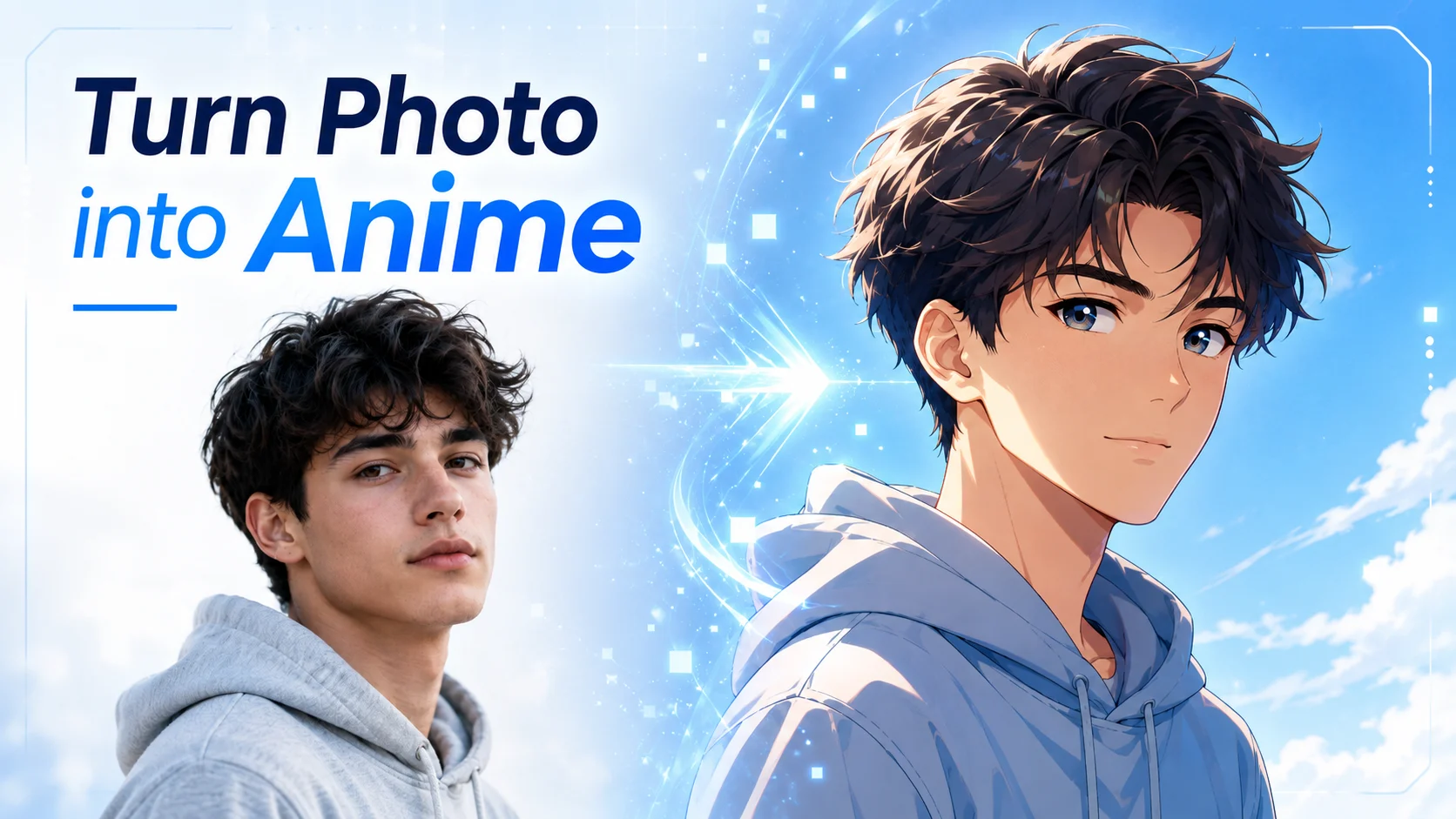
Anime selfies are everywhere — and making one is easier than most people think. Whether you want a fun profile picture, an anime version of your pet, or a creative couple portrait, all you need is a photo and the right tool.
The problem is that most guides just push a single product without telling you what actually works. Many tools slap on watermarks, require signups, or spit out a generic anime face that looks nothing like you.
This guide walks you through the easiest free methods to turn any photo into anime, the most popular anime styles to try, and practical tips to get a result that actually resembles you. We’ll also cover how to animate your anime photo into a short video. Note: this article is about converting existing photos into anime art — if you want to create an original anime character from scratch, that’s a different process entirely.
How to Turn Your Photo into Anime (3 Easy Methods)
Here are three beginner-friendly ways to convert a photo into anime, ranked from quickest to most flexible.
Method 1 — Use a Free Online Anime Converter
The fastest path is a free online converter. Upload your photo, pick a style, and download — often without creating an account.
- Anifun — 30+ anime styles, completely free, no signup required.
- Fotor — 9 distinct styles including Ghibli, Chibi, and Cyberpunk.
- BeautyPlus — Free with no watermarks, works well on mobile.
These tools handle selfies, couple photos, and pet photos without any learning curve.
Method 2 — Use ChatGPT or Google Gemini with a Prompt
AI chatbots like ChatGPT and Google Gemini can turn photos into anime when you upload an image and describe the style you want. This gives you much more creative control over the result.
Try a prompt like this:
“Turn this photo into Studio Ghibli anime style. Keep my facial features, hair color, and clothing accurate.”
Or go for something more specific:
“Convert this photo into 1990s retro anime style with cel-shading and warm tones.”
Results may need a couple of prompt tweaks, but detailed descriptions produce noticeably better output.
Method 3 — Use Canva’s Anime Filter
Canva has a built-in anime conversion feature through its Animeify app. Open Canva, upload your photo, apply the effect, and download. It’s a solid option if you also want to use the anime photo in a design — like a social media post, avatar, or card.
Popular Anime Styles to Try on Your Photos
Not all anime art looks the same. Here are the most popular styles people request — and what to ask for in your prompt.
Studio Ghibli Style
Soft watercolor-like colors, gentle facial features, and dreamy painted backgrounds — think Spirited Away or My Neighbor Totoro. This is the most requested anime style across the board. Prompt tip: mention “Studio Ghibli” and “painterly, warm lighting.”
Classic Japanese Anime & Shonen Style
Bold outlines, vibrant colors, large expressive eyes, and dynamic shading. This is the look of Dragon Ball, Naruto, and Jujutsu Kaisen. It works great for action-oriented or energetic portraits.
Chibi & Kawaii Style
Oversized heads, tiny bodies, and adorable simplified features. Chibi is perfect for fun profile pictures, stickers, and pet photos. Prompt tip: say “chibi style with cute proportions.”
Manga (Black & White) Style
Black-and-white ink linework with screentone shading, like a page from a manga book. It’s a unique look that really stands out on social media.
More Styles to Explore
- Cyberpunk anime — Neon lighting, futuristic details, dark moody backgrounds.
- 1980s/90s retro anime — Grainy and nostalgic, inspired by Akira and classic OVAs.
- Webtoon/Korean style — Soft shading, realistic proportions, romance-comic aesthetic.
- 3D anime — Polished and dimensional, similar to modern anime game art.
Tips to Make Your Anime Photo Actually Look Like You
The biggest complaint people have with anime converters is that the result looks like a random anime character — not them. Here’s how to improve your results.
Choose the Right Source Photo
Your input photo matters more than the tool you use. For the best likeness:
- Use a well-lit, front-facing photo with a clear view of your face.
- Avoid sunglasses, hats, or anything covering your features.
- Use a high-resolution image — blurry or tiny photos produce poor results.
- Keep the background simple so the AI focuses on you.
Fix Common Issues
- Wrong hair or skin color? Specify colors in the prompt (e.g., “brown hair, light skin”).
- Face looks generic? Try a closer crop and add “preserve my facial features” to the prompt.
- Image looks distorted? Use a higher-resolution source photo or a different tool.
- Too cartoonish? Switch to an anime-specific converter or adjust the style intensity if the tool allows it.
Turn Your Anime Photo into a Short Anime Video
Once you have an anime photo you like, you can take it a step further by animating it into a short video.
Why Animate Your Anime Photo
A moving anime portrait is far more eye-catching than a still image on TikTok, Instagram Reels, or a profile page. People use animated anime photos as social media content, couple portrait gifts, streaming avatars, and shareable pet tributes.
How to Turn an Anime Photo into Video (Step-by-Step)
- Start with your finished anime photo from any of the methods above.
- Upload it to an AI image-to-video tool like AI Image to Video.
- Choose motion settings — movement amount, camera direction, and video duration.
- Generate and download your anime video in high quality (up to 4K, no watermark).
No video editing skills needed. The process takes just seconds.
FAQs About Turning Photos into Anime
Is there a free photo-to-anime converter with no watermark?
Yes. Anifun, BeautyPlus, and AIEnhancer all offer free conversion with no watermark and no signup. ChatGPT also produces watermark-free anime images on its free tier.
Can I turn my photo into anime using ChatGPT?
Yes. Upload your photo and use a prompt like “Turn this photo into Japanese anime style, keeping my facial features accurate.” More detailed prompts give better results.
Why doesn’t my anime photo look like me?
Common causes are low-quality source photos, obstructed features (sunglasses, hats), and tools that prioritize style over likeness. Use a well-lit, front-facing photo and add “preserve my facial features” to your prompt.
Can I convert couple photos or group photos to anime?
Yes, but results are less reliable with multiple people — faces can merge or lose individual features. For best results, convert each person separately and combine them, or try Media.io, which handles couple photos well.
Can I turn my pet’s photo into anime?
Most converters work with pet photos, though results vary since many tools are trained on human faces. ChatGPT handles pets well — try “Turn this photo of my dog into a Studio Ghibli character.” Chibi style tends to work especially well for pets.
Is it safe to upload my photo to an AI anime tool?
Reputable tools like Anifun, BeautyPlus, and Fotor state they delete uploaded photos within 24 hours and use SSL encryption. For extra privacy, use ChatGPT or a local tool like Stable Diffusion. Avoid unknown tools without a published privacy policy.
Can I turn my anime photo into a video?
Yes. Upload your anime image to an AI image-to-video tool like AI Image to Video to add motion and animation. You can generate high-quality anime videos from still images in seconds, no editing skills needed.
Got your anime photo ready? Take it further — turn it into a short anime video with AI Image to Video and share it on social media.