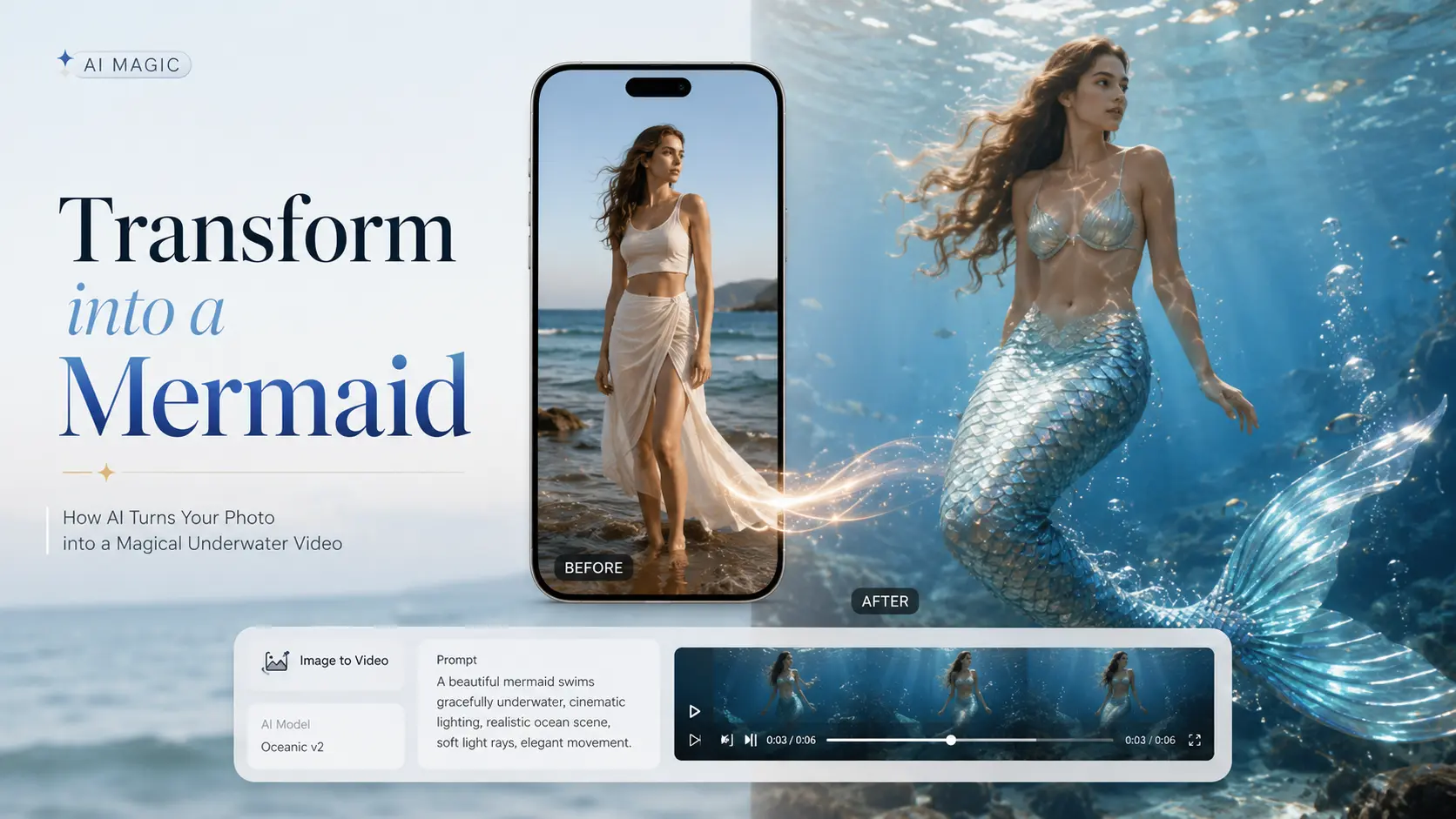
Create viral mermaid transformation videos with AI for free. Turn any photo into a stunning mermaid image or video with easy steps, prompts, and unlimited inspiration.
Want to recreate the viral mermaid transformation where legs turn into a shimmering tail? You’re in the right place.
This guide shows you how to transform into a mermaid with AI using just one photo. You’ll learn how to create a fantasy mermaid image, animate it into a TikTok- or Reels-ready transformation video, and fix common problems like fake-looking tails, visible legs, or awkward body changes.
No costume, pool, or editing skills are needed. Just upload a clear photo, use one of the copy-paste prompts below, and create your mermaid transformation in minutes.
How to Transform Into a Mermaid With AI
The easiest way to create a believable mermaid transformation is to make the mermaid image first, then animate it into a short video.
Step 1: Choose a Clear Photo
Use a full-body or waist-up photo with:
- A clearly visible face and body
- Simple clothing and a clean background
- Natural lighting
- Legs that are not crossed or hidden
A clear source photo helps the AI preserve your face while replacing your legs with a realistic mermaid tail.
Step 2: Turn Your Photo Into a Mermaid Image
Upload your photo to an AI image generator and describe the tail, colors, setting, and lighting you want.
Try this prompt:
Transform the person into a beautiful mermaid while preserving the original face, hairstyle, pose, and body proportions. Replace the legs with one realistic iridescent mermaid tail covered in detailed scales. Create a smooth, natural transition from the waist to the tail, cinematic underwater lighting, flowing hair, fantasy ocean background, highly detailed, realistic photography.
This gives you a polished mermaid portrait that can be used as a profile picture, cosplay reference, or starting frame for a video.
Step 3: Animate the Mermaid Transformation
Upload the original photo or generated mermaid image to an image-to-video tool. Use a prompt that clearly describes the transformation instead of only asking the AI to add a tail.
The person’s legs gradually shimmer and transform into one long mermaid tail. Iridescent scales spread smoothly from the waist downward, the feet merge naturally into a flowing tail fin, hair moves gently in the water, magical particles and soft blue light surround the transformation, smooth cinematic motion, consistent face and body.
For a viral TikTok or Instagram reveal, keep the clip short and make the leg-to-tail transformation the main visual moment.
Step 4: Fix Fake-Looking Results
When the first result looks wrong, adjust the prompt based on the problem:
- Legs are still visible: Add “legs completely merge into one mermaid tail.”
- Two tails appear: Add “one single tail, no extra limbs or fins.”
- The face changes: Add “preserve the exact facial identity throughout the video.”
- The tail looks pasted on: Add “smooth anatomical transition from the waist into the tail.”
- The transformation is too fast: Add “slow, gradual transformation over the full video.”
Best AI Mermaid Prompts and Style Ideas
Good prompts are the difference between repeatable magic and random guesses. Use the formula below, then grab a ready-made style.
A simple prompt formula that works
Build every prompt from the same reusable template:
[subject] + [tail style & color] + [scales/skin detail] + [underwater lighting] + [background] + [mood]
Worked example you can copy and tweak:
“A young woman transforming into a mermaid, iridescent teal tail, fine scales blending up from her hips, soft caustic underwater light, deep blue ocean background, dreamy and magical mood.”
Swap the color, scale detail, or mood and you have a brand-new look in seconds.
Popular styles with copy-paste prompts
Use “inspired-by” wording rather than naming copyrighted characters. Copy, paste, adjust:
“…pearl-pink and lavender tail, delicate shimmering scales, gentle glowing light, calm pastel ocean, soft and ethereal.”
“…deep emerald-black tail, sharp metallic scales, moody low light, shadowy abyss background, mysterious and powerful.”
“…vivid green tail, smooth glossy scales, bright sun-dappled water, coral reef background, bold and storybook.”
“…holographic sequin tail, glittering scales, sparkling bokeh light, sunlit shallows, glamorous and dazzling.”
“…mid-transformation, water droplets, scales rippling down the legs, splash of light, dynamic and cinematic.”
Mermaid Transformation Ideas for TikTok and Reels
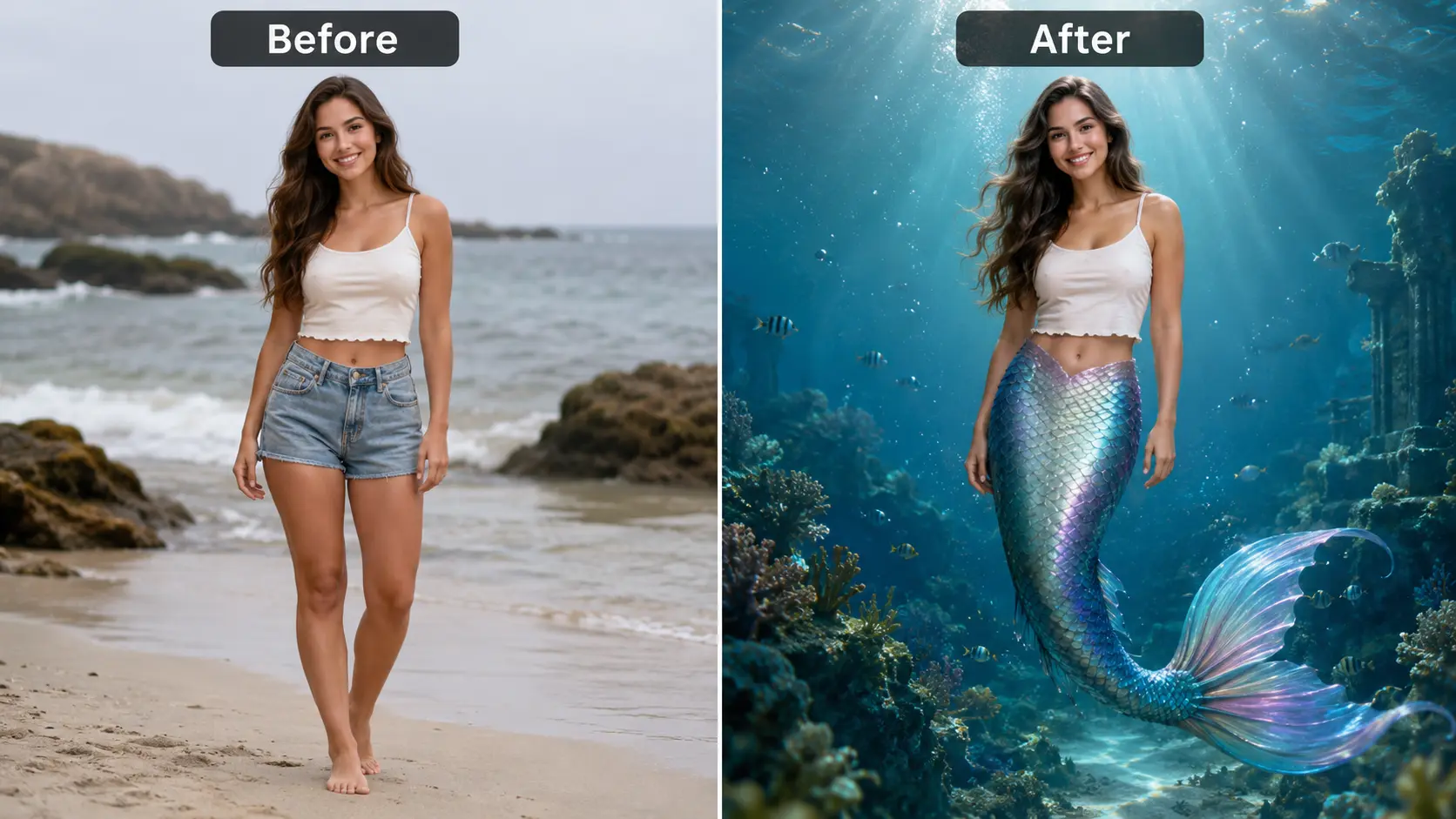
Once your AI mermaid transformation is ready, you can turn it into a short TikTok or Reel with a simple before-and-after format. Start with a casual selfie, beach photo, or everyday look, then cut directly to the finished mermaid version. The contrast between the normal photo and the fantasy result is usually the most important part of the video.
Water can also make the transition feel more natural. Use a clip of a wave, water splash, hand movement, camera cover, or quick jump cut to hide the switch between the original image and the mermaid transformation. You do not need a complicated edit—the change should happen quickly and remain easy to understand.
The visual style can match your account. Choose a bright, ethereal mermaid with glowing scales and soft underwater lighting, or create a darker siren look with deep colors, dramatic shadows, and a more mysterious atmosphere.
Keep the video short and let viewers see the final tail clearly. Add a trending ocean-inspired, fantasy, or cinematic sound that matches the mood. A simple caption such as “What would I look like as a mermaid?” can also encourage viewers to watch the full transformation and share their reaction.
AI Mermaid Transformation FAQs
Can AI turn me into a mermaid?
Yes. AI image and video tools can transform a regular photo into a mermaid by replacing the legs with a tail, adding scales, changing the background, and creating underwater lighting. A clear prompt helps the AI preserve your face while changing the rest of the scene.
Can I make a mermaid video from one photo?
Yes. An image-to-video generator can animate a single photo and create a short mermaid transformation video. You can make the legs gradually turn into a tail, add moving water, animate the hair, and create glowing scales without recording a real video.
What photo works best for an AI mermaid transformation?
Use a clear, high-quality photo with good lighting and a visible face. A full-body or seated photo usually works best because the AI can clearly see the waist and legs. Avoid crossed legs, oversized clothing, crowded backgrounds, or photos where part of the body is hidden.
How do I keep my face unchanged?
Add instructions such as “preserve the original face,” “maintain the same facial identity,” and “do not change the facial features” to your prompt. Starting with a sharp, front-facing photo also improves facial consistency. If the face still changes, reduce unnecessary movement and keep the video short.
Can I create an AI mermaid transformation for free?
Many AI tools offer free credits, trial generations, or limited free access. This is usually enough to test a mermaid image or short video, but higher-quality exports, longer videos, or additional generations may require credits or a paid plan. Check the tool’s current pricing and usage limits before generating.
Why does the AI keep generating two tails?
This usually happens because the AI interprets each leg as a separate tail. Add clear instructions such as “both legs merge into one single mermaid tail,” “one tail only,” and “no extra limbs.” A photo with both legs close together can also help the AI create a cleaner result.
Create Your AI Mermaid Transformation
Ready to see yourself as a mermaid? Upload a clear photo to AI Image to Video and turn it into a magical transformation video in minutes. Use the prompts above to create a realistic tail, smooth underwater motion, and a TikTok- or Reels-ready reveal.
Create Your Mermaid Video