
I’ll be blunt: most people fail at “viral baby videos” for one reason—they treat it like magic.
They upload a random photo, hit Generate, then act surprised when the baby’s arms melt, the face drifts, or the lip-sync looks like a bad dub. If you’ve watched creators pull millions of views with dancing babies or “baby podcast” clips, it’s not just luck. It’s inputs, constraints, and a repeatable workflow.
So let’s do this like a real operator: how an AI baby video generator actually works, what you should feed it, which platform fits which format—and the settings that reduce ugly artifacts.
What’s Really Happening When a Baby Starts “Dancing” or “Talking”?
Forget the buzzwords. In practice, most baby character video tools fall into two systems:
1) Motion Transfer (Dancing / Body Movement)
You give the model:
- a source image (the baby face/body you want)
- optionally a reference motion (a dance clip or movement guide)
The system tries to map motion patterns onto your static image. That mapping is where distortions happen—especially hands, elbows, and fast head turns.
Creator reality: the AI isn’t “animating a baby.” It’s generating plausible motion frame-by-frame while trying to preserve identity.
2) Audio-to-Face (Talking / Lip-Sync)
You give it:
- an audio track
- a face (image or video)
It breaks speech into phoneme-like chunks and generates mouth shapes + micro-expressions to match. The best results come when you limit head movement and keep the face fairly frontal.
Creator reality: great lip-sync isn’t about perfect mouths. It’s about stable eyes + consistent face geometry. If the eyes swim, people feel “uncanny” instantly.
How to Make AI Baby Videos
Most guides skip the part that matters: your source assets. If you’re wondering how to make AI baby videos without burning credits, this is the workflow I use.
Step A — Build a “Good Input Pack”
- 1 hero image: well-lit, front-facing, sharp eyes, minimal motion blur
- 1 backup image: similar angle, slightly different expression
- Optional: a short reference motion clip (for dance) or a clean voice track (for talking)
Pro Tip (input quality): If the face is small in frame, expect drift. Crop so the face takes up a meaningful portion of the image—but don’t cut off the chin.
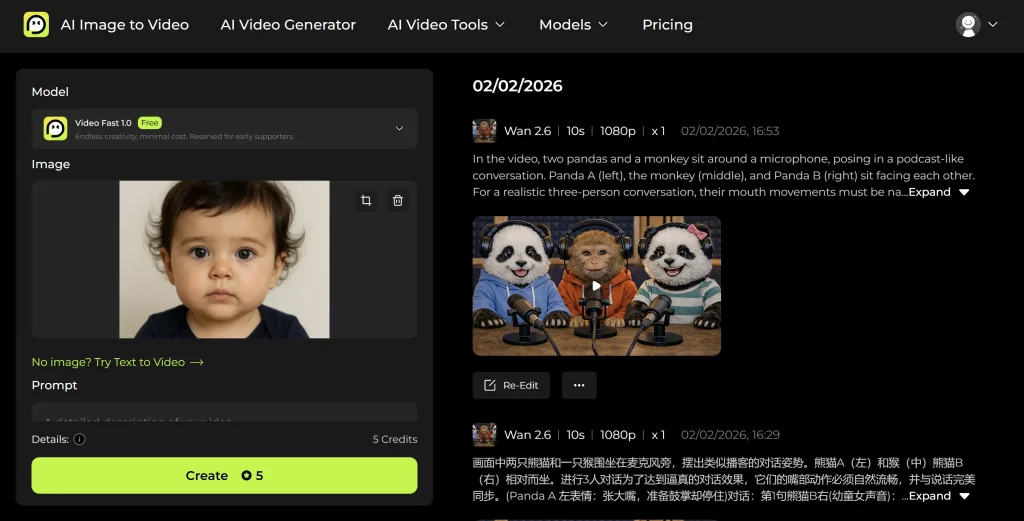
Step B — Generate in “Control Mode” First, Not “Beauty Mode”
Start with:
- lower motion intensity
- shorter duration (3–5s)
- fewer style prompts
You’re not trying to win an Oscar on gen #1—you’re confirming the model can hold identity.
Step C — Post-Edit Like a Viral Creator
Even clean output usually needs:
- captions (CapCut/Submagic style)
- punchy audio
- tighter pacing (remove dead frames)
Pro Tip (retention): If the first frame looks off, scrolls happen. I routinely generate 3–5 variations just to get a perfect first frame.
Which Content Type Wins Where?
Here’s what I’ve seen consistently:
- Dancing baby clips: best for TikTok/Reels (trending audio + instant novelty)
- Talking baby / baby podcast: best for series formats (YouTube Shorts especially) because it creates character continuity
- Baby face prediction: huge shareability for couples, but less scalable for creators unless you niche it (weddings, celebrity mashups)
Ask yourself: do you want one-off spikes (dance trend) or repeatable episodes (podcast style)?
Kling vs Hedra vs Veo 3 (Creator-Focused Comparison)
If you’re trying to pick a baby AI video maker, this is the comparison that matters in production—not feature checklists.
| Platform | Core Advantage | Visual Ceiling | Learning Curve | Recommended For | Rating |
| Kling | Strong motion transfer + controllable movement | High (when input is clean) | Medium | Dancing / body motion videos | ⭐⭐⭐⭐☆ |
| Hedra | Natural facial animation + lip-sync specialization | Medium–High (faces) | Low–Medium | Talking baby / podcast clips | ⭐⭐⭐⭐☆ |
| Veo 3 | Premium, cinematic coherence (better stability) | Very High | Medium–High | Polished Shorts / cinematic output | ⭐⭐⭐⭐⭐ |
My honest take:
- Want dance trends? Kling is the practical workhorse.
- Want talking heads? Hedra is more plug-and-play.
- Want the cleanest “premium” look? Veo 3 is spend money, save headaches.
Pro Tips From Testing (That Actually Save Credits)
Pro Tip #1: Use a High-Quality Reference for Motion
When I test motion-transfer workflows, cleaner reference footage produces fewer limb glitches—especially during fast arm swings. That’s why it’s easier to make baby AI videos that look stable when your reference is sharp and steady.
Pro Tip #2: Keep Motion Intensity Lower Than You Think
Start low/medium; increase only if identity stays stable.
Pro Tip #3: Talking Videos Need Calm Faces
Frontal face, even lighting, minimal head movement. Want realism? Stop making the baby “talk” and “dance” at the same time.
Pro Tip #4: Fix Drift by Reducing Competing Instructions
If your prompt stacks five styles, the model will sacrifice identity. Write like a director: one subject, one action, one environment, a few constraints.
Pro Tip #5: Shorter Clips Win (and Cost Less)
3–6 seconds often beats 10–15. Easier to loop, easier to cut to beats, cheaper to iterate.
Pricing Reality Check: “Free” Usually Means “Preview”
Free tiers often mean:
- 1–3 total generations
- watermark or lower resolution
- slow queue priority
So instead of asking “is it free,” ask: can I get enough usable output to post?
If you’re posting daily, you’ll land on paid or credits. The smart move is: test cheap with short clips, lock the workflow, scale after you have a repeatable format.
FAQ: What’s the Best Baby AI Video Generator for My Format?
Q: What’s the best baby AI video generator for dancing vs lip-sync?
A: For dance/motion transfer, Kling is usually the most controllable. For talking baby/podcast formats, Hedra tends to deliver more natural lip-sync.
Q: What image works best for an AI baby video maker?
A: Sharp eyes, clean lighting, front-facing angle, visible chin/cheeks. Low-res images almost always drift.
Final Advice: Pick One Format and Produce Like a Series
If you want growth (not random spikes), do this:
- Choose one repeatable format (dance memes or baby podcast episodes)
- Build a consistent character look
- Batch-generate 10–20 clips
- Post + iterate based on retention
Once you have that machine, your AI baby video maker becomes a production line, not a slot machine. And that’s when real growth starts.
Ready to make your first clip? Pick one format, generate short variations, and post the cleanest first frame today.
