
Whether you’re creating YouTube Shorts, TikTok content, or animated social posts, you’ll have the skills to transform any photo into motion.
What Is Grok AI Video Generator?
Grok Imagine is xAI’s AI-powered tool for creating videos from text prompts or existing images. It’s gained attention for its fast generation speed (typically under 15 seconds) and accessible free tier.
How to Grok AI Animate Photos with the Aurora Engine
Grok uses its proprietary Aurora engine to analyze your uploaded image and generate realistic motion. The AI interprets visual elements—faces, backgrounds, objects—and creates movement that feels natural.
The system supports three generation modes:
-
Normal: Standard content generation
-
Fun: More creative, playful outputs
-
Spicy: Less restricted content (availability varies by region)
Grok Video Generator: Key Features for Content Creators
Here’s what Grok offers:
-
Text-to-Video: Describe a scene, get a video
-
Image-to-Video (I2V): Animate existing photos
-
Audio Generation: Built-in sound effects, music, and voice capabilities
-
Multiple Aspect Ratios: 16:9, 9:16, 1:1, and 4:3
Current output specs include 5-6 second videos at 480p-1080p resolution, with 10-second clips announced.
Grok Imagine 2026: Supported Platforms and Accessibility
You can access Grok through:
| Platform | Experience |
| Web (grok.com) | Full features, best experience |
| iOS App | Good experience, some features lag behind web |
| Android App | More restricted due to Google Play Store policies |
Grok Imagine Tutorial: Getting Started with Image to Video
Let’s walk through creating your first AI video.
Step 1 – Setting Up Your Grok Account
Visit grok.com and sign up for an account. You can start with the free tier immediately—no credit card required.
Turn Image Into Video Grok: Step 2 – Uploading Your Image
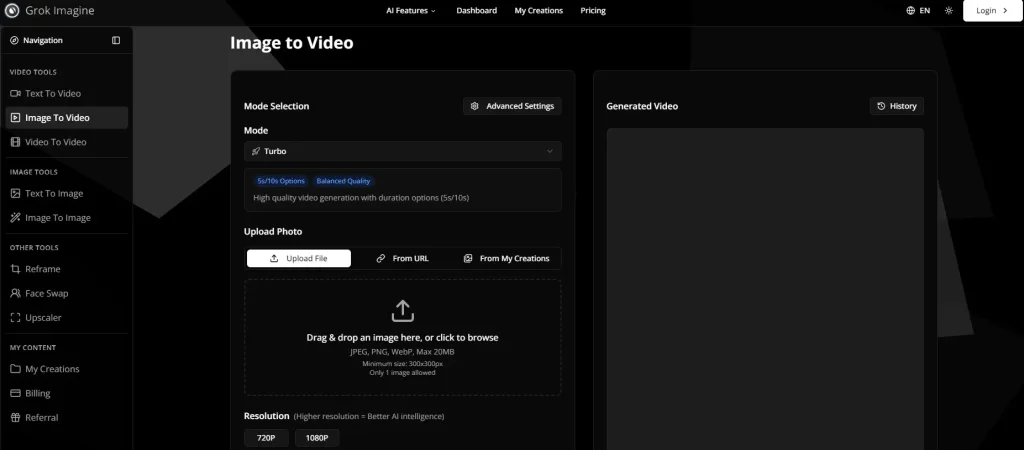
Click the image upload option and select your photo. For best results:
-
Use high-resolution source images
-
Vertical images tend to generate better quality videos
-
Avoid heavily compressed or blurry photos
Step 3 – Writing Effective Prompts
Your prompt guides the AI’s animation decisions. Power users recommend:
-
Start with “cinematic” for higher quality output
-
Keep prompts simple and direct (unlike other AI models that prefer detailed prompts)
-
Specify your desired aspect ratio upfront
-
Add “[no music]” if you want silent output
Example prompt: “Cinematic, slow zoom on subject, gentle wind movement, 16:9”
Step 4 – Generating and Downloading Your Video
Hit generate and wait approximately 15 seconds. Once complete, you can download directly or save to your Grok library.
Is Grok AI Image to Video Free? Understanding Pricing and Limits
This is where things get complicated. Grok advertises a free tier, but “free” comes with significant limitations.
Free Tier: What You Actually Get
The free tier provides approximately 3-5 videos per day—not unlimited as many users expect. Limits reset on a rolling 24-hour basis, not at midnight.
Premium Tiers Compared
| Tier | Daily Videos | Price |
| Free | ~3-5 | $0 |
| Premium | ~50 | $30/month |
| Premium+ | ~100 | Higher tier |
| SuperGrok Heavy | 500 | ~$300/month |
Is Grok Worth It for Serious Creators?
For casual experimentation, the free tier works. For serious content production, you’ll likely hit limits quickly.
If you need 4K resolution or watermark-free output, consider professional platforms like AI Image to Video that offer batch processing for high-volume needs.
Grok Image to Video Tips for Better Quality
The most common complaint about Grok? Blurry output. Here’s how to maximize quality.
Choosing the Right Source Image
Your output quality depends heavily on your input:
-
Vertical images generate the best resolution videos
-
Use the highest quality source image available
-
Avoid images with compression artifacts
Prompt Optimization for Clarity
Small prompt adjustments make big differences:
-
“Cinematic” triggers higher-quality rendering
-
Add specific character details for consistency
-
Use descriptive motion terms (slow zoom, gentle pan, subtle movement)
Aspect Ratio and Resolution Settings
Match your aspect ratio to your platform:
-
9:16: TikTok, Instagram Reels, YouTube Shorts
-
16:9: YouTube, standard video
-
1:1: Instagram feed, Facebook
How to Use Grok Imagine: Advanced Techniques for Content Creators
Ready to level up? These techniques separate beginners from power users.
The Last Frame Technique for Longer Videos
Grok’s 5-6 second limit frustrates many creators. Here’s the workaround:
-
Generate your first video clip
-
Copy the last frame from that video
-
Use that frame as input for your next video
-
Repeat to build longer sequences
This maintains visual consistency while extending your total duration.
Maintaining Character Consistency Across Clips
Faces changing between clips is a common pain point. To minimize this:
-
Use the same source image for related clips
-
Include detailed character descriptions in every prompt
-
Apply the last frame technique mentioned above
Professional Workflow Integration
Power users combine Grok with other tools:
-
ChatGPT: Write detailed scene prompts
-
ElevenLabs: Generate professional voiceovers
-
CapCut/DaVinci Resolve: Combine and edit clips
Common Grok Image to Video Issues and How to Fix Them
Every tool has quirks. Here’s how to handle Grok’s.
“Video Moderated” Error
Content moderation triggers can feel inconsistent. To avoid rejection:
-
Remove potentially flagged terms from prompts
-
Avoid generating content with real people
-
Try rephrasing with neutral language
Download Problems and Solutions
Can’t download your video? Try these fixes:
-
Use the web version instead of mobile apps
-
Right-click and “Save video as” if the download button fails
-
Check if the video finished generating completely
Daily Limit Reached: What Now?
When you hit your limit:
-
Wait for the 24-hour rolling reset
-
Consider upgrading your tier
-
Use alternative platforms like AI Image to Video for overflow work
Grok vs Other AI Video Generators
How does Grok stack up against competitors?
| Tool | Strengths | Weaknesses |
| Grok | Free tier, fast generation | Lower quality, short duration |
| Veo 3 (Google) | Higher quality I2V | Paid/limited access |
| Sora 2 (OpenAI) | Best quality, longer videos | Expensive, waitlist |
| Meta AI | Free, no daily limits | More limited features |
Grok’s position: A fast, free option where you trade quality for accessibility. For professional projects requiring higher resolution, platforms offering 4K output remain the better choice.
FAQs of Grok Image to Video
Is Grok image to video really free?
Yes, but with limits. You get approximately 3-5 free videos per day, not unlimited generation.
How many free videos can you make with Grok per day?
Free users typically get 3-5 videos daily on a rolling 24-hour reset.
Why are my Grok videos blurry?
Use high-resolution vertical source images, add “cinematic” to your prompt, and ensure you’re downloading at the highest available quality.
How do I make videos longer than 6 seconds?
Use the last frame technique: copy the final frame of each clip and use it as the starting image for your next generation.
What makes grok image to video different from competitors?
Grok image to video stands out for its speed and free tier access. While quality may be lower than premium alternatives, the fast generation time and zero cost entry point make it ideal for experimentation and quick content needs.
Conclusion
Grok image to video offers content creators a fast, accessible entry point into AI video generation. The free tier lets you experiment without commitment, while paid tiers unlock higher volume production.
The key limitations—short duration, variable quality, daily caps—are real but manageable with the techniques in this guide. For projects requiring 4K resolution or watermark-free professional output, complement Grok with dedicated platforms like AI Image to Video.
Start experimenting today: Upload an image, write a simple prompt, and see what grok image to video can create. The learning curve is gentle, and results come fast.
