
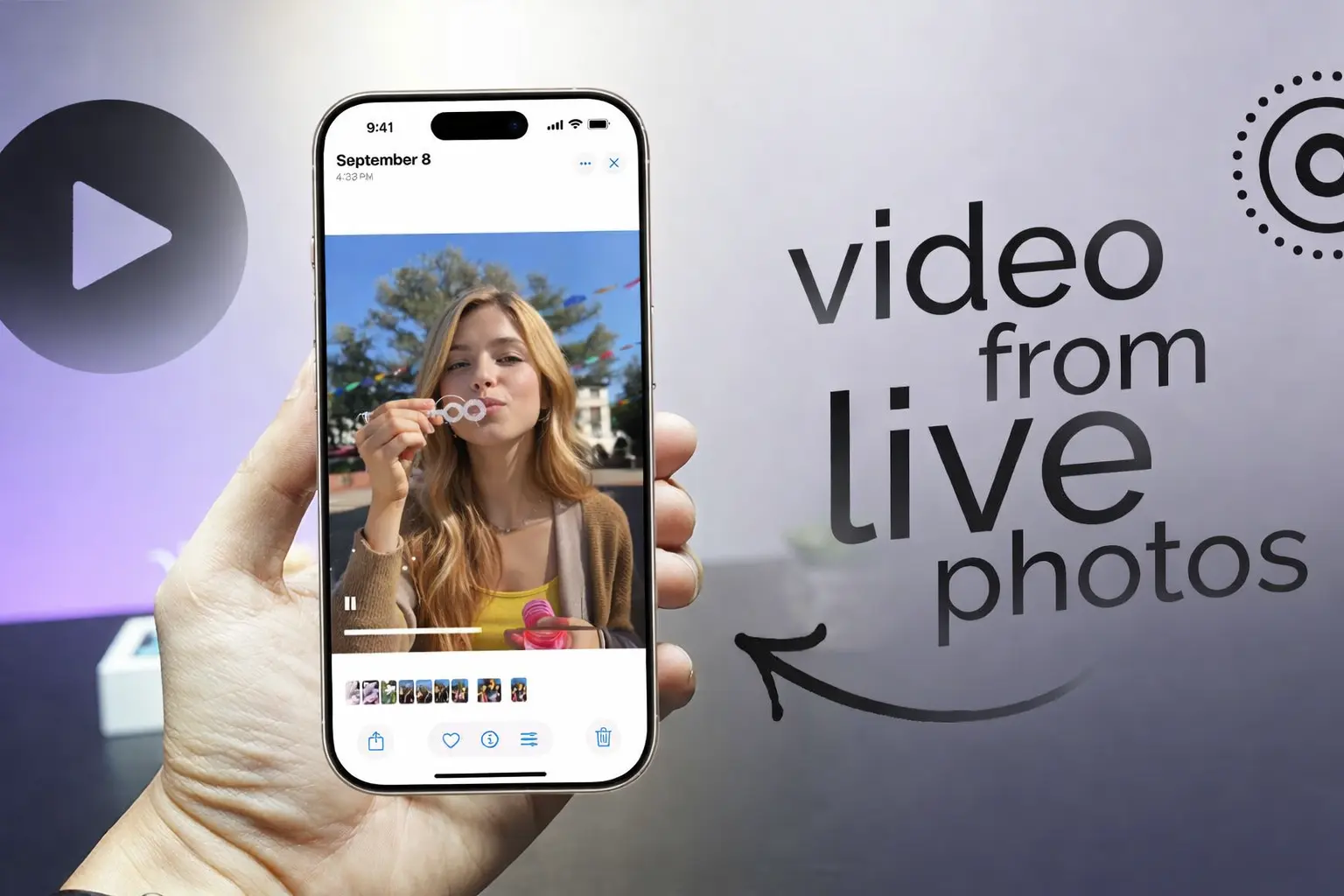
Live Photos capture magical moments with motion and sound—but here’s the catch: they won’t play on Android, don’t work on most social media platforms, and eat up 2-3x more storage than regular photos.
You’ve captured the perfect Live Photo moment, only to realize your Android friends can’t view it, Instagram won’t play it, and your iPhone storage is running critically low. Sound familiar?
This guide shows you every method to convert Live Photos to videos using native iOS features and the best third-party apps. Whether you need a quick one-off conversion or want to batch process thousands of Live Photos, you’ll find the perfect solution here.
What Is a Live Photo and Why Convert It to Video?
Before diving into conversion methods, let’s understand what you’re working with and why conversion matters.
How Live Photos Work on iPhone
A Live Photo isn’t just a still image—it’s a 12-megapixel photo combined with 1.5 seconds of video captured before and after you press the shutter. Technically, it’s stored as two files: an HEIC image file and a MOV video file bundled together.
This means every Live Photo captures approximately 3 seconds of motion with audio. The “live” effect plays when you long-press the image on your iPhone.
Why You Need to Convert Live Photos to Videos
There are several compelling reasons to convert:
- Social media compatibility: Instagram, TikTok, and YouTube Shorts don’t support Live Photo format natively
- Sharing with Android users: Android devices cannot play Live Photos—they’ll only see a static image
- Storage optimization: Live Photos consume 2-3x more storage than regular photos
- Content creation: Videos are easier to edit, combine, and use in projects
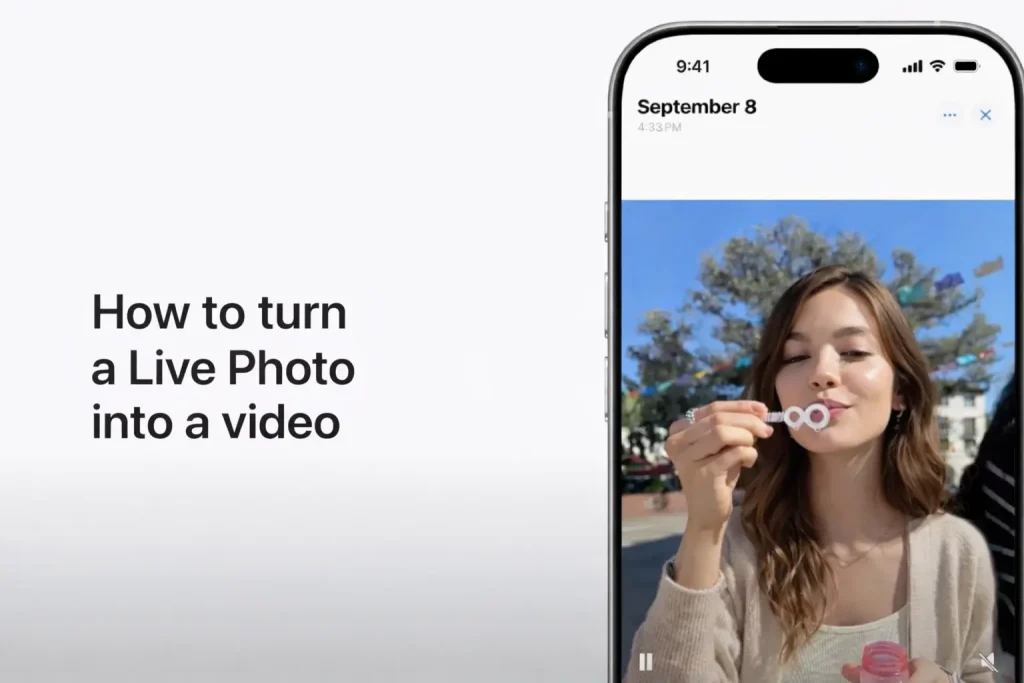
How to Turn a Live Photo into a Video on iPhone (Native Methods)
The good news is that iOS has built-in tools for conversion. No app downloads required for basic needs.
Method 1: Using the “Save as Video” Feature in Photos App
This is the quickest native method, available on iOS 13 and later:
- Open the Photos app
- Select your Live Photo
- Tap the three-dot menu icon in the top-right corner
- Select “Save as Video”
The video saves to your Camera Roll alongside the original Live Photo. Both files are preserved—the original isn’t deleted.
[Image: Screenshot showing the three-dot menu with “Save as Video” option highlighted]
Method 2: Using Loop or Bounce Effects
For more creative results, apply effects before saving:
- Open your Live Photo in Photos
- Swipe up to reveal effects
- Choose Loop (continuous replay) or Bounce (back-and-forth motion)
- Tap the three-dot menu and select “Save as Video”
Loop creates an endless video loop, perfect for mesmerizing content. Bounce plays forward then backward, creating a ping-pong effect.
Method 3: Using iOS Shortcuts for Automation
For power users who want to automate conversions, iOS Shortcuts can help:
- Open the Shortcuts app
- Create a new shortcut with the “Make Video from Photos” action
- Configure input to accept Live Photos
- Run the shortcut on selected photos
This method works well when you need to process multiple Live Photos with the same settings.
How to Convert Live Photos to Video on Mac
If your Live Photos sync via iCloud, you can convert them on your Mac too.
Using the Photos App Export Feature
- Open Photos on your Mac
- Select your Live Photo
- Go to File > Export > Export Video
- Choose your preferred quality settings
- Select destination and click Export
Using QuickTime Player
For more control over output format:
- Locate the Live Photo files in Finder (they’re in your Photos Library)
- Open the MOV component in QuickTime Player
- Go to File > Export As and choose your quality
- Save to your desired location
Best Third-Party Apps to Convert Live Photos to Videos
When native methods aren’t enough, these apps offer advanced features like longer durations, batch processing, and creative controls.
intoLive (Most Popular Choice)
With a 4.6/5 rating and over 100,000 reviews, intoLive is the most recommended option across the community.
Key features:
- Convert videos, GIFs, and bursts to Live Photos
- Free version supports up to 5-second videos
- Pro unlocks 30-second duration
- Filters, speed adjustment, and repeat settings
Best for: Creating custom Live Photo wallpapers from videos.
CapCut (AI-Powered & Free)
TikTok’s official video editor offers completely free conversion with AI-powered features.
Key features:
- AutoCut AI for automatic video creation
- Cloud integration with Google Drive and Dropbox
- Multi-platform support (iOS, Android, web, desktop)
- Professional editing tools included
Best for: Content creators who need more editing power.
AI Image to Video (Advanced AI Animation)
For users who want to go beyond simple conversion, AI Image to Video offers AI-powered tools that can transform static images into dynamic video content. This platform supports multiple AI models and produces high-definition output up to 4K resolution without watermarks—ideal for creating professional social media content from your photos.
TurnLive (Cross-Platform)
Available on both iOS and Android, TurnLive specializes in creating live wallpapers.
Key features:
- Works with videos, GIFs, and panoramas
- AI suggestions for wallpaper creation
- 7-day free trial for Premium features
Best for: Android users and those wanting dynamic wallpapers.
VideoToLive (Simple & Streamlined)
A no-frills option with a 4.1/5 App Store rating.
Key features:
- Simple, focused interface
- Supports both directions (Live Photo to video AND video to Live Photo)
- Video collage creation
Best for: Quick conversions without complexity.
How to Convert Videos into Live Photos (Reverse Process)
Want to create a Live Photo from a video for your lock screen? Here’s how.
Creating Live Wallpapers from Videos
Using intoLive:
- Download intoLive from the App Store
- Select Video to Live Photo
- Choose your video and trim to desired section (max 5 seconds free, 30 seconds Pro)
- Adjust speed and select cover frame
- Save as Live Photo
- Set as wallpaper in Settings > Wallpaper
Best Apps for Video to Live Photo Conversion
| App | Max Duration | Free/Paid |
| intoLive | 30 seconds (Pro) | Freemium |
| TurnLive | 5 seconds | Freemium |
| iOS Shortcuts | No limit | Free |
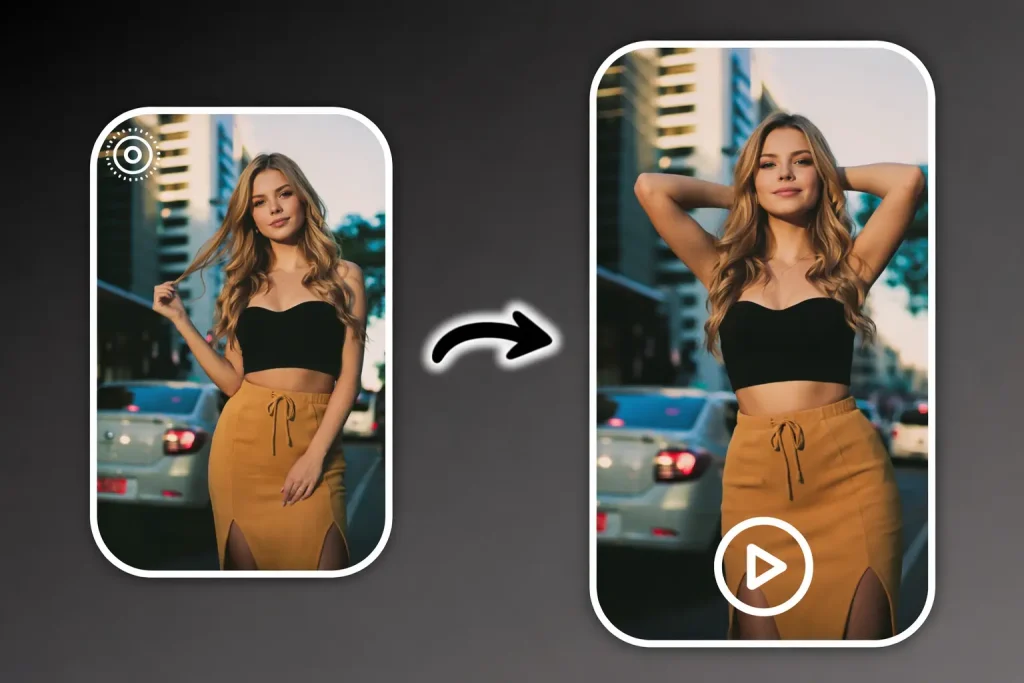
How to Batch Convert Live Photos (Save Storage)
If you have thousands of Live Photos eating up storage, individual conversion isn’t practical.
Using LiveConvert for Bulk Processing
From Reddit community recommendations, LiveConvert stands out for batch conversion:
- Free tier: Convert up to 100 photos
- Lifetime premium: $9.99
- Key benefit: Preserves original dates and quality
Using CleanMy Phone for Storage Optimization
MacPaw’s CleanMy Phone can convert up to 100 Live Photos at once, replacing originals with still HEIC files to reclaim storage space.
Manual Batch Selection in Photos App
Without third-party apps:
- Open Photos and select multiple Live Photos
- Tap Share
- Choose Duplicate as Still Photo
- Delete the original Live Photos if desired
Troubleshooting Common Issues
Running into problems? Here are solutions to the most common issues.
“Save as Video” Option Not Showing
This happens when:
- Loop or Bounce effect is already applied: The option changes to reflect the current effect. Look for “Save as Video” under a different name.
- iOS version is below 13: Update your iPhone to access this feature.
- You’re in editing mode: Exit the editor and try again from the main photo view.
Quality Loss During Conversion
Some methods compress video more than others. For best quality:
- Use native iOS “Save as Video” (preserves original quality)
- Avoid free apps with aggressive compression
- Check export settings in third-party apps
Live Photos Shorter Than Expected
Live Photos should capture 3 seconds, but sometimes they’re shorter. The iPhone’s gyroscope detects excessive movement and automatically shortens the capture.
Solution: Hold your phone steadier with both hands or use a tripod for consistent 3-second captures.
FAQs of How to Turn Live Photo into Video
Can I convert Live Photos to video without an app?
Yes. Use the native Photos app: select your Live Photo, tap the three-dot menu, and choose “Save as Video.” This works on iOS 13 and later.
Do converted videos include sound from the Live Photo?
Yes. The audio captured in the Live Photo is preserved when using “Save as Video” or quality third-party apps like intoLive.
How do I convert multiple Live Photos at once?
Native iOS doesn’t support bulk “Save as Video.” Use third-party apps like LiveConvert or CleanMy Phone for batch conversion.
Will converting a Live Photo delete the original?
No. “Save as Video” creates a new video file alongside your original Live Photo. Both are preserved unless you manually delete the original.
Conclusion
Converting Live Photos to videos unlocks sharing possibilities across all platforms and devices. For quick one-off conversions, the native iOS “Save as Video” feature gets the job done in seconds. For batch processing, advanced editing, or creating custom wallpapers, apps like intoLive and CapCut provide the extra power you need.
Ready to start? Open your Photos app right now, find a Live Photo you love, tap the three-dot menu, and hit “Save as Video.” For bulk conversions, download intoLive or LiveConvert from the App Store.
