You already have a great image. Maybe it is an AI character, a product shot, a pet photo, or a scene you want to turn into a short TikTok-style clip. The real question is simple: can PixVerse turn that still image into a video that looks smooth, usable, and worth posting?
That is why many creators search for PixVerse image to video. The workflow sounds easy: upload a photo, describe the motion, choose your settings, and generate a short AI video. But in practice, the result is not always as effortless as demo clips make it look. A weak source image, vague prompt, wrong model choice, or too many retries can quickly turn a “free test” into wasted credits.
This guide explains how PixVerse AI image to video works, how to write better prompts, what to know about credits and pricing, and when another AI video generator may be a better fit for your workflow.
Looking for a faster image-to-video workflow?
Turn Images into AI Videos with AI Image to Video
Create short videos from images, test different AI video styles, and build social-ready clips without jumping between too many tools.
Try AI Image to VideoWhat Is PixVerse Image to Video?
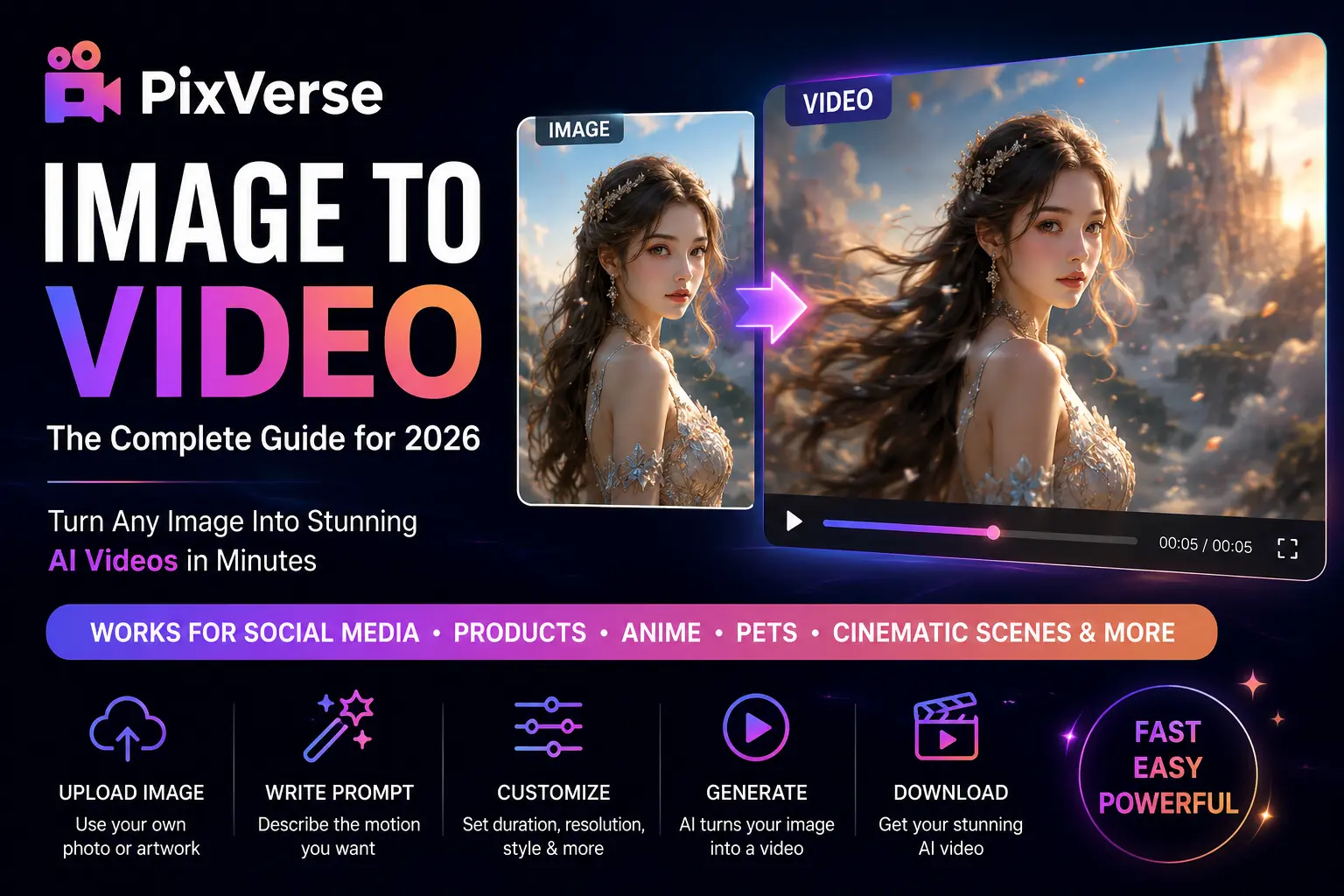
PixVerse image to video is an AI feature that turns a still image into a short animated clip. Instead of building a scene from text alone, PixVerse uses your uploaded image as the visual reference, so the subject, composition, character style, product design, or scene mood can stay closer to your original picture.
This makes PixVerse AI image to video more predictable than pure text-to-video. You can upload a product photo and ask for a slow camera push-in, turn an AI character portrait into a blinking or smiling clip, or animate a fantasy scene with drifting fog, moving light, and a cinematic camera pan.
As an AI video generator, PixVerse works best for short, visual, social-friendly clips. It can be useful for TikTok, Reels, YouTube Shorts, anime characters, product previews, AI pets, mascots, fantasy scenes, and quick creative tests before making a longer video. It is less ideal for long storytelling, perfect face consistency, or complex scenes with several characters moving at once.
Quick takeaway
PixVerse is strongest when you give it one clear image and one clear motion idea. It is not a magic “perfect video” button. Better input images and simpler prompts usually matter more than long descriptions.
How to Use PixVerse Image to Video Step by Step
1. Set Up Your Account and Claim Free Credits
Start by creating an account through Google, Discord, or email. PixVerse usually gives new and free users a limited amount of credits, but the exact amount and reset rules may change. Before planning a daily posting workflow, check the current credit policy inside your account dashboard.
2. Prepare Your Image for Better Output
Use a clean, high-resolution image with one clear subject, even lighting, and a simple background. A strong image gives the model less room to guess. Dynamic poses usually animate better than stiff, centered portraits.
3. Write Motion Prompts That Actually Work
The key is to describe motion and camera behavior, not the full image content. PixVerse already sees the uploaded image. If you over-describe the subject, the model may drift away from the original reference.
Prompt structure
Subject motion + camera motion + lighting or mood + quality style
Example: “The character slowly smiles and turns toward the camera, soft camera push-in, warm cinematic lighting, smooth natural motion.”
Negative prompts also help. Add terms such as “distorted face, morphing features, blurry, jittery motion” to reduce common failure modes.
4. Configure Resolution, Duration, and Style Settings
Start with lower settings when testing. A failed low-resolution preview is cheaper than a failed high-resolution export. Once the motion looks right, then spend credits on higher quality.
Shorter clips are usually safer. Five seconds is often enough for TikTok hooks, product shots, character reactions, and visual tests. Longer clips may increase the chance of face shifts, warped hands, or unstable motion.
5. Use Advanced Features Carefully
PixVerse supports camera movements such as pan, zoom, orbit, and time-lapse through text prompts. Some versions also support audio, lip sync, multi-shot generation, and seed controls. These features can be powerful, but they also add complexity. For your first tests, keep the scene simple and add advanced controls only after the basic motion works.
PixVerse Image-to-Video Pricing and Credit Costs Explained
PixVerse uses a credit-based system, which means your real cost depends on how many attempts you need, not just how many final videos you download. This is important because image-to-video generation often takes several tries before you get a usable clip.
| Plan Type | Typical Use | Main Limits to Check | Best Fit |
|---|---|---|---|
| Free / Basic | Small daily tests | Daily credits, watermark, resolution, queue speed | Testing the workflow |
| Standard | Regular short-form creation | Monthly credits, export quality, commercial rules | Creators posting occasionally |
| Pro / Higher Plans | Higher-resolution exports and more attempts | Credit usage per model, audio cost, upscaling cost | Frequent creators and teams |
The biggest pricing mistake is counting theoretical generations instead of usable videos. If one successful clip takes three attempts, your real cost is roughly three times higher than the listed cost per generation. Audio, longer duration, high resolution, or upscaling can increase credit consumption further.
Credit-saving tips
- Test at lower resolution before exporting a final version.
- Use negative prompts on every generation.
- Keep motion simple when face consistency matters.
- Save strong prompts and reuse them with similar images.
- Only pay for higher settings after the preview direction looks right.
PixVerse vs Kling vs Seedance vs Runway for Image to Video
PixVerse is not the only option for image-to-video creation. Different tools perform better in different situations. Some are stronger for realism, some for stylized motion, some for editing control, and some for fast creative testing.
| Tool | Strength | Weakness | Best For |
|---|---|---|---|
| PixVerse | Fast, accessible, strong for stylized clips | Face consistency can vary | Social clips, anime, quick tests |
| Kling | Realistic motion and stronger face stability | May require more waiting or retries | Realistic image-to-video scenes |
| Seedance | Good motion quality and visual control | Access and pricing may vary | Creators testing newer AI video models |
| Runway | Professional editing ecosystem | Can be more expensive for trial-and-error | Advanced creators and production workflows |
Want to compare image-to-video styles faster?
Try AI Image to Video for Short Social Clips
Upload an image, generate motion, and create social-ready AI videos with a simpler workflow.
Create an AI Video from an ImageTips to Get Better PixVerse Image-to-Video Results
The biggest improvement usually comes from better source images and simpler motion prompts. PixVerse does not need a long paragraph. It needs a clear action.
Use one strong moment per clip
For TikTok, one image-to-video clip does not need to tell the whole story. It only needs to create one strong visual moment. You can generate several short clips, then combine them in CapCut or another editor with captions, music, sound effects, and transitions.
Slow head turns, hair movement, blinking, hand gestures, product rotation, camera zoom, and light movement are usually more reliable than running, fighting, dancing, or complex interaction between multiple characters.
Prompt example you can test
Prompt:
The subject slowly turns head and smiles, soft cinematic lighting, shallow depth of field, smooth natural motion.
Negative prompt:
Distorted face, morphing features, blurry, jittery motion, extra fingers, warped hands.
FAQs About PixVerse Image to Video
Is PixVerse image to video free?
PixVerse usually offers some free access or trial credits, but free usage may come with limits such as watermarks, lower resolution, daily credits, slower queues, or restricted features. Always check the current pricing page before planning a serious workflow.
How long can PixVerse image-to-video clips be?
Clip length depends on the model and settings available when you generate. For best results, short clips are still safer. Even when longer options are available, a shorter clip often has better consistency.
Why does PixVerse distort faces?
Face distortion happens because AI video models generate motion frame by frame. Small facial details can shift during movement. To reduce this, use a clear face image, keep motion subtle, choose shorter duration, and add negative prompts like “distorted face” and “morphing features.”
Is PixVerse good for TikTok videos?
Yes, PixVerse can be a strong tool for TikTok-style videos, especially if you create short, visual, high-impact clips from images. It works best when paired with editing tools for captions, hooks, music, and pacing.
Can I use PixVerse videos commercially?
Commercial usage rules can depend on the platform terms, plan type, source materials, and how the output is used. Before using PixVerse videos in ads, client projects, or monetized content, check the latest PixVerse terms and make sure your input images do not include copyrighted or unauthorized material.
Conclusion
PixVerse earns its place among useful AI image-to-video tools because it is fast, accessible, and strong for stylized social content. But the honest picture includes face consistency issues, credit costs, and retries that can add up faster than expected.
The best workflow is to work with its strengths: prepare images well, write motion-focused prompts, test at lower settings, and only spend higher-quality credits when the preview direction is worth improving. And if you need higher realism, more model flexibility, or a different image-to-video style, compare PixVerse with other AI video generators before locking into one workflow.
Create AI Videos from Images Faster
If you want a simple way to turn images into short AI videos, try AI Image to Video. Upload your image, generate motion, and create social-ready clips with a cleaner workflow.
Try AI Image to Video