
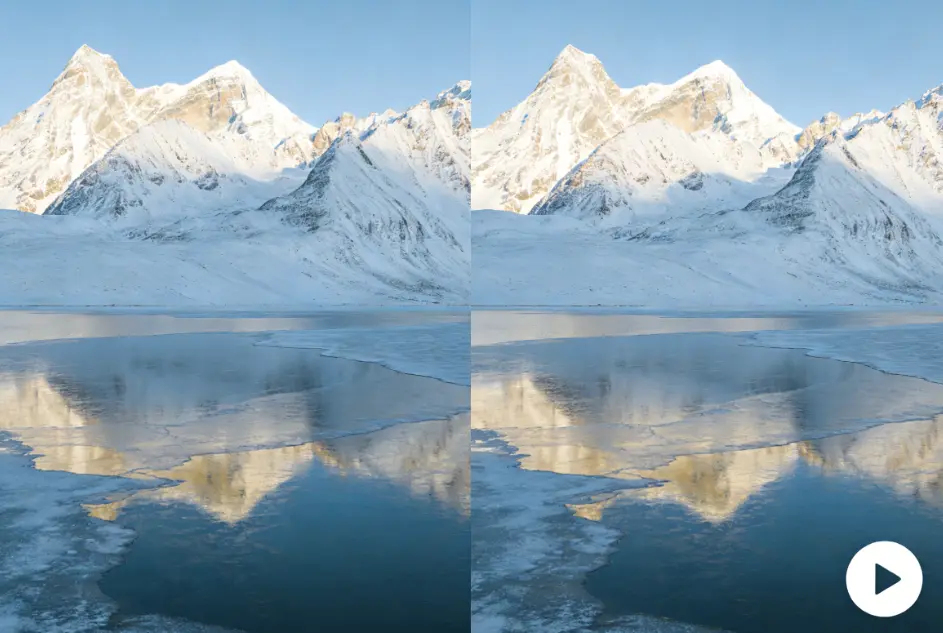
Imagine turning any still image into a cinematic video complete with dialogue, sound effects, and camera movements—all with a single prompt. That’s exactly what Google’s Veo 3 image-to-video feature delivers.
Yet many users struggle to unlock its full potential. Regional restrictions block photorealistic uploads.
Videos generate without audio. Credits disappear faster than expected. And clear documentation? Nearly impossible to find.
This comprehensive guide solves all of that. Whether you’re a content creator, marketer, or hobbyist, you’ll learn everything from basic setup to advanced prompt engineering—plus solutions to every common problem users encounter with veo3 image to video.
What is Veo 3 Image to Video?
Veo 3’s image-to-video (I2V) capability transforms static images into AI-generated videos with remarkable quality. Unlike text-to-video generation where you start from scratch, I2V gives you precise control over your starting point—your character, scene, or product is already defined.
How Veo 3 I2V Differs from Text-to-Video
When you use text-to-video, the AI interprets your description and creates everything from imagination. With I2V, your source image anchors the generation, ensuring the subject, colors, and composition remain consistent with your vision.
This makes I2V ideal for animating product photos, bringing portraits to life, or creating videos where specific visual elements must be preserved.
Native Audio Generation: Veo 3’s Unique Advantage
Here’s what sets Veo 3 apart from every competitor: native audio synthesis. Veo 3 can generate realistic dialogue, ambient sounds, and sound effects directly within your video. Kling, Hailuo, and Seedance?
They all produce silent videos by default.
This single feature makes Veo 3 the go-to choice for creators who need complete video packages without post-production audio work.
Technical Specifications at a Glance
| Feature | Specification |
| Video Length | 4, 6, or 8 seconds |
| Resolution | 720p, 1080p, 4K (Vertex AI) |
| Frame Rate | 24 FPS |
| Aspect Ratios | 16:9 (landscape), 9:16 (portrait) |
| Audio | Native dialogue, SFX, ambient sounds |
How to Access Veo 3 Image to Video
Multiple platforms offer veo3 image to video capabilities, each with different pricing and feature sets.
Gemini Advanced ($19.99/month)
The most accessible option for consumers. Gemini Advanced includes 3 videos per day through the mobile and web app. A free trial (typically 2-4 weeks) lets you test before committing. However, I2V capabilities are more limited compared to other platforms.
Google Flow (Included with Gemini)
For full Veo 3 access, Google Flow is where the magic happens. It’s credit-based, includes the powerful Ingredients feature for reference images, and offers both Veo 3 Fast (quicker, lower cost) and regular Veo 3 (higher quality).
Pro tip: Always check your output count is set to 1 before generating. Many users report losing 100+ credits from accidentally generating multiple outputs.
Third-Party Platforms
Several platforms like AI Image to Video offer access to advanced AI video models including Veo technology. These alternatives often provide competitive pricing ($0.30-$2.00 per 8-second video), watermark-free exports, and specialized features for social media content creation.
Free Access Methods and Trials
The most common question: “Can I use veo3 image to video for free?” Yes—through the Gemini Advanced free trial. Sign up, get 2-4 weeks of access, and create up to 3 videos daily. Just remember to cancel before billing if you don’t want to continue.
Step-by-Step: Creating Your First Veo 3 Image to Video
Let’s walk through creating your first I2V video from start to finish.
Preparing Your Source Image
Start with a high-quality image. Optimal specifications:
- Resolution: At least 1080p
- Format: PNG or JPEG
- Aspect ratio: Match your output (16:9 for landscape, 9:16 for portrait)
Common issue: Users report 16:9 images not fitting the frame properly. If this happens, try slight cropping or use a different aspect ratio.
Writing Your First I2V Prompt
Keep your first prompt simple. Here’s a beginner-friendly template:
A woman smiles and turns her head slowly to the right.
Soft natural lighting. Gentle camera push-in.
Ambient cafe sounds with soft chatter in the background.
Notice the three components: action, lighting/camera, and audio direction. Including audio cues is essential—without them, you’ll likely get a silent video.
Using Google Flow’s Ingredients Feature
The Ingredients feature lets you add reference images for:
- Product: Maintain product appearance
- Scene: Reference environment details
- Emotion: Guide facial expressions
- Motion: Influence movement style
Upload your references, and Veo 3 uses them to inform the generation while keeping your main image as the foundation.
Veo 3 Prompt Engineering for Image to Video
Prompt quality directly determines output quality. Master these techniques, and your videos will improve dramatically.
The Optimal Prompt Structure
Professional creators use this 10-part framework:
- Scene Summary: Brief overview
- Subject: Main character/object details
- Background: Environment description
- Action: What happens, movement
- Style: Visual aesthetic
- Camera: Movement type and speed
- Composition: Framing and perspective
- Lighting: Quality, direction, mood
- Audio: Dialogue, ambient, effects
- Color Palette: Primary colors and mood
You don’t need all 10 for every prompt, but including at least 5-6 elements produces significantly better results.
Camera Control Prompts
Specify camera movement for dynamic videos:
- Static shot: Camera remains fixed
- Slow push-in: Gradual zoom toward subject
- Pan left/right: Horizontal camera sweep
- Tracking shot: Camera follows subject movement
- Crane up/down: Vertical camera movement
Example: “Cinematic slow push-in toward the subject’s face as they speak.”
Audio Direction in Prompts
This is where most users fail. Without audio direction, Veo 3 often produces silent output.
Effective audio prompts:
- “The man says ‘Hello, welcome to my channel’ in a warm, friendly voice”
- “Ambient forest sounds with birds chirping and wind rustling leaves”
- “Dramatic orchestral music swells as the scene unfolds”
Be specific. “Some background noise” won’t cut it.
Common Prompt Mistakes to Avoid
- Over-complication: Too many elements confuse the model
- Forgetting audio: Results in silent videos
- Chaining with “and”: Better to separate multiple actions
- Vague descriptions: “Nice lighting” vs. “Golden hour sunlight from the left”
Getting Audio to Work in Veo 3 Image to Video
Audio issues are the #1 complaint from Veo 3 I2V users. Let’s solve them.
Why Your I2V Videos Have No Audio
Several causes:
- Missing audio direction in your prompt (most common)
- Using Veo 2 instead of Veo 3 (some I2V features default to older models)
- Platform limitations (Gemini app has more restricted audio than Flow)
Prompt Techniques for Reliable Audio Generation
Always include explicit audio cues:
A barista steams milk with a loud hissing sound.
Coffee shop ambiance with soft jazz music playing.
She says "Here's your latte" in a cheerful voice.
The more specific your audio direction, the more likely Veo 3 generates sound.
Adding Audio in Post-Production
When native audio doesn’t meet your needs, post-production is your fallback. Tools like DaVinci Resolve or even simple apps can add music tracks, voiceovers, or sound effects to your silent Veo 3 output.
Troubleshooting Veo 3 Image to Video Issues
Here are solutions to the most common problems users face.
“We Do Not Allow Uploads of Photorealistic People”
This regional restriction blocks photorealistic human image uploads in certain countries. Solutions include using stylized or artistic images instead, or accessing from a supported region.
Regional Availability and VPN Solutions
Veo 3’s full features are primarily available in the US. Users outside supported regions often use VPN services to access complete functionality. Connect to a US server before accessing Google Flow for the best experience.
Credit Consumption Issues
Avoid the “lost 100 credits” scenario:
- Check output count before generating (set to 1)
- Use Veo 3 Fast for testing prompts
- Save Veo 3 regular for final renders
Reference Images Being Ignored
If Ingredients aren’t working:
- Ensure images are high quality
- Check that image content matches the intended reference type
- Try regenerating—sometimes it’s random variation
Veo 3 vs Competitors: Image to Video Comparison
How does Veo 3 stack up against alternatives?
| Tool | Strength | Weakness |
| Veo 3 | Native audio, quality | Content restrictions |
| Hailuo V2 | Best realism, free tier | Slower, no audio |
| Kling 2.1 | Good motion | No audio, different aesthetic |
| Seedance | I2V consistency | Less cinematic |
Choose Veo 3 when: You need audio, work within Google’s ecosystem, or prioritize quality over restrictions.
Choose alternatives when: You need maximum creative freedom or free access.
For creators who want flexibility across multiple AI models, platforms like AI Image to Video integrate various technologies including Kling, Veo, and Wan, allowing you to compare results and choose the best output for each project.
FAQs of Veo 3 Image to Video
How much does Veo 3 image to video cost?
Gemini Advanced costs $19.99/month with 3 daily videos. Google Flow uses credits (pricing varies). Vertex AI charges ~$0.75/second for enterprise use.
Can I use Veo 3 image to video for free?
Yes, through the Gemini Advanced free trial (2-4 weeks). You get 3 videos per day during the trial period.
Why does my Veo 3 video have no audio?
Most likely, your prompt lacks audio direction. Always include specific audio cues like dialogue, ambient sounds, or music direction.
How do I use Veo 3 outside the United States?
A VPN connected to a US server provides access to full features. Some capabilities remain limited regardless of location.
Can Veo 3 create videos longer than 8 seconds?
Native generation maxes out at 8 seconds. For longer content, use the video extension feature or combine multiple clips in post-production.
How do I maintain the same character across multiple videos?
Use Google Flow’s Ingredients feature with consistent reference images. The Nano Banana + Veo 3 workflow offers even better character consistency for complex projects.
Conclusion
Veo 3’s image-to-video capability represents a significant leap in AI video generation. Its native audio synthesis alone makes it uniquely valuable among competitors. While regional restrictions and technical quirks present challenges, mastering prompt engineering—especially audio direction—unlocks stunning results.
Start here: Sign up for a Gemini Advanced free trial, use the prompt templates from this guide, and remember to always include audio cues. Bookmark this page for troubleshooting as you develop your veo3 image to video workflow.
