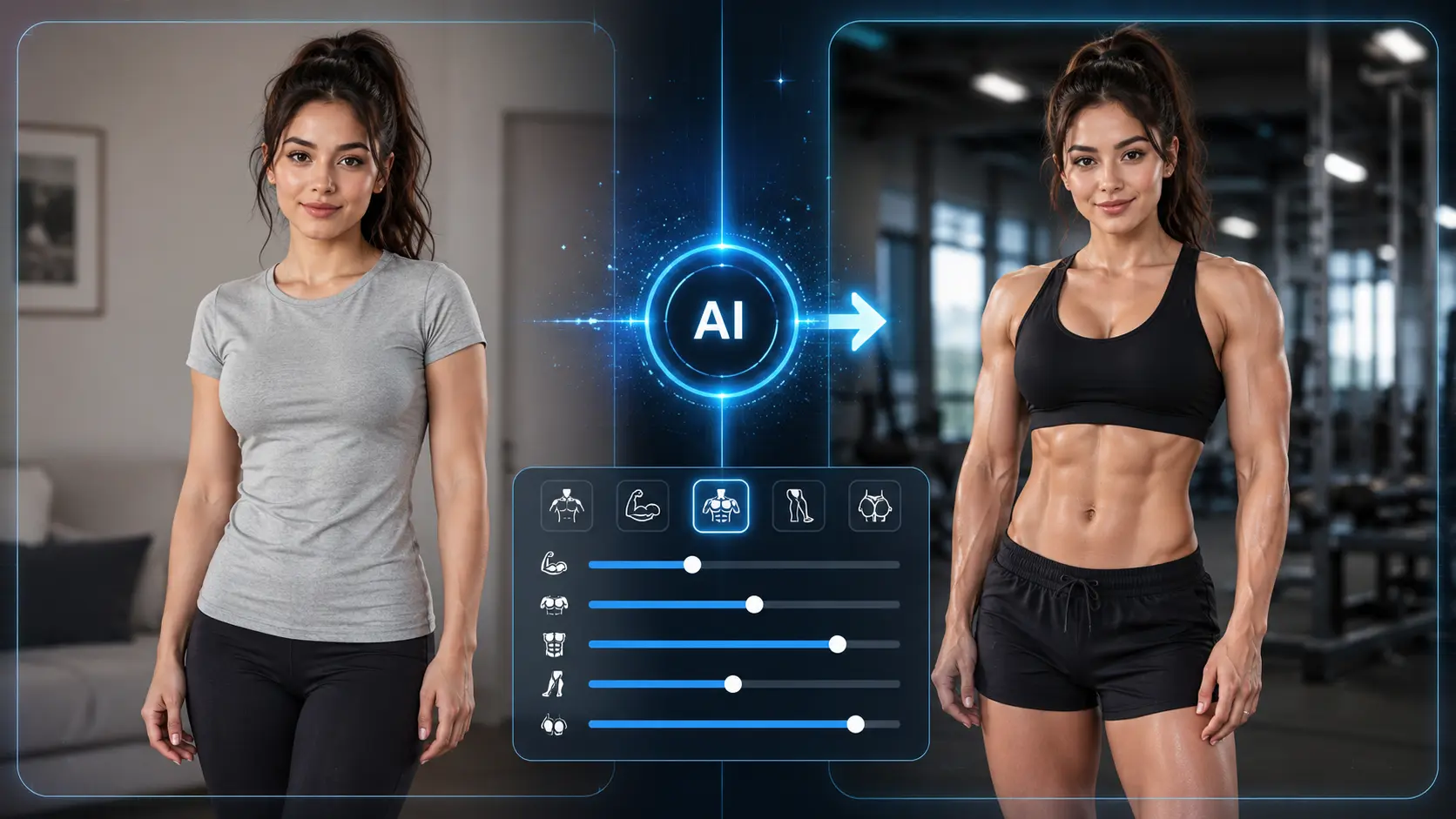
Have you ever wondered what you would look like with stronger arms, sharper abs, or a more athletic body?
With AI, you can now create a muscle man or muscle woman version of yourself in minutes — no Photoshop skills needed. Whether you want a fun social media edit, a gym transformation photo, or a realistic preview of a more defined body shape, AI muscle tools can help you get there fast.
In this guide, you’ll learn how to add muscle to a photo using AI muscle generators, prompt-based tools like ChatGPT or Gemini, mobile muscle photo editor apps, and even image-to-video tools for creating short muscle transformation videos.
Quick Answer
What Is the Easiest Way to Add Muscle to a Photo?
The easiest way to add muscle to a photo is to use an AI muscle generator or muscle photo editor. These tools can enhance arms, shoulders, chest, abs, and overall body definition without requiring manual retouching.
The 3-Step Method
Choose a photo where your body shape is visible. Tight clothing, gym wear, or shirtless photos usually work best.
Some tools let you select muscle areas manually, while others work through prompts such as “add natural arm and chest definition.”
Start with a low enhancement level. A subtle change often looks more realistic than an extreme bodybuilder transformation.
For most casual users, AI is faster than Photoshop because it handles shadows, shape, and texture automatically. You upload, adjust, and export. No Liquify tool. No masking. No manual dodge and burn.
How to Add Muscle to a Photo Step by Step
There are three common ways to add muscle to a photo: using a dedicated AI muscle generator, using prompt-based AI tools, or using a mobile body editor app.
Method 1: Use an AI Muscle Generator
An AI muscle generator is usually the easiest method. These tools are designed to enhance body shape and muscle definition automatically.
Here is the basic workflow:
- Open an AI muscle generator or online muscle photo editor.
- Upload your photo.
- Choose the body area you want to enhance, such as arms, chest, abs, or shoulders.
- Select a realistic or stronger muscle effect.
- Preview the result.
- Lower the effect if the edit looks fake.
- Download the final image.
The key is restraint. If the tool has an intensity slider, start around 20–30%. This level is usually enough to make muscles more visible without making the image look edited.
AI works best when it enhances what already exists. If the original photo has some shoulder shape, arm definition, or chest shadow, the result will look much better than trying to create a completely new body from nothing.
Method 2: Use ChatGPT or Gemini
Prompt-based AI tools can also help with muscle photo editing, especially if they support image editing. This method gives you more control through natural language.
Instead of clicking a preset, you upload your photo and describe what you want.
For example:
Add subtle muscle definition to my arms and chest while keeping my face, skin tone, clothing, and background unchanged.
This approach works well when you want a specific style, such as a natural fitness look instead of an exaggerated bodybuilder effect.
However, prompt-based tools can be inconsistent. Sometimes they may change the face, alter the background, or exaggerate the body shape. If the first result is not right, adjust the prompt instead of asking for a vague improvement.
A better follow-up prompt would be:
Reduce the muscle size by 30%. Keep the result realistic, with natural shadows and no changes to the face or background.
Method 3: Use a Mobile Muscle Photo Editor App
Mobile body editor apps are convenient if you mainly edit photos on your phone. Many apps offer body reshaping, abs filters, arm enhancement, waist adjustment, and general fitness-style photo edits.
This method is best for:
- Instagram photos
- dating profile photos
- gym selfies
- TikTok thumbnails
- quick before-and-after edits
The downside is that some mobile apps can make edits look too smooth or artificial. Watch for warped backgrounds, plastic-looking skin, or body proportions that no longer match the head and hands.
What Kind of Photo Works Best for Muscle Editing?
For more realistic muscle edits, start with a clear photo that shows body shape well.
Use directional lighting from one side or slightly above the body. This helps create natural shadows around the arms, shoulders, chest, and abs. Avoid strong front flash, which can make the body look flat.
Choose a slightly angled pose instead of facing the camera straight on. A small torso turn helps show shoulder width and chest shape.
Wear clothing that reveals body structure, such as fitted gym shirts, tank tops, compression shirts, athletic tops, or shirtless photos. Loose clothing makes muscle editing harder.
Use a high-resolution image, ideally at least 1080px wide. Avoid blurry photos, heavy filters, messy backgrounds, low-light mirror selfies, and photos where the body is mostly hidden.
Prompt Examples for Natural-Looking Muscle Effects
Prompts matter. A vague prompt like “make me huge” usually creates fake-looking results. A specific prompt tells the AI what to enhance, what to preserve, and how strong the effect should be.
Subtle Muscle Enhancement Prompts
Use these when you already have some muscle definition and only want to make it more visible.
These prompts are best for social media photos where you want people to think the photo simply looks better, not obviously edited.
Moderate Muscle Transformation Prompts
Use these when you want a more visible change but still want the result to look realistic.
This level works well for creative edits, fitness motivation photos, and before-and-after style content.
Body Part Prompts
You can also target specific areas.
| Body Area | Prompt Example |
|---|---|
| Arms | Add defined biceps and triceps while keeping the hands, wrists, and forearms natural. |
| Abs | Add subtle six-pack definition with shadows that match the existing lighting. |
| Chest | Add natural chest definition without changing the neck, face, or shoulder position. |
| Shoulders | Broaden the shoulders slightly and add deltoid definition while keeping the head size realistic. |
| Full upper body | Add realistic upper-body muscle definition to the arms, shoulders, chest, and abs. Keep the pose, background, and face unchanged. |
Prompts to Avoid
Avoid vague or extreme prompts like:
- Make me huge
- Turn me into a bodybuilder
- Give me massive muscles
- Make me look super ripped
- Add crazy abs
These often lead to cartoonish proportions, strange shadows, and obvious AI edits.
Specific prompts almost always work better than dramatic ones.
Want to Turn Your Muscle Photo Into a Video?
After generating a muscular version of your photo, you can take it one step further by turning the image into a short muscle transformation video. Upload your edited muscle photo to an AI photo-to-video tool, add motion or a transformation effect, and export it in vertical format for TikTok, Instagram Reels, or YouTube Shorts.
You can also skip the extra step and use our AI Image to Video tool directly. Simply upload your original photo, enter a muscle transformation prompt, and generate a dynamic muscle video in seconds.
This works well for gym transformation edits, fitness motivation clips, AI bodybuilder videos, before-and-after content, and viral muscle growth effects. For the best result, use one clear subject, a simple background, and strong before-and-after contrast.
FAQs About Adding Muscle to Photos
Can AI really add muscle to a photo?
Yes. AI tools can enhance muscle definition, add shadows, reshape body areas, and create a more athletic look. The most realistic results usually come from improving existing body structure instead of creating extreme muscles from scratch.
What is the best free AI muscle generator?
The best free option depends on what you need. Some tools are better for quick photo filters, while others are better for realistic texture, prompt control, or mobile editing. Look for a tool that lets you preview the result, adjust the effect strength, and export without obvious distortion.
Can I add abs to a photo with AI?
Yes. You can use an AI abs generator, muscle photo editor, or prompt-based tool to add six-pack definition. For the most natural result, ask for subtle abs with shadows that match the original lighting.
Is an AI muscle generator better than Photoshop?
For beginners, yes. An AI muscle generator is faster and easier. Photoshop gives more control, but it takes more skill and time. If you want a quick social media edit, AI is usually enough. If you need professional retouching, Photoshop is still stronger.
What kind of photo works best for muscle editing?
Use a clear, high-resolution photo with visible body shape. Directional lighting, fitted clothing, and a clean background will help the AI create more realistic muscle definition.
Does ChatGPT add muscle to photos?
Some AI chat tools with image editing features can modify photos through prompts. Results may vary depending on the tool, the photo, and the wording of your prompt. For more consistent results, a dedicated AI muscle generator or body editor may work better.
How do I make AI muscle edits look realistic?
Use a good source photo, keep the enhancement level low, and write specific prompts. Avoid asking for huge muscles. Check that shadows, skin texture, and body proportions still match the original image.
Can I turn a muscle photo into a video?
Yes. After creating an edited muscle photo, you can use an AI image-to-video tool to turn it into a short transformation clip for TikTok, Reels, or Shorts.
Conclusion
Adding muscle to a photo is much easier than it used to be. You no longer need advanced Photoshop skills or hours of manual retouching. With AI muscle generators, mobile body editor apps, and prompt-based tools, you can create a stronger, more athletic look in minutes.
For the best results, start with a clear photo, use directional lighting, write specific prompts, and keep the muscle enhancement realistic. Subtle edits usually look better than extreme transformations.
And if you want something more engaging than a static image, turn your edited photo into a muscle transformation video. It is a simple way to create eye-catching content for TikTok, Reels, and Shorts while keeping the editing process fast and beginner-friendly.