
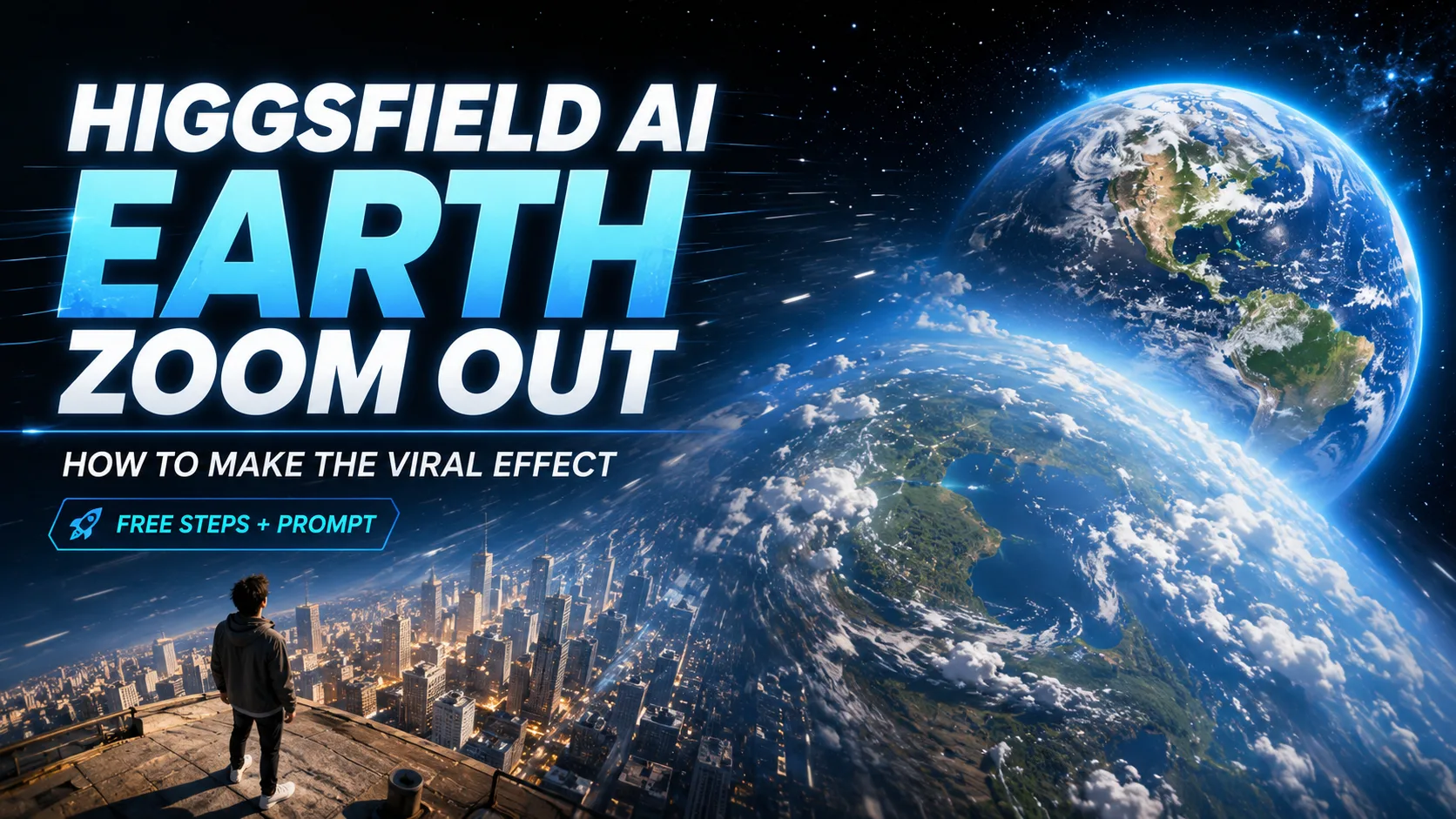
You’ve seen the clip: it pulls back from one person, past the rooftops, over the continent, all the way out to Earth hanging in space. The #EarthZoomOut trend has racked up over a billion views, and most of it is made with Higgsfield AI.
But if you’ve actually tried it, you’ve probably hit the parts every tutorial skips — a paywall that appears mid-edit, a prompt that gives you a weird crossfade instead of a real zoom, no way to aim it at a specific place, and no clue where the “whoosh” sound comes from.
This one page takes you from “what is this?” to a finished, polished clip: the honest free-vs-paid answer, the exact copy-paste prompt, how to zoom to a specific city, the reverse-clip trick, sound design, and free alternatives for when Higgsfield’s limits get in the way.
What Is the Higgsfield AI Earth Zoom Out Effect?
Before you open the tool, it helps to know exactly what the effect is doing and what it costs — because the “is it free?” question is the number-one friction point in every comment section.
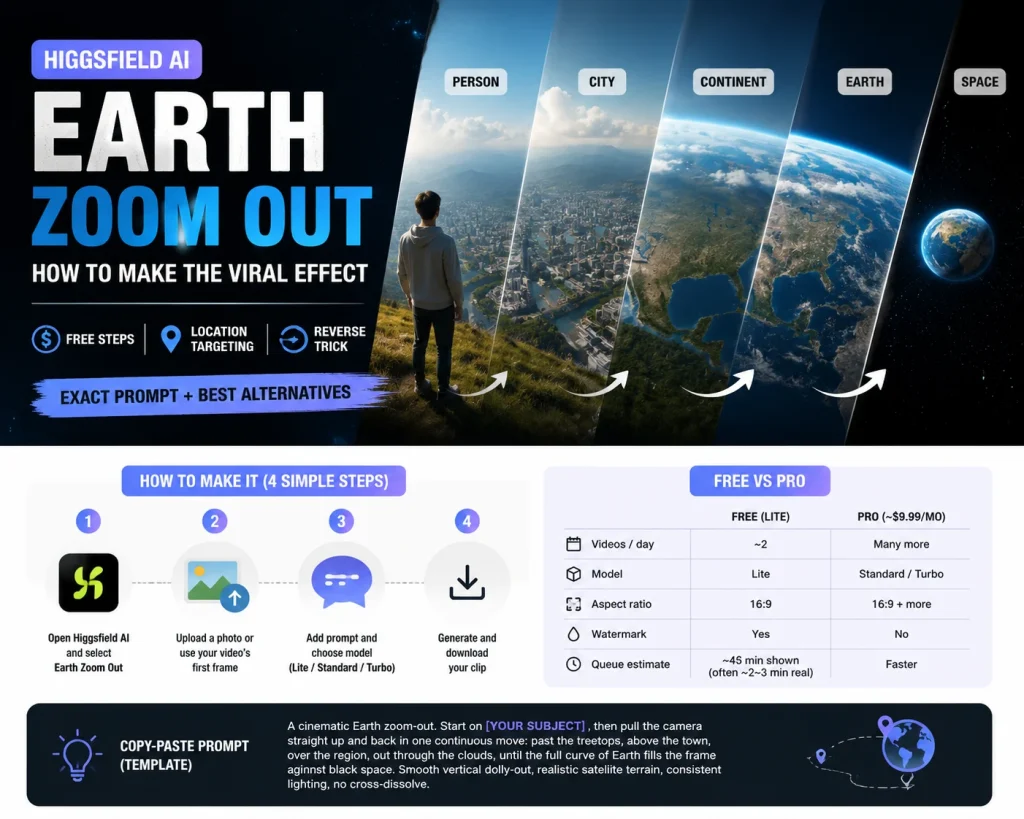
What the effect does (person → city → continent → Earth → space)
The Earth Zoom Out is a single, continuous camera pull-back across wildly different scales. It starts tight on your subject, then retreats — past the street, above the city, over the continent, and finally out to the full curve of the planet against black space.
The reason it reads as cinematic is that the motion never cuts. Higgsfield’s Earth Zoom Out motion preset simulates one physics-based camera path with satellite-style terrain, so the scale change feels earned rather than edited together.
Why it’s going viral on TikTok, Reels & Shorts
The effect works because it’s a scroll-stopping reveal. Within three seconds it recontextualizes a normal shot into something planetary, which is exactly what a feed algorithm rewards.
Creators use it as an intro, an outro, or a transition between two scenes. The top tutorial on it pulled 166K+ views on YouTube alone — a good signal that the demand (and the search traffic) is real.
Is Higgsfield AI Earth Zoom Out free? (free tier vs Pro)
Here’s the honest answer, because “it’s not free!” is the most repeated complaint online: you can make it on the free plan, but with real limits, and some steps now sit behind Pro.
| Free plan | Pro (~$9.99/mo) | |
| Videos/day | ~2 | Many more |
| Model | Lite | Standard / Turbo |
| Aspect ratio | 16:9 | 16:9 + more |
| Watermark | Yes | No |
| Queue estimate | ~45 min shown (often ~2–3 min real) | Faster |
Key Takeaway: It’s genuinely free to try, but expect a watermark, 16:9 only, and a scary render estimate. The paywall usually surprises people at the prompt-enhance step — so don’t count on that feature staying free.
How Do You Make an Earth Zoom Out Video in Higgsfield AI?
The core workflow is four steps plus one decision. You can start from a single photo or from your video’s first frame — the click path is nearly identical.
Step 1 — Open Higgsfield and select the Earth Zoom Out effect
Open Higgsfield AI and find the Earth Zoom Out motion (it shipped as part of “Effects Pack 5”). Select it to start a new generation — this locks in the camera pull-back so you don’t have to describe the whole move from scratch.
Step 2 — Upload a photo, or capture your video’s first frame
For a photo, upload a clean, high-resolution image with a clear subject. For a transition from real footage, grab your video’s first frame as a screenshot and upload that instead.
Using the first frame matters: it’s what keeps the AI-to-real seam tight when you stitch your footage back on later — a trick the r/Filmmakers community landed on as the reliable method.
Step 3 — Add your prompt and choose a model (Lite / Standard / Turbo)
Many creators report you can now “just generate” with no prompt, but a short prompt gives you far more control over the path and the destination (more on that below). Choose your model based on the trade-off: Lite is free and fast-enough, while Standard/Turbo improve quality and smoothness.
Step 4 — Generate, then download your clip
Hit generate. The interface may show a ~45-minute estimate — don’t panic; real render time is often 2–3 minutes. When it’s done, download your clip (free output is ~16:9 with a watermark).
Photo-based vs video-based (first-frame) — which to choose
- Photo-based: best for a standalone reveal — one striking image pulling out to space.
- Video-based (first-frame): best for a seamless transition, where the generated zoom hands off to your real footage.
If your goal is a TikTok that starts in space and drops into your actual video, go first-frame.
What’s the Best Earth Zoom Out Prompt — and How Do You Zoom to a Specific Location?
These are the two biggest gaps in the entire search results: a real, usable prompt (not one hidden behind a tool) and location control — the single highest-liked question nobody answers.
The copy-paste prompt (with a subject-swap template)
The trick is a progressive-scale prompt that names every altitude the camera passes through. Copy this and swap the subject line:
A cinematic Earth zoom-out. Start on [YOUR SUBJECT — e.g., a person standing in a field],
then pull the camera straight up and back in one continuous move: past the treetops,
above the town, over the region, out through the clouds, until the full curve of Earth
fills the frame against black space. Smooth vertical dolly-out, realistic satellite
terrain, consistent lighting, no cross-dissolve.
Change only the bracketed subject to reuse it for any scene.
How to zoom to a specific country, city, or coordinate
To aim the zoom, name the location explicitly in the prompt — for example, “…until the camera reveals Tokyo, Japan, then the full Earth.” Pair that with a reference image whose framing already suggests that place, so the AI keeps the geography accurate. This is the query almost no competitor owns, so a clear method here is worth memorizing.
Why your prompt gives a crossfade instead of a zoom (and the fix)
If you get a soft crossfade rather than a true pull-back, your prompt is under-specifying motion. The fix: add “continuous camera dolly-out, no cross-dissolve, no fade” and describe the intermediate scales. For a “weird North America” or unrealistic globe, add “realistic satellite terrain, accurate continents” and use a cleaner reference image.
How Do You Make the Earth Zoom Out Look Seamless and Cinematic?
A raw generation is only half the job. The polish — reverse, speed, sound, color — is what turns it into a share-worthy clip.
The reverse-clip trick to turn zoom-out into a seamless zoom-in
Generate the zoom-out, then reverse the clip in your editor (CapCut, DaVinci Resolve, Premiere, or After Effects) and stitch it to your original footage. That gives you the satisfying zoom-in transition.
One counterintuitive detail: don’t ease the final camera stop. The abrupt, un-smoothed halt is exactly what reads as the viral look.
Speed-ramp and framing tips for a clean blend
A speed-ramp (gradually changing playback speed) of roughly 4x helps the AI-to-real handoff disappear. When you shoot the real half, keep the camera static and far from the subject — less parallax means a cleaner blend at the seam.
Sound design — the whoosh that makes it land
The recurring unanswered comment is “what audio did you use?” The answer is a whoosh + impact combo: a rising swoosh under the pull-back and a low boom on the final frame. Time the impact to the exact moment the camera stops — that hit is what sells the drama.
Fixing color shift and unrealistic Earth on export
AI sometimes nudges your footage’s color. If the generated half looks slightly off from your real half, apply a quick color match (or a shared LUT) across both clips so they read as one shot. Avoid the “AI slop” tells — a globe spinning the wrong way or the wrong shape — by keeping the zoom continuous and the terrain realistic.
Where Can You Use Earth Zoom Out Videos — and What Are the Best Alternatives?
Once you can make the effect, the question is where it earns its place — and what to switch to when Higgsfield’s 16:9 and watermark get in the way.
Practical use cases (travel reels, intros/outros, brand & education)
- Travel reels — pull out from a landmark to the whole planet.
- Video intros/outros — open or close on a cinematic reveal.
- Music-video transitions — cut scenes on the impact frame.
- Brand storytelling & explainers — a “big picture” opener that frames your message.
Vertical (9:16) for TikTok, Reels & Shorts
Higgsfield renders natively in 16:9, but TikTok, Reels, and Shorts want 9:16. Reframe by cropping to vertical in your editor — center the subject and let the top/bottom fill with sky and space, which crop cleanly. Plan the shot knowing it’ll be cropped so nothing important lives at the edges.
Free and watermark-free alternatives
When the watermark or aspect ratio blocks you, switch tools. A one-click alternative like Media.io renders in under five minutes with native 9:16 and 4K. For watermark-free 4K output and native vertical export with a choice of models (Kling, Veo, Wan), aiimagetovideo.pro is a solid pick for TikTok-ready clips. And for full manual control with real geography, the no-AI route is Google Earth Studio — use its Field-of-View zoom and Logarithmic Altitude for a perceptually smooth pull-back.
Conclusion
The Higgsfield AI Earth Zoom Out is genuinely free to try — just expect a watermark, 16:9, and a render estimate scarier than reality. From there it’s four steps to a clip: pick the effect, upload a photo or first frame, add the progressive-scale prompt (naming your location), then generate and download. Reverse and stitch it for a seamless zoom-in, add a whoosh-and-impact for the punch, and color-match the seam.
Try it now: Open Higgsfield, drop in your photo, and generate your first Earth Zoom Out today. If the watermark or 16:9 limit gets in your way, make a watermark-free, TikTok-ready 4K version with a tool like aiimagetovideo.pro.