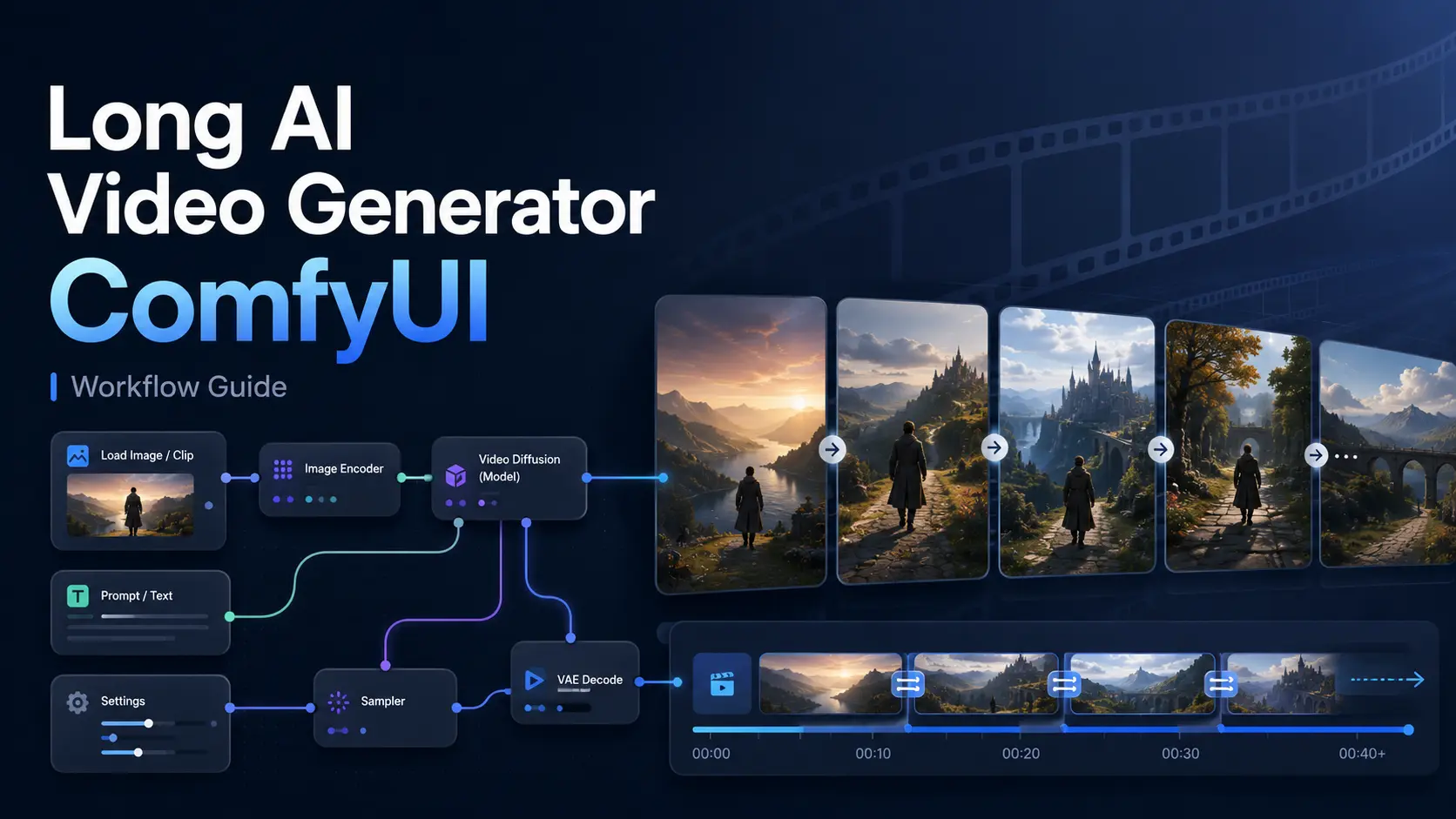
Creating a long AI video in ComfyUI involves more than increasing the number of frames in a standard video workflow. Longer videos place greater demands on GPU memory, generation time, motion consistency, and character stability.
A practical long AI video generator ComfyUI workflow usually combines three methods: generating a longer initial clip, extending that clip from its final frames, and joining several controlled video segments into one continuous sequence.
This guide explains which ComfyUI video models are suitable for longer content, how to build a repeatable workflow, and how to reduce character drift, flicker, visible cuts, and out-of-memory errors.
Can ComfyUI Generate Long AI Videos?
Yes, ComfyUI can generate long AI videos, but ComfyUI itself is not a video generation model. It is a node-based environment in which models, prompts, reference images, samplers, frame controls, and output tools are connected into a workflow. Its built-in Workflow Templates also provide ready-made starting points for supported video models.
The maximum video length depends on the selected model, output resolution, frame count, available VRAM, and whether the video is created in one pass or extended across multiple generations.
Native Long-Clip Generation
Some models can generate relatively long continuous clips in a single workflow. However, the advertised maximum duration should not be treated as the guaranteed stable duration for every prompt and resolution.
For example, the older LTXV 13B 0.9.8 release introduced long-shot generation of up to 60 seconds. The newer LTX-2 model focuses on synchronized audio and video clips of up to approximately 10 seconds, while also supporting multi-keyframe conditioning and video extension.
Long single-pass generation works best when the scene has a clear subject, one main action, consistent lighting, and limited camera changes.
Flexible Video Extension
Video extension is usually the more practical way to create longer content. Instead of asking the model to generate an entire sequence at once, you generate the opening clip and then use its final image or final frames as the condition for the next clip.
LTX Video officially supports forward and backward extension, as well as conditioning from images, short video segments, and multiple keyframes. This makes it possible to continue a scene while preserving its general composition and motion direction.
Seamless Multi-Clip Generation
More complex videos are often divided into short scenes. Each scene is generated separately, but the ending of one clip is designed to match the beginning of the next.
The clips can then be combined with overlapping frames, frame interpolation, optical-flow processing, or a short crossfade. This approach provides more control over the story and reduces the risk of wasting a long generation because of an error near the end.
Best ComfyUI Models for Long Video Generation
The best model depends on what kind of long video you want to create. A cinematic scene, a talking character, and a sequence built around fixed keyframes require different workflows.
| Model | Best for | Long-video method | Main limitation |
| LTX Video | Cinematic clips and continuous camera motion | Longer clips, keyframes, and video extension | High-quality workflows can require significant VRAM |
| Wan2.2 I2V or T2V | General image-to-video and text-to-video creation | Short controlled clips and multi-scene generation | Larger models increase generation time and memory use |
| Wan2.2 First-Last Frame | Planned transitions and controlled endpoints | Generate between a defined opening and ending frame | Requires suitable start and end images |
| Wan2.2-S2V | Talking, singing, and performance videos | Audio-driven minute-level generation | Designed for human-centered audio-driven videos |
High-Quality Cinematic Clips with LTX Video
LTX Video is suitable for creators who want smooth camera movement, cinematic framing, detailed prompts, and control over several points in a video.
Its current ecosystem supports image-to-video generation, multiple keyframes, video extension, video-to-video transformation, and synchronized audio-video generation. The official LTX-2 ComfyUI custom-node workflow recommends a CUDA-compatible GPU with at least 32GB of VRAM, although older, distilled, or quantized LTX versions can be more accessible.
Consistent Keyframe-Controlled Videos with Wan2.2
Wan2.2 is useful when you need stronger control over how a clip starts or ends. ComfyUI provides official templates for Wan2.2 text-to-video, image-to-video, and first-last-frame workflows.
In the first-last-frame workflow, users load two images, set the output dimensions, and write a prompt describing the movement between them. This is especially useful for transitions, planned camera moves, product reveals, and clips that must connect to another scene.
Audio-Driven Long Videos with Wan2.2-S2V
Wan2.2-S2V is designed for videos driven by a character image and an audio track. It can create dialogue, singing, and performance videos with synchronized facial expressions and body movement.
The official ComfyUI workflow describes it as supporting minute-level generation, but it is not a general-purpose text-to-video model. It is most suitable when the long video centers on one visible person performing according to an audio input.
How to Generate a Long AI Video in ComfyUI
The following workflow combines short-clip generation, video extension, and final assembly. Exact node names may vary by model, but the process remains similar.
Step 1: Choose a Suitable Long Video Workflow
Start by matching the model to the content:
- Use LTX Video for cinematic movement and video extension.
- Use Wan2.2 I2V for animating a reference image.
- Use a first-last-frame workflow for controlled transitions.
- Use Wan2.2-S2V for audio-driven character videos.
Update ComfyUI before loading a recent workflow. You can open supported templates through Workflow > Browse Workflow Templates. ComfyUI checks whether the required models are available and may prompt you to download missing files.
Step 2: Load the Model and Source Media
A typical workflow may require a diffusion model, text encoder, VAE, reference image, input video, or audio encoder.
For image-to-video generation, choose a clear reference image with a visible subject and readable background. Avoid heavily blurred images, cropped faces, unclear hands, or conflicting light sources. A stable starting image gives the model a stronger visual condition to preserve in later clips.
Step 3: Set Frames, Resolution, and FPS
Begin with moderate settings rather than immediately targeting the final quality. Generate a short, lower-resolution test to check the prompt, motion direction, camera movement, and subject stability.
Increasing the frame count creates more generated frames, but it also increases processing time and VRAM use. Increasing FPS mainly changes playback timing and smoothness. Frame interpolation can create additional in-between frames, but it does not add new actions, events, or story development.
Some models also require specific frame-number formats. LTX Video, for example, commonly works with frame counts based on multiples of eight plus one, and its documentation recommends lower frame counts for more reliable standard generation.
Step 4: Generate the First Video Clip
Write a prompt that describes one continuous shot. Include the subject, main action, environment, lighting, camera movement, and desired ending state.
Instead of asking for several unrelated actions, use a simple timeline:
A woman walks slowly through a quiet train station while the camera tracks beside her. Her coat moves naturally in the wind. She approaches a waiting train and stops near the open door.
This gives the model a clear starting action, continuous movement, and usable ending position.
Step 5: Extend the Video from the Final Frames
After generating the first clip, select a clean frame near the end. Avoid choosing a frame with motion blur, distorted hands, closed eyes, or a partially changed face.
Use that frame, or a short group of ending frames, as the input for the next generation. Keep the same character, clothing, environment, lighting, and camera language in the new prompt. Change only the next action.
Repeat this cycle until the sequence reaches the required length:
Generate → select the transition frames → extend → review continuity
Step 6: Interpolate and Combine the Clips
Place the generated clips in order and inspect every transition. Trim unstable opening or ending frames before combining them.
Where possible, retain several overlapping frames between adjacent clips. Frame interpolation can smooth small motion gaps, while a very short crossfade can hide minor visual differences. Avoid long crossfades because they often create ghosting around faces and moving objects.
How to Keep Long ComfyUI Videos Consistent
Longer videos amplify small generation errors. A minor facial change in one clip can become a completely different character after several extensions.
Maintain Consistent Characters and Scenes
Use the same reference image, character description, clothing details, color palette, and lighting language throughout the workflow.
Each new clip should add only one main movement. Frequent changes in hairstyle, clothing, background, camera angle, and action make it harder for the model to preserve identity.
Create Smooth Transitions Between Clips
The final movement of one clip should continue naturally into the next. Keep the camera moving in the same direction and avoid switching suddenly from a close-up to a wide shot.
First-last-frame and multi-keyframe workflows are particularly helpful when a clip needs to reach a specific composition before the next scene begins. LTX Video supports multiple conditioning images or short video segments, while Wan2.2 provides an official first-last-frame workflow.
Reduce VRAM Use and Out-of-Memory Errors
When ComfyUI runs out of memory, reduce the workload before changing the entire workflow. Lower the resolution, shorten the number of frames generated per pass, use a distilled or quantized model where available, and build the final video from smaller clips.
Upscaling and frame interpolation should normally happen after the main motion has been approved. This avoids spending additional processing time on clips that may need to be regenerated.
FAQ About ComfyUI Long Video Generation
Can ComfyUI Generate a One-Minute AI Video?
Yes. A one-minute video can be created with a model that supports longer generation, an audio-driven workflow such as Wan2.2-S2V, or several extended and combined clips. The most reliable method depends on the type of content and available hardware.
How Long Can a ComfyUI Video Be?
There is no universal maximum. Video length depends on the model, frame limit, resolution, VRAM, and workflow. Some models advertise longer generations, while others are better used through repeated extension.
What Is the Best ComfyUI Model for Long Videos?
LTX Video is a strong option for cinematic clips and extension. Wan2.2 is useful for image-to-video and keyframe-controlled scenes. Wan2.2-S2V is better for long videos driven by speech, singing, or performance audio.
Does Increasing FPS Make a ComfyUI Video Longer?
Not in terms of content. Changing FPS affects playback speed or smoothness. To create more story or movement, you must generate more original frames, extend the video, or add new clips.
ComfyUI gives creators detailed control over models, keyframes, frame counts, prompts, and video extension. However, producing a consistent long video usually requires several generation passes and careful transition management.
For a faster workflow without local model installation, node setup, or GPU configuration, an online AI Image to Video generator can provide a simpler way to turn images into polished video clips.