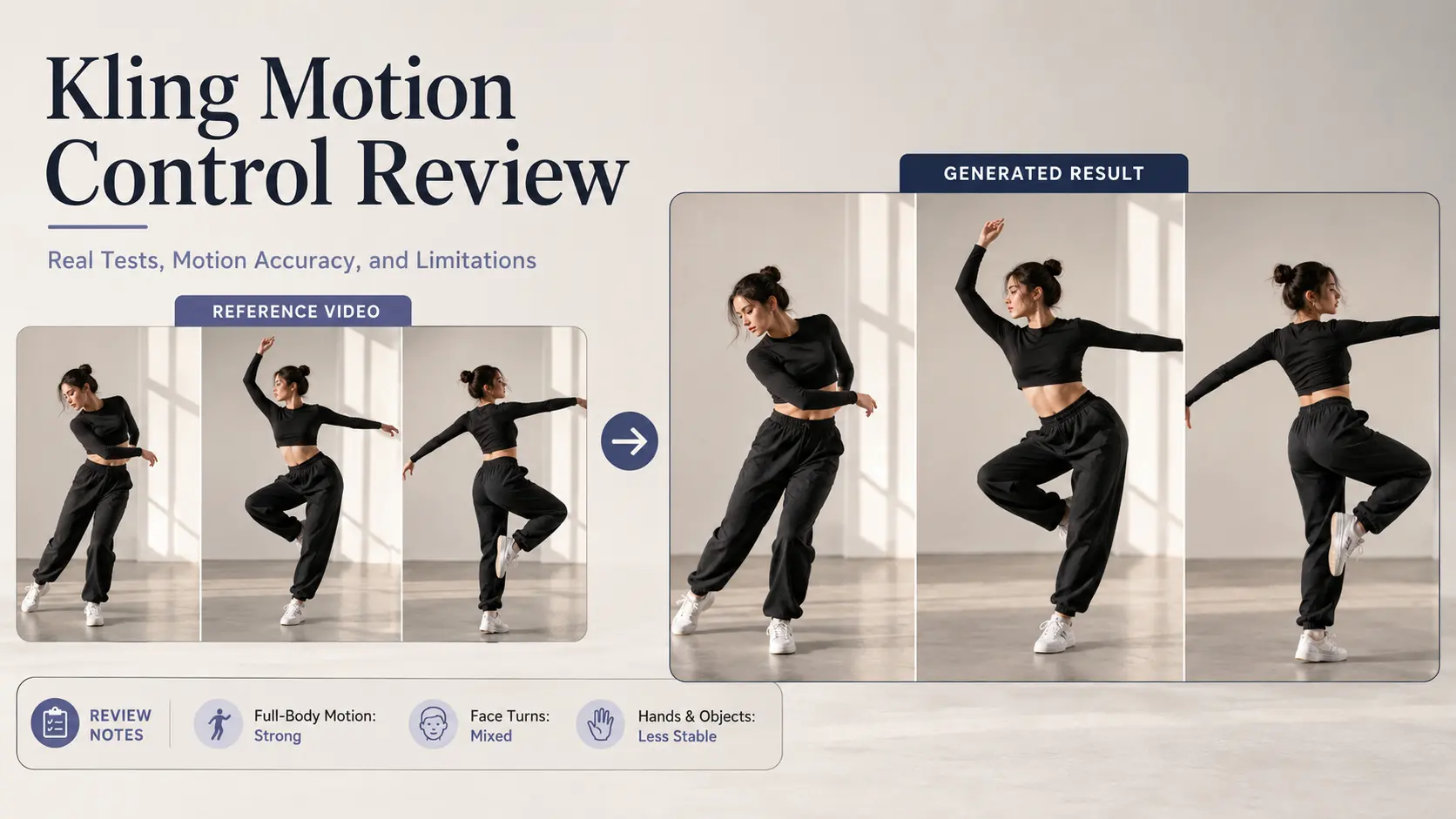
Kling Motion Control transfers the performance in a reference video to a character shown in a static image. Unlike ordinary Image-to-Video generation, it does not rely only on a prompt to guess how the subject should move. The reference clip controls the timing, pose changes, head movement, and much of the expression.
Official demos look smooth, but real reliability still depends on motion speed, character framing, face angles, and occlusion. Overall, Kling Motion Control works best for clear, continuous body movements, while hands, props, and very fast action remain less predictable.
What Is Kling Motion Control?
Kling Motion Control uses a character image and a reference video to transfer real movements—poses, timing, gestures, and some facial expressions—onto the character. Unlike standard Image-to-Video, which generates motion from text prompts, it directly copies performance from the video. Prompts mainly control visual details like background and lighting.
Kling 2.6 introduced this reference-based workflow with orientation modes and 3–30 second clips. Kling 3.0 adds Element Binding, allowing extra facial references to improve identity consistency during head turns and expressions.
How to Use Kling Motion Control
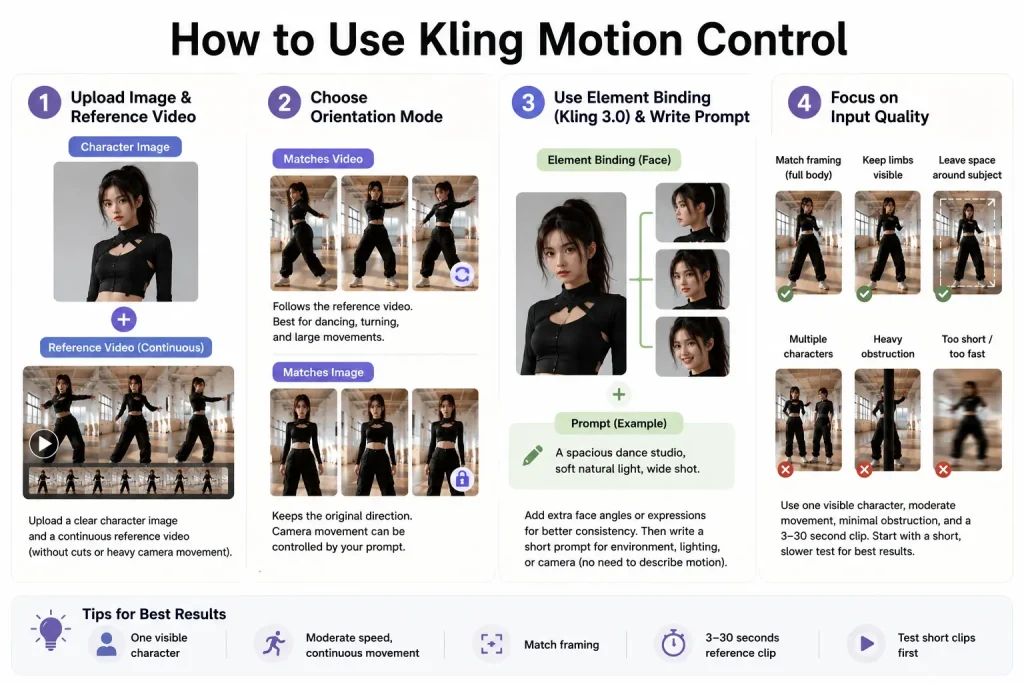
Start by uploading a clear image with one person or humanoid character, then add a continuous reference video without cuts or heavy camera movement.
Choose orientation mode: “Matches Video” for dancing, turning, and large movements; “Matches Image” to keep the original direction and allow prompt-based camera control.
In Kling 3.0, use Element Binding to add extra face angles or expressions when there are head turns. Then write a short prompt for environment, lighting, or camera—no need to describe the motion again.
Focus on input quality: match full-body video with full-body image, keep limbs visible, and leave space around the subject. Use one visible character, moderate movement, minimal obstruction, and a 3–30 second clip. Start with a short, slower test for best results.
Kling Motion Control Test Results
Full-Body Motion Accuracy
Test result: Full-body motion is Kling Motion Control’s strongest area.
Walking, waving, dancing, turning, and large arm movements usually follow the reference video more accurately than prompt-only Image-to-Video. Results are most stable when the character image and reference video have similar framing and body proportions.
It performs well with:
- Walking and controlled dancing
- Waving and large gestures
- Slow turns and continuous movement
Fast spins, jumps, crossed limbs, and sudden direction changes are less reliable. Common problems include stretched arms, unstable legs, disappearing limbs, and brief body intersections.
For better results, use moderate-speed movement, keep the full body visible, and leave enough space around the subject.
Face Consistency and Head Turns
Test result: Small facial movements work well, but large head turns remain difficult.
Blinking, smiling, slight glances, and mild head movement can look natural with a sharp, front-facing source image. Larger turns may cause face flicker, changing facial proportions, or temporary identity loss.
Kling 3.0’s Element Binding allows users to add facial images or a short face video. Front, three-quarter, and profile references can improve side views and expression consistency.
However, fast expressions, major head turns, and hands covering the face may still cause distortion.
Hands and Object Interaction
Test result: Simple gestures are usable, but fingers and prop interaction are less stable.
Waving, raising an arm, and pointing often transfer well because the overall movement path is clear. Accuracy drops when fingers overlap, hands cross, or gestures move quickly.
Common issues include:
- Fused or blurred fingers
- Unstable wrist and finger joints
- Incorrect hand depth
- Hands passing through objects
Holding a cup or phone may work when the grip stays visible. Picking up, rotating, opening, or putting down an object is more difficult because the model must preserve the hand, object shape, contact point, and timing at once.
For prop scenes, use slow and simple actions and expect to generate several versions.
Kling Motion Control Pricing and Credit Cost
Kling charges for Motion Control based on generated duration, with the final length rounded to the nearest whole second. Kling 2.6 costs 5 credits per second in Standard mode and 8 credits per second in Professional mode. Kling 3.0 costs 9 credits per second in Standard mode and 12 credits per second in Professional mode.
| Model | Mode | 5 Seconds | 10 Seconds | 30 Seconds |
| Kling 2.6 | Standard | 25 credits | 50 credits | 150 credits |
| Kling 2.6 | Professional | 40 credits | 80 credits | 240 credits |
| Kling 3.0 | Standard | 45 credits | 90 credits | 270 credits |
| Kling 3.0 | Professional | 60 credits | 120 credits | 360 credits |
Kling 3.0 becomes noticeably more expensive across repeated attempts. A failed 10-second Kling 3.0 Professional generation still consumes 120 credits. Kling also states that credits are not refunded when only part of a difficult motion clip can be extracted.
Because fast motion, hand details, head turns, and prop interaction often require retries, it is more economical to test a 5- to 8-second segment before submitting the complete sequence. The listed generation cost only covers one attempt, while the real cost may be higher when a scene requires several retries.
Kling Motion Control Review: Pros, Cons, and Final Verdict
| Category | Score |
| Motion Accuracy | 8.5/10 |
| Face Consistency | 7.5/10 |
| Hand Quality | 6.5/10 |
| Ease of Use | 8.5/10 |
| Value for Credits | 7/10 |
| Overall Rating | 7.8/10 |
Kling Motion Control is considerably easier to direct than prompt-only Image-to-Video. Walking, dancing, waving, and turning benefit from a real performance reference, and creators do not need to describe every movement through complicated prompt language. It is particularly useful for transferring human actions to anime characters, game-inspired avatars, virtual influencers, and concept-video subjects.
Its weaknesses appear in fast motion, severe occlusion, crossed limbs, fingers, and detailed prop contact. Large head turns benefit from additional facial references, while repeated generations can quickly increase the real credit cost.
Kling 3.0’s Element Binding is a meaningful improvement over Kling 2.6 when facial identity matters. However, the higher credit cost may not be justified for simple front-facing movement without major expression or angle changes.
Is Kling Motion Control worth using? Yes, for short-form creators, virtual-character accounts, AI animation, dance clips, and visual concepts that can tolerate some rerendering. Kling 2.6 offers better value for straightforward body movement, while Kling 3.0 is the stronger choice for faces, head turns, and expressive performances.
It is less suitable for precise multi-person choreography, complex object handling, or client projects that must succeed perfectly in a single generation.
Ready to Create a Kling AI Video?
Turn your images into dynamic AI videos with Kling models directly in your browser.