
Model
Kling 3.0 (Stable)
High-end cinematic video generation with refined visual quality
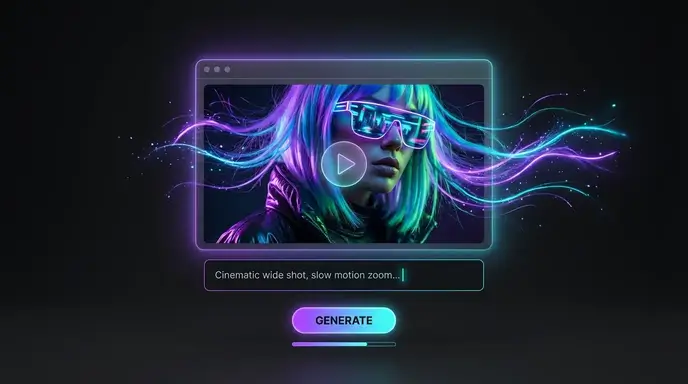
Prompt
0 / 2500
Mode
Standard
Rapid AI‑powered video creation
Professional
Superior video results with extended generation time
4K
Ultra HD 4K video with maximum clarity and detail
Audio
Duration
3s
Number of Results
Create
Sample Video
Sample video preview

Kling AI Video Generator: Create HD Content Free Online

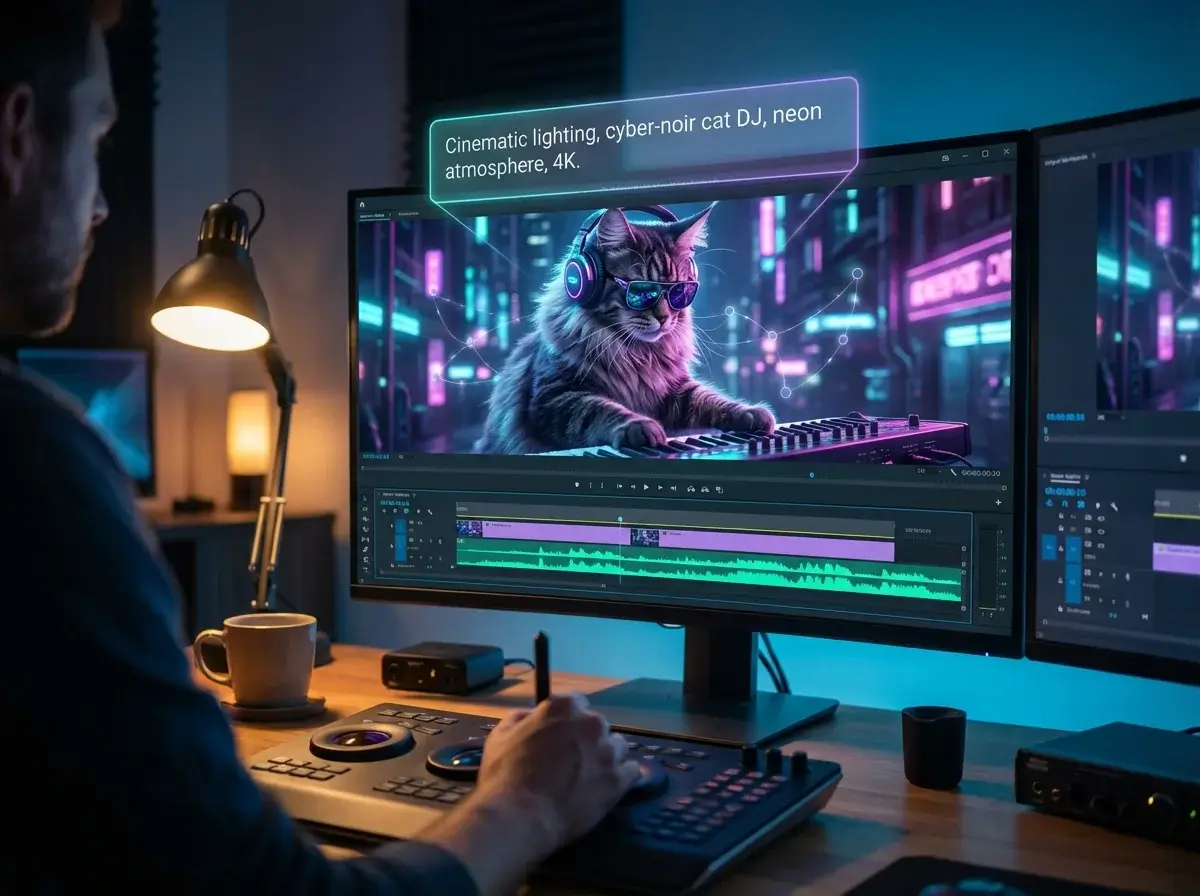
Welcome to the ultimate Kling AI video generator platform powered by advanced diffusion transformer technology from KuaiShou. This free AI video generator without watermark transforms your text descriptions and static images into breathtaking 1080p content at smooth 30 frames per second. Whether you need an AI dance video generator, AI cat video generator, or professional marketing content creator, Kling delivers cinema-grade results. Generate clips up to 2 minutes with realistic motion, accurate physics simulation, and stunning visual fidelity. This Kling AI alternative provides AI hug generator capabilities and AI kissing generator free features. Access Kling free credits instantly.
Prompt
A butterfly flies from the distance toward an ancient scroll resting on a table. As the butterfly lands on the scroll, it simultaneously unfurls from both sides, unfolding completely.
Sample Clip
Prompt
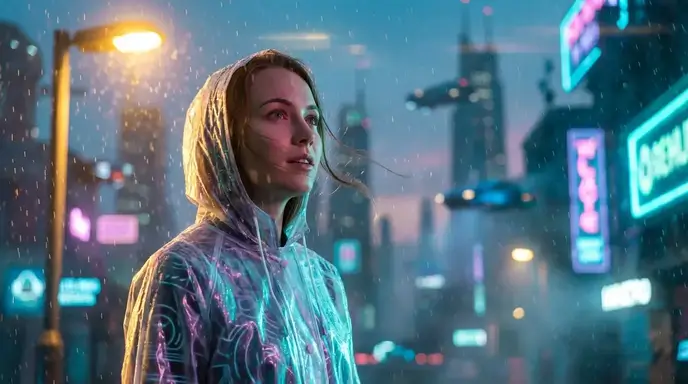
A handheld camera closely follows a beautiful woman holding a cup of tea as she stands up to avoid the heavy rain outside the window. She spontaneously begins a sensual dance, her movements smooth and fluid. The lighting shifts dynamically, with ultra-HD details and cinematic color grading.
Sample Clip
Prompt
A tiny kitten crouches on the ground, its tail wagging non-stop. It leans forward, gently sniffing the balloon with its nose. The next moment, the balloon pops with a "bang," and the kitten darts swiftly under the sofa, curling into a little ball, with only half of its tail visible, trembling lightly.
Sample Clip

Text to Video AI Free Online: Kling Technology

This generator revolutionizes content generation through groundbreaking 3D spatiotemporal joint attention modeling. The sophisticated technology accurately simulates real-world physics including gravity, momentum, and material properties. Objects move naturally through space rather than floating unrealistically. The advanced autoencoder preserves every detail from your source images while introducing fluid, lifelike motion. Experience text to video AI free online that understands the physical world and produces results indistinguishable from professionally filmed footage.

AI Dance Video Generator with Semantic Understanding

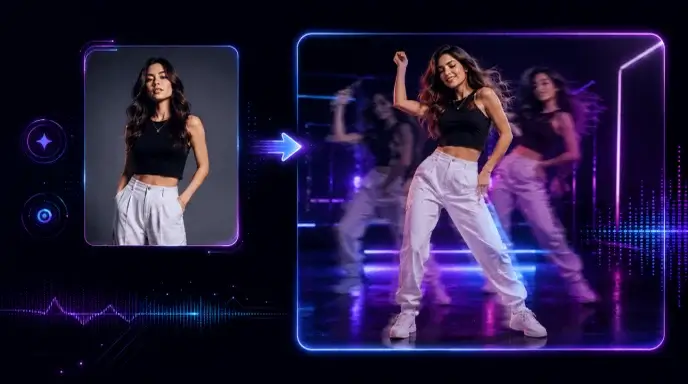
Write natural language prompts and watch this generator transform your descriptions into cinema-grade visual content. Create stunning AI dance video generator sequences with fluid choreography and realistic body movements. The advanced language model comprehends context, emotion, and artistic intent. Describe complex scenes with multiple elements, specific lighting, or particular camera movements. This generator interprets your creative vision accurately, generating 1080p sequences that match your imagination.

Generate Now

Outperforms Runway Video Generator for Animation

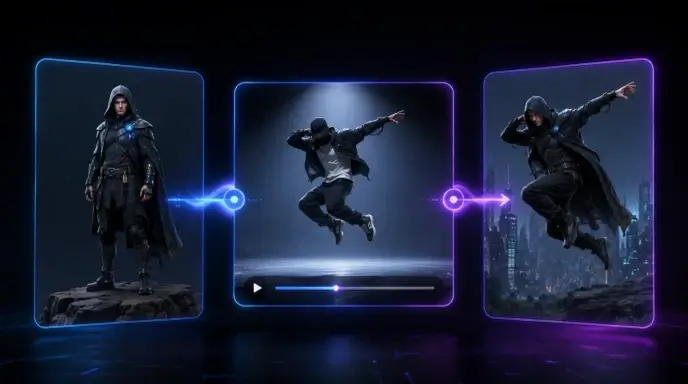
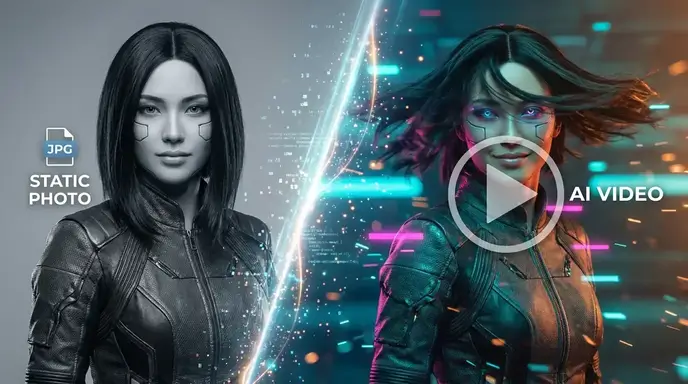
Upload photographs or digital artwork and this generator adds realistic movement while maintaining perfect visual consistency. Unlike basic runway video generator alternatives, the sophisticated motion engine respects physical laws, creating natural animations that follow real-world behavior. Hair flows realistically in wind, fabric drapes naturally on moving figures, and water ripples authentically. Every generated frame preserves the original image quality while introducing seamless motion.

Generate Now

Extended Duration Beats Vidfly AI Video Generator

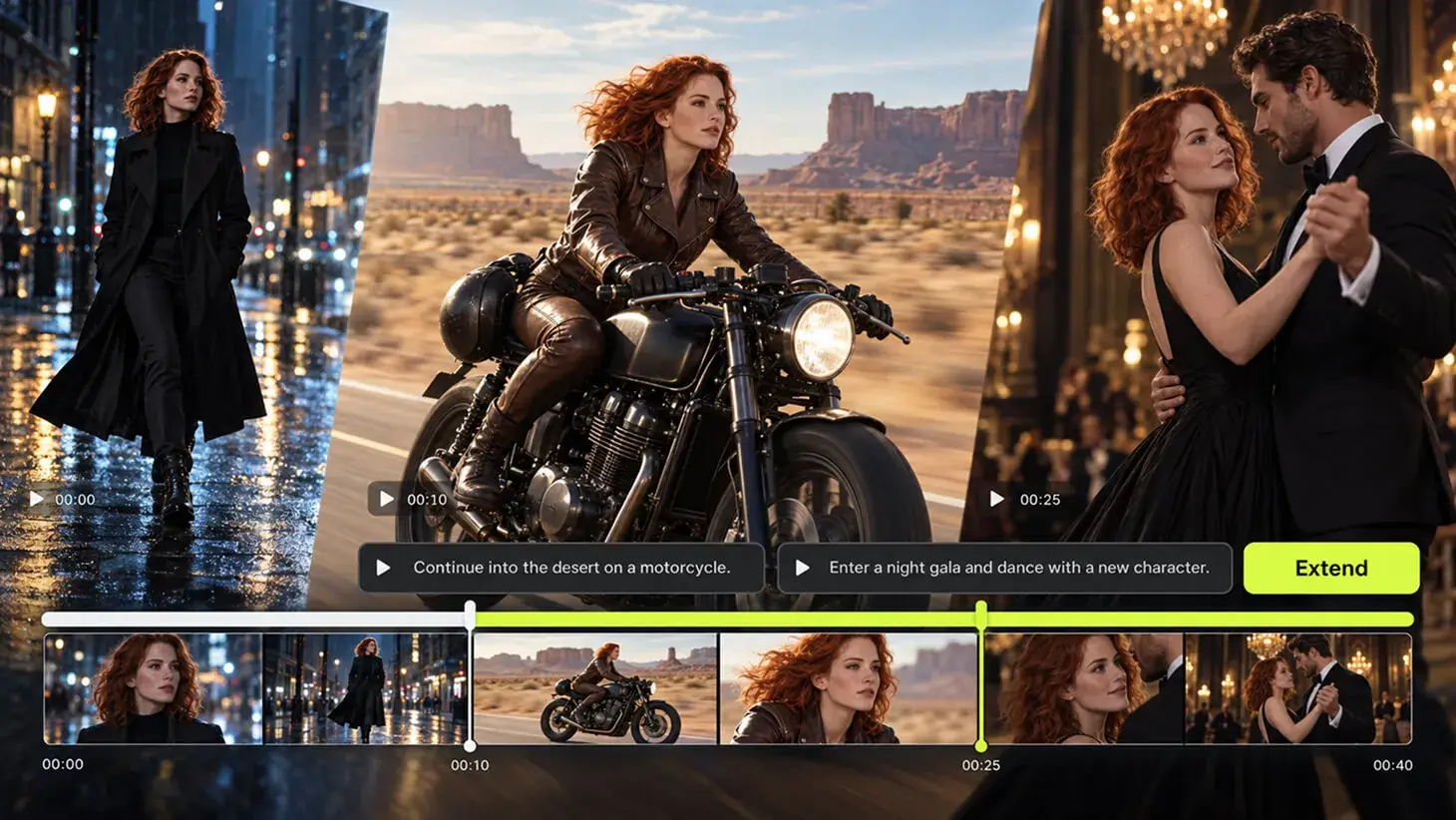
Generate content significantly longer than competing platforms including vidfly AI video generator with extended duration capabilities. Create clips up to 2 minutes at native generator output, extendable to 3 minutes using the extension feature. This industry-leading generator length enables complete storytelling, full product demonstrations, and comprehensive educational content. Maintain consistent quality and character appearance throughout extended sequences.

Generate Now

Free AI Video Generator Without Watermark: 3 Steps

AI Hug Generator and Creative Options

Select between text-to-video or image-to-video generator modes based on your creative needs. Create AI hug generator animations, AI kissing generator free content, or professional sequences. For text mode, describe your vision using natural language with desired detail. For image mode, upload JPG, JPEG, PNG, or WEBP files up to 10MB. This free AI video generator without watermark supports cartoon video generator styles and realistic generation alike.

Configure Generator Parameters

Customize your generation with flexible output settings. Select aspect ratios optimized for different platforms including widescreen, vertical, and square formats. Choose between standard and professional quality modes based on your requirements. Adjust duration from 5 seconds up to the full 2-minute maximum. Select from multiple model versions including the latest 2.1 release. This generator offers AI video loop generator capabilities for seamless looping content and looping video generator features.

Download Watermark-Free Results

Receive your completed content in high-quality MP4 format ready for immediate use. All downloads come completely watermark-free for professional deployment. Use your generated content for commercial purposes including advertisements, product promotions, and paid projects. Your creations belong entirely to you with full usage rights retained. Convert photo to video AI free online with this powerful generator.

Better Than Vidnoz AI Image to Video: Generator Uses

From Hollywood filmmakers to independent content creators, this generator serves diverse professional needs across multiple industries. Superior to vidnoz AI image to video alternatives, this platform adapts to any creative challenge with consistent cinema-grade quality. Discover how professionals worldwide leverage advanced capabilities to transform their workflows. Whether you need fashion video generator capabilities or car video generator features, this generator delivers exceptional results.

Film & Animation
Marketing & Ads
E-commerce
Education

AI Cat Video Generator and Creative Productions

Revolutionize your film production workflow with scene generation, editing, and native audio support. Create AI cat video generator content, music sequences, and professional productions. Use video sound generator features and editor tools for complete post-production. Independent filmmakers access Hollywood-level visual effects without massive budgets. Generate cartoon video generator content and realistic clips alike.

AI Kissing Generator Free: Trusted by Video Creators

Film Video Production Transformed

The Kling video generator completely changed how we approach video pre-visualization for productions. The 1080p video quality at 30fps matches professional standards. We generate concept video sequences with Kling that previously required full crew setups. The extended duration feature lets us create complete video scenes.

Marcus Sterling
Film Director

Marketing Video ROI Increased

Our advertising costs dropped significantly after adopting the Kling video generator for campaign content. The realistic lip-sync feature creates convincing video spokesperson clips. We produce ten times more video variations for testing with Kling. Client satisfaction improved with faster turnaround from this generator.

Jennifer Hayes
Ad Agency Creative Director

E-commerce Video Sales Boosted

Video content generated through the Kling generator increased our conversion rates substantially. The virtual try-on feature works perfectly for our fashion catalog. Customers engage longer with dynamic video presentations from Kling. Implementation of this generator was seamless with immediate results.

David Chen
E-commerce Manager

Educational Video Content Enhanced

My students understand complex concepts much better through video visualizations from the Kling generator. The physics simulation creates accurate scientific demonstrations. Course completion rates improved after incorporating Kling video materials. Creating lessons became faster with this generator.

Dr. Sarah Mitchell
University Professor

Social Media Video Growth Accelerated

The Kling generator powers my entire video content strategy across all platforms. The 1080p video quality from Kling looks incredible on every device. I publish consistent high-quality video content daily without burnout. My follower growth accelerated dramatically with this generator. It beats any chatgpt image to video generator I tried.

Alex Rivera
Video Content Creator

Game Video Development Streamlined

We use the Kling video generator for cutscene prototyping and marketing trailers throughout development. The cinematic video quality from Kling matches our game engine output seamlessly. Iteration speed increased for creative decisions using this generator.

Ryan Nakamura
Game Studio Director

Film Video Production Transformed

The Kling video generator completely changed how we approach video pre-visualization for productions. The 1080p video quality at 30fps matches professional standards. We generate concept video sequences with Kling that previously required full crew setups. The extended duration feature lets us create complete video scenes.

Marcus Sterling
Film Director

Marketing Video ROI Increased

Our advertising costs dropped significantly after adopting the Kling video generator for campaign content. The realistic lip-sync feature creates convincing video spokesperson clips. We produce ten times more video variations for testing with Kling. Client satisfaction improved with faster turnaround from this generator.

Jennifer Hayes
Ad Agency Creative Director

E-commerce Video Sales Boosted

Video content generated through the Kling generator increased our conversion rates substantially. The virtual try-on feature works perfectly for our fashion catalog. Customers engage longer with dynamic video presentations from Kling. Implementation of this generator was seamless with immediate results.

David Chen
E-commerce Manager

Educational Video Content Enhanced

My students understand complex concepts much better through video visualizations from the Kling generator. The physics simulation creates accurate scientific demonstrations. Course completion rates improved after incorporating Kling video materials. Creating lessons became faster with this generator.

Dr. Sarah Mitchell
University Professor

Social Media Video Growth Accelerated

The Kling generator powers my entire video content strategy across all platforms. The 1080p video quality from Kling looks incredible on every device. I publish consistent high-quality video content daily without burnout. My follower growth accelerated dramatically with this generator. It beats any chatgpt image to video generator I tried.

Alex Rivera
Video Content Creator

Game Video Development Streamlined

We use the Kling video generator for cutscene prototyping and marketing trailers throughout development. The cinematic video quality from Kling matches our game engine output seamlessly. Iteration speed increased for creative decisions using this generator.

Ryan Nakamura
Game Studio Director

News About Convert Image to Video for Youtube Short Video Maker

Seedream 5.0 Pro: Unlock The Most Suitable Prompting for AI Image

Seedream 5.0 Pro: Unlock The Most Suitable Prompting for AI Image

Seedream 5.0 Pro is ByteDance Seed’s new AI image generation and editing model, built for more controlled visual creation. As image models become more powerful, prompts also need to evolve. A simple subject + style prompt is no longer enough if you want structured infographics, UI mockups, commercial visuals, multilingual posters, or precise image edits. The real question is: how should you prompt Seedream 5.0 Pro differently? This guide breaks down official Seedream 5.0 Pro examples and turns them into reusable prompt formulas. What Makes Seedream 5.0 Pro Different? Seedream 5.0 Pro is useful because it is built closer to a design tool than a simple image generator. It does not only create attractive visuals. It tries to understand how information, objects, text, and design elements should be arranged inside an image. Information-heavy images better One of the biggest upgrades is complex information visualization. ByteDance says Seedream 5.0 Pro can turn data, concepts, and dense text into professional layouts. This makes it useful for infographics, educational posters, comparison charts, product explainers, report visuals, and social media knowledge cards. This matters because information images are difficult. The model has to plan the layout, place text correctly, separate sections, keep the hierarchy readable, and still make the image look good. More precise editing Seedream 5.0 Pro is also designed for interactive precision editing. According to the official release, it can use spatial positioning and regional understanding to support point selection, lasso selection, sketch rendering, color editing, material replacement, and multi-image fusion. In simple terms, you can ask it to change one part of an image without regenerating everything. For example, instead of saying “make this room look better,” you can say: change only the sofa fabric, keep the lighting and room layout unchanged. That kind of prompt is much more useful for real design work. ByteDance also demonstrates layer separation in its official materials. However, as of this writing, the layer separation workflow is not yet broadly available in every public product workflow, so this guide will not treat it as a ready-to-use core method. Realistic commercial visuals Seedream 5.0 Pro also focuses on realistic lighting, material behavior, skin texture, reflections, architecture, and photographic quality. This makes it useful for product ads, fashion visuals, portrait photography, interior design, lifestyle images, and cinematic still frames. For creators, this means the model can help produce more polished source images before turning them into videos. Multilingual image generation Seedream 5.0 Pro can also work with multilingual prompts and generate text in more than ten commonly used languages, including Chinese, English, French, German, Russian, Japanese, Korean, Spanish, and Arabic. This is useful for global ads, localized posters, multilingual social posts, and international marketing visuals. How Official Seedream 5.0 Pro Prompts Work The official examples show that Seedream 5.0 Pro performs best when the prompt is structured like a design brief. Official example: Antarctic research infographic One official example asks Seedream 5.0 Pro to create an infographic about scientific research at Antarctica’s Qinling Station. The prompt does not simply say “make an infographic about Antarctica.” It asks for the main Qinling Station building in the center. Around it, the model should add a timeline, bar chart, pie chart, line chart, equipment photos, weather panel, fieldwork flowchart, and sampling photography. The lesson is simple: Tell the model what sections, charts, cards, labels, and panels should appear. As we early users find, if you don’t specify the layout, labels, or information hierarchy, the model often won’t invent them for you. While this requires more detailed prompting, it also gives creators much more control over the final design. Official example: pet e-commerce homepage UI The pet e-commerce example is useful for UI and landing page creators. The prompt asks for a 16:9 pet e-commerce homepage in warm sunset tones. It includes a top navigation bar, left-side text area, product cards, a capsule-shaped button, and a right-side Golden Retriever image. The most brilliant creative touch in this UI design is the cross-layer interaction: the dog’s paw breaks out of the right frame and presses the button on the left. This shows that Seedream 5.0 Pro can understand spatial relationships inside a designed layout. But achieving this requires a clearly detailed prompt, as it is not something the model generates automatically. Official example: material and color editing This is one of the cases I feel most interesting. Another official case uses multiple references: Image 1 provides material, Image 2 provides a color swatch, and Image 3 is the sofa image to edit. The lesson is important: When you upload multiple reference images, give each image a job. Surprisingly, Seedream 5.0 Pro also has no trouble understanding handwritten draft instructions. This means that even when you’re outdoors, as long as you have a smartphone or an iPad, you can simply sketch your editing requirements directly onto the original image—eliminating the need to type out lengthy, essay-like prompts. Official example: panning shot photography Seedream 5.0 Pro also shows a panning shot example. The prompt keeps the cyclist and bicycle sharp, stretches the background into horizontal motion blur, and adds rotational blur to the wheel spokes. This is useful for image-to-video creators. A motion-ready still image gives the video model a stronger starting point. Seedream 5.0 Pro Prompt Formula Based on the official examples, Seedream 5.0 Pro prompting can be grouped into four practical categories. 1. Informational Visual Prompt Use this for infographics, educational posters, comparison charts, beginner guides, product explainers, report visuals, tutorial cards, and grid-based knowledge images. The goal is to help the model organize information clearly. Formula: “Create a [visual format] about [topic]. Use a [layout type] layout. Include [main subject or title]. Add [module/card 1], [module/card 2], [module/card 3], and [module/card 4]. Each section should include [labels / short descriptions / icons / charts / illustrations]. Keep the hierarchy clear, text readable, and design style [style].” Example: “Create a 16:9 educational infographic about how AI image-to-video generation works. Use a clean modular layout. Place a source image in the center.

Seed Audio 1.0 Explained: AI Dialogue, Music & SFX

Seed Audio 1.0 Explained: AI Dialogue, Music & SFX

AI video is moving fast. Today, you can turn a still image into motion, create cinematic camera movement, generate short ads, or build social media clips with AI in minutes. But one problem still makes many AI videos feel unfinished. Sound. A video can look cinematic, but if the voice feels flat, the background is silent, or the sound effects do not match the action, the whole scene loses its impact. That is why Seed Audio 1.0 is worth paying attention to. Also known as Doubao-Seed-Audio 1.0, this new AI audio generation model is not just another text-to-speech tool. It is designed to generate complete audio scenes from prompts, including dialogue, emotion, background music, ambience, and sound effects. In other words, Seed Audio 1.0 is not only making voices. It is trying to direct sound. What Is Seed Audio 1.0? Seed Audio 1.0 is an AI audio generation model that can turn text prompts and audio references into target audio. That sounds simple, but the idea behind it is much bigger. Most AI voice tools only read text aloud. You type a script, choose a voice, and get a voiceover. Seed Audio 1.0 goes beyond that. It can generate: Character dialogue. Emotional tone. Accents and dialect-style delivery. Background music. Ambient sound. Foley and sound effects. Non-verbal details like laughter, sighs, breathing, and pauses. This means creators can describe a full audio scene in one prompt instead of building every sound layer manually. For example, you could describe a rainy street scene with two characters talking, soft suspense music, distant traffic, footsteps, and a nervous emotional tone. A traditional TTS tool may only generate the spoken lines. Seed Audio 1.0 is designed to understand the whole sound scene. That is the real difference. Why Seed Audio 1.0 Feels Different The biggest problem with traditional AI audio workflows is fragmentation. You need one tool for voice. Another tool for music. Another tool for sound effects. Another editor to align everything. Then you still need to mix the volume, adjust timing, and make the final audio feel natural. For professional editors, this is normal. For everyday creators, it is a headache. Seed Audio 1.0 changes the workflow by putting more of the audio direction into a single prompt. Instead of thinking like an editor, the user can think like a director. You do not just write what someone says. You describe how the whole scene should sound. That is why Seed Audio 1.0 feels more like an AI audio director than a basic AI voice generator. One Prompt, Full Audio Scene The most important breakthrough of Seed Audio 1.0 is full-scene audio generation. A single prompt can include multiple audio layers at once. You can define who is speaking, what they are saying, how they feel, what is happening in the background, what music should play, and which sound effects should appear. This is useful because real content is never just one sound. A short film needs dialogue, silence, tension, footsteps, room tone, and music. A product ad needs voiceover, impact sounds, background rhythm, and brand atmosphere. A podcast intro needs host energy, music, pacing, and clean transitions. A game trailer needs environment, character voices, weapons, movement, and cinematic sound design. Seed Audio 1.0 tries to generate these elements together instead of forcing creators to assemble them piece by piece. For creators, this can reduce editing time. For beginners, it lowers the barrier to audio production. For AI video users, it can make generated videos feel more complete. Multi-Character Dialogue Without Losing the Voice Another important feature is multi-character dialogue. Many creative projects need more than one voice. A short drama may need two characters arguing. A podcast may need a host and a guest. An audiobook may need different roles. A game scene may need a narrator, a hero, and a villain. Seed Audio 1.0 allows creators to define multiple characters in one prompt, including their lines, emotions, and speaking rhythm. More importantly, it is designed to keep different character voices consistent. This matters more than it sounds. In AI-generated audio, a character can easily “drift.” They may sound one way in the first part and slightly different later. For a short clip, that may be acceptable. For a long story, it breaks immersion. If a character sounds like a different person after a few minutes, the audience notices. Seed Audio 1.0 focuses on keeping the voice stable across longer audio creation, which is especially valuable for audio dramas, podcasts, audiobooks, and serialized AI videos. Long Audio Is Where It Gets Serious Generating one good line is not the hard part anymore. The hard part is consistency. Can the same character still sound like the same person after one minute? After five minutes? Across multiple scenes? This is one of the major pain points Seed Audio 1.0 tries to solve. According to the official information, Seed Audio 1.0 currently supports up to 2 minutes of audio creation at a time. That generated audio can also be used as a reference input to extend the audio while keeping the voice style more consistent. This makes it more useful for long-form content. Think about audiobooks, podcast episodes, brand stories, educational narration, or AI short drama series. These formats do not only need good voice quality. They need reliable voice identity. If Seed Audio 1.0 can maintain that consistency in real workflows, it could become much more than a demo model. It could become part of a serious content production pipeline. Zero-Shot Audio Creation: No Training Needed Seed Audio 1.0 also supports zero-shot multimodal audio creation. That means creators do not need to train a custom model before generating a specific voice or sound style. They can use text descriptions, reference audio, or both. This gives users more flexibility. You can describe a voice by age, emotion, accent, personality, and scene context. You can also provide a reference audio clip to guide the output more directly. Another interesting point is style control. The same

Nano Banana AI Free: Complete Guide to Free Access, Limits, and Best Platforms (2026)

Nano Banana AI Free: Complete Guide to Free Access, Limits, and Best Platforms (2026)

Nano Banana AI leads LMArena’s image generation leaderboard with an Elo score of 1,360 — and you can use it at zero cost. But “free” carries fine print that most guides skip. Daily caps get slashed without notice, invisible watermarks are woven into every pixel, and confusing billing setups have led users to rack up accidental charges exceeding $2,000. This guide gives you a tested, honest breakdown of every free access method in 2026 — with verified limits, resolution details, and a multi-platform strategy for when credits dry up. What Is Nano Banana AI? (Quick Primer for Beginners) Nano Banana is Google’s AI image generation technology within the Gemini ecosystem. You describe what you want, and the model produces a detailed image in seconds. Nano Banana vs Nano Banana Pro vs Nano Banana 2 — What’s the Difference? Why Nano Banana AI Is the #1 Rated Image Generator in 2026 Nano Banana Pro tops the LMArena leaderboard at Elo 1,360 with 94% text-in-image accuracy, character consistency for up to 14 people, and generation speeds as low as 4 seconds. That combination explains why free access is in such high demand. Is Nano Banana AI Really Free? (The Honest Answer) Yes — Nano Banana AI is genuinely free, with limits. The Gemini app gives you roughly 20 NB2 and 2 NB Pro images daily. AI Studio offers 50 free requests. Flow grants up to 150 credits. Platforms like VideoPlus.ai don’t even require a Google account. The trade-off? Every free option restricts volume, resolution, or content. What You Get for Free on the Google Gemini App Expect approximately 20 NB2 and 2 NB Pro images per day — no credit card needed. Every output carries Google’s SynthID watermark at the pixel level. One common frustration: Google defaults to NB2, so you’ll have to regenerate to receive Pro-quality results. Free Tier on Google AI Studio (Best for Developers) AI Studio provides 50 free requests daily and applies a more lenient content filter than the Gemini app. The risk? Billing setup can be confusing — multiple users have reported surprise charges when they mistakenly routed requests through Google Cloud instead of Studio’s free tier. Free Access via Google Flow (Up to 150 Daily Credits) Google Flow lists NB Pro and NB2 at 0 credits, yet real-world testing reveals a lockout after about 100 images within 24 hours. Additional downsides include a 1K resolution cap, the strictest content filtering of any platform, only five preset aspect ratios, and no 1:1 option. Free Access Without a Google Account No Google account? No problem. VideoPlus.ai delivers NB2 generation with no sign-in, no watermark, and immediate download. LMArena offers free NB Pro at 2K resolution, though model availability may fluctuate over time. Quick-Reference Comparison Table Platform Model Daily Limit Resolution Watermark Sign-Up Gemini App NB2 + NB Pro ~20 NB2, 2 Pro Up to 4K SynthID Google account AI Studio NB2 + NB Pro 50 requests Up to 4K SynthID Google account Google Flow NB2 + NB Pro ~100 images 1K SynthID Optional VideoPlus.ai NB2 Varies 1K–4K None None LMArena NB Pro Varies 2K None None Krea.ai NB2 Varies Varies None Optional Lovart AI NB2 + NB Pro Daily credits Up to 4K None Free account How to Use Nano Banana AI for Free (Step-by-Step Methods) Five methods, ordered from simplest to most technical. Method 1 — Google Gemini App (Easiest, No Credit Card) Open the Gemini app, type your image prompt, and generate. Works across mobile and desktop. Your daily allocation resets every 24 hours — no setup beyond a Google account. Method 2 — Google AI Studio (Best Free Tier for Developers) Head to AI Studio, select a model, and prompt away — 50 free requests per day. Set billing alerts immediately to avoid surprise charges. Method 3 — Google Flow (Most Credits, Heaviest Restrictions) Visit Google Flow and select Nano Banana — roughly 100 images before a 24-hour cooldown. Be aware of the 1K resolution cap and the strictest content filtering of any platform. Method 4 — Third-Party Platforms (No Google Account Required) For the absolute lowest barrier, visit VideoPlus.ai — no login, no watermark, instant downloads. Krea.ai offers canvas-based spatial editing, and Lovart AI provides design-oriented workflows. Method 5 — Google Cloud $300 Free Credit (2,000+ Generations) New Google Cloud accounts get $300 in free credits — roughly 1,250+ high-resolution 4K generations at $0.24 per image. Claim credits at Google Cloud and set a budget cap immediately to prevent accidental charges. Best Free Platforms for Nano Banana AI in 2026 (Tested and Compared) VideoPlus.ai — No Sign-In, No Watermark, Instant Download The lowest-friction option. NB2 generation from 1K to 4K, multilingual text rendering, and character consistency for up to five subjects per session — all without creating an account. LMArena — Free High-Quality Nano Banana Pro Direct NB Pro access at 2K with no watermarks. Includes model comparison and voting tools. Caveat: model availability can shift — check before relying on it. Krea.ai — Canvas-Based Editing with 30M+ Users Unique canvas overlay tool for spatial edits — drag arrows, add annotations, combine images. NB2 plus Krea 2, Veo 3.1, and more. No account needed for basics. Lovart AI — Free 4K Output for Designers Free daily credits for 4K generation with both NB2 and NB Pro. Includes dedicated brand design tools — well suited for professional creative projects. Google Whisk — Beginner-Friendly Image Remixing Whisk blends a subject, scene, and style into a single image. “Precise Mode” adds granular control, and you receive five free image-to-video conversions monthly via Veo3. Some features remain US-only. HailuoAI — Nano Banana Pro on a Video-First Platform 4K output in roughly 8 seconds with multi-style artistic modes. Best for creators who want image generation and video tools in one place. Free vs Paid: Is the Free Tier Good Enough? What You Can Do for Free Free-tier output quality is identical to paid — the gap is volume, not fidelity. For a few social media posts daily, personal

What Is Gemini Omni? The Complete Guide to Google’s AI Video Model

What Is Gemini Omni? The Complete Guide to Google’s AI Video Model

Google announced Gemini Omni at I/O 2026 as a new multimodal AI video model designed to create and edit video from text, images, audio, and video inputs. The idea sounds huge: instead of using separate tools for prompting, editing, audio, and video generation, users can create and refine videos through natural conversation. But the first released version, Gemini Omni Flash, has received mixed feedback. Creators like its conversational editing workflow, but many also say the raw video quality still falls behind models like Seedance 2.0 and Kling. There is also confusion around Google’s naming system: Omni, Veo, Nano Banana, Flash, and Pro all sound connected, but they do not mean the same thing. This guide explains what Gemini Omni is, what it can do today, how to use it, how much it costs, how it compares with other AI video models, and whether it is worth trying. What Is Gemini Omni? Gemini Omni is Google’s multimodal AI video model for generating and editing video through natural conversation. Announced at Google I/O 2026, its first available version is Gemini Omni Flash. The easiest way to understand Gemini Omni is that it brings video generation into the Gemini chat experience. Instead of writing one prompt and accepting the result, users can describe a video, provide reference images, add audio or video input, and then ask the model to revise the result with follow-up prompts. This makes Gemini Omni different from many traditional AI video generators. In most tools, each new change often means starting a new generation. Gemini Omni is designed to keep the previous context, so users can adjust a video step by step — changing the camera angle, replacing a subject, modifying the lighting, or refining the visual style within the same conversation. In short, Gemini Omni is not just a text-to-video tool. It is Google’s attempt to make AI video creation feel more like an interactive editing process, where users can create, revise, and polish video ideas through a single conversation. What Can Gemini Omni Do? Gemini Omni’s biggest value is not simply generating a video from a prompt. Its real advantage is the way it combines video generation, multimodal input, and conversational editing. Conversational Video Editing This is the feature that makes Gemini Omni stand out. You can generate a video, then keep editing it through natural language. For example: The important part is that each instruction builds on the previous result. The model is not just starting over from zero every time. This makes Omni useful for creators who want to explore ideas, adjust scenes, and refine details without rebuilding the entire prompt. Multimodal Input Omni can work with different types of input, including: This is useful for creators who need more control than a simple text-to-video prompt can provide. For example, you could use a character image generated with Nano Banana, then ask Omni to animate that character in a specific scene. Early user feedback suggests that Omni usually understands the intent well, even when the final video quality is not always perfect. That means its strength is prompt understanding and workflow flexibility, not flawless motion realism. Gemini Omni Flash is still limited by short video duration, inconsistent complex motion, weak text rendering, and some practical restrictions around voice, moderation, and watermarking. So the short answer is: Gemini Omni is promising, especially for editing and multimodal workflows, but Omni Flash is not yet the strongest choice if you only care about polished cinematic output. How to Use Gemini Omni Google offers three main ways to try Gemini Omni: Gemini, Google Flow, and YouTube Shorts. Each entry point is designed for a slightly different type of user, so the best choice depends on what you want to create. Use Gemini for Conversational Video Creation The Gemini app is the simplest place to start. You can describe the video you want, generate a result, and then continue editing it with follow-up prompts. For example, you can ask Gemini to create a short scene, then refine it by changing the lighting, camera angle, subject, background, or visual style. This is the best option if you want to experience Gemini Omni as a chat-based video creation tool. Use Google Flow for a More Creative Workflow Google Flow is better for users who want a more structured creative workspace. It is designed for planning, creating, refining, and composing videos with Google’s generative media models. Instead of treating each video as a one-off prompt, Flow gives creators more room to build scenes, explore ideas, and refine clips as part of a larger project. This makes it a better fit for creators, marketers, filmmakers, or anyone testing more serious AI video workflows. Use YouTube Shorts for Quick Video Experiments YouTube Shorts is the most casual way to try Gemini Omni. It is useful for short-form creators who want to quickly test AI-generated clips inside a familiar video platform. This option is best for simple social video ideas, fast experiments, and lightweight creative testing. If your goal is to make quick AI-assisted Shorts rather than build a full video project, YouTube Shorts is the easiest place to start. In short, use Gemini if you want conversational editing, Google Flow if you want a more advanced creative workspace, and YouTube Shorts if you want to test quick AI video ideas for social content. Conclusion Gemini Omni represents a genuine paradigm shift in AI video creation — not because of raw generation quality (Seedance 2.0 still leads there), but because of its conversational editing workflow. The ability to iteratively refine videos through natural language, with full context preservation across turns, is something no competitor currently offers. The “Nano Banana for video” trajectory gives real reason for optimism. If Omni Pro follows the same improvement curve that Nano Banana Pro showed over its Flash predecessor, the quality gap with Seedance could narrow considerably. For now, Omni Flash is best suited for iterative editing, educational content, social media clips, and workflows where multimodal input flexibility matters more than

Higgsfield Unlimited Explained: What AI Video Creators Should Know Before Paying

Higgsfield Unlimited Explained: What AI Video Creators Should Know Before Paying

You subscribed to Higgsfield’s Unlimited plan expecting endless AI video generation. Then you hit a throttled queue, a resolution cap, or a “reached your limit” error on day three. You are not alone — and the confusion is not your fault. After analyzing pricing data from dozens of sources, Reddit threads, and YouTube reviews, users‘ complaint on Higgsfield’s “unlimited” comes with several distinct restrictions not clearly disclosed at purchase. Are they true? Or Higgsfield is over expected? Let’s read the model badges, duration notes, and fair-use details carefully to decode every restriction and compares Higgsfield’s “unlimited” marketing with AI Image to Video’s . What Is Higgsfield AI? How Higgsfield Works as a Multi-Model Aggregator Higgsfield is a multi-model aggregator — a single interface wrapping third-party AI models like Kling 3.0, Sora 2, Google Veo 3.1, Seedance 2.0, and WAN 2.6. It adds proprietary tools on top: Cinema Studio for camera controls, Soul ID for character consistency, and LipSync Studio. This wrapper model is key to understanding pricing. Yaroflasher’s YouTube investigation confirmed Higgsfield wraps Kling AI and Minimax at a 2-4.5x markup over native platform pricing. Key Models Available on Higgsfield The platform spans three categories: Not all models are available on all plans, and “Unlimited” access applies to a specific subset — not the full model library. What Does “Unlimited” Actually Mean on Higgsfield? 365-Day Unlimited Model Passes Ultra-tier annual subscribers ($99/month billed annually) receive a 365-day unlimited pass for one select image model — choose from Nano Banana 2, Wan 2.6, Seedance 1.5 Pro, or Kling 2.6. Volume is genuinely unlimited, but generations route through a slower “standard mode” queue and are subject to the battery system that progressively degrades speed. 7-Day Unlimited Model Promotions Higgsfield periodically offers “unlimited” access to premium video models (Kling 3.0, Seedance 2.0) for paying subscribers. The fine print matters: This is a temporary promotion, not a permanent plan feature. Fair Use, Dynamic Speed Limits, and the Unlimited Queue The battery system is Higgsfield’s speed-throttling mechanism: the more you use unlimited mode, the slower your generations become. Users report speeds ranging from 2 minutes to over 2 hours for the same model. It functions as a soft rate limit disguised as a technical system — while credit-based generation of the same model finishes in under 1 minute. Concurrency Limits and Fair Use Caps Unlimited mode allows only 2-4 simultaneous generations, reduced from 8 after the Christmas 2025 changes. The “reached my limit” error on Ultimate plans is a concurrent cap — not a total volume cap — but the UI does not explain this clearly. Resolution Restrictions in Unlimited Mode All unlimited video output is capped at 720p. Users needing 1080p or 4K must spend credits on upscaling (12-20+ credits). A common workaround: generate at 720p unlimited, then upscale externally with Topaz Video AI. The duration is also limited to 5 second. Unlimited Access vs Credit-Based Priority: The Speed and Quality Gap How the Two-Tier Queue System Works Higgsfield runs two parallel queues. Credit-based generations finish in under 1 minute. Unlimited-mode generations average 10-25 minutes for video — degrading further under the battery system. Same models, same platform, different priority. Key Takeaway: “Unlimited” is not a premium tier on Higgsfield. It is the economy lane. Why Credits Deplete Faster Than Users Expect Credit consumption per generation adds up fast: At Ultra tier (3,000 credits/month), that yields roughly 37-42 Kling 3.0 clips — before factoring in a reported 25-50% failure rate on some models that still consumes credits. The Hidden Cost of Iteration Creative workflows require 3-5 variations per concept, and failed generations still consume credits. One fashion brand owner burned 90% of monthly credits in under a month. Another user calculated a 5-minute video at ~$200 AUD. How to Read Higgsfield Pricing Without Getting Confused Pricing item What to check before paying Monthly price Is it billed monthly or annually? Credits How many credits are included each month? Unlimited badge Which exact model is Unlimited? Duration 365-day or N-day access? Resolution Which resolutions are included? Queue Unlimited queue or priority queue? Concurrency How many generations can run at once? Subscription condition Does Unlimited end if the subscription ends? Annual vs Monthly Billing — The Fine Print Annual billing is displayed as a monthly rate but charged as a full upfront payment. Ultra shows “$99/month” but charges $1,188 at checkout. Given Higgsfield’s history of changing terms mid-subscription, community members widely recommend monthly billing despite the higher per-month cost. How Pricing Has Changed Higgsfield has restructured pricing at least three times — original tiers (Basic $9/Pro $17-29/Ultimate $24-49/Creator $49-249) transitioned to the current Starter/Plus/Ultra/Business structure. Early Creator plan subscribers paid $149.40/month; the same plan was later offered at $37.40/month. “Unlimited” terms have also changed retroactively for existing subscribers. Where the “Scam” Accusations Come From — And What Is Actually Happening The Christmas 2025 Account Purge On December 19, 2025, Higgsfield mass-banned heavy unlimited plan users. Yaroflasher’s investigation documented leaked Discord messages confirming internal awareness, triggering Trustpilot review-bombing and BBB complaints. Retroactive Changes to Existing Subscriptions Users who purchased plans with specific features found them changed post-purchase: concurrent slots slashed from 8 to 2, censorship filters applied retroactively, and the battery system replaced original unlimited speeds — all without notice. UX Patterns That Erode Trust A CGI professional’s 2-month review on Reddit after 9,000+ generations documented dark patterns: the mobile app resets the “Unlimited” toggle on every generation, defaulting to credit-based mode and making accidental credit spending nearly inevitable. Some issues, like the “Danger Zone” cancellation button, have since been improved. Why These Issues Generate “Scam” Language When users discover time limits, throttling, resolution caps, and battery degradation — none clearly communicated at purchase — the emotional response is predictable. The core issue is not fraud but a significant transparency deficit that fuels overpromise and disappointment. Higgsfield Unlimited vs AI Image to Video Unlimited Higgsfield and AI Image to Video both use the word “Unlimited,” but they mean different things. Higgsfield’s Unlimited is best understood as

PixVerse Image to Video Guide: How to Turn Photos into AI Videos in 2026

PixVerse Image to Video Guide: How to Turn Photos into AI Videos in 2026

You already have a great image. Maybe it is an AI character, a product shot, a pet photo, or a scene you want to turn into a short TikTok-style clip. The real question is simple: can PixVerse turn that still image into a video that looks smooth, usable, and worth posting? That is why many creators search for PixVerse image to video. The workflow sounds easy: upload a photo, describe the motion, choose your settings, and generate a short AI video. But in practice, the result is not always as effortless as demo clips make it look. A weak source image, vague prompt, wrong model choice, or too many retries can quickly turn a “free test” into wasted credits. This guide explains how PixVerse AI image to video works, how to write better prompts, what to know about credits and pricing, and when another AI video generator may be a better fit for your workflow. Looking for a faster image-to-video workflow? Turn Images into AI Videos with AI Image to Video Create short videos from images, test different AI video styles, and build social-ready clips without jumping between too many tools. Try AI Image to Video What Is PixVerse Image to Video? PixVerse image to video is an AI feature that turns a still image into a short animated clip. Instead of building a scene from text alone, PixVerse uses your uploaded image as the visual reference, so the subject, composition, character style, product design, or scene mood can stay closer to your original picture. This makes PixVerse AI image to video more predictable than pure text-to-video. You can upload a product photo and ask for a slow camera push-in, turn an AI character portrait into a blinking or smiling clip, or animate a fantasy scene with drifting fog, moving light, and a cinematic camera pan. As an AI video generator, PixVerse works best for short, visual, social-friendly clips. It can be useful for TikTok, Reels, YouTube Shorts, anime characters, product previews, AI pets, mascots, fantasy scenes, and quick creative tests before making a longer video. It is less ideal for long storytelling, perfect face consistency, or complex scenes with several characters moving at once. Quick takeaway PixVerse is strongest when you give it one clear image and one clear motion idea. It is not a magic “perfect video” button. Better input images and simpler prompts usually matter more than long descriptions. How to Use PixVerse Image to Video Step by Step 1. Set Up Your Account and Claim Free Credits Start by creating an account through Google, Discord, or email. PixVerse usually gives new and free users a limited amount of credits, but the exact amount and reset rules may change. Before planning a daily posting workflow, check the current credit policy inside your account dashboard. 2. Prepare Your Image for Better Output Use a clean, high-resolution image with one clear subject, even lighting, and a simple background. A strong image gives the model less room to guess. Dynamic poses usually animate better than stiff, centered portraits. Best image type One subject, clean edges, clear face or product details, simple composition. Avoid Crowded scenes, tiny faces, messy backgrounds, low-resolution screenshots. 3. Write Motion Prompts That Actually Work The key is to describe motion and camera behavior, not the full image content. PixVerse already sees the uploaded image. If you over-describe the subject, the model may drift away from the original reference. Prompt structure Subject motion + camera motion + lighting or mood + quality style Example: “The character slowly smiles and turns toward the camera, soft camera push-in, warm cinematic lighting, smooth natural motion.” Negative prompts also help. Add terms such as “distorted face, morphing features, blurry, jittery motion” to reduce common failure modes. 4. Configure Resolution, Duration, and Style Settings Start with lower settings when testing. A failed low-resolution preview is cheaper than a failed high-resolution export. Once the motion looks right, then spend credits on higher quality. Shorter clips are usually safer. Five seconds is often enough for TikTok hooks, product shots, character reactions, and visual tests. Longer clips may increase the chance of face shifts, warped hands, or unstable motion. 5. Use Advanced Features Carefully PixVerse supports camera movements such as pan, zoom, orbit, and time-lapse through text prompts. Some versions also support audio, lip sync, multi-shot generation, and seed controls. These features can be powerful, but they also add complexity. For your first tests, keep the scene simple and add advanced controls only after the basic motion works. PixVerse Image-to-Video Pricing and Credit Costs Explained PixVerse uses a credit-based system, which means your real cost depends on how many attempts you need, not just how many final videos you download. This is important because image-to-video generation often takes several tries before you get a usable clip. Plan Type Typical Use Main Limits to Check Best Fit Free / Basic Small daily tests Daily credits, watermark, resolution, queue speed Testing the workflow Standard Regular short-form creation Monthly credits, export quality, commercial rules Creators posting occasionally Pro / Higher Plans Higher-resolution exports and more attempts Credit usage per model, audio cost, upscaling cost Frequent creators and teams The biggest pricing mistake is counting theoretical generations instead of usable videos. If one successful clip takes three attempts, your real cost is roughly three times higher than the listed cost per generation. Audio, longer duration, high resolution, or upscaling can increase credit consumption further. Credit-saving tips Test at lower resolution before exporting a final version. Use negative prompts on every generation. Keep motion simple when face consistency matters. Save strong prompts and reuse them with similar images. Only pay for higher settings after the preview direction looks right. PixVerse vs Kling vs Seedance vs Runway for Image to Video PixVerse is not the only option for image-to-video creation. Different tools perform better in different situations. Some are stronger for realism, some for stylized motion, some for editing control, and some for fast creative testing. Tool Strength Weakness Best

Kissing Artificial Intelligence Video Generator: FAQ

What is Kling AI Video Generator?

Kling AI is an advanced video generator developed by KuaiShou Technology. Multiple versions exist from 1.0 through the latest 2.1 release, each offering improved quality, motion fluidity, and capabilities. The technology uses diffusion transformers with 3D spatiotemporal modeling for cinema-grade output. This generator serves as a powerful kling AI alternative for creators worldwide. Access the Kling AI application through kling ai.com image to video or the kling ai download desktop client.

What resolution does this generator produce?

This generator creates full 1080p high-definition content at smooth 30 frames per second. This cinema-grade quality ensures professional output suitable for broadcast, streaming platforms, and commercial applications. Resolution remains consistent throughout extended lengths with this generator.

What is Kling AI Price for Plans?

Wondering how much is kling AI for generation? Access this generator with free credits upon registration. Premium subscription plans offer enhanced features and higher volume generation for professional users. The kling AI price structure provides flexible options. Check current kling AI free trial offers. Learn how to cancel kling AI subscription anytime.

Is this generator free to use?

Yes, access this generator with kling AI free credits upon registration. Daily check-in bonuses provide additional credits for continued free usage. This serves as an excellent kling AI free trial to test generation. Premium subscription plans offer enhanced features. Enjoy kling AI text to video free options with this generator.

What file formats does this generator support?

Upload images in JPG, JPEG, PNG, or WEBP formats with maximum file size of 10MB for generation. All generated content downloads in universally compatible MP4 format optimized for quality and file size. This generator handles various aspect ratios for different platform requirements.

How does the physics simulation work in this generator?

This generator uses 3D spatiotemporal joint attention to model complex motions accurately. The technology simulates gravity, momentum, and material properties ensuring realistic movement. Objects interact naturally rather than floating or teleporting. Hair, fabric, and liquids animate with physically accurate behavior in this generator.

Can I use generator content commercially?

All content generated through this generator can be used for commercial purposes including advertisements, product promotions, paid content, and business applications. You retain complete ownership and usage rights. Downloads come watermark-free for professional deployment from this free video generator without watermark.

What is the processing time for this generator?

Processing time varies based on complexity, duration settings, quality mode selection, and prompt detail level. Most generations complete within 30 seconds to 2 minutes. Professional quality mode and longer durations require additional processing time with this generator.

Does this generator support lip synchronization?

Yes, this generator includes advanced lip synchronization technology for realistic speaking animations. Create convincing spokesperson content, virtual presenters, and character dialogue sequences. The lip-sync feature aligns mouth movements accurately with audio for natural-looking results. This generator enables kissing artificial intelligence scenes and AI kissing generator free romantic content creation.