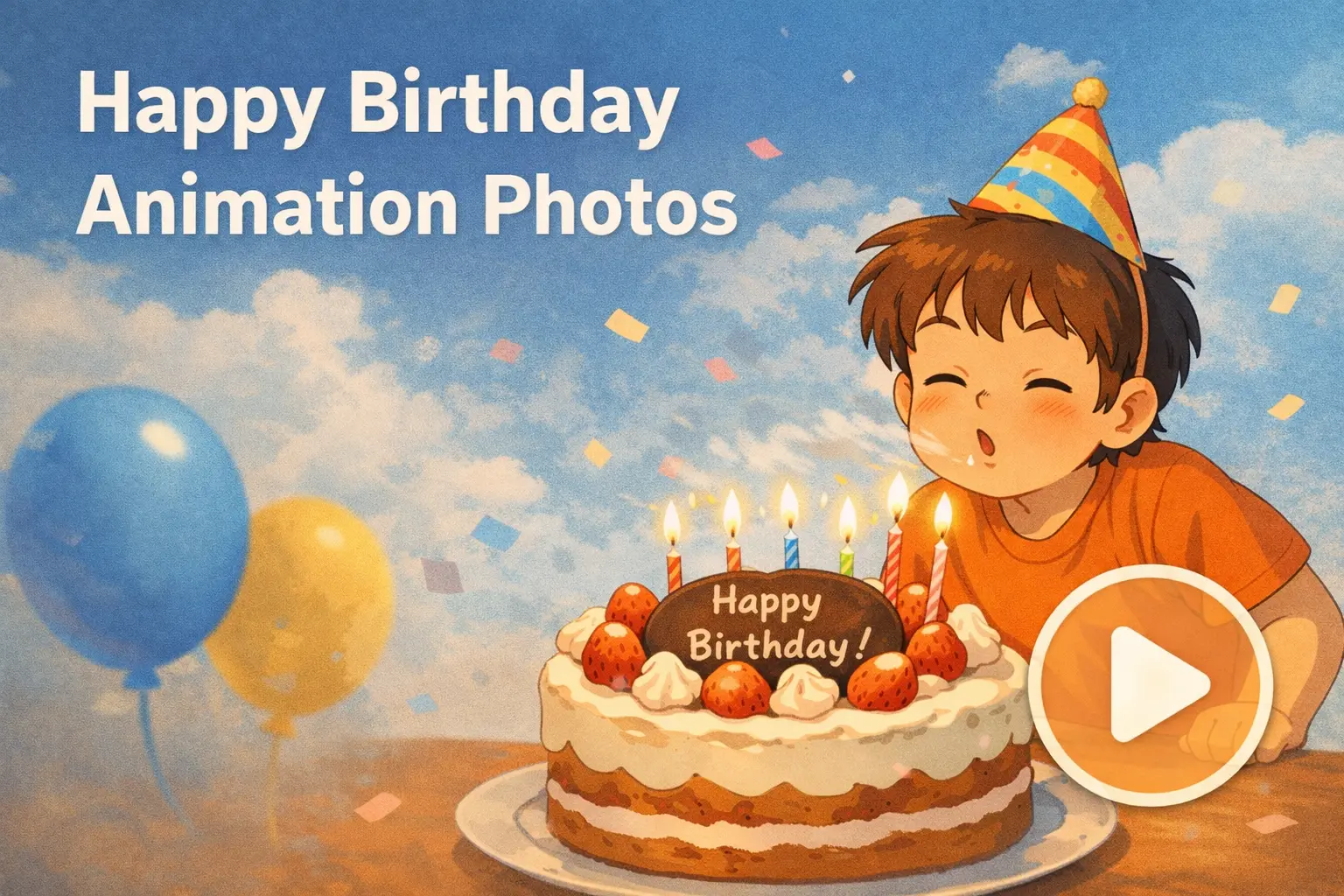
What if you could make a jaw-dropping animated birthday surprise with your daughter or nephew’s cartoon characters in less time than it takes to write a card—without knowing anything about animation or design?
Not long ago, personalized birthday animations meant pricey tools like After Effects or a steep Blender learning curve. Most people gave up and settled for generic “Happy Birthday” GIFs.
Now AI changes that. With modern AI animation apps, you can turn a single photo into a beautiful, personalized birthday animation—right from your phone. No complex software. No experience needed.
This step-by-step guide shows you how to create stunning happy birthday animation photos for your loved ones, from picking the right tools to trying different animation styles.
Why Animated Birthday Wishes Beat Static Images Every Time
Before diving into the how-to, let’s understand why animated birthday wishes have become the gold standard for digital celebrations. The difference between sending a static image and an animation is like the difference between a handshake and a hug.
The Science of Motion: Why Our Eyes Can’t Look Away
Our brains are wired to notice movement. Research shows that animated content captures attention 5x more effectively than static images. When someone opens your birthday message and sees a photo come alive – with candles flickering, confetti falling, or their own face breaking into a smile – they can’t help but watch.
On social media platforms, this translates to real engagement. Animated posts consistently receive more reactions, comments, and shares. YouTube videos featuring birthday backgrounds and animations have garnered over 9 million views for a reason – people love watching birthday content that moves.
Making It Personal: The Gift of Custom Animation
Generic GIFs say “I remembered your birthday.” Custom animations say “I took time to create something just for you.”
The emotional impact of receiving a birthday animation made specifically for someone cannot be overstated. Reddit users in r/blender share heartwarming stories of creating annual animated birthday videos for loved ones, with one creator documenting five years of personalized animations for their wife.
When you animate someone’s actual photo – bringing their smile to life or adding celebration effects around their portrait – you’re giving them more than a digital card. You’re giving them an experience.
[Image: Side-by-side comparison of static birthday image vs animated version with subtle movement]
The Old Way vs. The AI Way: Breaking Down the Skill Barrier
Understanding the traditional animation path helps appreciate just how revolutionary AI tools have become. The gap between the old and new methods isn’t just significant – it’s transformative.
Traditional Animation: The Intimidating Path
Creating quality birthday animations traditionally required a serious commitment:
- Adobe After Effects: $22.99/month subscription, with a steep learning curve that takes months to master
- Blender: Free software, but most users report 6+ months before creating anything polished
- Professional courses: Quality animation tutorials cost hundreds of dollars
- Time investment: Even simple animations take hours of keyframing and rendering
Community discussions on r/AfterEffects and r/animation are filled with beginners sharing their struggles. The reality? Most people who start learning animation give up before completing their first project.
AI Animation: The Shortcut That Actually Works
AI Image to Video represents a fundamental shift in how animation works. Instead of manually positioning every frame, AI models analyze your photo and generate natural movement automatically.
Here’s what makes this different:
- No keyframing required: The AI understands faces, objects, and scenery
- Minutes instead of hours: Generate complete animations in 1-3 minutes
- No learning curve: If you can upload a photo, you can create an animation
- Professional results: Advanced models like Kling, Veo, and Wan produce smooth, realistic motion
The technology has matured to the point where someone with zero design experience can create stunning AI-generated animations that rival professional work.
Key Takeaway: AI hasn’t just lowered the barrier to animation – it’s essentially removed it entirely.
Getting Started: What You’ll Need (Spoiler: Just Your Phone)
One of the best things about modern AI animation is the minimal requirements. You don’t need a powerful computer, expensive software, or special equipment.
The Essentials Checklist
Here’s everything you need to create your first birthday animation:
- A smartphone OR computer – Any modern device with a web browser works
- A photo to animate – Portrait of the birthday person, party scene, or any image
- 5-10 minutes of time – That’s it for most animations
- Internet connection – AI processing happens in the cloud
That’s the complete list. No downloads. No installations. No subscriptions required to start.
Choosing Your Base Photo: Tips for Best Results
The quality of your animation depends heavily on your starting photo. Follow these tips for the best results:
For Face Animations:
- Use clear, well-lit photos where the face is easily visible
- Frontal shots work better than profiles for realistic movement
- Avoid heavily filtered images – AI needs natural features to work with
- Higher resolution means smoother animation output
For Scene Animations:
- Choose images with distinct elements (balloons, candles, decorations)
- Outdoor photos in natural light produce the most realistic effects
- Avoid extremely busy backgrounds that might distort during animation
Photos to Avoid:
- Blurry or low-resolution images
- Heavy filters that distort facial features
- Group photos where faces are too small
- Images with watermarks or text overlays
[Image: Example of ideal photo selection – clear, well-lit portrait versus problematic photo examples]
Step-by-Step Tutorial: Creating Your First Birthday Animation
Now for the practical part. This tutorial walks you through creating a professional birthday animation from start to finish.
Step 1: Upload Your Photo to an AI Animation Tool
Navigate to AI Image to Video in your browser – works on both phone and computer. The interface is straightforward:
- Click or tap the upload area in the center of the screen
- Select your photo from your device’s gallery or files
- Wait a moment for the image to load into the editor
That’s it for upload. The tool accepts most common image formats including JPG, PNG, and WEBP.
Step 2: Choose Your Animation Style
Different animation styles suit different types of content. Consider these options:
- Subtle movement: Gentle sway, natural blinking, slight smile changes – perfect for elegant, realistic results
- Celebration effects: Confetti falling, sparkles appearing, balloons floating – ideal for festive party content
- Dramatic transformation: Zoom effects, camera panning, scene transitions – great for cinematic feels
For your first animation, start with subtle movement. This produces the most natural-looking results and helps you understand how the tool interprets your image.
Step 3: Customize Motion and Duration
Adjust these settings based on your needs:
Motion Intensity:
- Start at 30-50% for natural movement
- Higher settings create more dramatic but potentially less realistic effects
- Lower settings work better for portraits with subtle expressions
Video Duration:
- 5-10 seconds is ideal for sharing on messaging apps
- Longer durations work for social media posts
- Keep it short for email or MMS sharing
Aspect Ratio:
- Square (1:1) for Instagram feed posts
- Vertical (9:16) for TikTok, Instagram Stories, and Reels
- Horizontal (16:9) for YouTube or desktop viewing
Step 4: Generate and Preview Your Animation
Click the Generate button and let the AI work its magic. Here’s what happens behind the scenes:
- The AI model analyzes your image structure
- It identifies faces, objects, and background elements
- Natural motion is calculated for each component
- Frames are rendered and compiled into smooth video
Generation typically takes 1-3 minutes. The tool will show a preview once complete – always review this before downloading.
If the result isn’t quite right, you can:
- Adjust motion intensity and regenerate
- Try a different animation style
- Upload a different photo with better lighting
Step 5: Download and Share (Watermark-Free)
Once you’re satisfied with the preview:
- Click Download to save the file
- Choose your preferred format:
- MP4: Higher quality, supports sound, best for social media
- GIF: Smaller file size, loops automatically, ideal for messaging
- Share directly to WhatsApp, iMessage, Instagram, Facebook, or TikTok
The output comes without watermarks and in up to 4K resolution, meaning your animation looks professional and polished.
[Image: Screenshot of download options showing format selection]
Creative Ideas: 5 Birthday Animation Styles to Try
Once you’ve mastered the basics, explore these creative directions to make your birthday animations truly memorable.
The “Coming to Life” Portrait
Transform a still photograph so the person appears to blink, smile, or turn slightly. This style works beautifully for:
- Formal portrait photos that feel too stiff
- Framed photos you want to “wake up”
- Vintage family pictures brought to life
The effect is almost magical – seeing a frozen moment suddenly become alive creates an emotional impact that static images simply cannot match.
The Celebration Scene
Add movement to an existing birthday setting:
- Candles flickering with realistic light
- Balloons gently floating upward
- Confetti drifting down through the frame
- Streamers swaying in an imaginary breeze
Perfect for party photos or decorated scenes where adding motion enhances the festive atmosphere.
The Memory Montage
Combine multiple animated photos into a sequence with smooth transitions. This approach works exceptionally well for:
- Milestone birthdays (30th, 50th, 70th)
- “Through the years” compilations
- Celebrating decades of friendship
Use apps like CapCut after animating individual photos to stitch them together with music and transitions.
The Funny Transformation
Not every animation needs to be elegant. For close friends with a good sense of humor:
- Apply dramatic, exaggerated expressions
- Use higher motion intensity for comedic effect
- Add silly AI-generated effects
- Create cartoon-style transformations using AI cartoon generators
Sometimes the most memorable birthday wishes are the ones that make everyone laugh.
The Heartfelt Message Animation
Combine an animated photo with text overlay that appears dynamically:
- Create the base animation with subtle movement
- Add birthday message text in a video editor
- Animate the text to fade or slide in
- Include meaningful dates or inside jokes
This style is particularly meaningful for parents, grandparents, and romantic partners who appreciate sentimentality.
Key Takeaway: The best animation style depends on your relationship with the recipient – match the mood to the person.
Pro Tips: Making Your Birthday Animations Even Better
Ready to level up? These advanced techniques will help your animations stand out even more.
Lighting and Photo Selection Secrets
Professional-looking animations start with professional-looking photos:
- Even lighting produces the smoothest animations with minimal artifacts
- Outdoor photos in daylight work exceptionally well
- Avoid harsh shadows across the face – they can cause distortion during animation
- Golden hour photos (sunrise/sunset) create warm, flattering animations
If you’re planning to animate a specific photo, consider these factors before taking it.
Combining Multiple AI Tools for Unique Results
Create a power workflow by combining tools:
- Enhance first: Use Gemini AI or similar tools to upscale and enhance your photo
- Animate second: Process the enhanced image through AI Image to Video
- Polish third: Add text overlays in Canva or final touches in CapCut
This multi-tool approach produces results that exceed what any single tool can achieve.
Adding Music and Sound
Animations without sound work great for messaging, but audio elevates social media posts:
Free Mobile Editors for Adding Music:
- CapCut: Free, powerful, includes royalty-free music library
- InShot: Simple interface, easy audio trimming
- VN Editor: Popular for birthday reels with trendy templates
Keep audio rights in mind when posting publicly. Stick to royalty-free tracks or use platform-provided music libraries to avoid copyright issues.
[Image: Workflow diagram showing photo enhancement, animation, and audio addition steps]
Troubleshooting Common Issues
Even with AI handling the heavy lifting, you might encounter occasional hiccups. Here’s how to fix the most common problems.
“My Animation Looks Weird or Distorted”
Common Causes and Solutions:
- Motion intensity too high: Lower it to 30-40% and regenerate
- Poor source image quality: Use a higher resolution photo
- Complex background: Try an image with simpler, cleaner backgrounds
- Heavy filters on original: Use unfiltered photos for best results
Most distortion issues resolve by reducing motion intensity. Start conservative and increase gradually.
“The Face Doesn’t Move Naturally”
Realistic facial animation requires clear, frontal faces:
- Profile shots are harder for AI to animate convincingly
- Ensure the face is clearly visible without obstructions (sunglasses, hair covering eyes)
- Good lighting on the face helps AI identify features accurately
- Try photos where the subject is looking directly at the camera
If results still seem unnatural, the photo simply may not be ideal for face animation – try a different image.
“File Size Is Too Large for Sharing”
Large files can fail to send on messaging apps or take forever to upload:
- Reduce video duration – shorter clips are smaller files
- Export at lower resolution if 4K isn’t necessary
- Use GIF format instead of MP4 for significantly smaller files
- Compress with HandBrake (free software) if you need MP4 quality
For WhatsApp and similar apps, keeping animations under 10 seconds usually ensures smooth delivery.
Conclusion
Creating personalized happy birthday animation photos is no longer reserved for professional designers and animators. With AI-powered tools, anyone can transform a simple photo into a memorable, animated birthday surprise in just minutes.
You’ve learned why animated wishes outperform static images, how AI has demolished the traditional skill barrier, and exactly how to create your first birthday animation from scratch. Whether you choose subtle portrait movements, festive celebration effects, or creative combinations, the only limit is your imagination.
The best part? You can start right now. No software to install. No skills to learn. Just your phone and a few minutes.
Ready to create your first birthday animation? Visit AI Image to Video to transform any photo into a stunning, personalized animated birthday greeting – completely free to try, no design experience required.