You’ve probably seen those clips where a person, pet, or object suddenly puffs up like a balloon—and wondered how on earth it’s made. The good news: it takes one photo, one prompt, and about a minute.
The tricky part is that most people who spot the inflate trend don’t know what the effect is actually called, which prompt to type, or what kind of image to start from. And most tutorials stop right at “click generate,” leaving you with a glitchy result and no idea why.
This is a hands-on tutorial that fixes that. You’ll learn exactly what an AI inflation video generator does, how to make a balloon-like video from a single image, a copy-paste prompt you can tweak, how to keep the effect looking natural, and where to post it for the most shares. No editing skills required.
What Is an AI Inflation Video Generator?
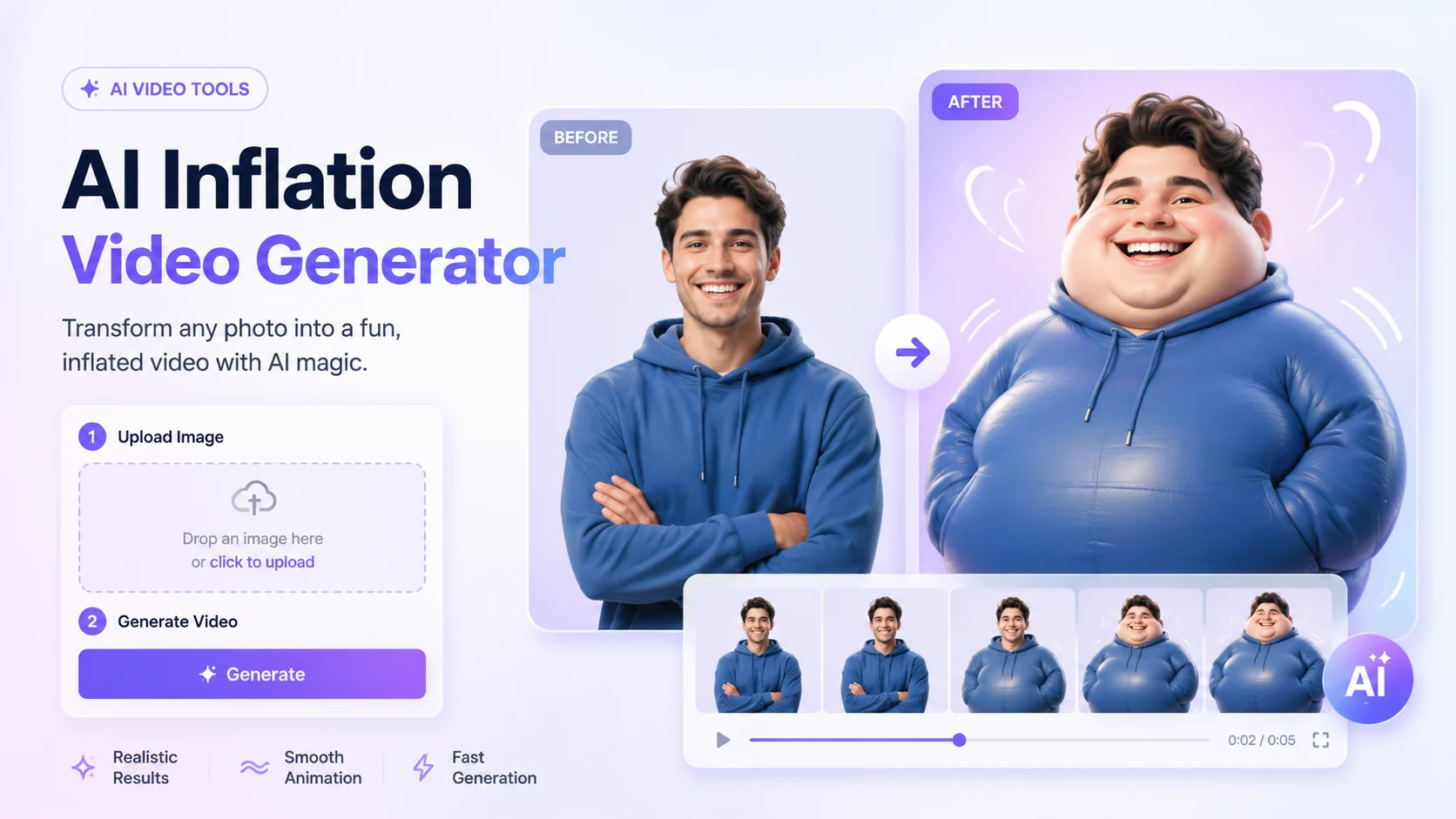
An AI inflation video generator turns a single photo into a short, funny video where the subject expands like a balloon. You simply upload an image, enter a prompt describing how the person, pet, or object should inflate, and the AI creates a shareable clip without requiring editing skills.
The effect usually shows the subject swelling, rounding out, and gently wobbling as if filled with air. It works best as a playful photo-to-video effect for short-form content, memes, social posts, and creative edits. Instead of aiming for realistic physics, the charm comes from the exaggerated cartoon-style transformation: soft stretching, rounded shapes, and a light bounce that makes the final video feel fun and eye-catching.
How to Make an AI Inflation Video From a Single Image (Step-by-Step)
Here’s what actually works, start to finish. The whole flow runs in your browser on mobile or desktop, and outputs a ready-to-post clip. The best generators export in high definition (up to 4K) with no watermark, so your video is share-ready the moment it’s done.
The process comes down to three steps: upload → prompt → generate.
Step 1 — Choose and Upload the Right Image
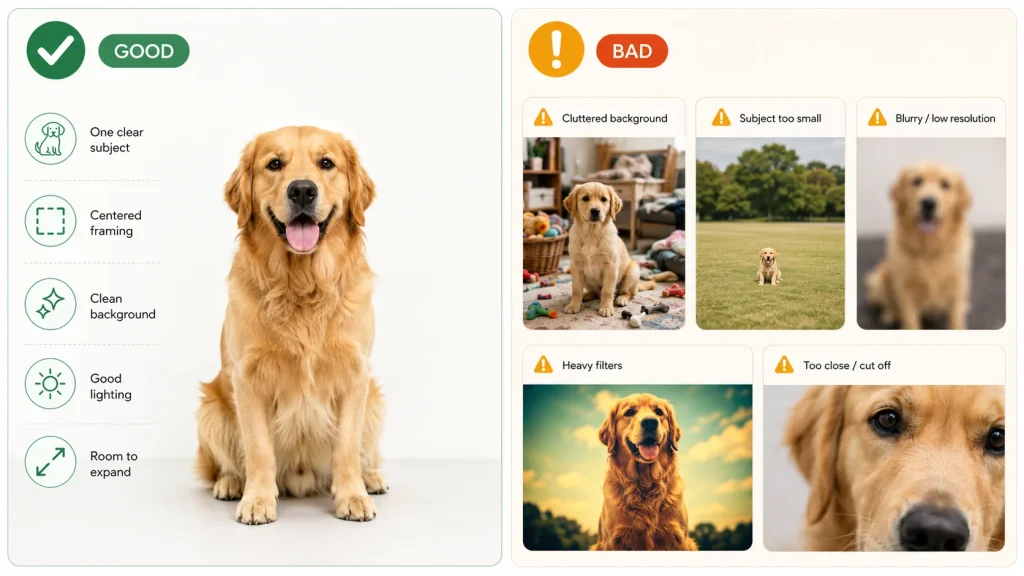
Your source photo makes or breaks the result. Pick a clear, well-lit image with one obvious subject, a plain or uncluttered background, and the subject fully in frame with a little empty space around it—that space gives the AI room to “expand” the subject.
What to avoid:
- Busy or cluttered backgrounds
- Tiny or faraway subjects
- Heavy filters or effects
- Low-resolution or blurry photos
Step 2 — Add Your Inflation Prompt
A short prompt tells the AI how to inflate the subject—the speed, direction, and that balloon-like bounce. Even a quick line like “the subject slowly inflates like a balloon and gently bounces” gives you far more control than leaving it blank.
Some tools make the prompt optional, but writing one is recommended. The full copy-paste prompt is in the next section, ready for you to grab.
Step 3 — Generate, Download & Share
Hit generate and wait—usually under a minute. Preview the clip, and if it looks good, download it. Look for a clean, watermark-free export in a social-ready aspect ratio; a vertical 9:16 format is ideal for TikTok, Reels, and Shorts. You can also set the duration so the clip lands at that snappy, loop-friendly length.
How to Write AI Inflation Video Prompt?
Prompt-sharing is the single biggest engagement driver in this niche, so here’s a proven one you can use right now—plus how to bend it to your subject.
A Ready-to-Use Inflation Prompt You Can Copy
Prompt: “The subject slowly and smoothly inflates like a balloon, gradually rounding out and getting bigger while staying fully recognizable. Add a gentle, bouncy wobble as it expands. Keep the face and features natural, with soft, cartoon-like motion and a lighthearted, fun feel.”
Why it works: “slowly and smoothly” avoids jerky warping, “staying fully recognizable” stops the subject from morphing into mush, and “keep the face natural” protects the details that usually break first.
How to Adjust the Prompt for People, Pets, or Objects
Swap a few words to change the vibe:
- Speed: trade “slowly” for “quickly” for a fast pop-up inflate.
- Style: add “cartoon-like” for playful, or “realistic” for a subtler swell.
- People: add “keep the face and expression natural and unchanged.”
- Pets: add “keep the fur and ears recognizable” for a cute puffed-up pet.
- Objects: add “keep the shape and label clear” so a product stays identifiable.
How to Make the Inflate Effect Look More Natural
The difference between a share-worthy clip and obvious “AI slop” usually comes down to a few small fixes. The trick is to give the AI clean input and specific wording.
Run through this quick checklist:
- Start with a higher-quality image—sharp and well-lit beats big and blurry.
- Keep the subject centered with breathing room around it.
- Use specific wording like “smoothly,” “gradually,” and “keep the face natural.”
- Pick a moderate inflation speed—overly fast expansion tends to distort.
- Regenerate if the subject warps; a second pass often fixes it.
One quick note on content: keep it light and playful, and avoid sensitive or inappropriate body-inflation themes. This effect shines as harmless, funny content.
[Image: Good vs. glitchy result comparison—smooth balloon effect next to a warped, distorted one]
Common Mistakes That Make the Effect Look Fake
- Cluttered source photo → use a plain background.
- Subject too small in frame → crop closer with a little space around it.
- Over-fast inflation → slow it down in the prompt.
- Vague prompt → describe speed, bounce, and “keep it recognizable.”
- Low resolution → start with a higher-quality image.
Where to Use Your AI Inflation Videos (Social Media Ideas)
Once you’ve got a clean clip, the payoff is posting it where the trend already lives. The vertical 9:16, watermark-free output drops straight into short-form feeds—no reformatting needed.
Fun, lightweight ways to use it:
- TikTok, Reels, and Shorts trend clips that ride the inflate wave
- Reaction and meme posts for an easy laugh
- Playful pet or product teasers
- Eye-catching promo hooks for creators and small brands
TikTok, Reels & Shorts Ideas That Get Shares
A few plug-and-play formats:
- Before/after reveal: show the original photo, then the inflate.
- “Watch this inflate”: a simple caption hook that begs for a tap.
- Reaction-bait: pair the clip with a surprised face or a “wait for it” caption.
Tools like AI Image to Video make this quick by turning a still image into a high-definition, watermark-free vertical clip using models like Kling, Veo, and Wan.
FAQs About AI Inflation Video Generators
What is an AI inflation video generator?
An AI inflation video generator is an online tool that turns a single photo into a short video where the subject inflates like a balloon. You upload an image, add an optional prompt, and the AI creates a funny, shareable clip in under a minute—no editing skills required.
How do I make an AI inflation video from a photo?
It’s three steps. Upload a clear, single-subject image, add a short prompt describing how it should inflate (speed and bounce), then generate and download the finished clip. Choose a vertical 9:16 format so it’s ready for TikTok, Reels, or Shorts.
What is the best prompt for an AI inflation video?
Use a prompt that describes slow, smooth inflation while keeping the subject recognizable—for example, “slowly inflates like a balloon with a gentle bounce, face kept natural.” Then adjust the wording for speed and style. The copy-paste prompt above is a ready starting point.
What images work best for the inflate effect?
One clear subject, good lighting, a simple or plain background, and enough empty space around the subject so it has room to expand. Avoid busy backgrounds, tiny or faraway subjects, heavy filters, and low-resolution photos.
Are AI inflation videos free to make, and do they have a watermark?
Many generators offer a free way to try the effect. For a share-ready result, look for high-definition, watermark-free export—that way your clip posts cleanly to social feeds without a logo stamped across it.
Conclusion
Turning a single photo into a fun, balloon-like AI inflation video is genuinely simple: pick a clean image, paste and tweak the prompt, optimize for a natural look, then post it as a short vertical clip. The depth is all in the details—your source image and prompt wording do most of the heavy lifting.
So try it. Upload your first photo, generate a watermark-free AI inflation video, and experiment with the prompt variants until the effect looks just right. Your next scroll-stopping clip is about a minute away.
Call to Action: Grab a clear photo, paste the prompt above, and create your first watermark-free AI inflation video today—then share it on TikTok, Reels, or Shorts.