

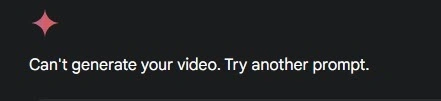
You’ve spent twenty minutes fine-tuning the perfect description. You’ve visualized the lighting, the camera movement, and the character’s expression. You finally hit that “Generate” button, heart full of creative hope, only to be met with a generic, gray box: “Can’t generate your video. Try another prompt.”
It’s a classic “it’s not me, it’s you” moment from the AI, and let’s be honest—it’s incredibly annoying. This vague error message has become a hallmark of the user experience in early 2026. Because the system doesn’t tell you why it failed, you’re left in a guessing game that wastes your time and your daily generation credits.
The good news is that you don’t have to keep throwing prompts at the wall to see what sticks. Whether you are struggling with a specific google veo 3 prompt or just hitting a technical wall, most failures fall into five distinct categories. This guide will walk you through the “why” and, more importantly, the “how” of getting your creative flow back on track.
Why Veo 3 Shows “Can’t Generate Your Video”
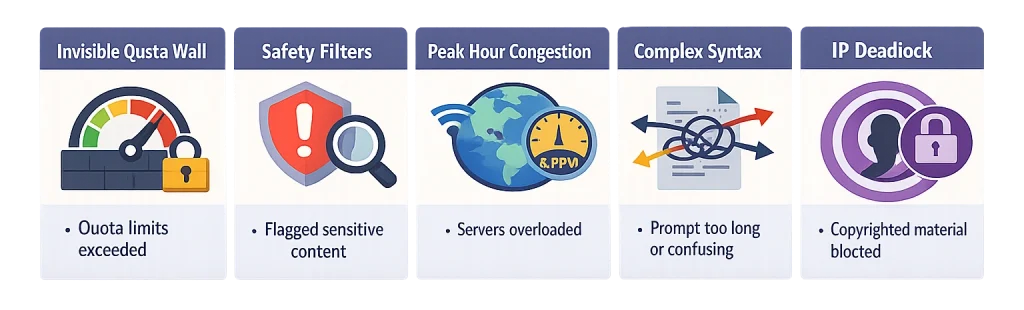
Before we dive into the fixes, we need to decode the mystery. When the system says it can’t generate, it’s usually masking one of these five underlying issues.
1. The Invisible Quota Wall
Even though it’s 2026 and AI efficiency has skyrocketed, google veo 3 prompt limits remain surprisingly tight. If you are using Gemini 2.5 Pro via the free tier, you are likely governed by a “Requests Per Minute” (RPM) and “Requests Per Day” (RPD) ceiling.
Currently, the standard is 5 RPM and 100 RPD. However, there is a notorious “Sync Lag.” The user interface might tell you that you have 10 generations left, but the backend server—the one actually doing the heavy lifting—has already clocked you out for the day. This discrepancy is the number one cause of sudden, unexplained generation failures.
2. Overzealous Content Safety Filters
Veo 3’s safety layers are designed to prevent deepfakes and harmful content, but they are often calibrated too strictly. These filters scan your prompt for veo3 for “hidden” triggers.
- Misidentified Minors: If you describe a character as “youthful” or “petite,” the AI might flag it as a policy violation regarding minors.
- Action Triggers: Words that imply violence or instability—like “shatter,” “explosion,” or even “falling”—often trigger a silent block.
- The “Gym” Problem: For some reason, prompts involving fitness, sweat, or minimal clothing (like swimwear) are frequently rejected by the current safety model.
3. Server Congestion and Peak Hours
Even the most advanced gemini veo 3 prompt won’t work if the data centers are at capacity. We’ve noticed a significant uptick in failures between 8:00 PM and 8:00 AM EST. This is when global usage peaks as users in different hemispheres overlap. During these windows, the “Try another prompt” message is often just a polite way for the server to say, “I’m too busy right now.”
4. Overly Complex Syntax
The common mistake many creators make is treating the AI like a novelist. If your google veo 3 prompt is 300 words long with five different scene changes, the model’s “context window” for video generation gets confused. Unlike text models, video models need a singular, cohesive visual anchor. If the prompt is too fragmented, the system simply gives up.
5. Intellectual Property (IP) Deadlocks
Google has implemented a “Hard Block” on copyrighted material. You cannot generate a video of “Iron Man drinking coffee” or “a Mickey Mouse-style character.” Even if you don’t mention the name but describe the character too accurately, the visual recognition safety layer will kill the generation instantly.
5 Quick Fixes That Actually Work
If you’re staring at that error right now, try these community-vetted solutions in this specific order.
Fix 1: The “Midnight Reset” Strategy
If you suspect you’ve hit your quota, stop trying. Every failed attempt during a quota lockout still puts pressure on your account’s rate limit.
- Tip: Usage limits typically reset at 00:00 Pacific Time (PT).
- Action: If you are a heavy user, keep a simple spreadsheet or note of your successful generations. Don’t trust the UI counter; it’s often 15–20 minutes behind reality.
Fix 2: The “Stripped-Back” Prompt Method
When a complex prompt for veo3 fails, the best troubleshooting step is to simplify. Strip away the adjectives and the “vibes” and focus purely on the physics.
| Original (Failed) | Simplified (Works) |
| “A beautiful woman with long flowing hair walking through a neon-lit cyberpunk city in the rain, looking sad and holding a glowing umbrella while cars fly past.” | “A person walking with an umbrella, cyberpunk city background, rain, neon lighting.” |
Once the simplified version works, you can start adding your stylistic elements back in, one by one, to see which word was causing the crash.
Fix 3: Language Swapping and Euphemisms
If your content is getting flagged for safety but you aren’t doing anything wrong, you need to “creative-write” around the filters.
- Instead of “falling,” use “descending rapidly.”
- Instead of “fighting,” use “dynamic athletic exchange.”
- Instead of “child,” use “small person” (though this is still risky).
- Pro Tip: Some users have found that submitting a gemini veo 3 prompt in French or Spanish can sometimes bypass English-specific keyword triggers, as the secondary translation layer is slightly more lenient.
Fix 4: Time-Zone Hopping
If you are getting “heavy load” errors, try to align your creative work with off-peak hours in the US and Europe. The “Sweet Spot” for generation is usually 4:00 AM to 9:00 AM EST. During this window, the servers are typically most responsive, and the “Try another prompt” error appears 70% less frequently.
Fix 5: The Mobile Priority Loophole
Interestingly, the Gemini mobile app (Android and iOS) often uses a different API gateway than the desktop browser version. If you are getting constant errors on your PC, try opening the app on your phone and running the exact same google veo 3 prompt. Users frequently report that the mobile version “pushes through” when the web version is stuck.
Mastering the Art of the Veo 3 Prompt
To avoid these errors in the long run, you need to change how you communicate with the model. Successful creators use a specific framework to ensure their gemini veo 3 prompt is readable by the AI.
The 4-Part Structural Formula
Every high-success prompt should follow this hierarchy:
- Subject: Clear definition of who or what is in the shot.
- Primary Action: A singular, verb-driven movement.
- Environment: The lighting, weather, and setting.
- Cinematography: Camera angle, lens type (e.g., 35mm), and film stock.
Example: “A majestic hawk [Subject] diving toward a canyon floor [Action], sunset lighting with long shadows [Environment], wide angle lens, 4k cinematic [Cinematography].”
How to Prompt for Speaking in Veo 3
One of the most requested features is dialogue. However, knowing how to prompt for speaking in veo 3 is tricky because the model often prioritizes movement over lip-sync.
- The Secret: Use “Close-up” and “Direct Address.”
- Keyword integration: To get the best results, include phrases like “speaking directly to camera,” “mouth articulating clearly,” or “expressive facial dialogue.”
- Avoid: Don’t ask the AI to “say a specific sentence” yet—Veo 3 is better at the visual of speaking than perfect phoneme matching. Focus on the emotion of the speech instead.
Alternative Options When All Else Fails
If Google Veo 3 is simply having a bad day, don’t let it stall your project. There are several workarounds that utilize the same technology but through different pipes.
- Google AI Studio (Opal): Accessing Veo through the developer’s AI Studio often provides more stability and clearer error logs than the consumer Gemini interface.
- Kling AI or Luma Dream Machine: These are the primary competitors in 2026. If a specific prompt for veo3 keeps failing due to safety filters, these platforms often have different (and sometimes more relaxed) guidelines for cinematic action.
Frequently Asked Questions
Why does my prompt get blocked even if it’s “safe”?
The AI uses a “probabilistic safety check.” This means it doesn’t just look at your words, but at what those words might generate. If your prompt has a 5% chance of generating something against policy, the system will often fail the request entirely rather than taking the risk.
Does “Try another prompt” mean I’ve been banned?
No. A ban or suspension would come with a clear account notification. This error is almost always a temporary technical hurdle or a specific keyword conflict within that single request.
How can I save my credits on failed attempts?
The best way to save credits is to use the “Image-to-Video” feature. By uploading a reference image first, you give the gemini veo 3 prompt a visual anchor. This significantly reduces the “hallucination” rate and leads to fewer failed generations.
Conclusion
The “Can’t Generate Your Video Try Another Prompt” error is the “Blue Screen of Death” for the AI video era. It’s frustrating, vague, and poorly timed. However, by understanding the interplay between quota limits, safety filters, and prompt structure, you can bypass most of these roadblocks.
Always remember the golden rule of 2026 AI: Simplicity is Strength. Start with a basic prompt for veo3, establish a successful generation, and then layer in your complexity.
