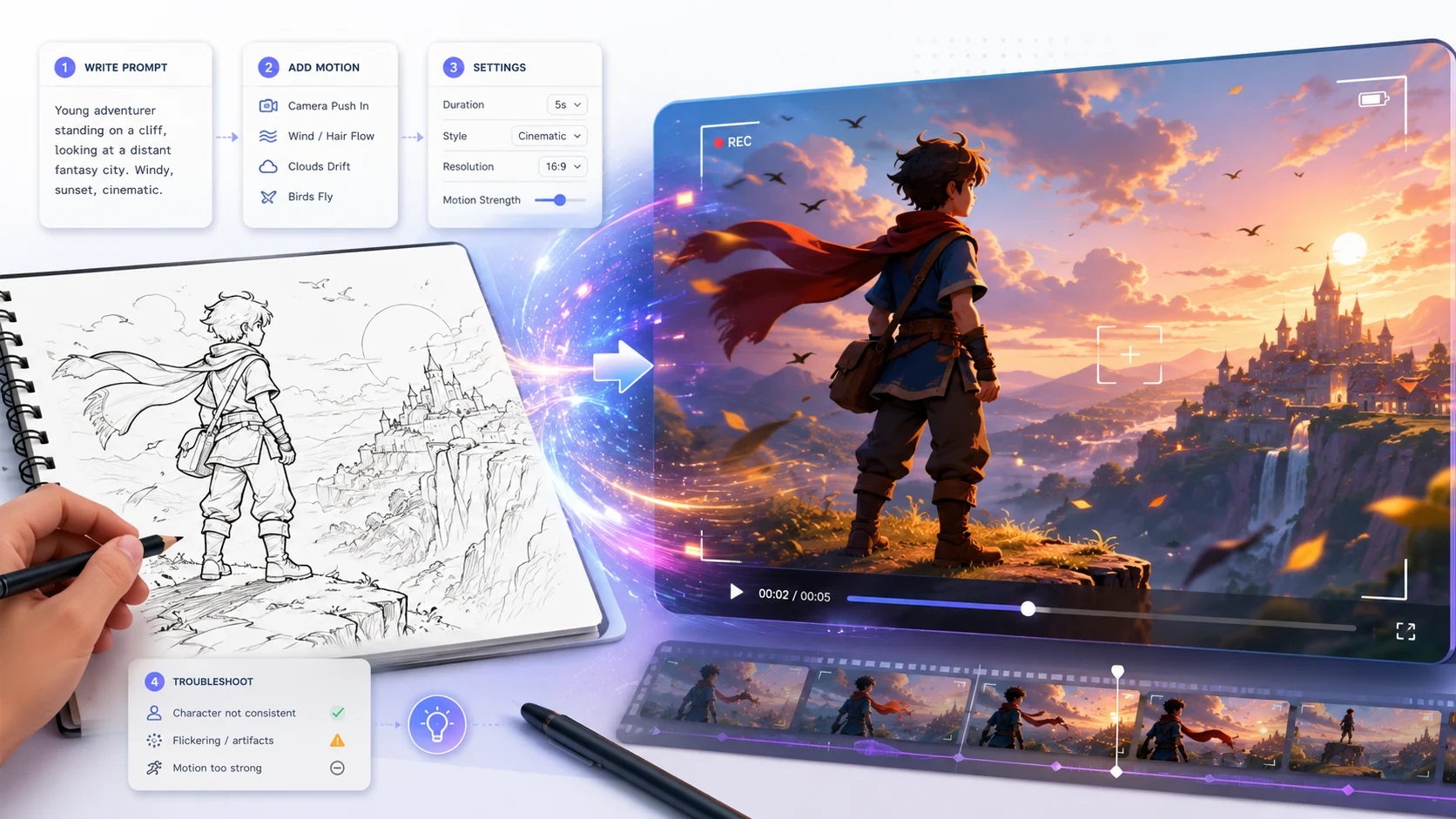
Want to turn a sketch, doodle, or storyboard into a short AI video? Start with a clean drawing, upload it to an image-to-video tool, describe the motion you want, then generate a short test clip. This guide shows you how to prepare your sketch, write prompts that preserve the composition, choose safe settings, and fix common problems like flickering, distortion, or the AI changing your drawing.
How to Prepare Your Sketch for AI Video Generation
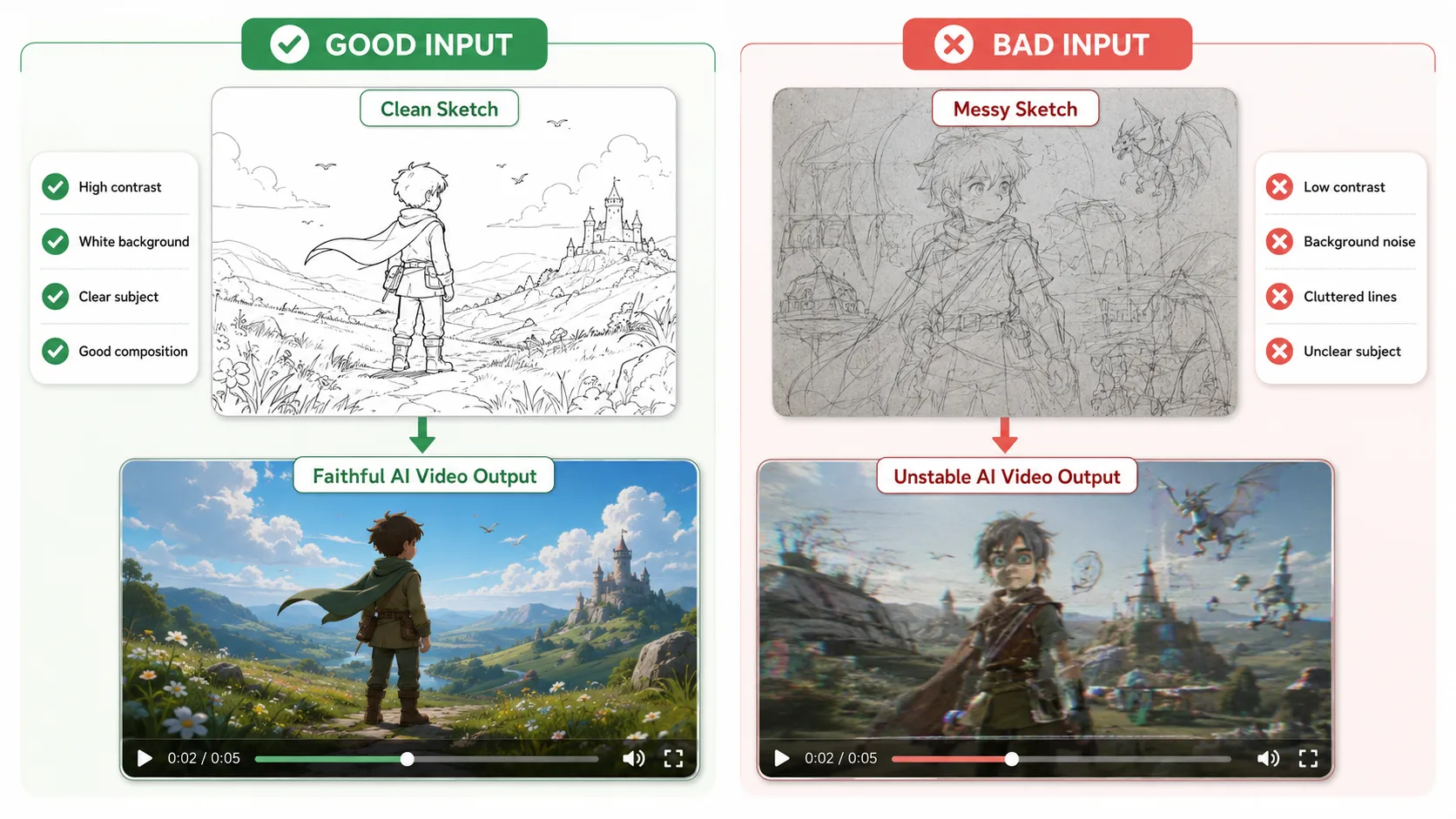
A clean sketch gives the AI a stronger visual anchor. Before uploading, make sure your drawing has clear lines, enough contrast, a simple background, and one main subject that is easy to recognize.
Avoid messy pencil drafts, low contrast, crowded lines, paper shadows, or unclear compositions. The AI may treat those extra marks as real scene details, which can lead to flickering, distorted characters, or unstable motion.
Use this quick rule: the cleaner the sketch, the more faithful the AI video output will be.
How to Turn a Sketch into Video with AI
There are two practical ways to turn a sketch into an AI video. You can upload your sketch directly into an image-to-video workflow and guide the motion with a short prompt, or you can focus mainly on prompt writing to control how the sketch moves, looks, and feels.
For beginners, the safest approach is to start with a clean sketch, generate a short test clip, then refine the prompt and settings based on the result.
Method 1: Use AI Image to Video for Sketch to Video
Start by uploading your sketch to the AI Image to Video tool. A clean line drawing works best because it gives the AI a clear visual structure to follow.
Step 1: Upload your sketch
Choose a clear sketch with strong outlines, a simple background, and one main subject. Avoid messy drafts or low-contrast pencil lines, because the AI may treat extra marks as real scene details.
Step 2: Add a short motion prompt
Instead of describing everything in the drawing, focus on what should happen in the video. Tell the AI how the subject should move, what the camera should do, and what visual style you want.
Slow camera zoom in, gentle breeze moving the hair and clothing, cinematic lighting, smooth animation, keep the original sketch composition.
Step 3: Choose basic video settings
Start with a short 4–5 second clip. Shorter clips are easier to test and fix. Use a standard resolution such as 1080p if available, and avoid adding too much motion on the first try.
Step 4: Generate a test video
Review the result before making a longer version. Check whether the AI kept the original character, composition, and main motion direction.
Step 5: Refine and regenerate
If the output drifts from the sketch, simplify the prompt. If the motion feels too weak, add one clear action. If the result is distorted, lower the motion intensity or use a more stable camera movement.
Method 2: Use Prompts to Add Color and Subtle Motion
For sketch to video AI, the best prompt is not about big action. Your sketch already defines the character, pose, and composition. The prompt should guide the AI to either keep the hand-drawn look with subtle motion or turn the sketch into a colored illustration with gentle animation.
Prompt Formula
Keep or colorize the sketch + subtle motion + camera movement + style + consistency rule
Start small. Sketch inputs usually work better with breathing, blinking, hair movement, clothing movement, light camera zoom, or soft background motion. Large movements can make the character deform or drift away from the original drawing.
Prompt Option 1: Keep the Original Sketch Style
Use this when you want the final video to still look like a hand-drawn sketch.
This works well for character sketches, manga drafts, storyboard frames, and concept art where you want the drawing itself to stay recognizable.
Prompt Option 2: Colorize the Sketch and Add Gentle Motion
Use this when you want the AI to turn your sketch into a finished illustration before animating it.
This is usually the best choice for social videos because the result feels more complete while still following the original sketch.
Prompt Option 3: Cinematic Still Illustration Motion
Use this when the sketch is more like a scene or landscape.
This works better than asking the AI to create a full action scene. The goal is to make the sketch feel alive, not to completely redraw it.
Prompt Option 4: Manga Panel to Video
Use this for manga-style drawings or black-and-white comic panels.
This keeps the result closer to the original drawing and reduces the chance of distorted faces or extra details.
Best Beginner Prompt
For your first test, use a controlled prompt like this:
After the first result, adjust only one part at a time. If the video looks too still, add slightly more motion. If the character changes too much, remove extra style words and strengthen the consistency instruction. If the output becomes distorted, reduce the motion and use a static camera.
Frequently Asked Questions About Sketch to Video AI
Do I need drawing skills to use sketch to video AI?
No. Simple stick figures and basic shapes work well — in fact, simple sketches with clear lines often produce more consistent results than complex drawings. The AI interprets spatial composition, not artistic quality.
What’s the best file format for sketch to video AI?
PNG with a white or transparent background at 1024×1024 pixels or higher. JPG works but may introduce compression artifacts around line edges. Most tools accept JPG, PNG, and WebP. Avoid low-resolution phone screenshots.
Why does the AI keep changing details in my original sketch?
The AI treats your sketch as a guide, not a strict template. To maximize fidelity: use high-contrast dark lines on a light background, keep your prompt focused on motion and style rather than scene description, and lower the creativity or imagination setting if your tool offers one.
How long can AI-generated videos from sketches be?
Most tools generate 4 to 15 second clips per generation. For longer videos, generate multiple clips and stitch them together in an editor like CapCut. Some platforms support sequential scene generation to maintain visual consistency across clips.
Conclusion
Sketch to video AI is most useful when you want to turn an unfinished idea into something more visual, animated, and shareable. The key is not to force the sketch into a complex action scene, but to help it come alive with color, subtle motion, soft lighting, and stable camera movement.
A clean sketch and a focused prompt can make the result feel much closer to your original idea. Whether you want to keep the hand-drawn line-art style or turn the sketch into a polished illustration, start with gentle animation first. Small details like blinking, breathing, wind, parallax, and slow zoom often create a better result than large movements.
Ready to test it? Upload your sketch to AI Image to Video and try turning your drawing into a short animated clip.
Turn Your Sketch into an AI Video
Upload a clean sketch, describe the motion you want, and generate a short animated clip from one image.
Try AI Image to Video