Model
Video Fast 1.0 Free
Endless creativity, minimal cost. Reserved for early supporters
Image
Drag & Drop, Paste, or Click to Upload
PNG, JPG, JPEG, WEBP , Max 20 MB
Prompt
0 / 2500
Aspect Ratio
1:1
3:4
4:3
9:16
16:9
Duration
3 s
5 s
Resolution
480p
720p
Number of Results
Create for FREE
Sample Video
Sample video preview

Best Image to Video AI: Free AI Image to Video Generator for Everyone

Create stunning animations with aiimagetovideo pro, our free AI video generator. Transform static images into motion using artificial intelligence image to video technology. Whether you explore Google Veo, Veo 3, or Imagen 3, our free tool helps you make video from images for social media. It is the best free image to video AI app to add image to video workflows and convert image to video online free. Use this free generator to make AI video from image files instantly.

Original Image
Prompt
Two minimalist skincare products on a flowing ribbon, soft pink background with bokeh effects.
Sample Video
Original Image
Prompt
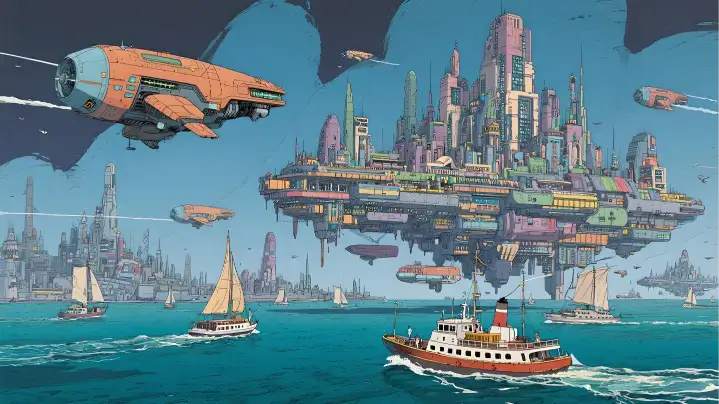
A solar-powered sailboat drifts past a floating city. The camera pushes through a biodome roof, revealing vertical gardens and hoverbike riders.
Sample Video
Original Image
Prompt
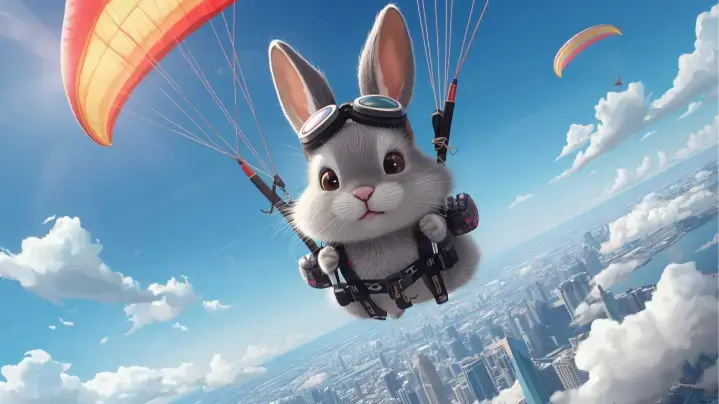
A rabbit paraglides above a city. The camera follows movement over colorful rooftops and clouds.
Sample Video

Key Features of Our Image to Video AI Generator

Discover the power of aiimagetovideo pro, our free image to video AI generator. Turn image into video with this dynamic image to video maker. Like the Luma AI video generator or Kling AI video generator, we offer high-quality results to convert image to video online free. You can generate unlimited possibilities with this free image to video tool. Add image files and make video magic with our free AI generator online.

Versatile Visual Options with AI Image to Video

Explore endless creative directions with aiimagetovideo pro, our free images to video AI. Whether you want to turn image into video for storytelling or marketing, our platform adapts styles seamlessly. It is the most versatile free image to video maker, rivaling Hunyuan image to video and Runway image to video style transfer capabilities. Add image to video projects to make unique video content. Convert image to video styles easily with AI online.

Generate Video from Images

Multi-Input Prompts: Image & Text to Video AI Generator

Combine your image with descriptive text prompts using aiimagetovideo pro and our free text to video AI generator features. Just like a Google Veo 3 AI video generation process, mixing image + text ensures creative control. Use it to prepare video from images with cinematic motion. Make video with text and add image inputs easily. This free generator lets you convert image to video with precision.

Generate Video from Images

HD AI Image to Video Output Without Watermarks

Get professional video from image results with aiimagetovideo pro, our image to video AI generator free. Create stunning HD results without watermarks, unlike some AI video generator no restrictions tools. Perfect for creators seeking high-quality images to video output, ensuring your content looks like it came from a premium video to video AI generator. This free app helps you convert video from image flawlessly. Add image assets and make video exports in HD.

Generate Video from Images

How to Create Video with Images using AI Video Generator?

Upload Your Image to AI Video Creation

Begin by uploading an image (JPG, PNG, WEBP) to aiimagetovideo pro, our free image to video converter. You can crop or frame to match your desired aspect ratio. This step is essential to convert image to video ai successfully. Add image files to start the free video generator process. Make video from image setup quickly.

Type in Prompt & Customize Your Video

Enter a description to guide the free AI video generator from text (or leave blank). Adjust settings like the AI model (we aim to match Gemini Veo 3 quality), duration, and resolution. This helps you make video from images that match your vision perfectly. Our online tool makes it simple to add video effects to your image. Convert image settings to customize output.

Click "Generate" and Wait for Export

Click to let the AI render. Review motion and effects before you generate AI video from images. You can preview the result, similar to how you might using ComfyUI image to video or Hailuo AI image to video workflows, before exporting. With aiimagetovideo pro, the free generator works fast to convert image to video. Add image tweaks if needed before you make video final.

Innovative Cases of AI Image to Video

See how aiimagetovideo pro, a free image to video AI generator, brings ideas to life. Easily turn any image into motion and create AI video from image for marketing or stories. We support various styles, from Flux image to video aesthetics to realistic motion. Use our free tool to make video content stand out. Add image creativity with our generator.

Moving Photos
Dynamic Ads
Presentation Demos
Travel Stories

Bring Still Images to Life with Motion

Transform static images into vivid videos with aiimagetovideo pro. Perfect for product showcases, our free AI lets you create video from images easily. Unlike basic animation AI generator tools, we provide dynamic content that feels alive, similar to results from Wan 2.1 image to video or Minimax AI image to video. Add image to video transitions for better flow. Make video memories from any image.

Users' Views on AI Image to Video

Best Image to Video AI for Beginners: Easy, Fast, and Intuitive

I'm not tech-savvy, but this was effortless. Compared to Vidnoz AI Image to Video or image to video ai kling, this is more intuitive. I uploaded an image, added a prompt, and the free AI created a stunning video. It's the best image to video ai generator free tool I've found to make video content. I can add image files easily.

Maya Rodriguez
Beginner User

AI Video Generator from Image: Simplify Marketing in Minutes

As a manager, I need speed. This platform works like a free image to video AI generator, turning product images into clips in minutes. The AI video generator free online access with trial credits let me test it easily. Better than some AI image to video Rutracker cracks I've seen. A great app for marketing. It helps me convert image to video ads.

Liam Johansson
Marketing Manager

AI Picture to Video Tool Every Creative Designer Will Love

I love how easy it is to make video from images. The free AI handles the heavy lifting. It saves hours and helps create professional content. It feels like having a personal Civitai image to video model at my fingertips. The generator is powerful and free to try. I add image details to every video.

Sophie Turner
Designer

Turn Real Estate Photos into Cinematic Property Tours

I used to spend hours editing. Now, I just upload images, and the free AI turns them into elegant clips. It helps clients visualize spaces. A great alternative to complex ComfyUI image to video setups for quick tours. I can add image details easily and make video tours fast.

Gabriela Santos
Realtor

Best Picture to Video Tool for Turning Photos into Viral Clips

I am always racing to post. This free AI tool transforms images into lively short videos. The animations look smooth, like a high-end AI video generator from image. My engagement doubled. It is a must-have app for influencers who want to convert image to video fast. I use it to make video viral hits.

Ava Reyes
Social Media Influencer

Boosting Product Sales with Photo to Video Animation Tools

Visuals make or break sales. These photo to video animation tools create promo videos straight from images. The results look professional. It is fast, easy, and better than trying to hire a team to create a video using AI manually. The best free generator online to convert image to video.

Leo Martens
Shopify Store Owner

Best Image to Video AI for Beginners: Easy, Fast, and Intuitive

I'm not tech-savvy, but this was effortless. Compared to Vidnoz AI Image to Video or image to video ai kling, this is more intuitive. I uploaded an image, added a prompt, and the free AI created a stunning video. It's the best image to video ai generator free tool I've found to make video content. I can add image files easily.

Maya Rodriguez
Beginner User

AI Video Generator from Image: Simplify Marketing in Minutes

As a manager, I need speed. This platform works like a free image to video AI generator, turning product images into clips in minutes. The AI video generator free online access with trial credits let me test it easily. Better than some AI image to video Rutracker cracks I've seen. A great app for marketing. It helps me convert image to video ads.

Liam Johansson
Marketing Manager

AI Picture to Video Tool Every Creative Designer Will Love

I love how easy it is to make video from images. The free AI handles the heavy lifting. It saves hours and helps create professional content. It feels like having a personal Civitai image to video model at my fingertips. The generator is powerful and free to try. I add image details to every video.

Sophie Turner
Designer

Turn Real Estate Photos into Cinematic Property Tours

I used to spend hours editing. Now, I just upload images, and the free AI turns them into elegant clips. It helps clients visualize spaces. A great alternative to complex ComfyUI image to video setups for quick tours. I can add image details easily and make video tours fast.

Gabriela Santos
Realtor

Best Picture to Video Tool for Turning Photos into Viral Clips

I am always racing to post. This free AI tool transforms images into lively short videos. The animations look smooth, like a high-end AI video generator from image. My engagement doubled. It is a must-have app for influencers who want to convert image to video fast. I use it to make video viral hits.

Ava Reyes
Social Media Influencer

Boosting Product Sales with Photo to Video Animation Tools

Visuals make or break sales. These photo to video animation tools create promo videos straight from images. The results look professional. It is fast, easy, and better than trying to hire a team to create a video using AI manually. The best free generator online to convert image to video.

Leo Martens
Shopify Store Owner

News

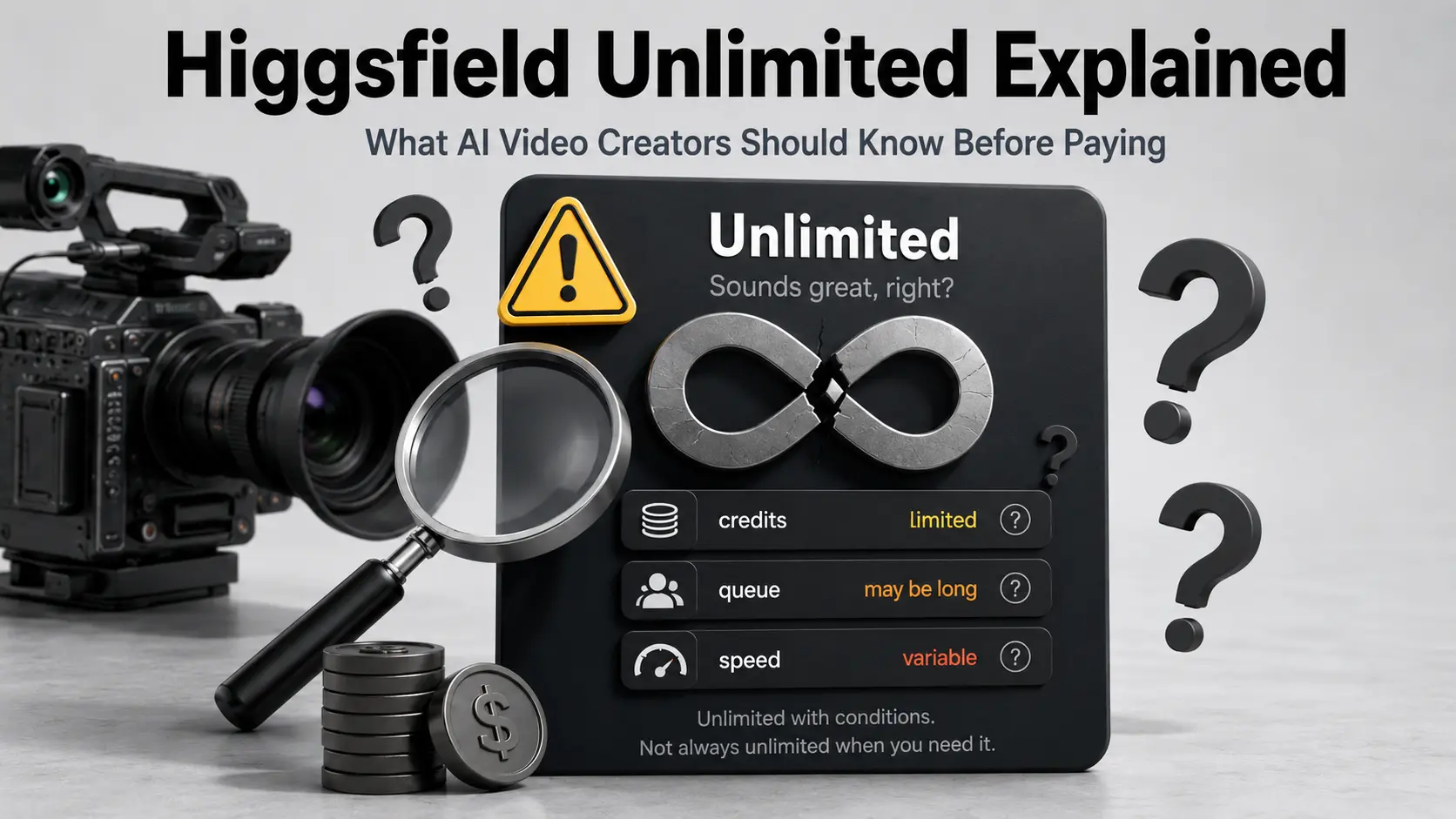
Higgsfield Unlimited Explained: What AI Video Creators Should Know Before Paying

Higgsfield Unlimited Explained: What AI Video Creators Should Know Before Paying

You subscribed to Higgsfield’s Unlimited plan expecting endless AI video generation. Then you hit a throttled queue, a resolution cap, or a “reached your limit” error on day three. You are not alone — and the confusion is not your fault. After analyzing pricing data from dozens of sources, Reddit threads, and YouTube reviews, users‘ complaint on Higgsfield’s “unlimited” comes with several distinct restrictions not clearly disclosed at purchase. Are they true? Or Higgsfield is over expected? Let’s read the model badges, duration notes, and fair-use details carefully to decode every restriction and compares Higgsfield’s “unlimited” marketing with AI Image to Video’s . What Is Higgsfield AI? How Higgsfield Works as a Multi-Model Aggregator Higgsfield is a multi-model aggregator — a single interface wrapping third-party AI models like Kling 3.0, Sora 2, Google Veo 3.1, Seedance 2.0, and WAN 2.6. It adds proprietary tools on top: Cinema Studio for camera controls, Soul ID for character consistency, and LipSync Studio. This wrapper model is key to understanding pricing. Yaroflasher’s YouTube investigation confirmed Higgsfield wraps Kling AI and Minimax at a 2-4.5x markup over native platform pricing. Key Models Available on Higgsfield The platform spans three categories: Not all models are available on all plans, and “Unlimited” access applies to a specific subset — not the full model library. What Does “Unlimited” Actually Mean on Higgsfield? 365-Day Unlimited Model Passes Ultra-tier annual subscribers ($99/month billed annually) receive a 365-day unlimited pass for one select image model — choose from Nano Banana 2, Wan 2.6, Seedance 1.5 Pro, or Kling 2.6. Volume is genuinely unlimited, but generations route through a slower “standard mode” queue and are subject to the battery system that progressively degrades speed. 7-Day Unlimited Model Promotions Higgsfield periodically offers “unlimited” access to premium video models (Kling 3.0, Seedance 2.0) for paying subscribers. The fine print matters: This is a temporary promotion, not a permanent plan feature. Fair Use, Dynamic Speed Limits, and the Unlimited Queue The battery system is Higgsfield’s speed-throttling mechanism: the more you use unlimited mode, the slower your generations become. Users report speeds ranging from 2 minutes to over 2 hours for the same model. It functions as a soft rate limit disguised as a technical system — while credit-based generation of the same model finishes in under 1 minute. Concurrency Limits and Fair Use Caps Unlimited mode allows only 2-4 simultaneous generations, reduced from 8 after the Christmas 2025 changes. The “reached my limit” error on Ultimate plans is a concurrent cap — not a total volume cap — but the UI does not explain this clearly. Resolution Restrictions in Unlimited Mode All unlimited video output is capped at 720p. Users needing 1080p or 4K must spend credits on upscaling (12-20+ credits). A common workaround: generate at 720p unlimited, then upscale externally with Topaz Video AI. The duration is also limited to 5 second. Unlimited Access vs Credit-Based Priority: The Speed and Quality Gap How the Two-Tier Queue System Works Higgsfield runs two parallel queues. Credit-based generations finish in under 1 minute. Unlimited-mode generations average 10-25 minutes for video — degrading further under the battery system. Same models, same platform, different priority. Key Takeaway: “Unlimited” is not a premium tier on Higgsfield. It is the economy lane. Why Credits Deplete Faster Than Users Expect Credit consumption per generation adds up fast: At Ultra tier (3,000 credits/month), that yields roughly 37-42 Kling 3.0 clips — before factoring in a reported 25-50% failure rate on some models that still consumes credits. The Hidden Cost of Iteration Creative workflows require 3-5 variations per concept, and failed generations still consume credits. One fashion brand owner burned 90% of monthly credits in under a month. Another user calculated a 5-minute video at ~$200 AUD. How to Read Higgsfield Pricing Without Getting Confused Pricing item What to check before paying Monthly price Is it billed monthly or annually? Credits How many credits are included each month? Unlimited badge Which exact model is Unlimited? Duration 365-day or N-day access? Resolution Which resolutions are included? Queue Unlimited queue or priority queue? Concurrency How many generations can run at once? Subscription condition Does Unlimited end if the subscription ends? Annual vs Monthly Billing — The Fine Print Annual billing is displayed as a monthly rate but charged as a full upfront payment. Ultra shows “$99/month” but charges $1,188 at checkout. Given Higgsfield’s history of changing terms mid-subscription, community members widely recommend monthly billing despite the higher per-month cost. How Pricing Has Changed Higgsfield has restructured pricing at least three times — original tiers (Basic $9/Pro $17-29/Ultimate $24-49/Creator $49-249) transitioned to the current Starter/Plus/Ultra/Business structure. Early Creator plan subscribers paid $149.40/month; the same plan was later offered at $37.40/month. “Unlimited” terms have also changed retroactively for existing subscribers. Where the “Scam” Accusations Come From — And What Is Actually Happening The Christmas 2025 Account Purge On December 19, 2025, Higgsfield mass-banned heavy unlimited plan users. Yaroflasher’s investigation documented leaked Discord messages confirming internal awareness, triggering Trustpilot review-bombing and BBB complaints. Retroactive Changes to Existing Subscriptions Users who purchased plans with specific features found them changed post-purchase: concurrent slots slashed from 8 to 2, censorship filters applied retroactively, and the battery system replaced original unlimited speeds — all without notice. UX Patterns That Erode Trust A CGI professional’s 2-month review on Reddit after 9,000+ generations documented dark patterns: the mobile app resets the “Unlimited” toggle on every generation, defaulting to credit-based mode and making accidental credit spending nearly inevitable. Some issues, like the “Danger Zone” cancellation button, have since been improved. Why These Issues Generate “Scam” Language When users discover time limits, throttling, resolution caps, and battery degradation — none clearly communicated at purchase — the emotional response is predictable. The core issue is not fraud but a significant transparency deficit that fuels overpromise and disappointment. Higgsfield Unlimited vs AI Image to Video Unlimited Higgsfield and AI Image to Video both use the word “Unlimited,” but they mean different things. Higgsfield’s Unlimited is best understood as

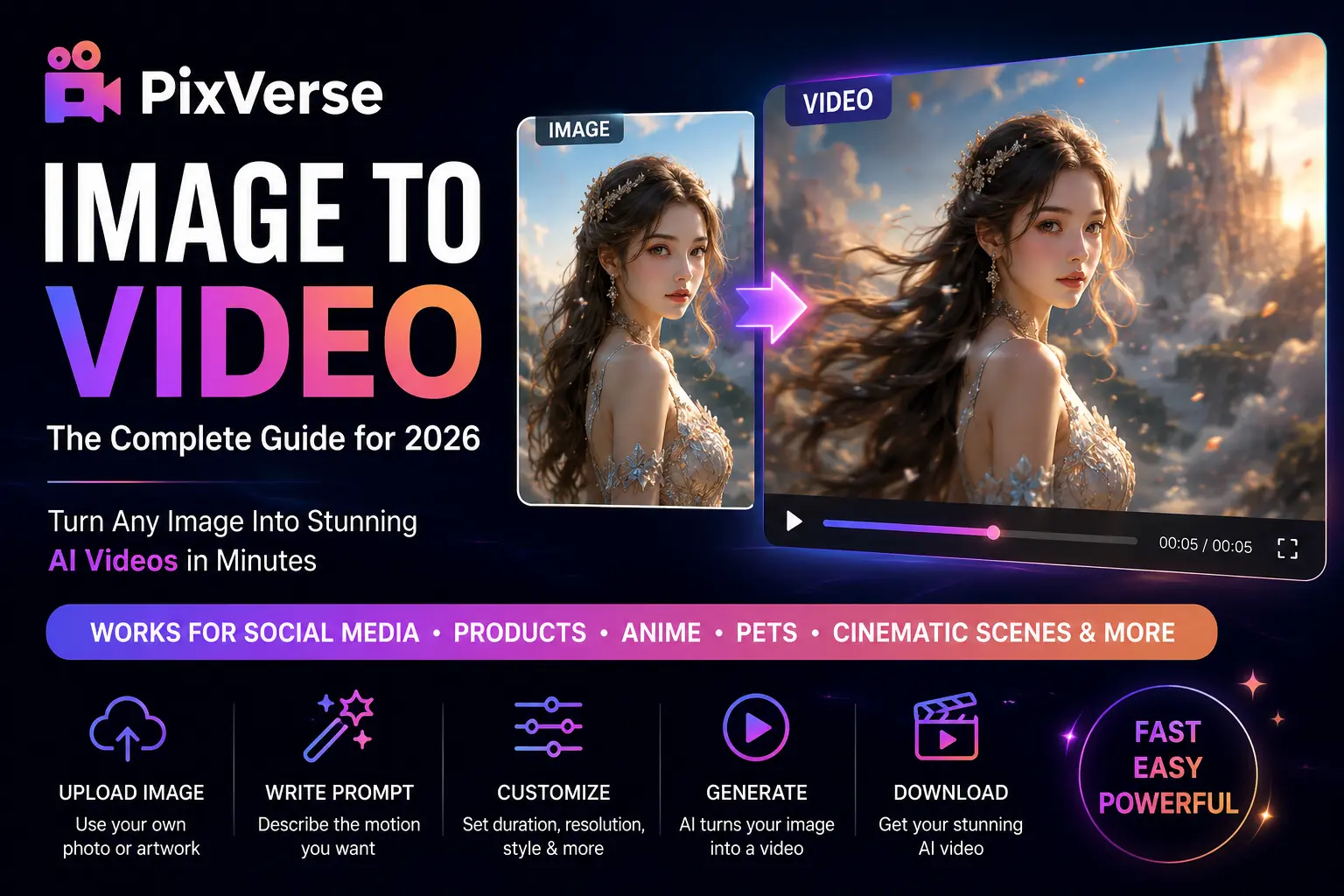
PixVerse Image to Video Guide: How to Turn Photos into AI Videos in 2026

PixVerse Image to Video Guide: How to Turn Photos into AI Videos in 2026

You already have a great image. Maybe it is an AI character, a product shot, a pet photo, or a scene you want to turn into a short TikTok-style clip. The real question is simple: can PixVerse turn that still image into a video that looks smooth, usable, and worth posting? That is why many creators search for PixVerse image to video. The workflow sounds easy: upload a photo, describe the motion, choose your settings, and generate a short AI video. But in practice, the result is not always as effortless as demo clips make it look. A weak source image, vague prompt, wrong model choice, or too many retries can quickly turn a “free test” into wasted credits. This guide explains how PixVerse AI image to video works, how to write better prompts, what to know about credits and pricing, and when another AI video generator may be a better fit for your workflow. Looking for a faster image-to-video workflow? Turn Images into AI Videos with AI Image to Video Create short videos from images, test different AI video styles, and build social-ready clips without jumping between too many tools. Try AI Image to Video What Is PixVerse Image to Video? PixVerse image to video is an AI feature that turns a still image into a short animated clip. Instead of building a scene from text alone, PixVerse uses your uploaded image as the visual reference, so the subject, composition, character style, product design, or scene mood can stay closer to your original picture. This makes PixVerse AI image to video more predictable than pure text-to-video. You can upload a product photo and ask for a slow camera push-in, turn an AI character portrait into a blinking or smiling clip, or animate a fantasy scene with drifting fog, moving light, and a cinematic camera pan. As an AI video generator, PixVerse works best for short, visual, social-friendly clips. It can be useful for TikTok, Reels, YouTube Shorts, anime characters, product previews, AI pets, mascots, fantasy scenes, and quick creative tests before making a longer video. It is less ideal for long storytelling, perfect face consistency, or complex scenes with several characters moving at once. Quick takeaway PixVerse is strongest when you give it one clear image and one clear motion idea. It is not a magic “perfect video” button. Better input images and simpler prompts usually matter more than long descriptions. How to Use PixVerse Image to Video Step by Step 1. Set Up Your Account and Claim Free Credits Start by creating an account through Google, Discord, or email. PixVerse usually gives new and free users a limited amount of credits, but the exact amount and reset rules may change. Before planning a daily posting workflow, check the current credit policy inside your account dashboard. 2. Prepare Your Image for Better Output Use a clean, high-resolution image with one clear subject, even lighting, and a simple background. A strong image gives the model less room to guess. Dynamic poses usually animate better than stiff, centered portraits. Best image type One subject, clean edges, clear face or product details, simple composition. Avoid Crowded scenes, tiny faces, messy backgrounds, low-resolution screenshots. 3. Write Motion Prompts That Actually Work The key is to describe motion and camera behavior, not the full image content. PixVerse already sees the uploaded image. If you over-describe the subject, the model may drift away from the original reference. Prompt structure Subject motion + camera motion + lighting or mood + quality style Example: “The character slowly smiles and turns toward the camera, soft camera push-in, warm cinematic lighting, smooth natural motion.” Negative prompts also help. Add terms such as “distorted face, morphing features, blurry, jittery motion” to reduce common failure modes. 4. Configure Resolution, Duration, and Style Settings Start with lower settings when testing. A failed low-resolution preview is cheaper than a failed high-resolution export. Once the motion looks right, then spend credits on higher quality. Shorter clips are usually safer. Five seconds is often enough for TikTok hooks, product shots, character reactions, and visual tests. Longer clips may increase the chance of face shifts, warped hands, or unstable motion. 5. Use Advanced Features Carefully PixVerse supports camera movements such as pan, zoom, orbit, and time-lapse through text prompts. Some versions also support audio, lip sync, multi-shot generation, and seed controls. These features can be powerful, but they also add complexity. For your first tests, keep the scene simple and add advanced controls only after the basic motion works. PixVerse Image-to-Video Pricing and Credit Costs Explained PixVerse uses a credit-based system, which means your real cost depends on how many attempts you need, not just how many final videos you download. This is important because image-to-video generation often takes several tries before you get a usable clip. Plan Type Typical Use Main Limits to Check Best Fit Free / Basic Small daily tests Daily credits, watermark, resolution, queue speed Testing the workflow Standard Regular short-form creation Monthly credits, export quality, commercial rules Creators posting occasionally Pro / Higher Plans Higher-resolution exports and more attempts Credit usage per model, audio cost, upscaling cost Frequent creators and teams The biggest pricing mistake is counting theoretical generations instead of usable videos. If one successful clip takes three attempts, your real cost is roughly three times higher than the listed cost per generation. Audio, longer duration, high resolution, or upscaling can increase credit consumption further. Credit-saving tips Test at lower resolution before exporting a final version. Use negative prompts on every generation. Keep motion simple when face consistency matters. Save strong prompts and reuse them with similar images. Only pay for higher settings after the preview direction looks right. PixVerse vs Kling vs Seedance vs Runway for Image to Video PixVerse is not the only option for image-to-video creation. Different tools perform better in different situations. Some are stronger for realism, some for stylized motion, some for editing control, and some for fast creative testing. Tool Strength Weakness Best


RoboNeo AI Review 2026: Features, Pricing, and What You Actually Get

RoboNeo AI Review 2026: Features, Pricing, and What You Actually Get

RoboNeo AI credit consumption surged 316% in Q1 2026 alone, yet most English-language AI tool roundups still ignore it entirely. So what’s behind the hype? Creators paying $15–30 per month each for Runway, Sora, and Kling know how fast costs add up. Meanwhile, YouTube tutorials promising “unlimited free AI video” erode trust when reality involves credit gates and paywalls. This guide covers the real credit math behind RoboNeo’s free tier, its three creation modes, how it compares to top competitors, and practical tips for getting quality output. What Is RoboNeo AI? RoboNeo AI is a chat-based creative platform built by Meitu, the Chinese tech company behind apps like Wink and BeautyCam. It bundles multiple top-tier AI engines into one interface for video generation, image editing, and content design through conversational prompts. Who Made RoboNeo? The Meitu Story Meitu serves over 17.9 million paying subscribers globally, with creative revenue reaching RMB 852 million in Q1 2026 (+34.3% YoY). RoboNeo is the company’s flagship push into AI-native creative tools. Key Features at a Glance Who Is RoboNeo For? The platform appeals to content creators, social media marketers, YouTubers (especially faceless channels), e-commerce sellers, and small business owners who need visual content without hiring production teams. How to Get Started with RoboNeo AI Getting up and running takes just a few minutes, but understanding the credit system upfront saves frustration later. Creating Your Account Sign up at roboneo.com or via the mobile app. The interface may default to a non-English language, so check your settings. Some users report region restrictions, and temporary email addresses are no longer accepted. Understanding Cyber Carrots: RoboNeo’s Credit System RoboNeo uses a virtual currency called Cyber Carrots. New accounts get 100 carrots on signup plus 20 daily credits for the first week, dropping to 10 per day afterward. Key costs: That initial daily budget covers roughly 5 short videos or 20 image edits — workable for testing, but power users will hit limits fast. Free Plan vs. Paid Plans Plan Monthly Cost Credits Included Free $0 100 signup + 10–20/day Starter ~$2/month +300 carrots/month Standard ~$9.50/month +1,000 carrots/month Additional Cyber Carrot packs range from 300 credits for approximately $4 to 6,480 credits for around $90. All pricing is originally in CNY. RoboNeo’s Three Creation Modes Explained RoboNeo offers three creation paths, each tailored to different skill levels. Skill Mode — Quick One-Click Generation Pre-built templates for instant results — pick a template for emoji creation, social media graphics, or image edits, and the AI handles the rest. Best for beginners wanting fast output. Agent Mode — AI-Guided Collaboration A conversational chat interface guides you through multi-step workflows. Describe what you want, answer the AI’s clarifying questions, and it builds output iteratively. The sweet spot for intermediate users. Workflow Mode — Node-Based Full Control A drag-and-drop node canvas for building reusable, scalable production pipelines — similar to what Wireflow offers as a dedicated tool. Best for power users and agencies. What Can You Create with RoboNeo AI? The platform supports a broad range of creative outputs, each at different credit costs. Image Generation and Editing Text-to-image generation, outfit swaps, background removal, and watermark removal — all at just 1 carrot per edit, making this the most credit-efficient feature. Image-to-Video Animation Convert stills into motion with physics simulation, cinematic camera control, and precision motion brushing. The most popular feature among creators at 20 carrots per 5-second clip. Text-to-Video Generation Generate video from text descriptions. Note that the prompt window can truncate longer inputs, so keep prompts concise and structured. Video-to-Video Style Transfer Restyle existing footage into anime, cinematic color grades, or artistic variations of your source material. 3D Emoji and Character Creation Turn selfies into viral iOS-style 3D animated emoji at 5 carrots per image — a trend gaining traction across both Chinese and Western creator communities. E-Commerce Product Ads Convert product photos into commercial-style video ads for Amazon, Shopify, or TikTok Shop — a use case with virtually no dedicated coverage from competitors. Agent Teams: RoboNeo’s Multi-Agent Filmmaking Feature Launched in Q1 2026, Agent Teams is RoboNeo’s most distinctive feature with no existing English-language coverage. How Agent Teams Work Multiple specialized AI agents collaborate on complex projects: a Lead Writer drafts scripts, a Storyboard Director plans sequences, an Art Director handles aesthetics, and a Post-Production Compositor assembles the final cut. Users oversee and guide each stage. Use Cases for Agent Teams Best suited for short drama creation, multi-scene storytelling, social media campaigns, and branded content at scale. Early YouTube demos showcase Agent Teams producing Arcane-inspired fan films entirely through the multi-agent pipeline. AI Models Available on RoboNeo Multi-model aggregation is one of RoboNeo’s core selling points — access several premium engines without separate subscriptions. Seedance 2.0 Meitu’s flagship model, built for cinematic ad creation with physics simulation and dynamic lighting. The most featured model across YouTube reviews. Kling 3.0 Excels at photorealistic human generation, scoring 9.5/10 in independent tests. Standalone Kling costs $10/month — on RoboNeo, you access it via credits alongside other models. Sora 2, VEO 3.0, Wan 2.6, and Grok Sora 2 handles narrative storytelling, VEO 3.0 delivers cinematic realism, and Wan 2.6 rounds out video options. Grok costs a steep 75 carrots per generation, making it expensive on the free tier. One Platform, Five Models — Is the Aggregator Approach Worth It? Individual subscriptions to Runway ($15), Sora ($20), and Kling ($10) total $45+/month. RoboNeo’s Standard plan at ~$9.50/month covers all of these — but with credit-based caps instead of unlimited access. The math favors moderate creators; heavy users may still benefit from dedicated subscriptions. RoboNeo AI vs. Top Alternatives RoboNeo vs. Runway Runway Gen 4.5 ($15/month) delivers superior stability and professional editing precision. RoboNeo counters with multi-model access at a lower price. Runway for pro-grade production; RoboNeo for budget versatility. RoboNeo vs. Kling AI Both deliver strong photorealism. Kling standalone ($10/month) offers dedicated access without credit limits, while RoboNeo bundles Kling 3.0 alongside four other models. Kling for human-centric video; RoboNeo for varied creative

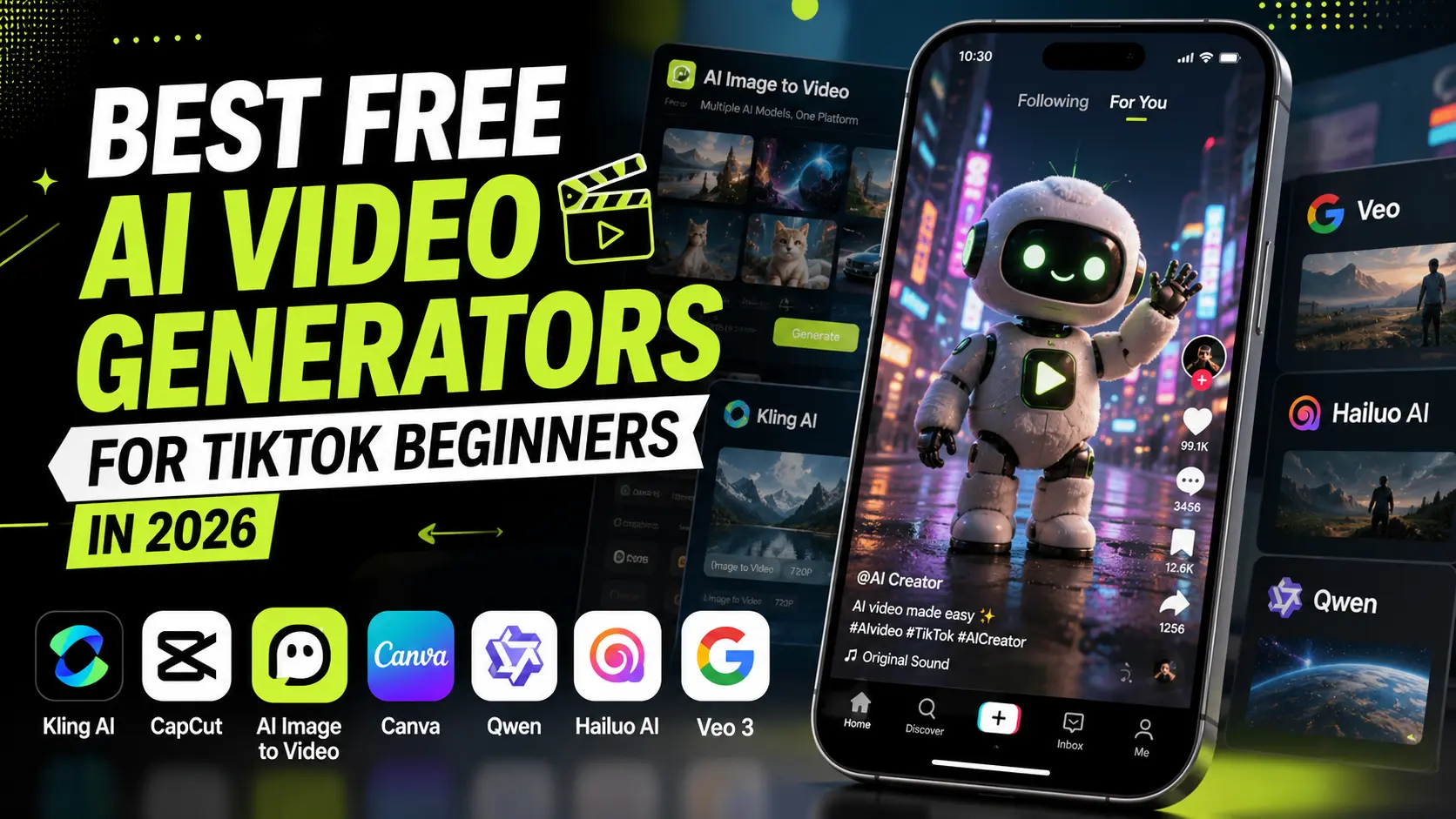
Best Free AI Video Generators for TikTok Beginners in 2026

Best Free AI Video Generators for TikTok Beginners in 2026

  Are you looking for a simple, free AI video generator to make TikTok-style videos that feel trendy, fast, and easy to watch? Maybe you want to create “A vs B” videos, like Dream House comparisons, Modern vs Traditional designs, Rich vs Poor room makeovers, or Before vs After product clips. The good news is that you do not need expensive software to start. The challenge is finding the best free AI video generator that can create short vertical clips without burning through credits, adding ugly watermarks, or making everything look like a movie trailer. In this guide, we compare the best free AI video generators for TikTok beginners in 2026. What Makes a Good AI Video Generator for TikTok? Most AI video generator reviews focus on cinematic quality, but TikTok beginners usually need something more practical: a free AI video creation tool that can turn a simple idea into a short, vertical clip fast. The real question is not whether a tool can make the most beautiful demo video. It is whether it helps you test ideas quickly, publish consistently, and create clips that feel native to TikTok. For TikTok, the best free AI video generator should support 9:16 output or easy cropping, short clips for hooks and memes, image-to-video generation for better control, usable free exports without ugly watermarks, and simple editing with captions, music, and effects. If a tool takes too much editing before the video is usable, it is probably not the best choice for beginners. Best Free AI TikTok Video Generators Compared Free plans change often, so treat the table below as a practical starting point, not a permanent pricing sheet. Always check the current free limits before planning a daily posting workflow. Tool Best For Free Plan Notes TikTok Fit Kling AI Realistic image-to-video clips Free credits are available, but limits can change Strong for realistic motion CapCut Editing and TikTok-native polish Free editor with AI features and templates Essential TikTok workflow tool AI Image to Video Testing multiple AI video models Multi-model access and watermark-free export options Strong for creators comparing styles Canva Beginners who want templates Free design and video tools available Easy but less advanced for AI video Qwen Zero-budget AI testing Free access may vary by region and feature Useful for experiments Hailuo AI Character and creative motion clips Trial or free access may change Good for story and character videos Google Veo Premium-quality AI video Access depends on Google product route and plan Best for polished clips, not daily free posting Broader AI video generator reviews can be useful for market context, but TikTok creators should judge each tool by speed, vertical format support, watermark rules, and how easily the clip can be edited for short-form content. Best Free AI Video Generators for TikTok Beginners Kling AI: Best Free AI Video Generator for Realistic TikTok Clips Kling AI is a strong choice for beginners who want a free AI video generator for TikTok with realistic motion. It works well for image-to-video AI workflows: upload a strong still image, add a simple prompt, and turn it into a short animated clip. For TikTok, Kling AI fits pet videos, AI characters, product demos, reaction clips, and short story scenes. Its biggest strength is realistic motion. The main limitation is that free credits, queue speed, resolution, and export rules can change. Best forRealistic AI TikTok videos and image-to-video testing. Watch out forChanging free limits and occasional failed generations. CapCut: Best Free TikTok Video Editor with AI Tools CapCut is the easiest editing hub for AI TikTok videos. You can add auto-captions, cut weak moments, use templates, resize clips to 9:16, add music, and make AI-generated footage feel more native to TikTok. CapCut also connects with Dreamina and Seedance-related AI video tools, including text-to-video and image-to-video creation. But its real value is final polish. Even if you generate clips with Kling AI, Qwen, Hailuo AI, or AI Image to Video, CapCut helps turn raw clips into publish-ready TikTok videos. Best forCaptions, templates, TikTok editing, and final polish. Watch out forSome AI features may move between free and paid plans. AI Image to Video: Best Multi-Model AI TikTok Video Generator AI Image to Video is useful if you want to test different AI video models without switching between multiple platforms. It helps creators convert image to video online, compare different motion styles, and create TikTok-ready clips from one workflow. This is helpful because TikTok niches need different results. Product videos need clean motion. AI pet accounts need cute animation. Faceless story channels need consistent scenes. Meme content often needs speed more than perfect realism. For beginners, AI Image to Video is practical because it supports multi-model testing, 9:16 short-form output, and watermark-free AI video creation. It is a good fit for creators who want a free AI TikTok video generator workflow without managing too many tools. Best forTesting multiple AI video models in one place. Watch out forChoose the model based on your TikTok niche, not just demo quality. Try it for TikTok Create AI TikTok Videos from Images Turn images into short 9:16 TikTok videos and test different AI video styles faster. Try AI TikTok Video Generator Canva: Best AI Video Tool for Absolute Beginners Canva is a simple starting point for beginners who want to make TikTok videos without learning complex editing software. Its templates, text tools, drag-and-drop editor, and AI video generator make short-form content easier to build. For TikTok, Canva works best for quote videos, slideshow posts, product explainers, educational clips, and branded content. It is not the strongest free AI video generator for advanced motion, but it is easy for beginners who care more about speed and layout. Best forTemplates, simple editing, and beginner-friendly design. Watch out forAI video features may feel limited compared with dedicated generators. Qwen: Best Free AI Video Tool for Experiments Qwen is worth testing if you want a low-cost or free AI video tool for prompt experiments, visual ideas, and basic AI-assisted content

Kling AI Image to Video: Complete Guide & Best Alternatives (2026)

Kling AI Image to Video: Complete Guide & Best Alternatives (2026)

You’ve uploaded your image, written a prompt, clicked generate — and watched 200 credits disappear on a result that looks nothing like what you imagined. If Kling AI’s image-to-video feels more like a slot machine than a creative tool, you’re not alone. Between Frames and Elements modes, Motion Control settings, and confusing credit costs, most users burn through their budget before producing anything usable. This guide covers a tested workflow for image preparation, prompt engineering, settings optimization, and credit-saving strategies — plus honest alternative comparisons when Kling isn’t the right fit. What Is Kling AI Image to Video? Developed by Kuaishou Technology, Kling AI transforms still images into cinematic video clips up to three minutes long — one of the most feature-rich platforms in 2026. How Kling AI’s Image-to-Video Technology Works Kling uses a 3D spatiotemporal attention architecture that understands depth, motion, and time simultaneously. The AI interprets physical space within your image and generates motion respecting real-world physics like gravity and perspective. Image-to-Video vs Text-to-Video: When to Use Which Image-to-video starts with your visual content and adds motion. Text-to-video creates everything from a description. Use image-to-video when you have a specific look or composition to preserve; use text-to-video when exploring ideas from scratch. Kling AI Versions: What Changed From 1.6 to 3.0 How to Convert an Image to Video With Kling AI (Step-by-Step) Step 1: Sign Up and Claim Your Free Credits Create an account at kling.ai for 66 free daily credits (720p, watermarked). Alternatives: ImagineArt (100 daily free credits), Dzine AI (free trial), or Fal.ai. Step 2: Prepare Your Image for Best Results Most tutorials skip this. For optimal results: Step 3: Choose Your Mode — Frames vs Elements Frames mode: Upload start and/or end frames — Kling interpolates motion between them. Best for before/after reveals and controlled transitions. Elements mode: Upload up to 4 reference images for character-driven scenes. Best for storytelling with consistent characters. Step 4: Write an Effective Image-to-Video Prompt The critical insight: describe motion and camera movement, not the scene. The image already provides visual context. Key Takeaway: Write “Subject turns head toward camera, wind moves hair, camera pushes in” — not descriptions of what’s already visible. Step 5: Configure Settings (Duration, Camera, Generation Mode) Step 6: Generate, Evaluate, and Iterate Expect 3–15 minute generation times. Experienced users report roughly 60–70% of generations require a redo. Budget accordingly — always test cheaply first. Kling AI Image-to-Video Features Explained Motion Control: Replicate Real-World Movement Upload a reference video to transfer its motion onto your image subject. Achieves near-perfect replication of dance choreography, product demos, and viral movements. Start/End Frame Control: Seamless Transitions Upload first and last frames; Kling interpolates natural motion between them. Ideal for product reveals and architectural walkthroughs. Motion Brush: Animate Specific Objects Paint motion paths onto specific image areas — animate flowing hair while keeping the body still, or add moving clouds to a landscape. Multi-Shot Generation (Kling 3.0) Generate multiple connected scenes from a single storyboard. Useful for short narratives, though consistency can drift after the first shot. Camera Movement Presets Built-in movements: push, pull, pan, tilt, orbit, zoom. Combine with descriptive camera tokens in your prompt for maximum control. Character Consistency With Elements 3.0 Upload reference images to lock character appearance across generations. Improves consistency significantly, though face drift still occurs in longer clips. Kling AI Pricing: What Image-to-Video Actually Costs Credit Costs Per Generation (Version x Duration x Mode) A Standard 5-second clip costs 10–20 credits. Professional 10-second clips run 40–100 credits. With 60–70% regeneration rates, your real cost per usable video is roughly 3x the listed price. Free Tier vs Standard vs Pro vs Premier Plan Price Credits Resolution Watermark Free $0 66/day 720p Yes Standard $6.99/mo 660/mo 1080p No Pro $25.99/mo 3,000/mo 1080p No Premier $64.99/mo 8,000/mo 4K No Third-Party Platforms: Cheaper Access to Kling Freepik aggregates multiple models at ~$5/month. AI Image to Video provides access to Kling alongside Veo and Wan with watermark-free 4K output. OpenArt charges 150 credits per 10-second clip. Note: aggregators often lack advanced features like Start/End Frame or Elements. Credit-Saving Strategies That Work Image-to-Video Prompt Tips for Better Results The Key Difference: Describe Motion, Not the Scene Your image already shows the scene. Your prompt should only describe what moves and how the camera behaves. Re-describing visible content wastes prompt space and confuses the model. Prompt Templates by Motion Type Using Camera Tokens Effectively Filmmaking vocabulary works best: “dolly in,” “tracking shot,” “crane descending,” “Dutch angle rotating.” These produce noticeably better results than generic descriptions. Negative Prompts to Avoid Common Artifacts Add these negative prompts to reduce artifacts: “no face morphing, no extra limbs, no jittery motion, no background warping, no blurry transitions.” Using ChatGPT to Write Optimized Kling Prompts Paste this into ChatGPT: “Write a Kling AI image-to-video prompt for [description]. Focus on motion and camera movement only. Use filmmaking terminology. Under 200 words.” Best Kling AI Alternatives for Image to Video Runway Gen-4.5 — Best for Professional Creative Control Cinema-grade output with the most polished interface in the industry. Max 16 seconds, from $12/month. Best for client-ready results. Google Veo 3.1 — Best for Photorealism and Long Duration Hyper-realistic physics with native audio and clips up to 180 seconds. Free credits via Google AI Studio. Seedance 2.0 — Best for Human Character Consistency Benchmark leader for consistent human figures across multiple shots. Best for multi-scene narratives with recurring characters. Pika Labs — Best for Beginners and Social Media Most accessible option with creative effects and a watermark-free free tier. Max 10 seconds, from $8/month. Hailuo AI — Best for Action and Motion Scenes Excels at fluid physics and high-action content — running, dancing, sports. Free daily credits included. Wan 2.2 (Local) — Best Free Option With Hardware Runs locally via ComfyUI with zero recurring costs. Requires 8–24GB VRAM, ~1 hour per 5-second clip. Best free option if you have the hardware. Kling AI vs Competitors: Head-to-Head Comparison Comparison Table (Quality, Speed, Price, Duration, Free Tier) Tool Max Duration

Akool Image to Video: Honest Review, Tutorial, and Best Alternatives [2026]

Akool Image to Video: Honest Review, Tutorial, and Best Alternatives [2026]

What if you could access Seedance, Kling, Sora, and Google Veo from a single dashboard — without managing separate subscriptions? That’s Akool’s image-to-video pitch. But most reviews are sponsored, the credit system confuses nearly everyone, and Reddit threads overflow with creators who’ve wasted credits on missed output. This guide cuts through the noise with a transparent look at how Akool’s image-to-video platform works, what each clip truly costs, which AI model fits your project, and which alternatives may serve you better. What Is Akool Image to Video? Akool is a multi-model AI video platform that transforms still images into short animated clips by bundling multiple third-party AI engines into a single interface. How Akool’s Multi-Model Platform Works Within one dashboard, users choose from Seedance 2.0, Kling 3.0, Sora 2, Wan 2.7, Google Veo 3.1, and Minimax Hailuo. This distinguishes Akool from standalone platforms like Runway or Kling’s native site, where only one proprietary engine is available. Key Features for Image-to-Video Generation The platform’s core capabilities include: Who Is Akool Image to Video Built For? Akool targets content creators, marketing teams, e-commerce businesses, and educators. The platform lists Fortune 500 clients like Canon and Coca-Cola and ranked #1 on the 2025 Inc. 5000. Enterprise credentials are solid, though solo creators on tight budgets may find the credit system less forgiving. How to Use Akool Image to Video (Step-by-Step Tutorial) Getting up and running is straightforward, but a few early decisions can prevent wasted credits and frustration later. Creating Your Account and Understanding the Free Tier Register at akool.com for the free plan: 720p resolution, watermarked output, access to the basic Akool model only, and just one concurrent generation. Premium engines like Seedance, Kling, and Sora require paid tiers. YouTube tutorials often present Akool as free without noting these limits — a point viewers consistently call out in comments. Choosing the Right AI Model for Your Project Model selection is where Akool’s aggregator advantage becomes tangible: For most projects, Kling is a solid starting point. Branch out once you understand what each model handles best. Uploading Your Image and Writing Effective Prompts Use source images at 1080p or higher with clear subjects and even lighting. When writing prompts, describe the specific motion you want — “camera pans left while subject turns head” outperforms vague instructions like “make it move.” Each model interprets prompts differently, so tailor your language accordingly. Generating, Previewing, and Exporting Your Video Standard generation takes 1–5 minutes. However, “unlimited” mode users have reported waits of several hours. Concurrency limits also matter: 1 slot on free, 4 on Pro, and 8 on Pro Max. Akool Pricing and Credit System Explained Pricing confusion is the single most frequent complaint about Akool across Reddit, YouTube comments, and competitor reviews. Here’s the actual breakdown. Free Plan vs. Pro vs. Pro Max vs. Enterprise Plan Price Credits Max Resolution Concurrent Jobs Free $0 Limited 720p 1 Pro $18/mo* 600 4K 4 Pro Max $35.40/mo* 1,200 8K 8 Enterprise Custom Custom 8K Custom Reflects the current 40% promotional discount. Standard pricing is $30 and $59 respectively. How Many Credits Does Each Video Actually Cost? Each video consumes 20–60 credits based on resolution and length. On Pro, that translates to roughly 10–30 videos per month. Pro Max yields around 20–60 videos. Higher resolutions and longer clips deplete credits fast. Hidden Costs and How to Avoid Credit Waste The per-generation pricing model discourages experimentation. Reddit users frequently mention losing credits on outputs that bear little resemblance to their prompts. To minimize this: Akool Image to Video Output Quality: What to Expect Output quality varies considerably based on your model choice, the source image, and how precisely you craft your prompt. Resolution and Visual Quality Across Models At 4K, output from Kling 3.0 Pro and Seedance 2.0 can look genuinely impressive. Independent reviewers describe the results as solid for marketing use. On lower settings or weaker models, community reactions range from acceptable to harsh — one Reddit user compared certain outputs to dated CGI. Model and settings choices matter enormously. Character Consistency and Identity Preservation This remains the biggest unsolved challenge across every AI video tool, not just Akool. Faces distort, features drift, and objects reshape mid-clip. The community’s top workaround is the first-and-last-frame technique, which anchors the model with reference frames. Kling 2.1 Pro is widely regarded as the most reliable option for facial identity. Video Length Limitations and Workarounds Dependable output tops out around 5–10 seconds. Push beyond that and consistency degrades noticeably. Stitching shorter clips together introduces visible seams. Generating a stable 30-second video remains an industry-wide aspiration that no platform has reliably achieved in 2026. Akool vs. Top Competitors: Head-to-Head Comparison Here’s how Akool measures up against the platforms users compare it to most often. Akool vs. Runway Runway Gen-4.5 offers consistent single-model quality and supports clips up to 30 seconds. Akool counters with multi-model access. For a refined, focused creative workflow, Runway is the stronger pick. Akool vs. Kling AI Kling 2.1 Pro earns consistent praise on Reddit for superior facial consistency. The twist: Kling is also accessible within Akool as an aggregated model. The real choice is between Kling’s dedicated platform and accessing it through Akool’s dashboard. Akool vs. HeyGen HeyGen specializes in business avatar videos with 300+ voices and 40+ languages. For corporate training and talking-head content, HeyGen’s lip-sync quality outperforms Akool. For broader creative image-to-video work, Akool offers more versatility. Akool vs. AI Image to Video AI Image to Video offers a more streamlined alternative featuring Kling, Veo, and Wan models with 4K output and no watermarks included on standard plans. Its focused interface sidesteps the dashboard complexity that some Akool users find overwhelming, while batch processing support makes it particularly practical for high-volume content workflows. Quick Comparison Table Platform Models Max Res Free Tier Starting Price No Watermark Batch Best For Akool 6+ 8K Yes (limited) $18/mo Paid only API Multi-model flexibility Runway 1 4K Yes (limited) ~$12/mo Paid only No Creative professionals Kling AI 1 4K Yes

FAQs About AI Image to Video Generator

Is there an image to video AI free option?

Yes, aiimagetovideo pro offers a free plan to try image to video AI. Create a video from an image, test features, and generate clips. It is the best way to explore our free AI image to video generator capabilities without risk. You can access image to video ai free unlimited trial features with daily credits. Make video from image for free.

What is the best image to video AI tool?

The best image to video AI depends on your goals. Our aiimagetovideo pro is one of the best ai photo to video apps for creators. Our free AI Image to Video generator lets you convert image to video easily, striving to match Google Veo and Veo 2 quality. Use it to make video magic online. Add image assets to generate video.

Do you integrate Veo 3 model or other AI engines?

We integrate leading technologies. While we admire Veo 3, Kling AI Image to Video, and Runway AI Image to Video, our custom models deliver competitive results to create high-quality videos from images. We add image support for various formats in our free generator.

How to create video with images?

Image to video AI uses deep learning. Simply upload an image, add prompts, and the AI turns it into a dynamic video. It is the simplest way to learn how to make a video with photos and videos using a free generator. Convert image to video steps are simple.

Do you integrate with other AI models like Veo 3?

We are evaluating integrations with Veo 3, Imagen 3, and Pollo AI Image to Video. We also look at image to video trends and tools like HeyGen image to video to improve our service. We aim to provide the best online free experience. Make video innovation your goal.

Is there an AI image to video no account option?

Currently, you need an account for our AI Image to Video generator. Registration is free and includes credits to test image-to-video creation. This allows you to save your AI video from image projects. Sign up to use our free app features. Add image projects to your portfolio.

How can I create professional results with free image to video AI?

Even with free image to video AI, you can get professional results. Use high-quality images and our aiimagetovideo pro. We ensure smooth rendering, making us a top choice for those looking to convert image to video AI free. Start to convert image to video today with our free tool.

Accepted payment methods