After Effects has long been the go-to tool for motion design, but its cost keeps rising — especially once plugins are added. The bigger issue is that AE does too many jobs at once, so no single alternative truly replaces it. That’s why this guide skips the usual flat rankings and instead matches the best alternatives to specific use cases, with a decision tree and practical tool combinations.
What Do You Actually Use After Effects For?
Before diving into specific tools, take 30 seconds to identify your primary workflow. After Effects users typically fall into one or two of the categories below, and knowing which one you belong to will save you hours of evaluating tools that don’t fit.
The Decision-Tree Flowchart
Use this flowchart to jump directly to the section that matches your needs:
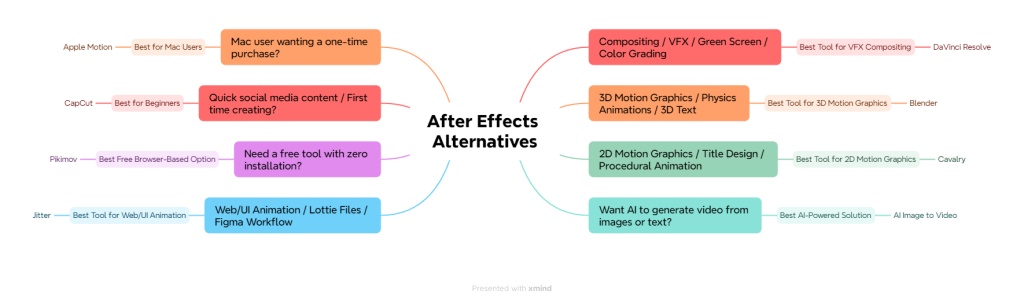
Most AE users rely on just one or two of these capabilities. If you need broader coverage, skip ahead to The Combination Stack section for multi-tool workflows that replace AE almost entirely.
[Image: Visual decision-tree flowchart mapping After Effects use cases to recommended alternative tools]
Best for VFX Compositing — DaVinci Resolve (Fusion)
If you rely on After Effects primarily for compositing, green screen work, color grading, and visual effects in video production, DaVinci Resolve is the strongest alternative available — and its free version is genuinely professional-grade.
Why It Wins for Compositing
DaVinci Resolve bundles four professional tools into one application: editing, Fusion compositing, color grading, and Fairlight audio. The built-in Fusion tab delivers node-based compositing used in Hollywood productions, while the color grading suite is widely considered the industry’s best.
The free version exports up to 4K with no watermarks — a level of capability no other free tool matches for post-production work.
- Node-based Fusion compositor built directly into the editing timeline
- Industry-leading color grading used in major film and TV productions
- Fairlight audio suite for complete sound design and mixing
- Complete pipeline — editing, compositing, color, and audio in one app
Pricing and Platform
Free (full-featured with minor limits) | Studio $295 one-time (no subscription). Available on Windows, Mac, and Linux.
Key Limitation
Fusion’s node-based workflow is a significant adjustment for AE’s layer-based users. As one creator in r/MotionDesign shared, they “cannot adapt to Fusion’s node-based system” despite already using DaVinci for editing. Resolve is better suited for compositing and post-production — not ideal for pure 2D motion graphics.
Key Takeaway: DaVinci Resolve is the most complete free post-production tool available, but expect a learning curve if you’re coming from AE’s layer-based workflow.
Best for 3D Motion Graphics — Blender
For creators who use After Effects primarily for 3D motion graphics, physics-based animations, and 3D text work, Blender is the unmatched free option — especially with version 5.0’s new motion graphics geometry node presets designed specifically for motion designers.
Why It Wins for 3D Motion
Blender delivers capabilities that would cost thousands in commercial software. Its geometry nodes enable procedural motion graphics, while grease pencil allows 2D animation within a 3D environment. A YouTube comparison by Bring Your Own Laptop showed Blender matching AE for physics simulations with a more organic, natural feel.
- Completely free and open-source with no feature restrictions
- 3D modeling, animation, and physics simulations in one package
- Geometry nodes for procedural motion design workflows
- Grease pencil for 2D-in-3D animation styles
- Massive community with thousands of tutorials and free assets
Pricing and Platform
Completely free, open-source. Available on Windows, Mac, and Linux.
Key Limitation
Blender has a steep learning curve and is overkill for simple 2D animations. Render times can be long for complex scenes. It’s a 3D powerhouse first — not a natural fit for everyday 2D motion graphics work.
Best for 2D Motion Graphics — Cavalry
If your AE workflow centers on 2D motion graphics, title design, and procedural animation, Cavalry is the closest purpose-built alternative. It’s designed specifically for motion graphics — not adapted from a broader tool.
Why It Wins for 2D Motion
Cavalry was built from the ground up for motion design. Its procedural, data-driven animation system enables rapid iteration, and the clean modern UI feels genuinely contemporary compared to AE’s aging interface. Recently acquired by Canva, Cavalry now has significant resources behind its development.
YouTube creator Momo PTFL called it “not just an alternative but the best motion graphics software” — a bold claim, but one that reflects Cavalry’s focused approach.
- Purpose-built for motion graphics (not a broader tool adapted for it)
- Procedural and data-driven animation for rapid creative iteration
- Vector-focused design with a clean, modern interface
- Growing template library backed by Canva’s resources and reach
Pricing and Platform
Free Starter tier (1080p limit) | Pro $20/month | Studio $45/month. Available on Windows and Mac.
Key Limitation
Cavalry has no 3D capability, uses a subscription model, and has a smaller plugin ecosystem and community compared to AE. No Linux support is available.
Best for Web/UI Animation — Jitter
For UI/UX designers and web developers who use After Effects to create web animations, social media motion, and Lottie files, Jitter offers a browser-based workflow with native Figma integration and real-time team collaboration.
Why It Wins for Web/UI
Jitter runs entirely in the browser — no download or installation needed. Its Figma import lets designers pull in existing designs and animate them directly, while real-time collaboration makes it ideal for design teams working on shared projects.
- Browser-based with no installation required
- Native Figma import for seamless design-to-animation workflow
- Real-time team collaboration on shared projects
- Exports to Lottie, .mov, .mp4, .webm, and GIF for web and social
- 100+ motion design templates to accelerate production
Pricing and Platform
Free (with watermark) | Pro $15/editor/month | Team $35/editor/month. Any OS (browser-based).
Key Limitation
Jitter is not a full AE replacement — it excels at lighter motion design and UI animation but hits browser limitations with complex or long-form projects.
Best Free Browser-Based Option — Pikimov
For budget-conscious creators, students, or anyone who wants an AE-like experience with zero cost, zero signup, and zero installation, Pikimov runs entirely in the browser with all files processed locally on your machine.
Called the “most underrated project of 2026” by the r/vfx community, Pikimov has quickly gained traction for delivering surprising depth without any paywall.
Why It Wins as the Free Option
Pikimov stands out by supporting AE JavaScript expression syntax, making the transition from After Effects significantly easier — a detail that most roundup articles miss entirely. Its privacy-first approach means files never leave your computer.
- Completely free with no paywall or signup required
- 3 editors — classic, 2D compositing, and 3D compositing
- Supports AE JavaScript expression syntax for easier transition
- Motion tracking, rotoscoping, and background remover built in
- Up to 4K output with no watermarks
- Privacy-first — all file processing happens locally
Pricing and Platform
Completely free. Any OS including Chromebook (browser-based). Offline app coming via Patreon support.
Key Limitation
Pikimov is still early-stage with a smaller feature set compared to desktop tools. No standalone offline version is available yet, though one is in development.
Best for Beginners — CapCut
For first-time creators, social media users, and anyone who finds After Effects overwhelming, CapCut offers the simplest learning curve of any AE alternative with mobile-first editing and direct social media publishing.
Why It Wins for Beginners
CapCut eliminates the complexity barrier entirely. Its drag-and-drop interface works across mobile and desktop, and direct publishing to TikTok, Instagram, and YouTube Shorts removes friction from the social media workflow.
- Simplest learning curve of any After Effects alternative
- Mobile-first with a full desktop version available
- Direct TikTok, Instagram, and YouTube Shorts publishing
- Massive template library for quick content creation
- AI-powered effects for automated enhancements
- Free tier that covers most needs
Pricing and Platform
Free | Pro $9.99/month. Available on iOS, Android, Windows, Mac, and browser.
Key Limitation
CapCut is not designed for professional VFX or complex motion graphics. Features are increasingly moving behind the paywall, and creative control is limited compared to AE.
Best for Mac Users — Apple Motion
For Mac creators wanting a one-time-purchase After Effects alternative tightly integrated with Final Cut Pro, Apple Motion handles motion graphics, compositing, and 3D text without any subscription.
Why It Wins for Mac
Apple Motion delivers strong value at a one-time cost that’s less than three months of Adobe’s AE subscription. Its deep Final Cut Pro integration makes it the natural choice for editors already in Apple’s ecosystem.
- One-time $49.99 purchase with no subscription
- Deep Final Cut Pro integration with shared motion graphics templates
- Motion graphics templates, particle effects, and 3D text capabilities
- Apple ecosystem optimization for smooth performance on Mac hardware
Pricing and Platform
$49.99 one-time. Mac only.
Key Limitation
Apple Motion is Mac-only with less power than AE for complex compositing. Its community and third-party plugin ecosystem is significantly smaller than AE’s.
Best AI-Powered Solution — AI Image to Video
For creators who want to skip manual motion design entirely, AI Image to Video uses advanced AI models to transform static images and text descriptions into professional video content. It’s ideal for social media marketers, small business owners, and content creators who need fast video output without learning traditional motion tools.
Why It Wins for AI-Powered Creation
AI Image to Video integrates multiple advanced AI models — including Kling, Veo, and Wan — to generate video from images and text prompts. No motion design skills are required, making it the fastest path from concept to finished content.
- AI-powered image-to-video and text-to-video generation
- Multiple advanced AI models including Kling, Veo, and Wan
- Up to 4K resolution output with no watermarks
- Customizable aspect ratio, duration, and motion intensity
- Batch processing for high-volume content creation
- Optimized tools for TikTok and social media formats
Pricing and Platform
Online platform from $7.99/month
Key Limitation
AI-generated output offers less frame-by-frame creative control than manual After Effects work. Best suited for fast content creation and social media rather than detailed VFX or complex compositing.
The Combination Stack — Replacing AE with 2-3 Tools
Since no single tool replaces all of After Effects’ capabilities, these tested multi-tool “stacks” — drawn from real workflows shared across Reddit and YouTube communities — show how to cover most of what AE does.
Stack 1: The Free Powerhouse (Blender + DaVinci Resolve)
Blender handles 3D motion graphics, animation, and physics simulations. DaVinci Resolve handles compositing (Fusion), color grading, editing, and audio.
- Total cost: $0
- Covers: Roughly 70-80% of AE’s capabilities
- Best for: Independent filmmakers and creators who need professional results on zero budget
Stack 2: The Modern Motion Designer (Cavalry + DaVinci Resolve + AI Image to Video)
Cavalry handles 2D motion graphics and procedural design. DaVinci Resolve handles compositing and finishing. AI Image to Video fills gaps with AI-generated video content from static assets.
- Total cost: From $20/month (Cavalry Pro)
- Covers: 2D motion, compositing, and AI-powered video generation
- Best for: Motion designers who also produce social media content at scale
Stack 3: The Web-First Creator (Jitter + Pikimov + CapCut)
Jitter delivers polished web/UI animations with Figma integration. Pikimov handles compositing and effects work in the browser. CapCut covers quick social media edits and direct publishing.
- Total cost: $0 (free tiers)
- Covers: Web animation, basic compositing, and social media content
- Best for: Web designers and social media creators who want a fully browser-based workflow
Conclusion
After Effects is not one tool — it is many. The key to finding the right alternative is identifying what you actually use AE for, then picking the best-in-class tool for that specific workflow.
For most creators, a 2-3 tool combination stack covers the vast majority of what AE offers — often entirely for free. Whether you need Hollywood-grade compositing (DaVinci Resolve), procedural motion graphics (Cavalry), or AI-powered video creation from static images (AI Image to Video), the right solution exists.
Start here: Use the decision-tree flowchart above to identify your primary use case, try the recommended tool, and consider a combination stack if you need broader coverage.