
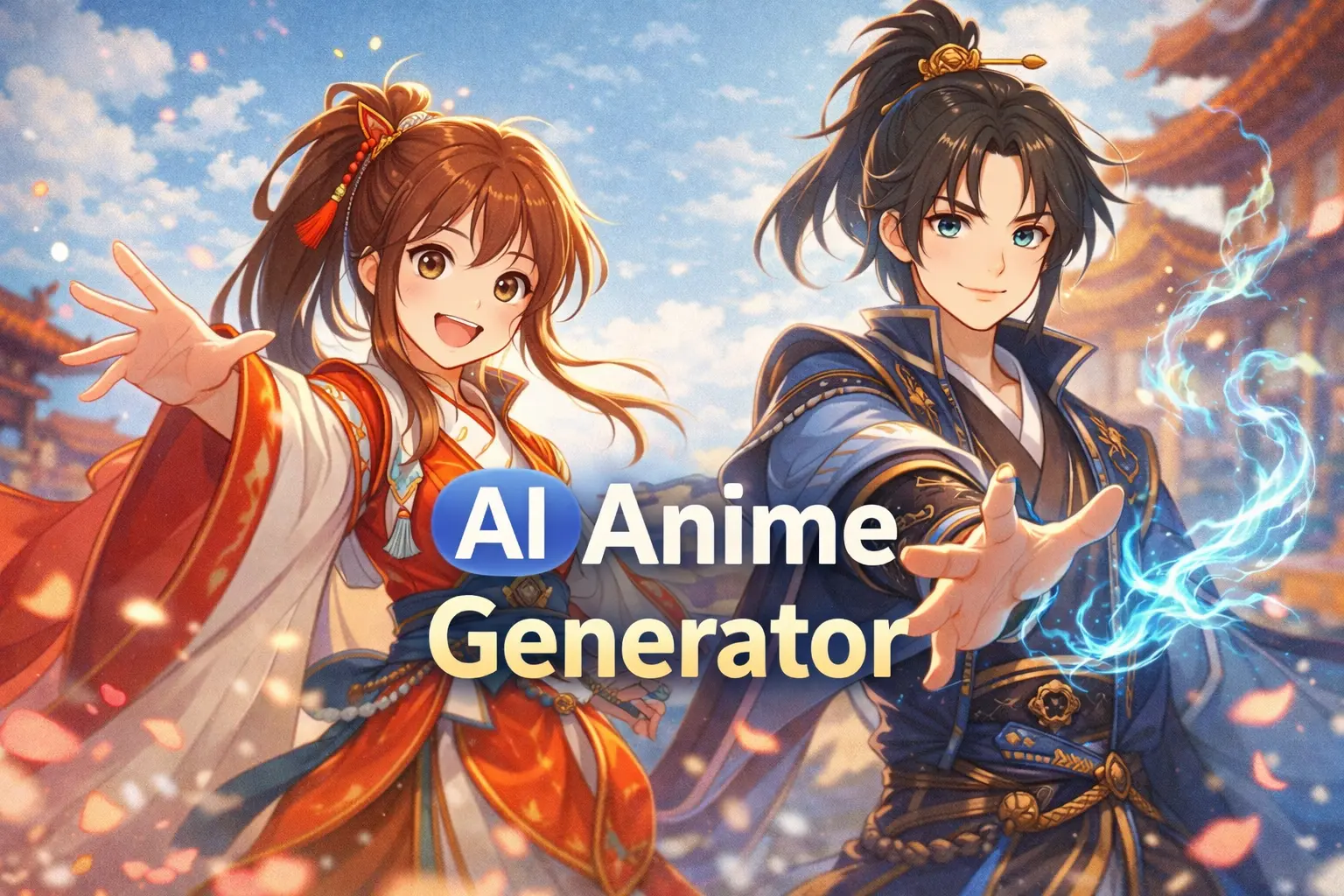
You type “cool anime hero in a rainy alley” into an AI anime generator and boom—instant masterpiece.
Then you hit Generate again… and your “same” hero returns with a new face, different hair, and somehow three extra belts.
That’s AI generated anime in a nutshell: first image = magic, second = chaos.
This guide fixes the chaos—so you can get clean line art, flat cel shading, and consistent characters you can reuse for comics, games, thumbnails, and even an AI video generator anime opening workflow.
What Is an AI Anime Generator and What Users Actually Want
An AI anime generator is a tool that uses generative AI models to create anime-style images (and sometimes video) from text prompts, reference images, or both. Many tools position themselves as an “AI anime art generator” that can do everything—text-to-anime, photo-to-anime, character creation, and editing—often with a friendly UI and a free tier. For example, Artguru markets text and photo anime generation and even highlights a daily free image allowance.
But “generate anime” isn’t the real goal. The real goal is usually one of these:
- Make anime that looks like anime (not glossy, painterly “AI art vibes”).
- Lock a character so they stay the same across different poses and scenes.
- Export clean assets (transparent PNGs, sprite-like layers).
- Turn anime images into short video shots for reels, storyboards, or an anime opening-style montage.
And that’s exactly what creators ask for in forums—especially the “clean, cel-shaded, minimal gradients” look needed for vector redraws, sprites, or in-game character variations.
“Anime style” vs real anime look
“Anime style” is a huge umbrella. Real anime often has:
- Clean outlines
- Flat color blocks
- Simple shading
- Intentional line weight
- Stylized anatomy (eyes/hair/expressions that follow a recognizable visual language)
A lot of generators produce something that’s “anime-ish” but still feels like a polished digital painting with soft gradients everywhere. That can be pretty—but it won’t match the look people want for cel shading or “classic anime frame” vibes. And if your plan is to redraw in SVG or build character references, that “soft painterly” look becomes extra work.
Common frustrations: paywalls, drift, hard setup
Forum users complain about three things over and over:
- Paywalls / credit limits
People start with “free” because they need many iterations. Then they hit “not free,” daily caps, or paid tiers right when they finally get something close. - Drift (identity + style inconsistency)
In video workflows, drift gets worse as you extend or iterate. One Stable Diffusion thread about making AI anime videos explicitly warns that “consistency will suffer after a few iterations” when looping/extend-and-splice methods. - Hard setup (especially “local” pipelines)
Power users recommend SDXL, checkpoints, LoRAs, and editing models—but that can be intimidating if you just want your character to stop shape-shifting.
AI Anime Art Generator Styles That Matter
If you want results that feel “anime,” your style targets should be specific, not vague.
Clean outlines and flat palettes (not “soft painterly”)
If your goal is crisp anime art (especially for comics, games, or vector redraw), aim for:
- Strong line art
- Limited palette
- Flat cel shading
- Minimal gradients
- Simple background shapes (or separate background from character)
That “few colors, minimal gradients” requirement is exactly what some users request when they want to convert outputs into SVG or use them as consistent references.
Practical tip: If your generator keeps giving you painterly shading, don’t just add “cel shading.” Add constraints like:
- “flat colors, limited palette”
- “clean line art, bold outlines”
- “no painterly brush texture”
- “minimal gradients”
Prompt patterns for sharper anime aesthetics
Here are reliable prompt patterns (simple enough for beginners, strong enough for consistent results):
Pattern A: Line-art first
- “anime character, clean line art, bold outline, flat colors, cel shading, minimal gradients, high contrast edges”
Pattern B: Model-friendly style anchors
- “anime key visual, TV anime style, clean facial features, crisp linework, simple shading”
Pattern C: Background control
- “character centered, simple background, flat shapes, no detailed environment”
Then generate a separate background scene later.
Why it works: you’re telling the tool what to avoid, not just what to do.
AI Anime Image Generator Workflows
A good AI anime image generator should support both paths, because they solve different problems.
Text-to-anime for concept art and scenes
Use text-to-anime when you want:
- new character concepts
- environments / establishing shots
- posters / key visuals
- mood boards
This is where list-style blog posts often live—”type a prompt, get anime.” Competitor pages like Artguru structure their guide around text-to-anime and photo-to-anime workflows because it’s beginner-friendly and conversion-friendly.
But: text-to-anime is also the easiest place for drift to appear because the model is inventing everything each time.
Photo-to-anime for avatars and personal characters
Photo-to-anime is best when:
- you need one person turned into an anime avatar
- you want consistent face shape and hair silhouette
- you’re making profile pics, stickers, or personal OC references
Many tools promote photo-to-anime as a main feature because it’s instant gratification (and great for social sharing).
Reality check: photo-to-anime can still drift when you regenerate variations. So if consistency matters, you need a character-lock approach.
AI Anime Character Generator: How to Keep the Same Character Every Time
This is the section most “best AI anime generator” listicles gesture at—but don’t solve.
In creator forums, people recommend workflows like: generate a base character with SDXL + LoRAs, then use an editing model to change clothes/background while keeping the subject consistent.
You don’t need to become a node-graph wizard to borrow the logic.
The “character lock” checklist
When you want an AI anime character generator experience (consistent design, many variations), lock these three buckets:
- Face identity
- eye shape + eye color
- eyebrow shape
- nose/mouth style
- unique marks (mole, scar, etc.)
- Hair identity
- silhouette (bangs, side locks, ponytail shape)
- color + highlight style
- signature accessory (clip, ribbon, headband)
- Outfit identity
- core outfit pieces (jacket + skirt, uniform, hoodie, armor)
- 1–2 signature details (patch, emblem, belt, glove)
Pro move: write a “character spec” paragraph and reuse it verbatim. Don’t rewrite it every time (rewriting causes drift).
Fixing character drift across multiple outputs
If your character changes between generations, try this order:
- Step 1: Reduce randomness (if your tool supports seed/variation settings).
- Step 2: Stop changing your character description. Copy/paste the same spec.
- Step 3: Make only one change at a time (pose or outfit or background).
- Step 4: Use “edit” workflows when possible (keep subject, change X).
This mirrors common community advice: generate a character, save it, then use an edit tool to preserve the subject while changing clothing/pose/background.
Transparent background + asset export (sprites/PNG workflow)
If you’re building sprite-like assets, stickers, thumbnails, or layered compositions, you need transparent PNG outputs (or a clean background you can remove).
A simple workflow:
- Generate character on a plain background
- Remove background (or generate with transparency if the tool supports it)
- Export PNG
- Reuse the character layer across scenes
If you’re doing lots of anime shots for video, this matters even more—you’ll want clean cutouts for compositing.
Of course, the results differ according to your
AI Video Generator Anime Opening: Turning Anime Images Into a Real Opening Sequence
Now for the fun part: taking still anime images and turning them into a short “opening” montage.
This is where an AI video generator anime opening workflow shines—because you don’t need a 2-minute animation. You need 15–30 seconds of stylish shots that feel like an intro.
The “Opening Pack”: 6–10 shots you generate on purpose
Instead of generating random scenes, create an Opening Pack:
- Hero close-up (eyes / hair movement)
- Hero full-body (signature pose)
- Rival reveal (back turned → glance)
- Team lineup (3–5 characters, simple background)
- Symbol shot (logo, emblem, sword, artifact)
- Environment shot (school rooftop, neon street, shrine gate)
- Action beat (running, jump, weapon draw)
- Mood beat (rain, petals, sunset silhouette)
- Title card (simple typography)
- Final hook (mysterious face, eye glow, cliffhanger)
Generate these as images first (consistency > motion), then animate them into 2–4 second clips.
Motion consistency tips (extend/loop without breaking identity)
The internet’s most common “extend anime video” trick is:
- generate a few seconds
- take the last frames
- extend again
- stitch clips together
It works, but drift is real. One community thread puts it plainly: you can keep extending, but “consistency will suffer after a few iterations.”
To reduce drift:
- Keep clips short (2–4 seconds per shot is plenty)
- Use the same character reference frame for each shot
- Avoid extreme camera moves (wild zooms and fast spins amplify identity break)
- Favor loopable micro-motions (hair sway, blinking, coat flutter)
Where AI Image to Video fits in the pipeline (image → shot → opening)
If your goal is an “anime opening” vibe, image-to-video is the practical bridge:
- You generate your best still frames (the Opening Pack)
- Then you animate each frame into a short clip
- Then you edit them together like a real OP montage
That’s exactly where an AI tool can help—turning your anime keyframes into short video shots you can cut into a sequence.
If you also want to experiment with text-driven motion ideas, you can try an AI video generator workflow for quick variations and shot prompts.
AI Generated Anime: Commercial Use, Safety, and What to Avoid
Let’s talk about the stuff creators usually ignore until a platform (or client) asks questions.
Fan-art risks vs original-character workflows
If you’re generating anime inspired by existing franchises, you’re entering a risk zone—especially if you plan to monetize.
The safest path for creators who want commercial use:
- Build original characters (unique design, unique name, unique costume language)
- Use AI as a tool, but add meaningful human creative contribution (editing, composition decisions, post work)
In the U.S., the Copyright Office has been clear that copyrightability depends on human authorship, and it has ongoing guidance and reports about AI-generated works.
Courts have also reinforced that works created solely by AI (without human authorship) are generally not eligible for copyright protection under U.S. law.
Translation for creators: If you want stronger protection, keep records of your creative input and do meaningful edits—not just prompts.
Attribution, datasets, and platform policy surprises
Two “surprise” areas:
- Platform rules and labeling
Some platforms and tools add visible/invisible watermarks or require disclosure, especially for AI-generated content. (For example, Google’s Gemini photo-to-video feature has been reported to include AI watermarks.) - Dataset debates
Training data and rights debates are still evolving. The U.S. Copyright Office’s AI initiative covers issues including training and the scope of copyright in AI-generated works.
Practical safety checklist:
- Avoid using real people’s likeness without permission.
- Be careful with “exact character name + franchise style” prompts if you plan to sell.
- Read the tool’s commercial-use terms before you ship a game, sell prints, or run ads.
Final thoughts
A good AI anime generator isn’t the one that makes the prettiest random image. It’s the one that helps you:
- hit clean anime line art
- keep flat cel shading
- maintain character consistency
- and turn keyframes into short, usable clips for an anime opening-style sequence.
If you build around that workflow—character spec → Opening Pack images → image-to-video shots → edit into an OP—you’ll spend less time fighting drift and more time actually making something fun.
And if you want the fastest “image → shot → opening” path, start by generating your strongest frames, then animate them with an image-to-video tool like AI Image to Video and polish your final cut with creator utilities from GStory.
