Most Gemini users type a quick sentence, hit enter, and wonder why their photo looks obviously AI-generated or their video misses the mark entirely. The problem is not the tool — it is the prompt.
Vague, one-size-fits-all instructions produce vague, generic results because Gemini’s different creation modes each respond to a different set of terms and structures. A portrait prompt needs lighting and lens specifications. A video prompt needs camera movement and pacing directions. A text task prompt needs persona and format constraints. Treat them all the same, and you get the same flat output every time.
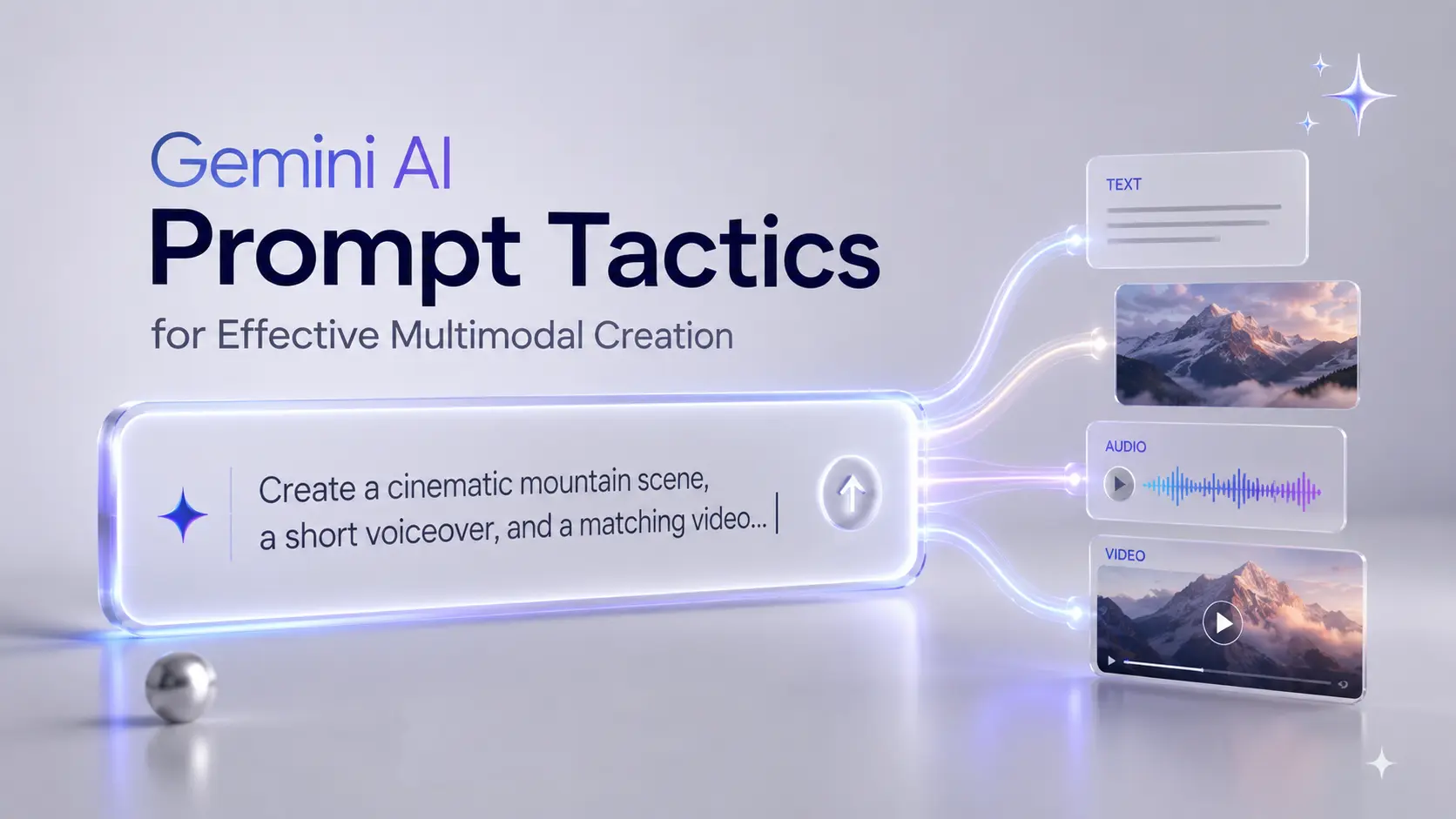
This guide breaks down the precise Gemini AI prompt formulas for each creation mode — from Nano Banana photo generation to Gemini Omni and Veo video creation. You will get copy-paste templates with practical prompts for Gemini AI across all creation modes, precision terms that directly control output quality, and before-and-after mistake examples showing exactly what to fix.
The Gemini AI Prompt Framework (Quick Overview)
Before getting into image and video prompts, it helps to understand Google’s foundational prompt structure for text-based tasks. This is the starting point — image and video generation build on it but differ significantly, as you will see in the sections that follow.
The 4-Part Formula: Persona, Task, Context, Format
Google’s official prompt guide recommends structuring conversational prompts around four elements:
- Persona — Tell Gemini who it should act as. (“You are an experienced digital marketing strategist.”)
- Task — State exactly what you want done. (“Write a 3-month content calendar for an e-commerce brand.”)
- Context — Provide relevant background information. (“The brand sells sustainable activewear and targets women aged 25–40.”)
- Format — Specify how the response should be structured. (“Present it as a table with columns for week, platform, content type, and topic.”)
This 4-part formula works well for writing, analysis, brainstorming, and planning tasks. For image and video generation, you need the modality-specific structures covered in the next sections.
Template — Task Prompt
[PERSONA]: You are a [role/expertise].[TASK]: [Specific action you want Gemini to perform].[CONTEXT]: [Background details — audience, brand, constraints, relevant information].[FORMAT]: [How you want the output structured — bullet list, table, paragraph length, tone].
Example filled in:
You are a senior email copywriter who specializes in SaaS onboarding sequences. Write a 5-email welcome sequence for new free trial users. The product is a project management tool for remote teams of 10–50 people. The trial lasts 14 days. The goal is to convert free users to the $29/month plan. Format each email with: Subject Line, Preview Text, Body (under 150 words), and CTA button text.
How to Write Effective Gemini AI Photo Prompts
Photo generation is where prompt precision matters the most. Gemini uses its Nano Banana image model to create photos, and the difference between a generic AI image and a photorealistic result often comes down to five or six specific terms added to your prompt.
This section covers the exact Gemini AI photo prompt formula, the vocabulary that controls visual output, and the techniques that push results past the “AI look.”
The Image Prompt Formula: Subject + Style + Details + Camera Settings
Google’s official Nano Banana prompt guide advises you to “define your visual intent” and “use photography and art terminology.” The most effective Gemini image prompts follow a four-element structure:
- Subject — Who or what is in the image. Be specific about age, expression, posture, clothing, and physical details. “A woman” produces generic output. “A woman in her early 30s with shoulder-length dark hair, wearing a navy blazer, looking slightly past the camera with a relaxed expression” gives Gemini something concrete to work with.
- Style — The photography genre or art medium. This sets the overall visual approach: editorial portrait, street photography, cinematic still, documentary style, fashion editorial, oil painting, watercolor illustration.
- Details — Lighting, mood, environment, and color palette. These modifiers shape the atmosphere: golden hour light, Rembrandt lighting, moody overcast sky, warm earth tones, minimalist white studio backdrop.
- Camera Settings — Lens, aperture, film stock, and technical specifications. These anchor the image in a recognizable photographic reality: Canon EOS R5, 85mm f/1.4, shallow depth of field, Kodak Portra 400 film grain.
Each element you add gives Gemini a more specific target. Omit one, and the model fills the gap with its default — which is usually generic.
Precision Terms That Control Your Photo Results
The following terms act as direct controls over your Gemini image output. Mix and match them to shape the result you want.
- Golden hour — warm, soft, directional light from a low sun angle
- Blue hour — cool, diffused twilight tones
- Rembrandt lighting — dramatic shadow falling diagonally across one side of the face
- Harsh directional light — strong contrast with defined shadows
- Backlit silhouette — subject appears dark against a bright background
- Soft diffused light — even, shadow-free illumination
Texture and Surface:
- Natural skin pores — counters AI smoothing for realistic skin
- Matte finish — non-reflective, flat surface quality
- Wet surface — adds reflective highlights and environmental realism
- Fabric weave visible — adds realistic detail to clothing textures
Composition:
- Rule of thirds — subject positioned off-center for visual balance
- Centered subject — subject placed directly in the middle of the frame
- Negative space — large empty area around the subject for a clean, minimal feel
- Dutch angle — camera tilted for dynamic tension
- Overhead flat lay — shot directly from above, common for product photography
Atmosphere and Mood:
- Hazy — soft, slightly foggy atmosphere
- Crisp — sharp, clear air with high contrast
- Gritty — rough, textured, urban feel
- Ethereal — dreamlike, soft-focus quality
- Sun-drenched — bright, warm, overexposed highlights
Google’s image prompt guide specifically recommends using photography and art terminology like these to get more precise results. The more specific your descriptors, the less Gemini has to guess.
Achieving Realism — Negative Prompts and Imperfection Anchors
The biggest complaint about AI-generated photos is that they look “too perfect.” Overly smooth skin, impossible lighting, and flawless composition all signal that the image was not captured by a real camera.
Negative prompts tell Gemini what to leave out. Adding phrases like these can noticeably improve realism:
- “No AI smoothness, no porcelain skin, no plastic texture”
- “No oversaturated colors, no HDR look”
- “No perfect symmetry”
Device anchors ground the image in a recognizable camera aesthetic:
- “Shot on iPhone 15 Pro Max” — produces a smartphone photography look
- “Canon EOS R5, raw file” — produces a professional DSLR aesthetic
- “Fujifilm X-T5, JPEG straight out of camera” — evokes a specific film-simulation style
Imperfection phrases add the subtle flaws that real photos always have:
- “Slight lens flare,” “stray hair across forehead,” “natural skin pores and texture”
- “Candid unposed moment,” “subtle motion blur in hands”
- “Non-AI aesthetic,” “natural imperfect skin texture”
Google’s prompt guide recommends that you “iterate and experiment” to refine your results. If your first output looks too polished, adding two or three imperfection anchors to your next attempt often makes a clear difference.
Keeping Character Consistency Across Multiple Images
Generating the same character across multiple images is one of the hardest challenges in AI photo generation. Without specific techniques, Gemini produces a different face each time.
Here are the most reliable methods:
- Reference image chaining — After generating an image you like, upload it as a reference for your next prompt. This gives Gemini a visual anchor to match against.
- Character model sheets — Generate a reference sheet first: “Three face profiles (front, 45-degree angle, side view) and four full-body poses on a plain grey backdrop.” Use this sheet as a reference for all future generations of that character.
- Consistency lock prefix — Start every prompt with a fixed description block that defines the character’s key features (face shape, hair color and style, skin tone, distinguishing marks). Repeating the same description verbatim helps maintain identity across sessions.
- Google Flow’s Ingredients feature — Google Flow offers a built-in tool called Ingredients that simplifies character consistency. Upload a reference image as an “ingredient,” and Flow uses it to maintain visual continuity across generations.
Key Takeaway: Character consistency requires a system, not a single prompt. Build a reference sheet first, then chain every subsequent generation from that visual anchor.
Copy-Paste Photo Prompt Templates
Template 1 — Professional Portrait:
A [gender/age description] with [hair and distinguishing features], wearing [clothing description], [expression and posture]. [Environment/background description].Style: [photography genre — e.g., editorial portrait, corporate headshot, lifestyle photography].Lighting: [lighting type — e.g., soft natural window light, golden hour, Rembrandt lighting].Camera: [camera and lens — e.g., Canon EOS R5, 85mm f/1.4, shallow depth of field].[Realism anchors — e.g., natural skin texture, visible pores, non-AI aesthetic].[Negative prompts — e.g., no AI smoothness, no plastic skin, no oversaturated colors].
The following photo editing prompts direct Gemini to modify and enhance existing images:
Template 2 — Photo Enhancement/Editing:
Take this photo and [specific edit — e.g., replace the background with a modern office interior / apply warm golden-hour color grading /restore faded colors and repair scratches].Preserve the subject’s facial features, skin texture, and expression exactly.Target style: [desired look — e.g., professional LinkedIn headshot, vintage film aesthetic, clean modern portrait].Output quality: High resolution, natural color balance, [specific technical notes].
How to Prompt for Videos with Gemini Omni and Veo
Video prompts require a fundamentally different vocabulary from image prompts. Where photos are static and controlled by lighting and composition terms, videos demand instructions about motion, timing, camera movement, and transitions. Gemini offers two primary video tools: Gemini Omni for multi-turn conversational video editing and Veo for text-to-video generation.
Text-to-Video Prompt Structure: Scene + Camera + Motion + Style
Based on Google’s Gemini Omni prompt guide, effective video prompts specify five elements:
- Scene Description — What is happening, who is in it, and where. Focus on actions, not just appearance. “A woman walks through a rain-soaked Tokyo alley at night” is far more useful than “a woman in Tokyo.”
- Camera Movement — How the camera behaves: static shot, slow pan left, tracking shot following the subject, dolly zoom, aerial pull-back, handheld shake.
- Motion and Pacing — How fast things move and how intense the movement is. Options include slow-motion, real-time, time-lapse, and descriptors like subtle, moderate, or dynamic.
- Style and Mood — The visual treatment: cinematic, documentary, social-media-ready, vintage 8mm film, anime-inspired.
- Duration and Aspect Ratio — Clip length and format: 9:16 for TikTok and Reels, 16:9 for YouTube, 1:1 for Instagram feed.
Google’s guide specifically encourages you to “reference complex actions” and “direct your camera” rather than leaving these choices to the model.
Multi-Turn Video Editing with Natural Language
Gemini Omni supports conversational video editing — you generate a base video, then refine it through follow-up instructions. Each turn builds on the previous result without regenerating from scratch.
This works like a back-and-forth conversation with a video editor:
- Turn 1: “Generate a 5-second clip of a woman walking through a sunlit garden, slow tracking shot from behind, cinematic style, 16:9.”
- Turn 2: “Change the lighting to golden hour with longer shadows.”
- Turn 3: “Make the camera angle lower, looking slightly up at the subject.”
- Turn 4: “Apply a vintage film grain effect with slightly desaturated warm tones.”
Google’s guide describes this approach as “edit through natural conversation” and “edit iteratively.” Each follow-up turn gives you finer control without starting over.
The main advantage is speed — instead of writing one massive prompt that tries to specify everything, you build up the video in layers and adjust as you see results.
When to Use Gemini Omni vs. Veo
Each tool serves a different purpose:
- Gemini Omni — Best for multi-turn editing, combining different input types (text + image + video reference), and iterative scene refinement. Available on the Gemini app, Google Flow, YouTube Shorts, and YouTube Create App.
- Veo — Best for standalone text-to-video generation, animation, and style-heavy cinematic clips where you want a single polished output from one prompt.
- When you need more control over image-to-video conversion — If you have finalized AI-generated stills from Nano Banana and want to animate them with precise control over motion intensity, custom aspect ratios, or batch processing, dedicated image-to-video platforms fill the gap. AI Image to Video lets you turn Gemini-generated photos into video with adjustable duration, motion, and resolution up to 4K — a practical complement when Gemini’s built-in tools do not offer the specific adjustments you need.
Copy-Paste Video Prompt Templates
Template 1 — Text-to-Video Scene:
Generate a [duration — e.g., 5-second, 10-second] video clip.Scene: [Subject/action — e.g., a man in a dark suit walks across a rooftop terrace] in [environment — e.g., a modern city skyline at dusk].Camera: [Movement — e.g., slow dolly forward, tracking shot from the side, static wide angle].Motion: [Intensity and speed — e.g., slow-motion, subtle movement, real-time].Style: [Visual treatment — e.g., cinematic, documentary, vintage film, social-media-ready].Mood: [Atmosphere — e.g., contemplative, energetic, dramatic, warm].Aspect ratio: [Format — e.g., 16:9 for YouTube, 9:16 for TikTok/Reels, 1:1 for Instagram].
Template 2 — Multi-Turn Video Edit Sequence:
— Turn 1 (Base Generation) —Generate a 6-second clip of [subject performing action] in [environment].Camera: [initial camera movement]. Style: [initial style].Aspect ratio: [ratio].— Turn 2 (Camera Adjustment) —Change the camera to [new angle/movement — e.g., low-angle looking up,handheld slight shake].— Turn 3 (Style Refinement) —Apply [style modification — e.g., warm color grade, film grain,higher contrast, desaturated tones].Adjust pacing to [speed change — e.g., slight slow-motion onthe last 2 seconds].
Common Gemini AI Prompt Mistakes (and How to Fix Them)
Knowing the right formula is half the work. The other half is recognizing the mistakes that silently drag down your results. Here are the four most common errors, each illustrated with Gemini AI prompt examples showing a concrete before-and-after fix.
Mistake 1 — Vague Descriptions That Produce Generic Output
This is the most widespread issue. Broad prompts give Gemini too many decisions to make on its own, and its defaults lean toward generic, safe choices.
Bad prompt:
A photo of a woman in a city
Fixed prompt:
A woman in her late 20s with wavy auburn hair, wearing a cream wool coat and brown leather boots, standing on a cobblestone street in Prague’s Old Town at golden hour. She is looking over her shoulder toward thecamera with a slight smile.
Style: editorial street photography.Lighting: warm golden hour, long shadows, backlit hair glow.Camera: Sony A7IV, 50mm f/1.8, shallow depth of field.Natural skin texture, stray hair, non-AI aesthetic.
The fixed version specifies subject, style, details, and camera — leaving Gemini almost nothing to guess.
Mistake 2 — Missing Format and Style Constraints
Gemini responds particularly well to explicit formatting and style constraints. Prompts that work fine in other AI tools often produce weaker results in Gemini because it expects — and rewards — structural precision.
Bad prompt:
Write me a social media content plan for my fitness brand
Fixed prompt:
You are a social media strategist specializing in fitness and wellness brands. Create a 2-week content plan for an online fitness coaching brand targeting women aged 25-35. Include 3 posts per week across Instagram and TikTok. Format as a table with columns: Day, Platform, Content Type (Reel/Carousel/Story), Topic, Caption Hook (first line only), and Hashtag Set (5 hashtags).Tone: motivational but not preachy. Do NOT use generic phrases like “crush your goals” or “no excuses.”
The fixed version adds persona, specific format constraints, tone direction, and anti-instructions — together giving Gemini clear boundaries to work within.
Mistake 3 — Using the Same Prompt Structure Across All Modalities
A prompt written for image generation will not work for video, and vice versa. Each modality responds to its own vocabulary. Images need lighting and lens terms. Videos need motion and pacing terms.
Bad prompt (image-style prompt used for video):
A cinematic shot of a surfer riding a wave at sunset, golden light, Canon EOS R5, 85mm f/1.4, shallow depth of field
Fixed prompt (rewritten for video):
Generate a 6-second video clip of a surfer riding a large wave at sunset.Camera: tracking shot following the surfer from right to left, slight handheld shake.Motion: real-time speed with a slow-motion transition on the final 2 seconds as the wave crests.Lighting: golden hour, strong backlight creating lens flare and water spray highlights.Style: cinematic surf documentary.Aspect ratio: 16:9.
The fixed version replaces static photography terms (aperture, depth of field) with motion terms (tracking shot, slow-motion transition, pacing) that actually control video output.
Mistake 4 — Not Iterating on Your Prompts
Google’s prompt writing guide explicitly advises: “Iterate on your prompt.” Your first result is a starting point, not a final product.
Single-shot prompting rarely produces optimal results because you cannot predict exactly how Gemini will interpret every term. Treat the first output as a draft:
- If the result is close but not right, write a follow-up that adjusts the specific element that missed. (“Make the lighting warmer and move the subject slightly to the left.”)
- If the result is completely off, rewrite the prompt with different anchor terms rather than piling more detail onto a broken foundation.
- For video, multi-turn editing is built into Gemini Omni — each follow-up refines the previous result without regenerating from scratch.
The most effective Gemini users treat prompting as a two-to-three-turn conversation, not a one-shot attempt.
Conclusion
As multimodal AI content becomes a trending format across digital marketing, getting strong results from Gemini AI comes down to using the right prompt structure for each creation mode. For text tasks, the Persona + Task + Context + Format framework gives Gemini clear direction. For photos, the Subject + Style + Details + Camera Settings formula — combined with precision terms, negative prompts, and imperfection anchors — pushes results past the default AI look. For video, the Scene + Camera + Motion + Style structure and Gemini Omni’s multi-turn editing give you iterative control over every frame.
Start with the copy-paste templates in this guide, swap in the precision terms that fit your project, and iterate on your results rather than expecting perfection on the first try. The templates are designed to be filled in and adjusted — use them as starting frameworks, not fixed scripts.
If you are building a multimodal content workflow and want to take your Gemini-generated images further into video, AI Image to Video offers a streamlined way to animate stills with control over duration, motion intensity, and resolution up to 4K — a practical next step for turning your photo output into polished video content.