Model
Video Fast 1.5 Lite Free
Premium video quality — 3-second clips free to try. Limited-Time Availability.
Image
Drag & Drop, Paste, or Click to Upload
PNG, JPG, JPEG, WEBP , Max 20 MB
Prompt
0 / 1500
Audio
Prompt Extend
Duration
3s
Resolution
720p
1080p
Number of Results
Create
Sample Video
Sample video preview

Meigen AI Video Generator for Fast, Flexible Video Creation

Meigen AI Video Generator helps you turn ideas into video without a heavy editing workflow. Start from a text prompt, a single image, or a rough concept, then generate short clips that are ready to review and share. The workflow is built for speed, but it also gives you enough control over motion, mood, and style to produce consistent results. Use it for social content, ad concepts, product storytelling, classroom media, or storyboard drafts when you need output quickly and want to keep quality stable.

Original Image
Prompt
A tiny kitten crouches on the ground, its tail wagging non-stop. It leans forward, gently sniffing the balloon with its nose. The next moment, the balloon pops with a "bang," and the kitten darts swiftly under the sofa, curling into a little ball, with only half of its tail visible, trembling lightly.
Generated Clip
Original Image
Prompt
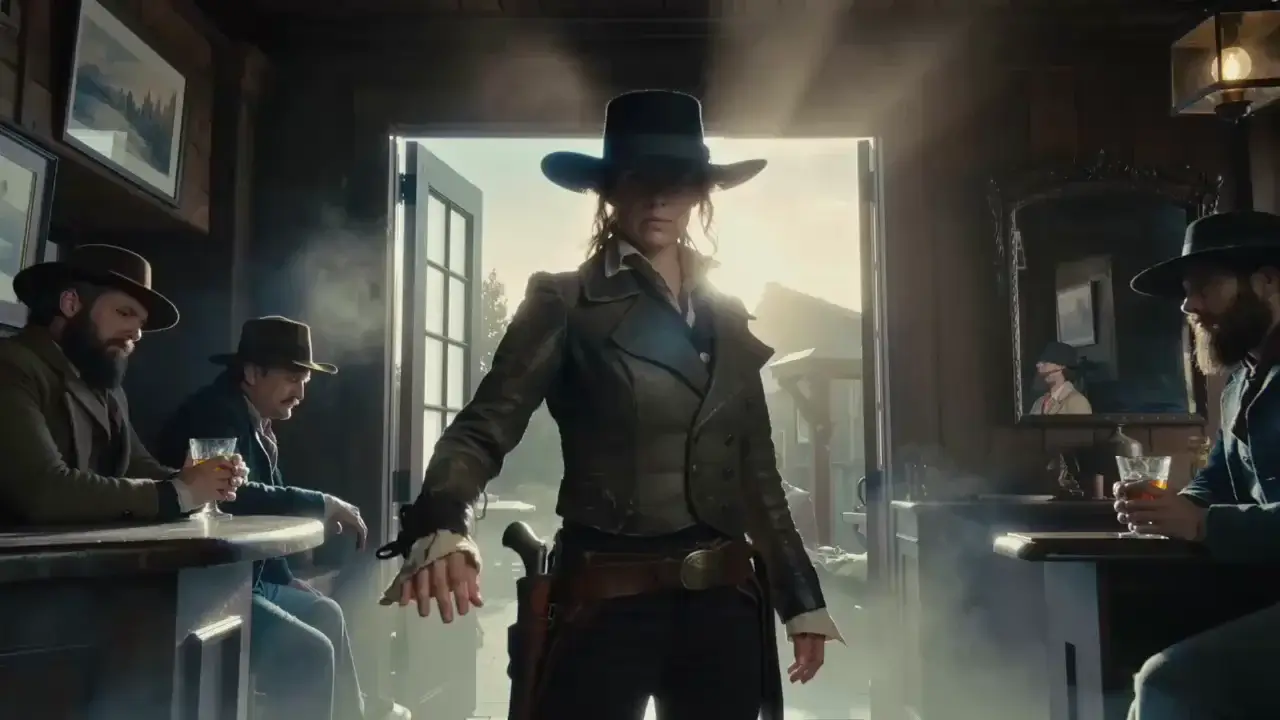
Classic convertible Mustang with roof down speeding through coastal mountain curves, wind whipping passenger's hair wildly as they laugh freely. Liberation escape sequence. Dynamic tracking shot races alongside matching velocity 80mph, camera mounted low capturing tire grip on asphalt edge. Ocean vista appears intermittently through guardrail gaps hundreds of feet below, pine trees blur into green streaks, sunlight strobes through forest canopy. Motion blur on background, shallow depth keeping subjects sharp against speed-rendered environment. Gimbal-mounted 35mm following natural road banking, bright midday sun creating high contrast shadows, Thelma & Louise freedom energy.
Generated Clip
Original Image
Prompt
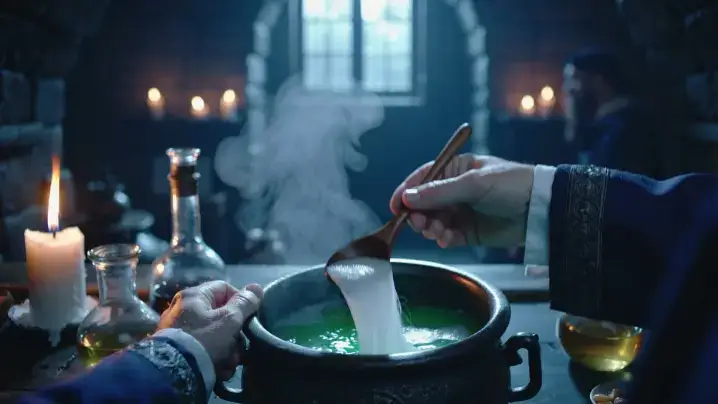
First-person student POV brewing complex potion in dimly lit dungeon classroom, hands visible measuring shimmering ingredients into bubbling cauldron. Magical academic immersion. Handheld camera tilts down watching hands pour glowing unicorn hair strands, stir clockwise three times with aged wooden spoon, liquid shifting from emerald to sapphire emitting sparkle particles. Ingredient bottles line stone workbench, floating candles cast flickering amber light creating dancing shadows on medieval walls, Professor Snape's shadow looms past periphery. Steam rises catching backlight creating volumetric atmosphere, magical particle motes float upward. Intimate 50mm lens with shallow depth focusing on cauldron while background softly blurs, warm candlelight contrasting cool dungeon stone, authentic Potterverse tactile experience.
Generated Clip

What Is Meigen AI and How Does It Work?

Meigen AI is a creative platform focused on practical AI generation workflows. In Meigen AI Video Generator, you can create clips from text prompts, animate still images, and iterate quickly before export. The engine is designed to keep visual consistency across frames while preserving the look and intent of your prompt.

Text to Video for Fast Concept-to-Clip Work

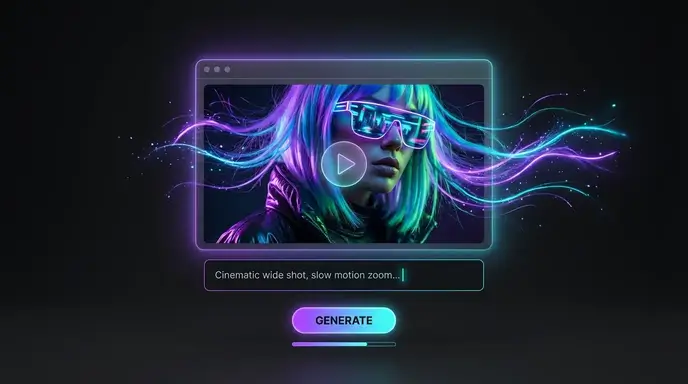
Write a clear scene prompt, choose your format, and generate a video draft in minutes. This flow is useful when you need to test multiple ideas quickly, compare narrative directions, or build first-pass content for campaigns and social channels.

Generate Now

Image to Video That Preserves Visual Identity

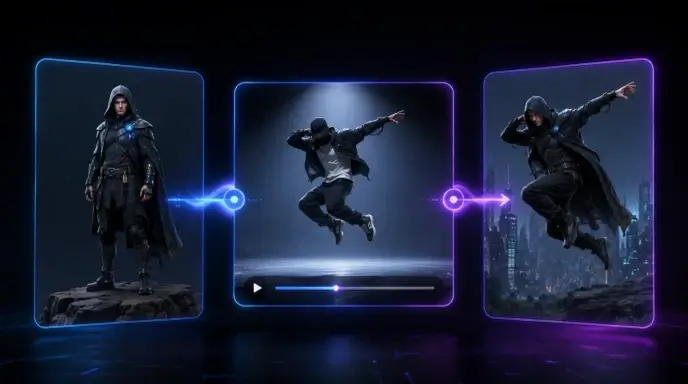
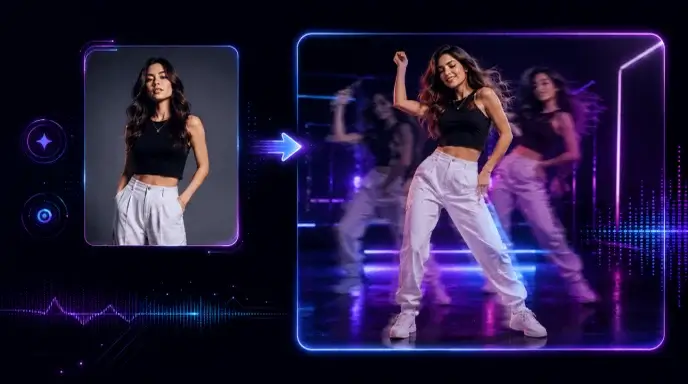
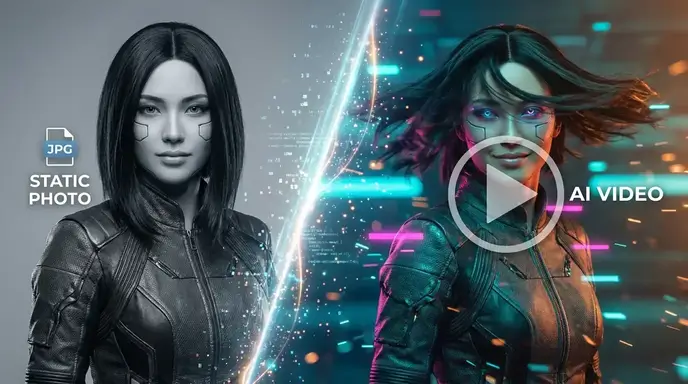
Upload a portrait, product photo, or concept frame and animate it with controlled motion. Meigen AI Image to Video is helpful when you already have strong visual assets and want to extend them into motion without rebuilding the scene from scratch.

Generate Now

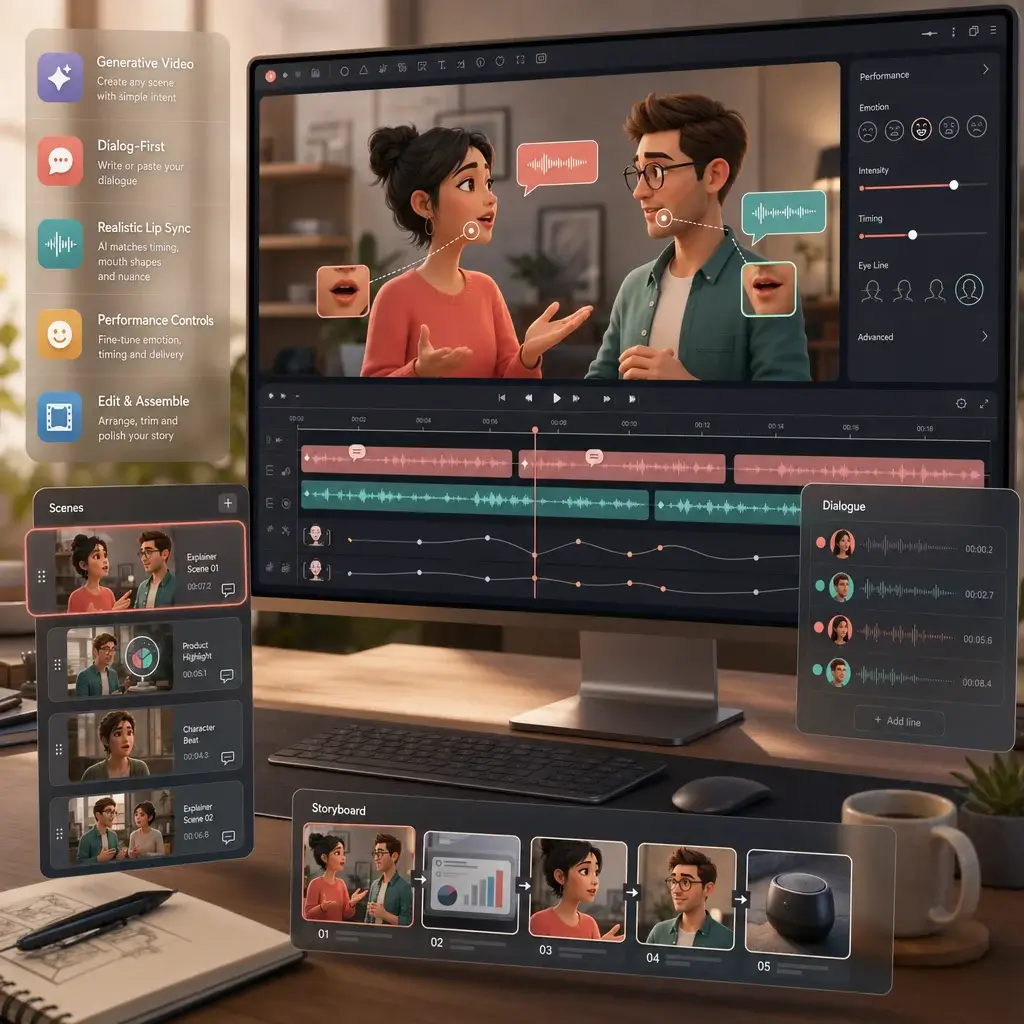
Meigen Multitalk for Dialogue-Led Scenes

When your concept includes speaking characters, Meigen Multitalk adds a dialogue-focused workflow on top of the broader video generator. It supports natural expression timing and realistic lip sync, making it suitable for explainers, character beats, and short conversational clips.

Generate Now

How to Use Meigen AI Video Generator

Start With a Prompt or Reference Image

Begin with a short text description or upload an image you want to animate. Clear inputs produce better outputs, so define subject, scene, mood, and camera intent before you generate.

Set Style, Motion, and Output Preferences

Adjust the creative direction with simple language and choose the format that matches your channel. A prompt like "clean product shot, slow push-in, soft daylight, premium mood" is usually more effective than a long list of disconnected keywords.

Generate, Compare Variants, and Export

Run a first generation, review pacing and scene quality, then iterate. The workflow is built for quick comparison, so you can test multiple variants before exporting your favorite one.

Where Meigen AI Video Generator Fits Best

Meigen AI Video Generator works best when you need reliable output speed and flexible creative control. Teams use it to move from idea to publishable draft faster, while keeping visual style consistent across multiple clips.

Social
Marketing
Education
Storyboards

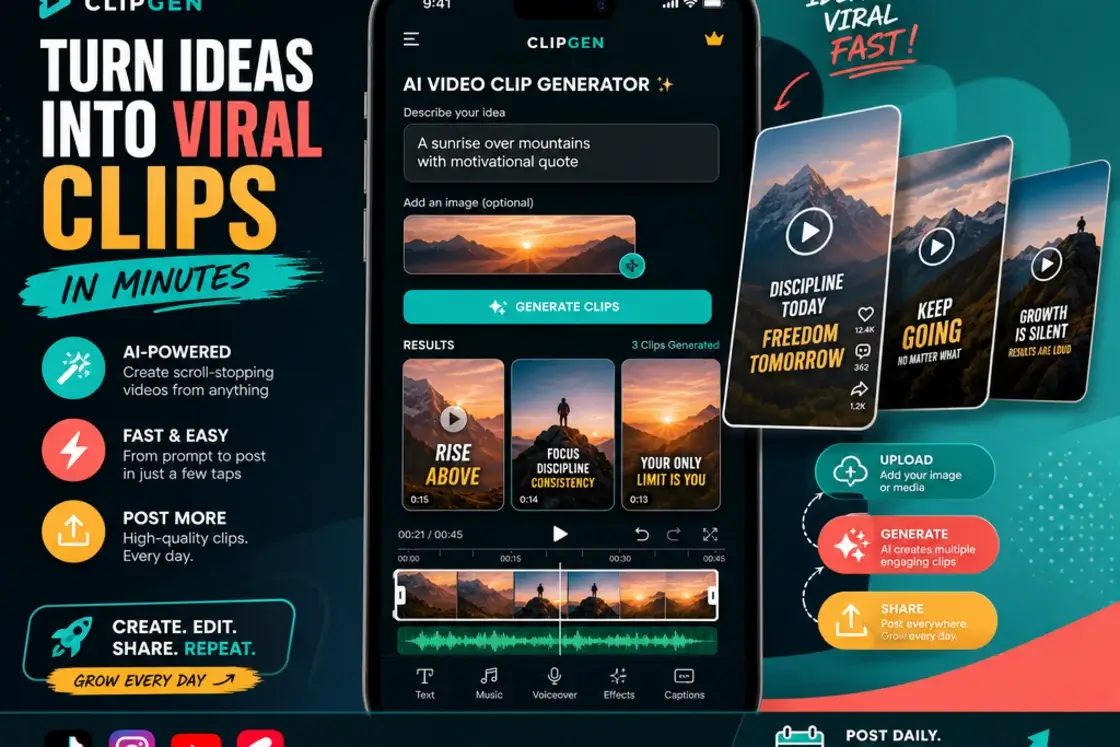
Short-Form Videos for Reels, Shorts, and TikTok

Create quick vertical clips from a prompt or image and keep your posting cadence high. It is a practical way to turn ideas into social-ready motion content without a complex edit stack.

What Creators Say About Meigen AI Video Generator

Fast Enough for Daily Publishing

We can go from prompt to a usable clip in one session. It keeps our social calendar moving without sacrificing visual quality.

Daniel Brooks
Video Producer

Great for Early Creative Decisions

I use it to test style and pacing before a full production pass. It helps the team agree on direction faster.

Maya Chen
Story Artist

Reliable for Product-Focused Clips

We animate product stills into short videos for campaign drafts. The output looks clean and stays close to our original visual language.

Oliver Grant
Brand Designer

Simple Workflow, Strong Results

The interface is straightforward, and iteration is fast. I can generate multiple options before exporting the version we actually want to ship.

Priya Shah
Social Media Manager

Useful Alternative in Our Tool Stack

We tested several tools in this category, and Meigen AI gave us a good balance of speed, control, and output consistency.

Ethan Miller
Creator

Multitalk Is a Bonus When Needed

Most of our work is general video generation, but Meigen Multitalk is useful when we need dialogue-led scenes with realistic lip sync.

Nora Evans
Content Strategist

Fast Enough for Daily Publishing

We can go from prompt to a usable clip in one session. It keeps our social calendar moving without sacrificing visual quality.

Daniel Brooks
Video Producer

Great for Early Creative Decisions

I use it to test style and pacing before a full production pass. It helps the team agree on direction faster.

Maya Chen
Story Artist

Reliable for Product-Focused Clips

We animate product stills into short videos for campaign drafts. The output looks clean and stays close to our original visual language.

Oliver Grant
Brand Designer

Simple Workflow, Strong Results

The interface is straightforward, and iteration is fast. I can generate multiple options before exporting the version we actually want to ship.

Priya Shah
Social Media Manager

Useful Alternative in Our Tool Stack

We tested several tools in this category, and Meigen AI gave us a good balance of speed, control, and output consistency.

Ethan Miller
Creator

Multitalk Is a Bonus When Needed

Most of our work is general video generation, but Meigen Multitalk is useful when we need dialogue-led scenes with realistic lip sync.

Nora Evans
Content Strategist

News

Fliki AI Video Generator: Honest Review, Pricing & Competitor Comparison (2026)

Fliki AI Video Generator: Honest Review, Pricing & Competitor Comparison (2026)

The Fliki AI Video Generator scores a 4.4 out of 5 on Trustpilot from nearly 3,000 reviews — yet just 2.1 out of 5 on the iOS App Store. That gap reveals precisely where the Fliki AI Video Generator shines and where it falls flat. If you need professional video content but lack editing expertise or budget, you’ve likely noticed dozens of AI tools fighting for your wallet. Choosing poorly means wasted money on a subscription that’s hard to escape. This guide offers a data-driven breakdown of what the Fliki AI Video Generator actually delivers, what it costs, and where it falls short. We reviewed 89 sources — Reddit threads, YouTube critiques, competitor comparisons, and Trustpilot ratings — then measured it against InVideo, Synthesia, Pictory, and VEED. What Is the Fliki AI Video Generator? The Fliki AI Video Generator is an all-in-one text-to-video platform that turns scripts, blog posts, URLs, PowerPoint files, or rough text ideas into polished videos. It offers 2,500+ AI voices across 80+ languages, AI avatars, voice cloning, plus Seedance 2.0 and VEO 3 integrations—targeting creators who want professional output without picking up a camera or learning complex software. Pricing for the Fliki AI Video Generator starts at $28/month with a free tier available. Core capabilities include: How the Fliki AI Video Generator Works Instead of a traditional timeline editor, it uses a slide-based editing model. You provide input (script, URL, blog post, or PowerPoint), and the tool splits it into slides. Each slide gets an AI voiceover, matched visuals from stock libraries (or AI-generated imagery), and auto-subtitles. It also integrates Shutterstock’s library and supports Seedance 2.0 plus Google VEO 3 for higher-quality AI clips. A built-in ChatGPT integration can draft scripts from topic prompts, speeding up the idea-to-video workflow. Who Should Use the Fliki AI Video Generator? Community feedback shows it works best for: It’s not the right fit for editors who demand frame-level timeline control, creators chasing cinematic realism, or projects with heavy multi-speaker dialogue. Key Features Input Format Flexibility It supports a wide range of input types: scripts, blog URLs, PowerPoint files, text ideas, and images. The blog-to-video flow is a standout: paste a URL and it extracts the article, segments it into scenes, and drafts a video. Main complaint: visual-script mismatch. For niche topics, stock footage choices can be irrelevant and require manual replacement. Voice Library and Voice Cloning Voiceover quality is consistently rated as the Fliki AI Video Generator’s top strength. With 2,500+ voices across 80+ languages, it earns repeated praise for breadth and ease of use (including stronger-than-average “kid” voice options). Non-English voices can be uneven versus English, so previews matter. Voice cloning is available, but typically locked to the higher-tier plan. (As with any cloning feature, you should consider consent, right-of-publicity rules, and platform policies.) AI Avatars and Short-Form Content It includes stock and custom avatars with lip-sync. Avatars are useful for off-camera content, but “uncanny valley” is still a recurring user critique. For short-form, it supports 9:16, 16:9, and 1:1 with templates, auto-subtitles, and background music suitable for Shorts/Reels/TikTok-style formats. Seedance 2.0 and VEO 3 These model integrations represent the Fliki AI Video Generator’s biggest recent leap. Seedance 2.0 improves generation speed and motion smoothness; VEO 3 raises the ceiling for AI clip quality. Reddit feedback generally treats these as meaningful upgrades versus older, more “slideshow-like” outputs. Fliki AI Video Generator Pricing Breakdown Quick positioning vs competitors (high level): Practical advice echoed on Reddit: avoid annual commitments until you’ve validated output quality and credit usage with real projects. Fliki AI Video Generator: Pros and Cons Pros Cons Fliki AI Video Generator vs Competitors If your workflow is primarily image-to-video, specialized generators (Kling/Veo/Wan-type tooling) may complement or outperform a text-first suite depending on your quality needs. What Users Say About the Fliki AI Video Generator Reddit threads often describe it as a solid choice for faceless channels and multilingual production, with a recurring caution that generic, templated outputs can underperform without customization. YouTube coverage is frequently affiliate-driven, so user reports on Trustpilot/Reddit tend to be more useful for balancing pros/cons. Fliki AI Video Generator FAQs Is it free? Yes—there’s a free plan with limited minutes, watermarking, and 720p output. How many languages are supported? 80+ languages and 100+ dialects with thousands of voice options; English tends to be strongest, so test non-English voices early. Is it good for faceless YouTube? Yes—script-to-video automation is one of its most common use cases. Can content be monetized? Generally yes, but follow platform disclosure rules and any AI/voice usage policies relevant to your channel and region. Conclusion — Is the Fliki AI Video Generator Worth It? The Fliki AI Video Generator is strongest when you need fast, scalable script-to-video production with unusually broad voice options and flexible inputs (especially blog URL and PPT workflows). It’s weaker if you need precise timeline editing, consistently perfect footage matching, or highly realistic avatars—and the iOS app experience is a notable pain point. If your priority is fast script-to-video at scale, the Fliki AI Video Generator is a compelling monthly test; validate credit usage and output quality with real scripts before committing longer-term.

Higgsfield Unlimited Explained: What AI Video Creators Should Know Before Paying

Higgsfield Unlimited Explained: What AI Video Creators Should Know Before Paying

You subscribed to Higgsfield’s Unlimited plan expecting endless AI video generation. Then you hit a throttled queue, a resolution cap, or a “reached your limit” error on day three. You are not alone — and the confusion is not your fault. After analyzing pricing data from dozens of sources, Reddit threads, and YouTube reviews, users‘ complaint on Higgsfield’s “unlimited” comes with several distinct restrictions not clearly disclosed at purchase. Are they true? Or Higgsfield is over expected? Let’s read the model badges, duration notes, and fair-use details carefully to decode every restriction and compares Higgsfield’s “unlimited” marketing with AI Image to Video’s . What Is Higgsfield AI? How Higgsfield Works as a Multi-Model Aggregator Higgsfield is a multi-model aggregator — a single interface wrapping third-party AI models like Kling 3.0, Sora 2, Google Veo 3.1, Seedance 2.0, and WAN 2.6. It adds proprietary tools on top: Cinema Studio for camera controls, Soul ID for character consistency, and LipSync Studio. This wrapper model is key to understanding pricing. Yaroflasher’s YouTube investigation confirmed Higgsfield wraps Kling AI and Minimax at a 2-4.5x markup over native platform pricing. Key Models Available on Higgsfield The platform spans three categories: Not all models are available on all plans, and “Unlimited” access applies to a specific subset — not the full model library. What Does “Unlimited” Actually Mean on Higgsfield? 365-Day Unlimited Model Passes Ultra-tier annual subscribers ($99/month billed annually) receive a 365-day unlimited pass for one select image model — choose from Nano Banana 2, Wan 2.6, Seedance 1.5 Pro, or Kling 2.6. Volume is genuinely unlimited, but generations route through a slower “standard mode” queue and are subject to the battery system that progressively degrades speed. 7-Day Unlimited Model Promotions Higgsfield periodically offers “unlimited” access to premium video models (Kling 3.0, Seedance 2.0) for paying subscribers. The fine print matters: This is a temporary promotion, not a permanent plan feature. Fair Use, Dynamic Speed Limits, and the Unlimited Queue The battery system is Higgsfield’s speed-throttling mechanism: the more you use unlimited mode, the slower your generations become. Users report speeds ranging from 2 minutes to over 2 hours for the same model. It functions as a soft rate limit disguised as a technical system — while credit-based generation of the same model finishes in under 1 minute. Concurrency Limits and Fair Use Caps Unlimited mode allows only 2-4 simultaneous generations, reduced from 8 after the Christmas 2025 changes. The “reached my limit” error on Ultimate plans is a concurrent cap — not a total volume cap — but the UI does not explain this clearly. Resolution Restrictions in Unlimited Mode All unlimited video output is capped at 720p. Users needing 1080p or 4K must spend credits on upscaling (12-20+ credits). A common workaround: generate at 720p unlimited, then upscale externally with Topaz Video AI. The duration is also limited to 5 second. Unlimited Access vs Credit-Based Priority: The Speed and Quality Gap How the Two-Tier Queue System Works Higgsfield runs two parallel queues. Credit-based generations finish in under 1 minute. Unlimited-mode generations average 10-25 minutes for video — degrading further under the battery system. Same models, same platform, different priority. Key Takeaway: “Unlimited” is not a premium tier on Higgsfield. It is the economy lane. Why Credits Deplete Faster Than Users Expect Credit consumption per generation adds up fast: At Ultra tier (3,000 credits/month), that yields roughly 37-42 Kling 3.0 clips — before factoring in a reported 25-50% failure rate on some models that still consumes credits. The Hidden Cost of Iteration Creative workflows require 3-5 variations per concept, and failed generations still consume credits. One fashion brand owner burned 90% of monthly credits in under a month. Another user calculated a 5-minute video at ~$200 AUD. How to Read Higgsfield Pricing Without Getting Confused Pricing item What to check before paying Monthly price Is it billed monthly or annually? Credits How many credits are included each month? Unlimited badge Which exact model is Unlimited? Duration 365-day or N-day access? Resolution Which resolutions are included? Queue Unlimited queue or priority queue? Concurrency How many generations can run at once? Subscription condition Does Unlimited end if the subscription ends? Annual vs Monthly Billing — The Fine Print Annual billing is displayed as a monthly rate but charged as a full upfront payment. Ultra shows “$99/month” but charges $1,188 at checkout. Given Higgsfield’s history of changing terms mid-subscription, community members widely recommend monthly billing despite the higher per-month cost. How Pricing Has Changed Higgsfield has restructured pricing at least three times — original tiers (Basic $9/Pro $17-29/Ultimate $24-49/Creator $49-249) transitioned to the current Starter/Plus/Ultra/Business structure. Early Creator plan subscribers paid $149.40/month; the same plan was later offered at $37.40/month. “Unlimited” terms have also changed retroactively for existing subscribers. Where the “Scam” Accusations Come From — And What Is Actually Happening The Christmas 2025 Account Purge On December 19, 2025, Higgsfield mass-banned heavy unlimited plan users. Yaroflasher’s investigation documented leaked Discord messages confirming internal awareness, triggering Trustpilot review-bombing and BBB complaints. Retroactive Changes to Existing Subscriptions Users who purchased plans with specific features found them changed post-purchase: concurrent slots slashed from 8 to 2, censorship filters applied retroactively, and the battery system replaced original unlimited speeds — all without notice. UX Patterns That Erode Trust A CGI professional’s 2-month review on Reddit after 9,000+ generations documented dark patterns: the mobile app resets the “Unlimited” toggle on every generation, defaulting to credit-based mode and making accidental credit spending nearly inevitable. Some issues, like the “Danger Zone” cancellation button, have since been improved. Why These Issues Generate “Scam” Language When users discover time limits, throttling, resolution caps, and battery degradation — none clearly communicated at purchase — the emotional response is predictable. The core issue is not fraud but a significant transparency deficit that fuels overpromise and disappointment. Higgsfield Unlimited vs AI Image to Video Unlimited Higgsfield and AI Image to Video both use the word “Unlimited,” but they mean different things. Higgsfield’s Unlimited is best understood as

PixVerse Image to Video Guide: How to Turn Photos into AI Videos in 2026

PixVerse Image to Video Guide: How to Turn Photos into AI Videos in 2026

You already have a great image. Maybe it is an AI character, a product shot, a pet photo, or a scene you want to turn into a short TikTok-style clip. The real question is simple: can PixVerse turn that still image into a video that looks smooth, usable, and worth posting? That is why many creators search for PixVerse image to video. The workflow sounds easy: upload a photo, describe the motion, choose your settings, and generate a short AI video. But in practice, the result is not always as effortless as demo clips make it look. A weak source image, vague prompt, wrong model choice, or too many retries can quickly turn a “free test” into wasted credits. This guide explains how PixVerse AI image to video works, how to write better prompts, what to know about credits and pricing, and when another AI video generator may be a better fit for your workflow. Looking for a faster image-to-video workflow? Turn Images into AI Videos with AI Image to Video Create short videos from images, test different AI video styles, and build social-ready clips without jumping between too many tools. Try AI Image to Video What Is PixVerse Image to Video? PixVerse image to video is an AI feature that turns a still image into a short animated clip. Instead of building a scene from text alone, PixVerse uses your uploaded image as the visual reference, so the subject, composition, character style, product design, or scene mood can stay closer to your original picture. This makes PixVerse AI image to video more predictable than pure text-to-video. You can upload a product photo and ask for a slow camera push-in, turn an AI character portrait into a blinking or smiling clip, or animate a fantasy scene with drifting fog, moving light, and a cinematic camera pan. As an AI video generator, PixVerse works best for short, visual, social-friendly clips. It can be useful for TikTok, Reels, YouTube Shorts, anime characters, product previews, AI pets, mascots, fantasy scenes, and quick creative tests before making a longer video. It is less ideal for long storytelling, perfect face consistency, or complex scenes with several characters moving at once. Quick takeaway PixVerse is strongest when you give it one clear image and one clear motion idea. It is not a magic “perfect video” button. Better input images and simpler prompts usually matter more than long descriptions. How to Use PixVerse Image to Video Step by Step 1. Set Up Your Account and Claim Free Credits Start by creating an account through Google, Discord, or email. PixVerse usually gives new and free users a limited amount of credits, but the exact amount and reset rules may change. Before planning a daily posting workflow, check the current credit policy inside your account dashboard. 2. Prepare Your Image for Better Output Use a clean, high-resolution image with one clear subject, even lighting, and a simple background. A strong image gives the model less room to guess. Dynamic poses usually animate better than stiff, centered portraits. Best image type One subject, clean edges, clear face or product details, simple composition. Avoid Crowded scenes, tiny faces, messy backgrounds, low-resolution screenshots. 3. Write Motion Prompts That Actually Work The key is to describe motion and camera behavior, not the full image content. PixVerse already sees the uploaded image. If you over-describe the subject, the model may drift away from the original reference. Prompt structure Subject motion + camera motion + lighting or mood + quality style Example: “The character slowly smiles and turns toward the camera, soft camera push-in, warm cinematic lighting, smooth natural motion.” Negative prompts also help. Add terms such as “distorted face, morphing features, blurry, jittery motion” to reduce common failure modes. 4. Configure Resolution, Duration, and Style Settings Start with lower settings when testing. A failed low-resolution preview is cheaper than a failed high-resolution export. Once the motion looks right, then spend credits on higher quality. Shorter clips are usually safer. Five seconds is often enough for TikTok hooks, product shots, character reactions, and visual tests. Longer clips may increase the chance of face shifts, warped hands, or unstable motion. 5. Use Advanced Features Carefully PixVerse supports camera movements such as pan, zoom, orbit, and time-lapse through text prompts. Some versions also support audio, lip sync, multi-shot generation, and seed controls. These features can be powerful, but they also add complexity. For your first tests, keep the scene simple and add advanced controls only after the basic motion works. PixVerse Image-to-Video Pricing and Credit Costs Explained PixVerse uses a credit-based system, which means your real cost depends on how many attempts you need, not just how many final videos you download. This is important because image-to-video generation often takes several tries before you get a usable clip. Plan Type Typical Use Main Limits to Check Best Fit Free / Basic Small daily tests Daily credits, watermark, resolution, queue speed Testing the workflow Standard Regular short-form creation Monthly credits, export quality, commercial rules Creators posting occasionally Pro / Higher Plans Higher-resolution exports and more attempts Credit usage per model, audio cost, upscaling cost Frequent creators and teams The biggest pricing mistake is counting theoretical generations instead of usable videos. If one successful clip takes three attempts, your real cost is roughly three times higher than the listed cost per generation. Audio, longer duration, high resolution, or upscaling can increase credit consumption further. Credit-saving tips Test at lower resolution before exporting a final version. Use negative prompts on every generation. Keep motion simple when face consistency matters. Save strong prompts and reuse them with similar images. Only pay for higher settings after the preview direction looks right. PixVerse vs Kling vs Seedance vs Runway for Image to Video PixVerse is not the only option for image-to-video creation. Different tools perform better in different situations. Some are stronger for realism, some for stylized motion, some for editing control, and some for fast creative testing. Tool Strength Weakness Best

MiniMax or Hailuo AI? Know The Company and Its Competitiveness in Video Generation

MiniMax or Hailuo AI? Know The Company and Its Competitiveness in Video Generation

If you have been following AI video generation lately, you may have noticed two names appearing almost side by side: MiniMax and Hailuo AI. After MiniMax Hailuo appeared at Cannes as a global partner of WAIFF 2026, the question became even more common: is Hailuo AI a standalone tool, a MiniMax product, or a serious new competitor in AI video? The short answer: Hailuo AI is part of the MiniMax ecosystem, but it has become one of the company’s most visible creative products. That distinction matters. Many creators waste time comparing MiniMax and Hailuo as if they were separate platforms. In reality, understanding how they connect — and what Hailuo actually does well — helps you judge whether it is worth testing for AI video creation. This guide clears up the naming confusion, explains MiniMax’s rise, and breaks down Hailuo AI’s real strengths and limits in today’s crowded AI video market. What Is MiniMax and What Is Hailuo AI? The naming confusion is the single biggest barrier for new users trying to evaluate this platform. Let’s untangle it. MiniMax — The Company Behind the Technology MiniMax is a Chinese artificial intelligence company founded in 2022, currently valued at approximately $13.7 billion. Headquartered in Shanghai, the company was established by a team with deep expertise in large-scale AI model development. MiniMax’s mission centers on building multimodal AI — systems that can process and generate text, audio, and video. Unlike companies that specialize in one modality, MiniMax set out to build capabilities across the entire spectrum of media generation from day one. Hailuo AI — MiniMax’s Video Generation Product Hailuo AI is the consumer-facing video generation platform built and operated by MiniMax. Think of it like the relationship between Google (the company) and YouTube (the product) — MiniMax is the parent entity, and Hailuo AI is one of its flagship products. When someone says “I made this with Hailuo AI,” they’re using MiniMax’s technology. When industry reports reference “MiniMax’s video capabilities,” they’re talking about Hailuo. Same technology, different labels depending on context. The Full MiniMax Product Ecosystem Hailuo Video is just one piece of a broader suite: This ecosystem is what sets MiniMax apart from single-product competitors. Each tool feeds into the others, creating a multimodal pipeline that few rivals can match. How MiniMax Achieved Rapid Growth Going from a startup to a $13.7 billion valuation in roughly three years is extraordinary, even by AI industry standards. Here’s how it happened. From Startup to $13.7 Billion Valuation MiniMax attracted significant investment early, positioning itself among the top tier of Chinese AI companies alongside players like Zhipu AI and Moonshot AI. Its valuation grew rapidly through successive funding rounds, fueled by both the global AI investment boom and demonstrable product traction. The company’s ability to ship working products — not just research papers — gave investors confidence that MiniMax could convert technology into revenue. The Multimodal Strategy — Text, Voice, and Video Under One Roof Most AI startups pick one lane: text generation, image creation, or voice synthesis. MiniMax bet on all of them simultaneously. This multimodal approach paid off in two ways. First, it attracted developers who wanted a single API provider for multiple content types. Second, it created natural cross-selling opportunities — a creator using Hailuo for video might also adopt Speech 2.8 for voiceovers. The MiniMax-M2 model, with 230 billion parameters and 10 billion active, provides the foundational intelligence that powers everything from the Talkie character platform to the Video Agent beta. Building an Ecosystem of Products and Partnerships Strategic partnerships accelerated adoption. MiniMax integrated Hailuo 2.3 directly into VEED, a popular professional video editing platform, on launch day. Third-party platforms like Pollo AI and FluxNote also incorporated Hailuo models, expanding its reach beyond the official website. The Hyperbond Studio partnership produced “Call Me Sensei,” a language-learning dating simulator powered by Speech 2.8 — a creative demonstration of how MiniMax’s voice technology extends into interactive entertainment. Global Expansion and Community Adoption Hailuo’s growth isn’t limited to China. International creators have embraced the platform for everything from cinematic short films to anime-style music videos. Notable examples include “NOOR,” an AI-generated love story set during the 1971 Indo-Pak War that combined Hailuo with other AI tools, and “Overlap,” an AI proof-of-concept trailer that accumulated over 664,000 views on YouTube. Reddit communities like r/singularity and r/aipromptprogramming regularly feature Hailuo comparisons and creative showcases. What Makes Hailuo AI Stand Out in Video Generation The AI video generation market is crowded. Veo, Kling, Wan, Runway — each platform claims superiority. Here’s where Hailuo genuinely differentiates itself. Motion Coherence and Physics Simulation Hailuo produces some of the most natural-looking motion in AI-generated video. Dance choreography flows realistically, crowd scenes maintain individual consistency, and object interactions follow believable physics. This is a meaningful differentiator. Many competing platforms still produce jittery movements or physically impossible interactions that break immersion. According to side-by-side comparisons, Hailuo 2.3’s physics handling consistently outperforms its earlier versions and matches or exceeds several Western alternatives. Emotional Micro-Expressions and Character Depth Where Hailuo 2.3 truly shines is in subtle facial expressions — a raised eyebrow, a slight smile, a moment of hesitation. This capability makes it particularly strong for narrative and character-driven content. A comparison of 10 emotional states across Minimax, Kling, Vidu, and Runway showed Hailuo rendering nuanced emotion with greater consistency. For creators producing storytelling content, this matters more than raw resolution. Anime, Illustration, and Stylized Content Hailuo 2.3 introduced dedicated optimization for anime and illustrative styles, an area where many competitors focus exclusively on photorealism. Creators working in stylized genres — anime shorts, illustrated narratives, motion comics — find that Hailuo handles non-photorealistic content with fewer artifacts. This specialization has attracted a growing community of anime content creators who previously relied on image-only AI tools. Versatile Generation Modes Hailuo offers multiple input workflows: Each mode serves different creator needs. Director Mode is essential for filmmakers wanting cinematic control, while Subject Reference solves the persistent problem of character consistency that plagues most

Best Free AI Video Generators Without Watermark in 2026

Best Free AI Video Generators Without Watermark in 2026

Free AI video generators sound amazing until you try to export. Some tools let you generate a clip, then add a watermark at download. Others give you a few free credits, but the limit disappears after one or two tests. And a few platforms are free to try, but not really free to use every day. This guide compares the best free AI video generators without watermark in 2026, based on what matters most to creators: export access, free limits, video quality, audio support, and practical use cases. Free plans change often, so always check the current terms before using any tool for commercial work. But if you want a clear starting point, this ranking will help you avoid the usual paywall traps. Quick Comparison: Best Free AI Video Generators Without Watermark Tool Free Limit Watermark-Free? Best For Main Catch AI Image to Video Free users get daily video credits Yes Turning images into short videos quickly Best for short image-to-video clips Meta AI Very generous / often unlimited Yes High-volume free creation Limited control, silent output Kling AI Daily free credits Yes Best quality-to-credit balance Credits run out fast Hailuo AI Daily credits + starter bonus Yes Character consistency Short clip length Qwen AI Daily free credits Yes Image-to-video and lip-sync tests Limited daily volume Luma Dream Machine Monthly free renders Yes Cinematic realism Low monthly limit Pika Labs Monthly credits Yes Creative effects Lower resolution on free tier Runway One-time free credits Yes Testing pro-level quality Not sustainable as a free tool ComfyUI + Wan Unlimited locally Yes Power users with GPUs Technical setup required Vheer Free tool suite Usually yes All-in-one simple workflow Quality varies Upsampler Free access Usually yes No-sign-up testing Limits may be unclear PixVerse Free tier Varies Extra generation rotation Watermark status can vary How We Judged These Free AI Video Generators For this list, the most important factor was not just whether a tool can generate video for free. The key question is: can you export a usable video without a watermark? We looked at five practical criteria: This matters because many “free AI video generator” tools are only free at the prompt stage. A tool is much less useful if the watermark appears only after export, or if the free credits disappear before you can create anything usable. Best Free AI Video Generators Without Watermark AI Image to Video: Best for Turning Still Images Into Short Videos AI Image to Video is a practical choice if you already have an image and want to turn it into a short video quickly. Instead of starting from a blank text prompt, you can upload a JPG, PNG, JPEG, or WEBP image, add a prompt, choose an aspect ratio, and generate a short AI video. This makes it especially useful for creators who need social media visuals, product motion clips, animated thumbnails, faceless TikTok content, travel photos, real estate previews, or simple marketing videos. The workflow is beginner-friendly: upload an image, describe the motion you want, then generate the video. AI Image to Video also supports common aspect ratios such as 9:16 for TikTok, Reels, and Shorts, as well as 16:9 for YouTube-style videos. Free users get daily video credits, so it works best for creators who want a simple image-to-video tool without installing software or learning a complex workflow. Best for: beginners, social media creators, marketers, and anyone who wants to animate existing images.Not ideal for: users who need long videos, advanced editing controls, or unlimited free generation. Meta AI: Best for High-Volume Free AI Video Creation Meta AI is one of the strongest options for creators who want to generate many AI videos without paying upfront. It supports text-to-video and image-to-video, and free exports are generally watermark-free. Its biggest advantage is volume. Compared with tools that use strict daily or monthly credits, Meta AI gives creators more room to experiment. That makes it useful for TikTok, Reels, Shorts, meme content, and quick creative testing. The main downside is control. Meta AI often defaults to vertical video, which is great for short-form platforms but less ideal for YouTube long-form content. One practical workaround is to create a horizontal 16:9 image first, then animate it with image-to-video. This gives you more control over framing. Best for: creators who need lots of free, watermark-free clips.Not ideal for: users who need advanced camera control, audio, or cinematic consistency. Kling AI: Best Overall Free AI Video Generator for Quality Kling AI is one of the best balanced free AI video generators right now. It offers daily free credits, supports both text-to-video and image-to-video, and can produce high-quality motion compared with many free tools. For most creators, Kling is a strong first choice when quality matters. It works well for product shots, cinematic scenes, character animation, short social videos, and image animation. The limitation is credits. Free daily credits are useful, but they are not unlimited. If you regenerate a lot to get the perfect shot, your credits can disappear quickly. Kling also offers audio features, but they may cost far more credits than silent video generation. Best for: creators who want better quality without paying immediately.Not ideal for: unlimited daily production or audio-heavy workflows. Hailuo AI: Best for Character Consistency Hailuo AI, also known through MiniMax, is useful when you need the same character to appear across multiple clips. Character consistency is one of the hardest parts of AI video creation, and many platforms treat it as a premium feature. Hailuo’s subject reference features make it a good choice for short series, recurring characters, AI influencer content, or story-based clips. You can upload a reference and use it to guide future generations. The downside is clip length and free volume. It is better for creating short scenes than long videos. If you want to build a full video, you will likely need to generate multiple clips and stitch them together in an editor. Best for: character-based AI videos and short series.Not ideal for: long-form generation in one

Why GPT Image 2 Images Feel More Useful for Creators

Why GPT Image 2 Images Feel More Useful for Creators

GPT Image 2 is getting attention because its images feel less like experiments and more like assets creators can actually use. It is not just about sharper details or prettier styles. The real upgrade is practical: clearer text, cleaner layouts, more consistent characters, polished product visuals, and stronger first frames for AI videos. For creators, that matters. A good AI image should not only look impressive for five seconds. It should be useful enough for a blog cover, thumbnail, social post, ad concept, or visual story. So what actually feels different in GPT Image 2? Let’s look at where it improves — and where it still feels like AI. Why GPT Image 2 Feels Different From Older AI Image Models Older AI image models could look impressive at first glance, but the flaws showed up quickly: broken text, messy layouts, inconsistent characters, and polished visuals that still felt artificial. GPT Image 2 feels different because it handles the practical side of image generation better. Posters look more readable, products are clearer, characters stay more recognizable, and visuals feel more purposeful. That is why creators are paying attention — it does not just make prettier images, but more usable ones. The Image Effects People Notice Most GPT Image 2 feels different because its improvements show up in places creators actually use. The results are not just prettier; they are easier to turn into thumbnails, covers, product visuals, story assets, and first frames for videos. Text in Images Looks Much More Readable Text is one of the clearest improvements. Older AI image models could create a strong poster background, then ruin it with broken letters, fake words, or unreadable symbols. That made the image hard to use for thumbnails, ads, product labels, menus, and social posts. GPT Image 2 handles short text better. Titles look cleaner, labels are easier to read, and simple poster copy feels more intentional. This matters because creator visuals often depend on just a few clear words: a YouTube thumbnail needs a hook, a TikTok cover needs a bold phrase, and a product mockup needs a label that does not look broken. Still, it is not perfect. Long text, prices, dates, brand names, small disclaimers, and non-English copy still need manual checking. Posters and Covers Feel More Designed GPT Image 2 also makes posters, covers, and promotional visuals feel more complete. Instead of placing random text over a nice background, it often creates a clearer relationship between the subject, title, spacing, lighting, and background. That makes it useful for blog covers, YouTube thumbnails, TikTok covers, product ads, campaign images, and social graphics. The key word is direction. GPT Image 2 can quickly help you explore a visual idea, but it does not replace real design files. A generated poster is still a flat image, not a layered Figma or Photoshop file. Characters Stay More Consistent Character consistency is another effect creators care about. If you are making a story, comic, mascot, or AI video, one good image is not enough. The character needs to stay recognizable across scenes. GPT Image 2 seems better at keeping the face, outfit, colors, and general style connected. This is useful for character references, storyboards, expression variations, and AI video first frames. A stronger first frame gives image-to-video tools a better starting point. Realistic Images Look More Polished GPT Image 2 can create clean, polished realistic images. Portraits, product mockups, lifestyle scenes, studio shots, and commercial visuals often look more refined and closer to usable brand material. But polished does not always mean natural. Some images still look too smooth, too controlled, or slightly artificial. For creators, the goal is not just to make an image look expensive. It should also feel believable. Structured Images Are More Useful One of the most useful changes is how GPT Image 2 handles structured visuals. These are images that explain something, such as comics, diagrams, product explainers, step-by-step graphics, maps, or before-and-after images. This matters because many creator visuals need to communicate quickly. GPT Image 2 seems better at organizing panels, labels, titles, and sections, but facts, numbers, and instructions still need review before publishing. Where GPT Image 2 Still Feels Like AI GPT Image 2 is more useful than older AI image models, but it still has limits. The problems usually appear when the image needs exact text, natural realism, or a less polished everyday look. Long Text Can Still Go Wrong Short titles and labels are much better, but long text is still risky. A poster with one bold headline may look clean, while a detailed infographic, product description, or paragraph can still include small mistakes. This matters for ads, product visuals, tutorials, and educational graphics. If the words are important, they should always be checked manually. Non-English Text Still Needs Checking Non-English text has improved, but it is not fully reliable. Chinese, Japanese, Korean, Arabic, and other languages may look visually convincing, but some characters or words can still be wrong. For multilingual creators, GPT Image 2 is useful for quick concepts, but final publishing still needs native-language review. Nature Scenes Can Look Too Synthetic Nature is harder than it looks. GPT Image 2 can create beautiful landscapes, but trees, clouds, mountains, grass, water, and sunlight may feel too sharp or too controlled. Sometimes every part of the image looks equally detailed, which makes the scene feel less natural. The result can be beautiful, but not always believable. Some Images Are Too Perfect Many GPT Image 2 images look clean, polished, and high-end. That works well for product concepts or commercial visuals, but it can feel fake for everyday content. Real photos often have small imperfections: uneven lighting, messy backgrounds, imperfect skin, or casual framing. If you want a more authentic result, ask for natural lighting, realistic imperfections, less polished textures, or casual photography instead of a luxury ad look. How to Use GPT Image 2 for Free You can use GPT Image 2 directly in ChatGPT. After the update, some users

Meigen AI Video Generator FAQ

What is Meigen AI Video Generator?

Meigen AI Video Generator is an AI creation workflow for turning text prompts and images into short videos. It is built for quick iteration, clear control, and practical output for real publishing needs.

Can I use Meigen AI for both Text to Video and Image to Video?

Yes. You can start from text to generate a new scene or upload an existing image and animate it. Both workflows are available in the same creation flow.

Is this useful as a Meigen AI alternative comparison page?

Yes. If you are evaluating apps like Meigen AI or comparing top AI video generators, this page helps you test output quality and workflow speed in a practical way.

Does it support realistic lip sync?

Yes. Dialogue-focused scenes can use Meigen Multitalk for more natural expression timing and realistic lip sync, especially when prompts are clear and structured.

Can I create videos for free?

You can start with free credits and test core features before scaling. Credit usage depends on model choice and output settings.

Can I use generated videos for commercial work?

Many users create marketing, brand, and client-facing content with this workflow. Check your current plan terms for details on usage rights and limits.

How can I get better results consistently?

Use concise prompts with clear subject, action, style, and camera intent. Generate a few variants, compare them side by side, and iterate toward the strongest version before export.