Model
Video Fast 1.5 Lite Free
Premium video quality — 3-second clips free to try. Limited-Time Availability.
Image
Drag & Drop, Paste, or Click to Upload
PNG, JPG, JPEG, WEBP , Max 20 MB
Prompt
0 / 1500
Audio
Prompt Extend
Duration
3s
Resolution
720p
1080p
Number of Results
Create for FREE
Sample Video
Sample video preview

Best Image to Video AI: Free AI Image to Video Generator for Everyone

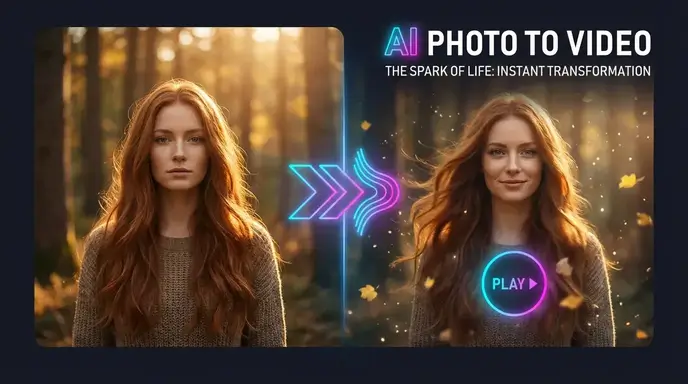
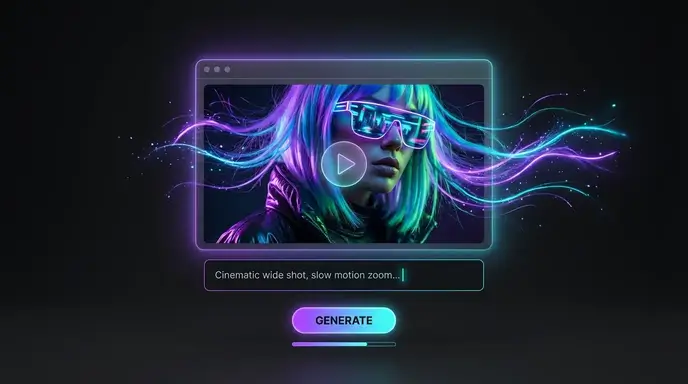
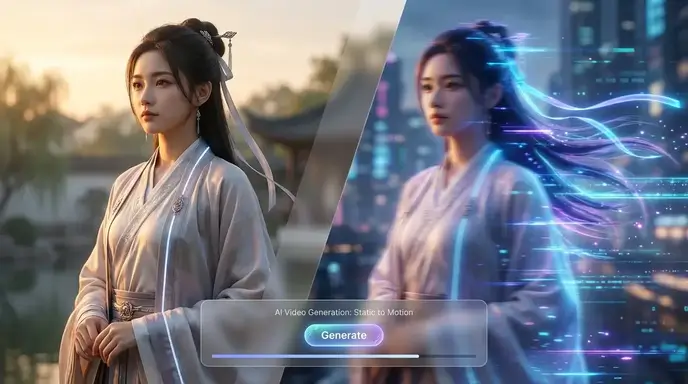
Create stunning animations with aiimagetovideo pro, our free AI video generator. Transform static images into motion using artificial intelligence image to video technology. Whether you explore Google Veo, Veo 3, or Imagen 3, our free tool helps you make video from images for social media. It is the best free image to video AI app to add image to video workflows and convert image to video online free. Use this free generator to make AI video from image files instantly.

Original Image
Prompt
Two minimalist skincare products on a flowing ribbon, soft pink background with bokeh effects.
Sample Video
Original Image
Prompt
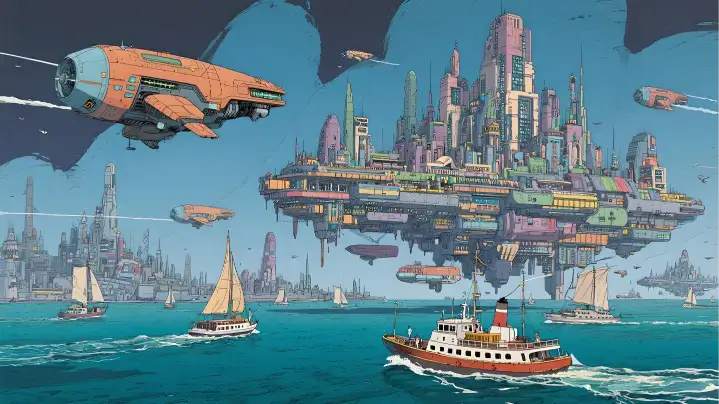
A solar-powered sailboat drifts past a floating city. The camera pushes through a biodome roof, revealing vertical gardens and hoverbike riders.
Sample Video
Original Image
Prompt
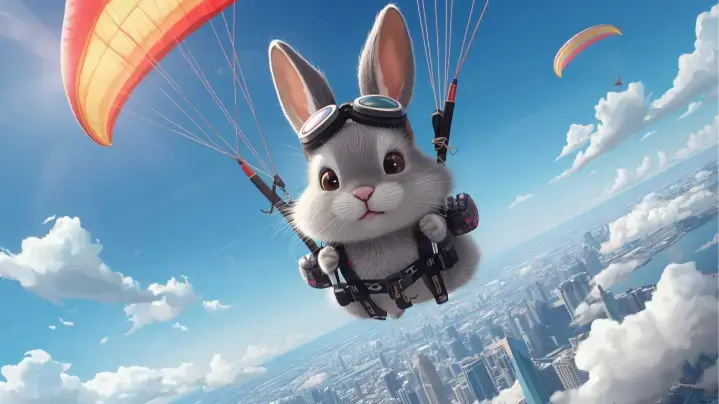
A rabbit paraglides above a city. The camera follows movement over colorful rooftops and clouds.
Sample Video

Key Features of Our Image to Video AI Generator

Discover the power of aiimagetovideo pro, our free image to video AI generator. Turn image into video with this dynamic image to video maker. Like the Luma AI video generator or Kling AI video generator, we offer high-quality results to convert image to video online free. You can generate unlimited possibilities with this free image to video tool. Add image files and make video magic with our free AI generator online.

Versatile Visual Options with AI Image to Video

Explore endless creative directions with aiimagetovideo pro, our free images to video AI. Whether you want to turn image into video for storytelling or marketing, our platform adapts styles seamlessly. It is the most versatile free image to video maker, rivaling Hunyuan image to video and Runway image to video style transfer capabilities. Add image to video projects to make unique video content. Convert image to video styles easily with AI online.

Generate Video from Images

Multi-Input Prompts: Image & Text to Video AI Generator

Combine your image with descriptive text prompts using aiimagetovideo pro and our free text to video AI generator features. Just like a Google Veo 3 AI video generation process, mixing image + text ensures creative control. Use it to prepare video from images with cinematic motion. Make video with text and add image inputs easily. This free generator lets you convert image to video with precision.

Generate Video from Images

HD AI Image to Video Output Without Watermarks

Get professional video from image results with aiimagetovideo pro, our image to video AI generator free. Create stunning HD results without watermarks, unlike some AI video generator no restrictions tools. Perfect for creators seeking high-quality images to video output, ensuring your content looks like it came from a premium video to video AI generator. This free app helps you convert video from image flawlessly. Add image assets and make video exports in HD.

Generate Video from Images

How to Create Video with Images using AI Video Generator?

Upload Your Image to AI Video Creation

Begin by uploading an image (JPG, PNG, WEBP) to aiimagetovideo pro, our free image to video converter. You can crop or frame to match your desired aspect ratio. This step is essential to convert image to video ai successfully. Add image files to start the free video generator process. Make video from image setup quickly.

Type in Prompt & Customize Your Video

Enter a description to guide the free AI video generator from text (or leave blank). Adjust settings like the AI model (we aim to match Gemini Veo 3 quality), duration, and resolution. This helps you make video from images that match your vision perfectly. Our online tool makes it simple to add video effects to your image. Convert image settings to customize output.

Click "Generate" and Wait for Export

Click to let the AI render. Review motion and effects before you generate AI video from images. You can preview the result, similar to how you might using ComfyUI image to video or Hailuo AI image to video workflows, before exporting. With aiimagetovideo pro, the free generator works fast to convert image to video. Add image tweaks if needed before you make video final.

Innovative Cases of AI Image to Video

See how aiimagetovideo pro, a free image to video AI generator, brings ideas to life. Easily turn any image into motion and create AI video from image for marketing or stories. We support various styles, from Flux image to video aesthetics to realistic motion. Use our free tool to make video content stand out. Add image creativity with our generator.

Moving Photos
Dynamic Ads
Presentation Demos
Travel Stories

Bring Still Images to Life with Motion

Transform static images into vivid videos with aiimagetovideo pro. Perfect for product showcases, our free AI lets you create video from images easily. Unlike basic animation AI generator tools, we provide dynamic content that feels alive, similar to results from Wan 2.1 image to video or Minimax AI image to video. Add image to video transitions for better flow. Make video memories from any image.

Users' Views on AI Image to Video

Best Image to Video AI for Beginners: Easy, Fast, and Intuitive

I'm not tech-savvy, but this was effortless. Compared to Vidnoz AI Image to Video or image to video ai kling, this is more intuitive. I uploaded an image, added a prompt, and the free AI created a stunning video. It's the best image to video ai generator free tool I've found to make video content. I can add image files easily.

Maya Rodriguez
Beginner User

AI Video Generator from Image: Simplify Marketing in Minutes

As a manager, I need speed. This platform works like a free image to video AI generator, turning product images into clips in minutes. The AI video generator free online access with trial credits let me test it easily. Better than some AI image to video Rutracker cracks I've seen. A great app for marketing. It helps me convert image to video ads.

Liam Johansson
Marketing Manager

AI Picture to Video Tool Every Creative Designer Will Love

I love how easy it is to make video from images. The free AI handles the heavy lifting. It saves hours and helps create professional content. It feels like having a personal Civitai image to video model at my fingertips. The generator is powerful and free to try. I add image details to every video.

Sophie Turner
Designer

Turn Real Estate Photos into Cinematic Property Tours

I used to spend hours editing. Now, I just upload images, and the free AI turns them into elegant clips. It helps clients visualize spaces. A great alternative to complex ComfyUI image to video setups for quick tours. I can add image details easily and make video tours fast.

Gabriela Santos
Realtor

Best Picture to Video Tool for Turning Photos into Viral Clips

I am always racing to post. This free AI tool transforms images into lively short videos. The animations look smooth, like a high-end AI video generator from image. My engagement doubled. It is a must-have app for influencers who want to convert image to video fast. I use it to make video viral hits.

Ava Reyes
Social Media Influencer

Boosting Product Sales with Photo to Video Animation Tools

Visuals make or break sales. These photo to video animation tools create promo videos straight from images. The results look professional. It is fast, easy, and better than trying to hire a team to create a video using AI manually. The best free generator online to convert image to video.

Leo Martens
Shopify Store Owner

Best Image to Video AI for Beginners: Easy, Fast, and Intuitive

I'm not tech-savvy, but this was effortless. Compared to Vidnoz AI Image to Video or image to video ai kling, this is more intuitive. I uploaded an image, added a prompt, and the free AI created a stunning video. It's the best image to video ai generator free tool I've found to make video content. I can add image files easily.

Maya Rodriguez
Beginner User

AI Video Generator from Image: Simplify Marketing in Minutes

As a manager, I need speed. This platform works like a free image to video AI generator, turning product images into clips in minutes. The AI video generator free online access with trial credits let me test it easily. Better than some AI image to video Rutracker cracks I've seen. A great app for marketing. It helps me convert image to video ads.

Liam Johansson
Marketing Manager

AI Picture to Video Tool Every Creative Designer Will Love

I love how easy it is to make video from images. The free AI handles the heavy lifting. It saves hours and helps create professional content. It feels like having a personal Civitai image to video model at my fingertips. The generator is powerful and free to try. I add image details to every video.

Sophie Turner
Designer

Turn Real Estate Photos into Cinematic Property Tours

I used to spend hours editing. Now, I just upload images, and the free AI turns them into elegant clips. It helps clients visualize spaces. A great alternative to complex ComfyUI image to video setups for quick tours. I can add image details easily and make video tours fast.

Gabriela Santos
Realtor

Best Picture to Video Tool for Turning Photos into Viral Clips

I am always racing to post. This free AI tool transforms images into lively short videos. The animations look smooth, like a high-end AI video generator from image. My engagement doubled. It is a must-have app for influencers who want to convert image to video fast. I use it to make video viral hits.

Ava Reyes
Social Media Influencer

Boosting Product Sales with Photo to Video Animation Tools

Visuals make or break sales. These photo to video animation tools create promo videos straight from images. The results look professional. It is fast, easy, and better than trying to hire a team to create a video using AI manually. The best free generator online to convert image to video.

Leo Martens
Shopify Store Owner

News

Free AI Muscle Generator Online: Add Muscle to Photo Unlimited

Free AI Muscle Generator Online: Add Muscle to Photo Unlimited

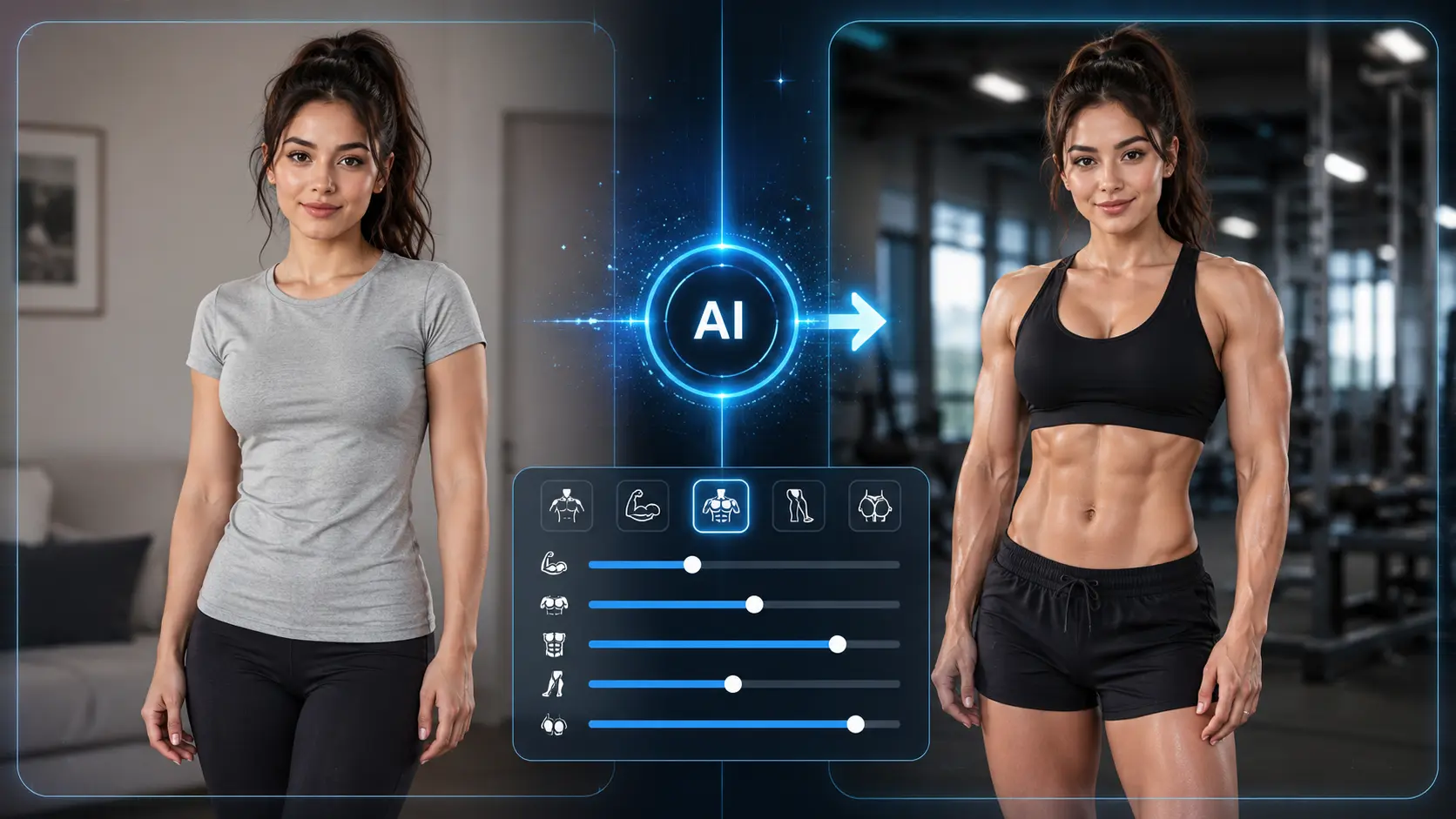
Have you ever wondered what you would look like with stronger arms, sharper abs, or a more athletic body? With AI, you can now create a muscle man or muscle woman version of yourself in minutes — no Photoshop skills needed. Whether you want a fun social media edit, a gym transformation photo, or a realistic preview of a more defined body shape, AI muscle tools can help you get there fast. In this guide, you’ll learn how to add muscle to a photo using AI muscle generators, prompt-based tools like ChatGPT or Gemini, mobile muscle photo editor apps, and image-to-video tools for short muscle transformation videos. Quick Answer What Is the Easiest Way to Add Muscle to a Photo? The easiest way to add muscle to a photo is to use an AI muscle generator or muscle photo editor. These tools can enhance arms, shoulders, chest, abs, and overall body definition without requiring manual retouching. 1. Upload a clear photo Use an upper-body or full-body photo where your body shape is visible. 2. Choose an AI muscle tool Pick a muscle generator, body editor, filter, or prompt-based AI image editor. 3. Adjust and export Start with a subtle effect. Realistic muscle edits usually look better than extreme ones. When Should You Use AI Instead of Photoshop? Use AI when you want a fast, beginner-friendly result for social media, profile photos, fitness content, or creative edits. AI is faster than Photoshop because it can handle shape, shadows, and texture automatically. You upload, adjust, and export. No Liquify tool. No masking. No manual dodge and burn. Photoshop is still better if you need professional control over every muscle shadow, body contour, and background detail. But for most people who simply want to make a photo look more athletic, an AI muscle editor is easier and much faster. How to Add Muscle to a Photo Step by Step There are three common ways to add muscle to a photo: using a dedicated AI muscle generator, using prompt-based AI tools, or using a mobile body editor app. Method 1: Use an AI Muscle Generator An AI muscle generator is usually the easiest method. These tools are designed to enhance body shape and muscle definition automatically. Step What to Do Why It Matters 1 Open an AI muscle generator or online muscle photo editor. Dedicated tools usually give faster body editing results. 2 Upload your photo. Clear source images give AI more structure to work with. 3 Choose the area you want to enhance, such as arms, chest, abs, or shoulders. Targeted edits usually look more natural than full-body exaggeration. 4 Select a realistic or stronger muscle effect. The right intensity keeps the edit believable. 5 Preview, reduce the effect if needed, and download. Subtle edits often perform better than fake-looking transformations. The key is restraint. If the tool has an intensity slider, start around 20–30%. This level is usually enough to make muscles more visible without making the image look edited. Method 2: Use ChatGPT or Gemini Prompt-based AI tools can also help with muscle photo editing, especially if they support image editing. Instead of clicking a preset, you upload your photo and describe what you want. Prompt example Add subtle muscle definition to my arms and chest while keeping my face, skin tone, clothing, and background unchanged. This approach works well when you want a specific style, such as a natural fitness look instead of an exaggerated bodybuilder effect. However, prompt-based tools can be inconsistent. Sometimes they may change the face, alter the background, or exaggerate the body shape. Better follow-up prompt Reduce the muscle size by 30%. Keep the result realistic, with natural shadows and no changes to the face or background. Method 3: Use a Mobile Muscle Photo Editor App Mobile body editor apps are convenient if you mainly edit photos on your phone. Many apps offer body reshaping, abs filters, arm enhancement, waist adjustment, and general fitness-style photo edits. Best for Instagram photos, dating profile photos, gym selfies, TikTok thumbnails, and quick before-and-after edits. Watch out for Warped backgrounds, plastic-looking skin, or body proportions that no longer match the head and hands. What Kind of Photo Works Best for Muscle Editing? The quality of your source photo matters more than most people think. A better input photo gives AI more structure to work with, which means more believable results. Use Directional Lighting Muscles look more defined when light creates shadows. The best lighting usually comes from one side, slightly above or beside the body. Choose the Right Pose Face the camera at a slight angle instead of standing completely straight-on. A small torso turn helps show shoulder width and chest shape. Wear Fitted Clothing Tight gym shirts, tank tops, compression shirts, shirtless photos, or athletic tops give AI more body structure to enhance. Avoid Blurry Photos AI muscle editing works best with clear, high-resolution photos. Use an image that is at least 1080px wide if possible. Avoid These Source Photos Blurry photos, heavy beauty filters, messy backgrounds, extreme shadows, low-light mirror selfies, and photos where the body is mostly hidden usually lead to less realistic muscle edits. AI can improve a good photo, but it cannot always rescue a bad one. Prompt Examples for Natural-Looking Muscle Effects Prompts matter. A vague prompt like “make me huge” usually creates fake-looking results. A specific prompt tells the AI what to enhance, what to preserve, and how strong the effect should be. Subtle Muscle Enhancement Prompts Use these when you already have some muscle definition and only want to make it more visible. Enhance the existing muscle definition in the arms, shoulders, and chest. Keep the body proportions natural and do not change the face or background. Make the existing muscles slightly more visible with realistic shadows. Do not add extreme size or bodybuilder proportions. Improve arm and shoulder definition while keeping the photo natural, realistic, and close to the original body shape. Moderate Muscle Transformation Prompts Use these when you

Dezgo AI Image Generator: Honest Review & Complete Guide [2026]

Dezgo AI Image Generator: Honest Review & Complete Guide [2026]

Most AI image generators demand a subscription, your email, and a credit card before you produce a single picture. Dezgo skips all of that — open the site, type a prompt, download your image. But here is what nearly every existing review gets wrong: Dezgo is no longer just a Stable Diffusion wrapper. In 2026, the platform aggregates premium models like Grok Imagine, Nano Banana Pro, Flux 2 Pro, and video generators including Sora 2 and Veo 3.1. This guide covers features, models, pricing, quality tests, and whether Dezgo deserves a place in your toolkit. What Is Dezgo AI? Dezgo is a browser-based AI image and video generator founded in France in 2022. Everything runs server-side — no GPU, no software install, no account needed. The platform serves over 10 million users and generates roughly 500,000 images daily. How Dezgo Works Pick a model, type a prompt, click Generate, and download a PNG within seconds. Advanced controls include negative prompts, guidance scale, sampling steps, and seed values — all accessible without any local setup. Dezgo in 2026: Not Just Stable Diffusion Anymore Most existing reviews describe Dezgo as a simple SD interface — that is outdated. The 2026 version aggregates models from multiple providers: Grok Imagine, Nano Banana Pro, Flux 2 Pro, plus video models like Sora 2, Veo 3.1, and Kling 2.6. This makes Dezgo a multi-model marketplace comparable to Freepik and Recraft, but with a more generous free tier. Dezgo AI Key Features Dezgo packs a surprisingly wide feature set for a tool that charges nothing at the door. Text-to-Image Generation Choose from free models (Flux 1, XL Lightning, SD1, XL) or premium options, write your prompt, and adjust negative prompts, guidance scale, aspect ratio, and sampling steps. Output arrives in PNG format. Image-to-Image Conversion Upload a source image and let an AI model reinterpret it using Grok Imagine, Nano Banana, Flux 2, or SD1 — useful for style transfers and reference-based generation. Inpainting & Image Editing Paint over a specific area and describe what should replace it. The “edit image from text” tool handles broader changes like swapping backgrounds or removing objects. Image Upscaling & Background Removal A Real-ESRGAN 2x upscaler and a one-click background remover are both completely free — many competitors gate these behind paid plans. ControlNet (Controlled Generation) Preserve the structural composition of a reference image while changing its style or content. Offering ControlNet free is uncommon among hosted generators. Text-to-Video Generation Dezgo now offers video models including WAN 2.7, Seedance 2.0, Sora 2, Veo 3.1, and Kling 2.6. No competing review covers this expansion yet. For creators wanting a dedicated image-to-video platform with 4K output and batch processing, AI Image to Video complements Dezgo’s built-in options. API Access for Developers Through RapidAPI, developers access 57 models across four pricing tiers ($2–$100/month) — viable for automated content pipelines and batch generation. Dezgo AI Models Explained Model variety is Dezgo’s strongest card — yet no competitor review covers it well. Free Models (Flux 1, XL Lightning, SD1, XL) Flux 1 balances quality and speed best. XL Lightning prioritizes fast generation. SD1 is compatible with the broadest range of community resources, while XL supports higher resolutions. Premium Image Models (Grok Imagine, Nano Banana Pro, Flux 2 Pro) Accessible through Power Mode, these cutting-edge models rival their native platforms — often at lower per-image cost. Video Models (Sora 2, Veo 3.1, Kling 2.6, Seedance 2.0, WAN 2.7) Pay-per-use access to leading video generators, positioning Dezgo as one of the most affordable gateways to premium AI video in 2026. 100+ Finetunes (DreamShaper, Juggernaut, Envy Starlight & More) Community-trained variants optimized for specific styles — photorealism, anime, fantasy, concept art. Each targets a particular creative niche. How to Choose the Right Model Need Recommended Model Fast drafts XL Lightning Photorealistic portraits Juggernaut XL 10 Hyper Artistic/stylized work DreamShaper XL Top-tier quality Nano Banana Pro or Grok Imagine Speed + quality balance Flux 1 (free) Dezgo Pricing: Free Tier vs Power Mode What You Get for Free Unlimited generations at 512×512 resolution, no signup, no watermarks. All image tools — ControlNet, upscaler, background removal, and inpainting — are included. The tradeoff: slower queue times (up to 30 seconds) and lower resolution. Power Mode Breakdown Deposit $10 minimum and pay per image: $0.0019 each (512×512) or $0.0075 for SDXL quality (1024×1024). That initial $10 buys ~5,263 standard images, and credits never expire. API Pricing for Developers RapidAPI tiers range from $2/month (BASIC, ~1,000 images) to $100/month (MEGA) with volume discounts. Cost Comparison: Dezgo vs Competitors For budget-conscious users, Dezgo’s per-image pricing is hard to beat. Hands-On Testing: Image Quality Results Photorealistic Prompts Free models like Flux 1 handle landscapes and objects well. Faces and hands remain inconsistent — a common diffusion weakness. Nano Banana Pro via Power Mode delivers a clear jump in realism. Artistic & Stylized Prompts Finetunes shine here. DreamShaper XL handles illustration well, while Envy Starlight XL excels at cinematic scenes. With 100+ models, you can usually find one tuned to your exact style. Prompt Tips for Better Dezgo Results Dezgo Pros and Cons What Dezgo Does Well Where Dezgo Falls Short Dezgo vs Top Competitors Dezgo vs Midjourney Midjourney delivers superior artistic quality but costs $10+/month with no free tier. Dezgo wins on accessibility, price, and model variety. Dezgo vs ChatGPT (GPT Image 2) ChatGPT excels at prompt comprehension and conversational editing. Dezgo counters with free access, no account requirement, and more model choices. Dezgo vs Leonardo AI Leonardo’s free tier (150 daily tokens) offers higher baseline quality, but tokens deplete quickly. Dezgo’s unlimited free generations suit high-volume users better. Dezgo vs Adobe Firefly Firefly is the safest commercial option — trained on licensed content with Photoshop integration. Dezgo offers more models at lower cost but cannot match Firefly’s legal certainty. Dezgo vs Running Stable Diffusion Locally Local SD provides unlimited, unrestricted generation but demands a capable GPU (12GB+ VRAM) and steep setup. Dezgo offers similar models with zero configuration. Who Should Use Dezgo AI? Bloggers

Best Kling AI Alternatives: 10 AI Video Generators Tested [2026]

Best Kling AI Alternatives: 10 AI Video Generators Tested [2026]

Kling AI is still one of the most recognized AI video generators, especially for image-to-video, motion brush, and cinematic clips. But it is not always the easiest tool to use at scale. Many creators run into the same problems: credits disappear fast, failed generations still cost money, censorship can block harmless ideas, and the free plan is not enough for serious testing. If you create videos for TikTok, YouTube Shorts, ads, anime clips, avatars, or product visuals, relying on one tool can quickly become limiting. That is why many creators are now looking for a Kling AI alternative. The best choice depends on what you need most: better motion control, lower cost, faster rendering, free credits, watermark-free output, or access to multiple AI video models. Best Kling AI Alternatives: Quick Comparison Below is a practical comparison of 10 strong Kling AI alternatives for different use cases. Use it as a starting point, then test the tools based on your real content style, budget, and publishing workflow. Tool Best For Main Strength Main Limitation Seedance 2.0 Motion control Strong full-body movement Smaller ecosystem Runway Gen-4 Professional production Editing + generation workflow Higher cost Google Veo 3 Cinematic realism Realistic video + native audio Expensive for volume Luma AI Cinematic lighting Great atmosphere for the price Slower rendering Hailuo AI Social media volume Low cost per clip Less precise control Pika Beginners Fast, simple, template-friendly Weaker complex motion HeyGen Avatar videos Lip-sync and multilingual avatars Not for cinematic video PixVerse Stylized content Fast anime/cartoon output Character drift on longer clips AI Image to Video Multi-model access Kling, Veo, Wan in one place Depends on underlying models Grok Imagine Quick social clips Fast generation with audio Lower resolution/control Best Kling AI Alternatives by Use Case Seedance 2.0 — Best for Motion Control Seedance 2.0 is one of the strongest Kling AI alternatives if your main concern is motion quality. It performs especially well with full-body movement, action scenes, dance clips, and zoomed-out character shots. Compared with Kling, Seedance often produces smoother movement in complex scenes. Characters walk, turn, and interact with fewer awkward freezes. It is a good choice for creators who care less about brand familiarity and more about actual motion output. Best for Action videos, dance clips, character movement, and motion transfer. Watch out for Fewer tutorials and workflow examples than Kling. Runway Gen-4 — Best for Professional Production Runway is more than an AI video generator. It is closer to a full production workspace. You can generate clips, edit them, refine scenes, and build a more complete video workflow inside one platform. This makes Runway a better fit for agencies, filmmakers, brand teams, and creators who need more control after generation. It is not always the cheapest Kling alternative, but it is one of the most practical options for polished production. Best for Commercial videos, creative teams, and cinematic editing. Watch out for Paid plans can become expensive if you generate often. Google Veo 3 — Best for Cinematic Realism and Audio Veo 3 stands out for realism. If you want cinematic shots, natural lighting, and believable environments, it is one of the strongest options available. Its biggest advantage is native audio generation, including dialogue, ambient sound, and sound effects. That makes Veo useful when the final video needs to feel more complete without relying on separate audio tools. However, it is not the best daily tool for high-volume creators because costs can rise quickly. Best for Realistic scenes, cinematic clips, and video with audio. Watch out for Limited motion control and higher cost for repeated testing. Luma AI — Best for Cinematic Lighting on a Budget Luma AI is a strong choice if you care about lighting, mood, and visual atmosphere. It works well for golden-hour shots, dreamy environments, product visuals, and cinematic social content. Its pricing is more beginner-friendly than some premium tools, and the output often looks visually rich even when the prompt is simple. The downside is that motion control is not as strong as Seedance or Kling. Best for Atmospheric visuals, cinematic lighting, and product scenes. Watch out for Slower rendering and weaker action movement. Hailuo AI — Best Value for Social Media Content Hailuo AI is a practical Kling AI alternative for creators who need volume. If you are making TikTok videos, Shorts, Reels, meme clips, or simple visual hooks, Hailuo can produce a lot of usable content at a lower cost. It may not give you the most cinematic output, but it is good for fast social media testing. For creators who need to publish frequently, cost per usable clip matters more than perfect camera control. Best for TikTok, Shorts, Reels, and viral hooks. Watch out for Less cinematic precision than premium production tools. Pika — Best for Beginners Pika is one of the easiest AI video tools to start with. The interface is simple, generation is fast, and its social templates make it beginner-friendly. It is especially useful for creators who want to test AI video without spending hours learning prompt structure. However, complex camera movement, multi-character scenes, and detailed actions may produce inconsistent results. Best for Beginners, social effects, and fast experiments. Watch out for Weaker results on complex prompts. HeyGen — Best for Avatar and Talking-Head Videos HeyGen is not a direct Kling replacement for cinematic generation. It solves a different problem: AI avatars, voice cloning, and multilingual talking-head videos. If your workflow involves training videos, explainers, business presentations, or localized marketing videos, HeyGen may be more useful than Kling. It is strong because it combines avatar, voice, and lip-sync in one workflow. Best for Avatars, business videos, and multilingual content. Watch out for Not designed for cinematic or action scenes. PixVerse — Best for Fast Stylized Content PixVerse is a strong option for anime, cartoon, fantasy, and stylized AI videos. It is fast, easy to test, and its free tier is more usable than many competitors. For creators making anime edits, AI character content, or short social clips,
Can AI Make a Full Anime Episode? A Real $0 Budget Case

Can AI Make a Full Anime Episode? A Real $0 Budget Case

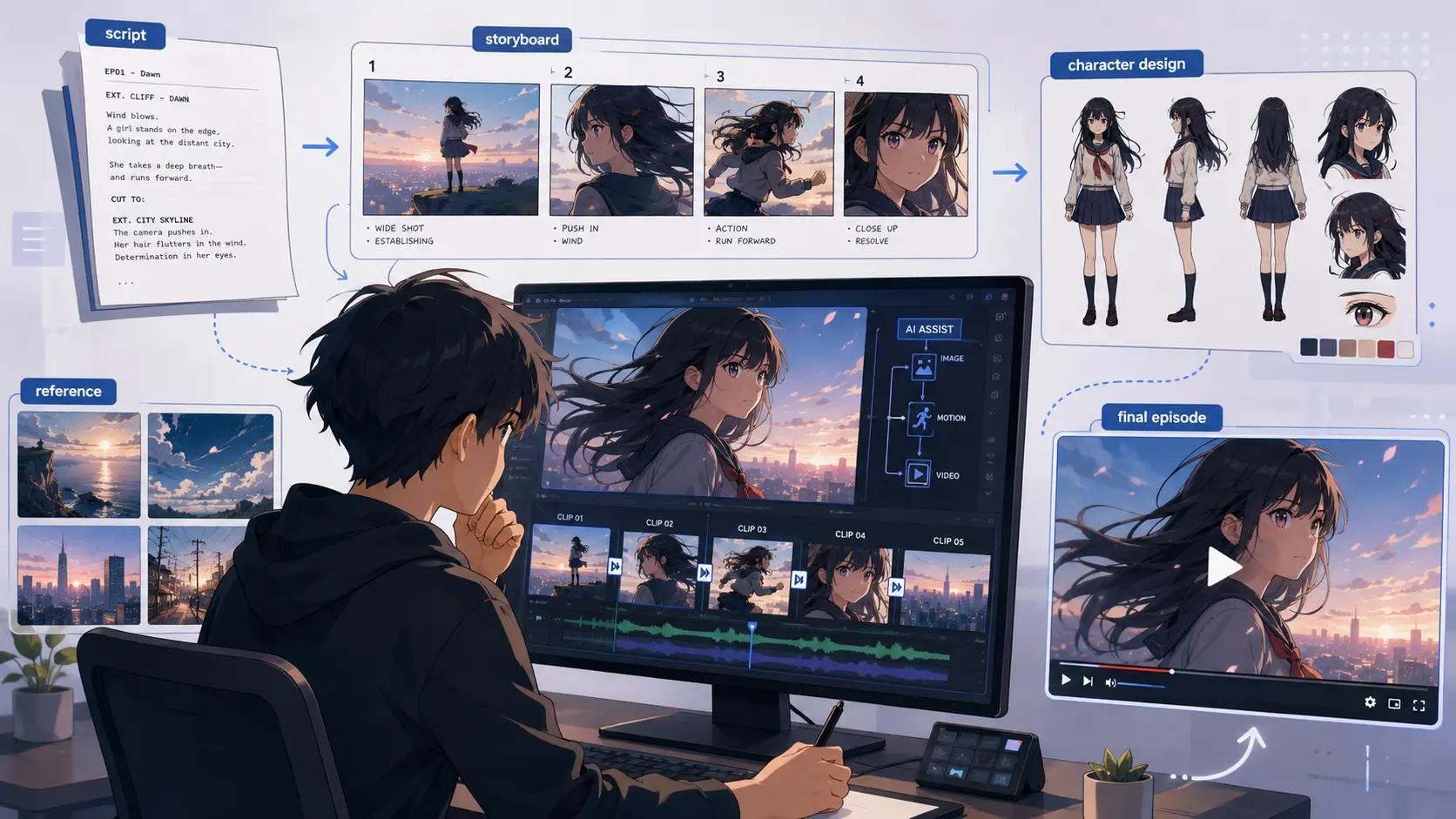
Can AI make a full anime episode? Yes — but not in the way many people imagine. AI is already good enough to help solo creators make anime-style scenes, trailers, character moments, and even longer episode-like projects. But the real workflow is not “type one prompt and get a finished 28-minute anime.” It is much closer to production: write the story, plan the shots, design characters, create reference images, generate short clips, edit them together, add voice and sound, then keep fixing what breaks. A recent Reddit post in r/OpenAI gives a useful real-world example. The creator shared a clip from a 28-minute anime-style episode called Blood Exodus, made with Sora. The post itself received heavy discussion, not only because the visuals were impressive, but because people immediately started asking the real questions: How many prompts did this take? How were the characters kept consistent? Why did some shots feel more 3D than 2D? Why did some details change between scenes? And how much editing was involved? That comment section is more useful than a polished product demo because it shows what AI anime production actually looks like today: possible, exciting, messy, and still very human. The Short Answer: Yes, But Not in One Click AI can generate anime-style shots. It can create a dramatic close-up, a moving background, a character turning toward the camera, a fantasy city, a monster reveal, or a short action beat. What it cannot reliably do yet is generate a full episode with stable characters, clean continuity, natural pacing, believable dialogue timing, and consistent style from beginning to end. That is why the better answer is: AI can help make a full anime episode, but the creator still has to build the episode shot by shot. This matches how current AI video systems are designed. OpenAI’s video generation documentation describes video creation as a process of prompts, image references, reusable character assets, clip extension, video editing, and downloaded assets — not a one-click full-episode pipeline. It also recommends using shorter clips when iterating on prompt, motion, or composition, while longer generations are better for fuller beats or scenes. That matters for anyone searching “can AI make a full anime episode.” The answer is not a simple yes or no. The real question is whether you understand the workflow. A finished anime episode needs more than moving images. It needs a script, shot order, character design, worldbuilding, camera direction, dialogue, editing rhythm, music, sound effects, subtitles, and final polish. AI can help with many of these pieces, especially visual generation, but it does not automatically connect them into a satisfying episode. So yes, AI can help you make one. But no, it will not do the whole job for you. What the Reddit Case Actually Shows The Reddit post is useful because it does not present AI anime as a perfect miracle. It shows a creator trying to make something long-form with limited resources, then answering questions from viewers who noticed both the achievement and the flaws. The creator’s post says the show is called Blood Exodus, and the uploaded Reddit video is a 161-second clip from a 28-minute anime-style episode. The thread had around 148 comments when retrieved, which gives us enough discussion to see what real viewers cared about. One of the most important details came from the creator’s own replies. They explained that scenes only last about 15 seconds, and that natural dialogue pacing means each character can only have a few lines within that window. In another reply, the creator said the video generations were made of 10–15 second generations, with many outputs containing errors. That is the key lesson. The 28-minute episode was not generated as one continuous anime film. It was built from many short generations. The creator had to select usable clips, work around errors, sync audio, and assemble everything into something watchable. The time investment also matters. The creator said the long-form project took about two to three months of nonstop work with Sora 2, and that character design and writing had started before. That breaks the biggest myth around AI video: cheap does not mean effortless. The same creator said the project cost almost nothing to make and was done on a phone, with the only paid item being an optional $8 music plan. But low financial cost did not remove the time cost, planning cost, or creative cost. This is why the case is so valuable. It shows that AI lowers the production barrier, especially for solo creators, but it does not erase production itself. Why Making Full AI Anime Is Still Hard The hardest part of AI anime is not generating one beautiful shot. That is becoming easier. The hard part is making 50, 100, or 200 shots feel like they belong to the same episode. Character consistency Character consistency is one of the first problems viewers notice. A single image can look great, but a full episode needs the same person to appear across many angles, lighting conditions, emotions, and movements. The face should not subtly change every scene. Hair should stay the same. Clothing details should not disappear. Body proportions should not shift. In the Reddit thread, one commenter directly asked how the creator was able to create consistent characters, saying they had watched many videos on that topic but had not seen results as close. Another commenter noted that scriptwriting, voice, editing, and sound design still require work, and warned that style consistency takes extra time. This is where many beginners fail. They start with video generation before they have locked down the character design. A better workflow is to create a character sheet first. For an anime project, that means front view, side view, back view, face close-up, outfit reference, expression references, and color palette. The higher the image quality, the better. If the character only exists from one angle, the model has to invent details when the camera changes. Style drift Even when the character design stays recognizable, the

What Is Gemini Omni? The Complete Guide to Google’s AI Video Model

What Is Gemini Omni? The Complete Guide to Google’s AI Video Model

Google announced Gemini Omni at I/O 2026 as a new multimodal AI video model designed to create and edit video from text, images, audio, and video inputs. The idea sounds huge: instead of using separate tools for prompting, editing, audio, and video generation, users can create and refine videos through natural conversation. But the first released version, Gemini Omni Flash, has received mixed feedback. Creators like its conversational editing workflow, but many also say the raw video quality still falls behind models like Seedance 2.0 and Kling. There is also confusion around Google’s naming system: Omni, Veo, Nano Banana, Flash, and Pro all sound connected, but they do not mean the same thing. This guide explains what Gemini Omni is, what it can do today, how to use it, how much it costs, how it compares with other AI video models, and whether it is worth trying. What Is Gemini Omni? Gemini Omni is Google’s multimodal AI video model for generating and editing video through natural conversation. Announced at Google I/O 2026, its first available version is Gemini Omni Flash. The easiest way to understand Gemini Omni is that it brings video generation into the Gemini chat experience. Instead of writing one prompt and accepting the result, users can describe a video, provide reference images, add audio or video input, and then ask the model to revise the result with follow-up prompts. This makes Gemini Omni different from many traditional AI video generators. In most tools, each new change often means starting a new generation. Gemini Omni is designed to keep the previous context, so users can adjust a video step by step — changing the camera angle, replacing a subject, modifying the lighting, or refining the visual style within the same conversation. In short, Gemini Omni is not just a text-to-video tool. It is Google’s attempt to make AI video creation feel more like an interactive editing process, where users can create, revise, and polish video ideas through a single conversation. What Can Gemini Omni Do? Gemini Omni’s biggest value is not simply generating a video from a prompt. Its real advantage is the way it combines video generation, multimodal input, and conversational editing. Conversational Video Editing This is the feature that makes Gemini Omni stand out. You can generate a video, then keep editing it through natural language. For example: The important part is that each instruction builds on the previous result. The model is not just starting over from zero every time. This makes Omni useful for creators who want to explore ideas, adjust scenes, and refine details without rebuilding the entire prompt. Multimodal Input Omni can work with different types of input, including: This is useful for creators who need more control than a simple text-to-video prompt can provide. For example, you could use a character image generated with Nano Banana, then ask Omni to animate that character in a specific scene. Early user feedback suggests that Omni usually understands the intent well, even when the final video quality is not always perfect. That means its strength is prompt understanding and workflow flexibility, not flawless motion realism. Gemini Omni Flash is still limited by short video duration, inconsistent complex motion, weak text rendering, and some practical restrictions around voice, moderation, and watermarking. So the short answer is: Gemini Omni is promising, especially for editing and multimodal workflows, but Omni Flash is not yet the strongest choice if you only care about polished cinematic output. How to Use Gemini Omni Google offers three main ways to try Gemini Omni: Gemini, Google Flow, and YouTube Shorts. Each entry point is designed for a slightly different type of user, so the best choice depends on what you want to create. Use Gemini for Conversational Video Creation The Gemini app is the simplest place to start. You can describe the video you want, generate a result, and then continue editing it with follow-up prompts. For example, you can ask Gemini to create a short scene, then refine it by changing the lighting, camera angle, subject, background, or visual style. This is the best option if you want to experience Gemini Omni as a chat-based video creation tool. Use Google Flow for a More Creative Workflow Google Flow is better for users who want a more structured creative workspace. It is designed for planning, creating, refining, and composing videos with Google’s generative media models. Instead of treating each video as a one-off prompt, Flow gives creators more room to build scenes, explore ideas, and refine clips as part of a larger project. This makes it a better fit for creators, marketers, filmmakers, or anyone testing more serious AI video workflows. Use YouTube Shorts for Quick Video Experiments YouTube Shorts is the most casual way to try Gemini Omni. It is useful for short-form creators who want to quickly test AI-generated clips inside a familiar video platform. This option is best for simple social video ideas, fast experiments, and lightweight creative testing. If your goal is to make quick AI-assisted Shorts rather than build a full video project, YouTube Shorts is the easiest place to start. In short, use Gemini if you want conversational editing, Google Flow if you want a more advanced creative workspace, and YouTube Shorts if you want to test quick AI video ideas for social content. Conclusion Gemini Omni represents a genuine paradigm shift in AI video creation — not because of raw generation quality (Seedance 2.0 still leads there), but because of its conversational editing workflow. The ability to iteratively refine videos through natural language, with full context preservation across turns, is something no competitor currently offers. The “Nano Banana for video” trajectory gives real reason for optimism. If Omni Pro follows the same improvement curve that Nano Banana Pro showed over its Flash predecessor, the quality gap with Seedance could narrow considerably. For now, Omni Flash is best suited for iterative editing, educational content, social media clips, and workflows where multimodal input flexibility matters more than

Higgsfield Unlimited Explained: What AI Video Creators Should Know Before Paying

Higgsfield Unlimited Explained: What AI Video Creators Should Know Before Paying

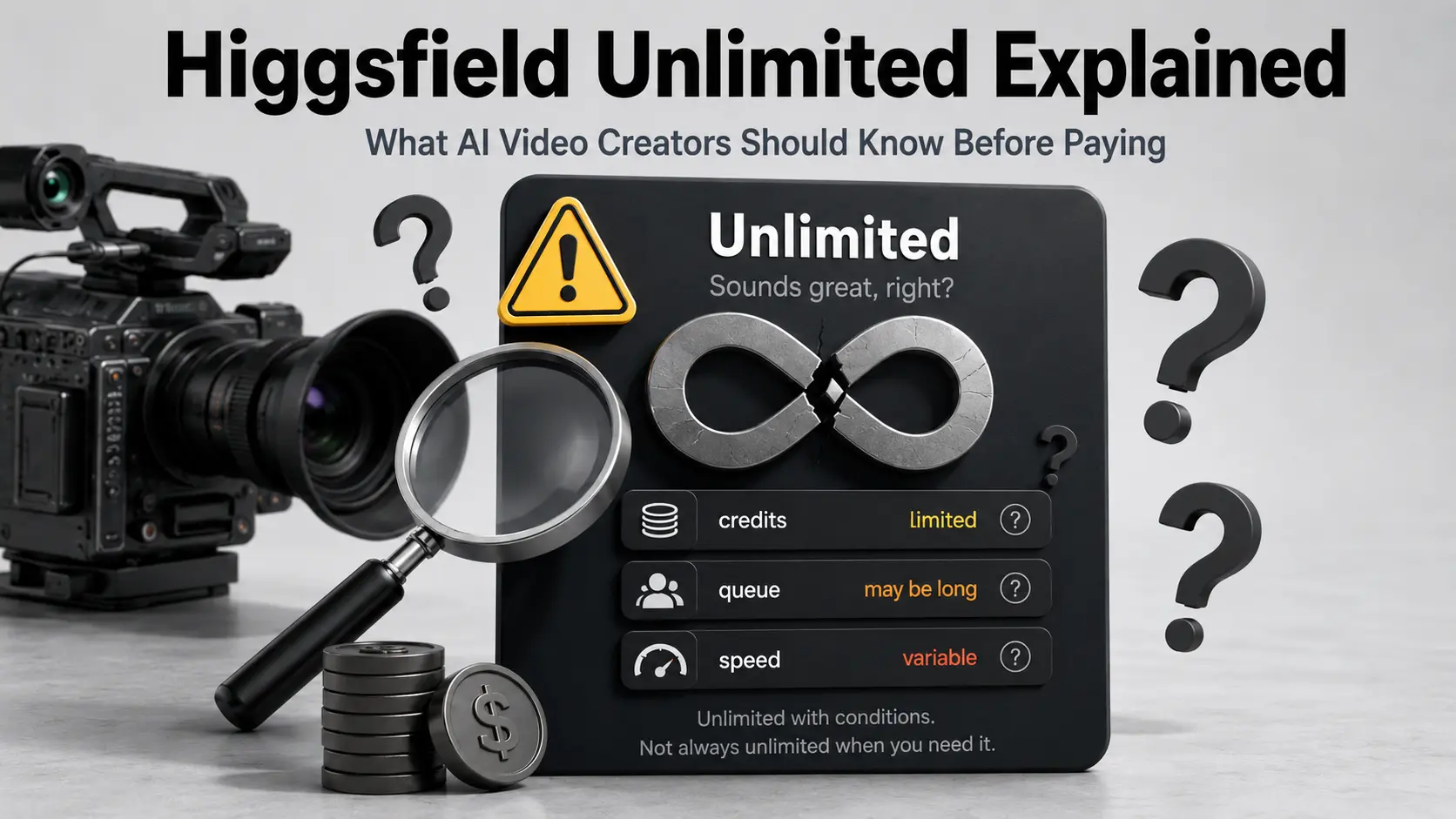
You subscribed to Higgsfield’s Unlimited plan expecting endless AI video generation. Then you hit a throttled queue, a resolution cap, or a “reached your limit” error on day three. You are not alone — and the confusion is not your fault. After analyzing pricing data from dozens of sources, Reddit threads, and YouTube reviews, users‘ complaint on Higgsfield’s “unlimited” comes with several distinct restrictions not clearly disclosed at purchase. Are they true? Or Higgsfield is over expected? Let’s read the model badges, duration notes, and fair-use details carefully to decode every restriction and compares Higgsfield’s “unlimited” marketing with AI Image to Video’s . What Is Higgsfield AI? How Higgsfield Works as a Multi-Model Aggregator Higgsfield is a multi-model aggregator — a single interface wrapping third-party AI models like Kling 3.0, Sora 2, Google Veo 3.1, Seedance 2.0, and WAN 2.6. It adds proprietary tools on top: Cinema Studio for camera controls, Soul ID for character consistency, and LipSync Studio. This wrapper model is key to understanding pricing. Yaroflasher’s YouTube investigation confirmed Higgsfield wraps Kling AI and Minimax at a 2-4.5x markup over native platform pricing. Key Models Available on Higgsfield The platform spans three categories: Not all models are available on all plans, and “Unlimited” access applies to a specific subset — not the full model library. What Does “Unlimited” Actually Mean on Higgsfield? 365-Day Unlimited Model Passes Ultra-tier annual subscribers ($99/month billed annually) receive a 365-day unlimited pass for one select image model — choose from Nano Banana 2, Wan 2.6, Seedance 1.5 Pro, or Kling 2.6. Volume is genuinely unlimited, but generations route through a slower “standard mode” queue and are subject to the battery system that progressively degrades speed. 7-Day Unlimited Model Promotions Higgsfield periodically offers “unlimited” access to premium video models (Kling 3.0, Seedance 2.0) for paying subscribers. The fine print matters: This is a temporary promotion, not a permanent plan feature. Fair Use, Dynamic Speed Limits, and the Unlimited Queue The battery system is Higgsfield’s speed-throttling mechanism: the more you use unlimited mode, the slower your generations become. Users report speeds ranging from 2 minutes to over 2 hours for the same model. It functions as a soft rate limit disguised as a technical system — while credit-based generation of the same model finishes in under 1 minute. Concurrency Limits and Fair Use Caps Unlimited mode allows only 2-4 simultaneous generations, reduced from 8 after the Christmas 2025 changes. The “reached my limit” error on Ultimate plans is a concurrent cap — not a total volume cap — but the UI does not explain this clearly. Resolution Restrictions in Unlimited Mode All unlimited video output is capped at 720p. Users needing 1080p or 4K must spend credits on upscaling (12-20+ credits). A common workaround: generate at 720p unlimited, then upscale externally with Topaz Video AI. The duration is also limited to 5 second. Unlimited Access vs Credit-Based Priority: The Speed and Quality Gap How the Two-Tier Queue System Works Higgsfield runs two parallel queues. Credit-based generations finish in under 1 minute. Unlimited-mode generations average 10-25 minutes for video — degrading further under the battery system. Same models, same platform, different priority. Key Takeaway: “Unlimited” is not a premium tier on Higgsfield. It is the economy lane. Why Credits Deplete Faster Than Users Expect Credit consumption per generation adds up fast: At Ultra tier (3,000 credits/month), that yields roughly 37-42 Kling 3.0 clips — before factoring in a reported 25-50% failure rate on some models that still consumes credits. The Hidden Cost of Iteration Creative workflows require 3-5 variations per concept, and failed generations still consume credits. One fashion brand owner burned 90% of monthly credits in under a month. Another user calculated a 5-minute video at ~$200 AUD. How to Read Higgsfield Pricing Without Getting Confused Pricing item What to check before paying Monthly price Is it billed monthly or annually? Credits How many credits are included each month? Unlimited badge Which exact model is Unlimited? Duration 365-day or N-day access? Resolution Which resolutions are included? Queue Unlimited queue or priority queue? Concurrency How many generations can run at once? Subscription condition Does Unlimited end if the subscription ends? Annual vs Monthly Billing — The Fine Print Annual billing is displayed as a monthly rate but charged as a full upfront payment. Ultra shows “$99/month” but charges $1,188 at checkout. Given Higgsfield’s history of changing terms mid-subscription, community members widely recommend monthly billing despite the higher per-month cost. How Pricing Has Changed Higgsfield has restructured pricing at least three times — original tiers (Basic $9/Pro $17-29/Ultimate $24-49/Creator $49-249) transitioned to the current Starter/Plus/Ultra/Business structure. Early Creator plan subscribers paid $149.40/month; the same plan was later offered at $37.40/month. “Unlimited” terms have also changed retroactively for existing subscribers. Where the “Scam” Accusations Come From — And What Is Actually Happening The Christmas 2025 Account Purge On December 19, 2025, Higgsfield mass-banned heavy unlimited plan users. Yaroflasher’s investigation documented leaked Discord messages confirming internal awareness, triggering Trustpilot review-bombing and BBB complaints. Retroactive Changes to Existing Subscriptions Users who purchased plans with specific features found them changed post-purchase: concurrent slots slashed from 8 to 2, censorship filters applied retroactively, and the battery system replaced original unlimited speeds — all without notice. UX Patterns That Erode Trust A CGI professional’s 2-month review on Reddit after 9,000+ generations documented dark patterns: the mobile app resets the “Unlimited” toggle on every generation, defaulting to credit-based mode and making accidental credit spending nearly inevitable. Some issues, like the “Danger Zone” cancellation button, have since been improved. Why These Issues Generate “Scam” Language When users discover time limits, throttling, resolution caps, and battery degradation — none clearly communicated at purchase — the emotional response is predictable. The core issue is not fraud but a significant transparency deficit that fuels overpromise and disappointment. Higgsfield Unlimited vs AI Image to Video Unlimited Higgsfield and AI Image to Video both use the word “Unlimited,” but they mean different things. Higgsfield’s Unlimited is best understood as

FAQs About AI Image to Video Generator

Is there an image to video AI free option?

Yes, aiimagetovideo pro offers a free plan to try image to video AI. Create a video from an image, test features, and generate clips. It is the best way to explore our free AI image to video generator capabilities without risk. You can access image to video ai free unlimited trial features with daily credits. Make video from image for free.

What is the best image to video AI tool?

The best image to video AI depends on your goals. Our aiimagetovideo pro is one of the best ai photo to video apps for creators. Our free AI Image to Video generator lets you convert image to video easily, striving to match Google Veo and Veo 2 quality. Use it to make video magic online. Add image assets to generate video.

Do you integrate Veo 3 model or other AI engines?

We integrate leading technologies. While we admire Veo 3, Kling AI Image to Video, and Runway AI Image to Video, our custom models deliver competitive results to create high-quality videos from images. We add image support for various formats in our free generator.

How to create video with images?

Image to video AI uses deep learning. Simply upload an image, add prompts, and the AI turns it into a dynamic video. It is the simplest way to learn how to make a video with photos and videos using a free generator. Convert image to video steps are simple.

Do you integrate with other AI models like Veo 3?

We are evaluating integrations with Veo 3, Imagen 3, and Pollo AI Image to Video. We also look at image to video trends and tools like HeyGen image to video to improve our service. We aim to provide the best online free experience. Make video innovation your goal.

Is there an AI image to video no account option?

Currently, you need an account for our AI Image to Video generator. Registration is free and includes credits to test image-to-video creation. This allows you to save your AI video from image projects. Sign up to use our free app features. Add image projects to your portfolio.

How can I create professional results with free image to video AI?

Even with free image to video AI, you can get professional results. Use high-quality images and our aiimagetovideo pro. We ensure smooth rendering, making us a top choice for those looking to convert image to video AI free. Start to convert image to video today with our free tool.