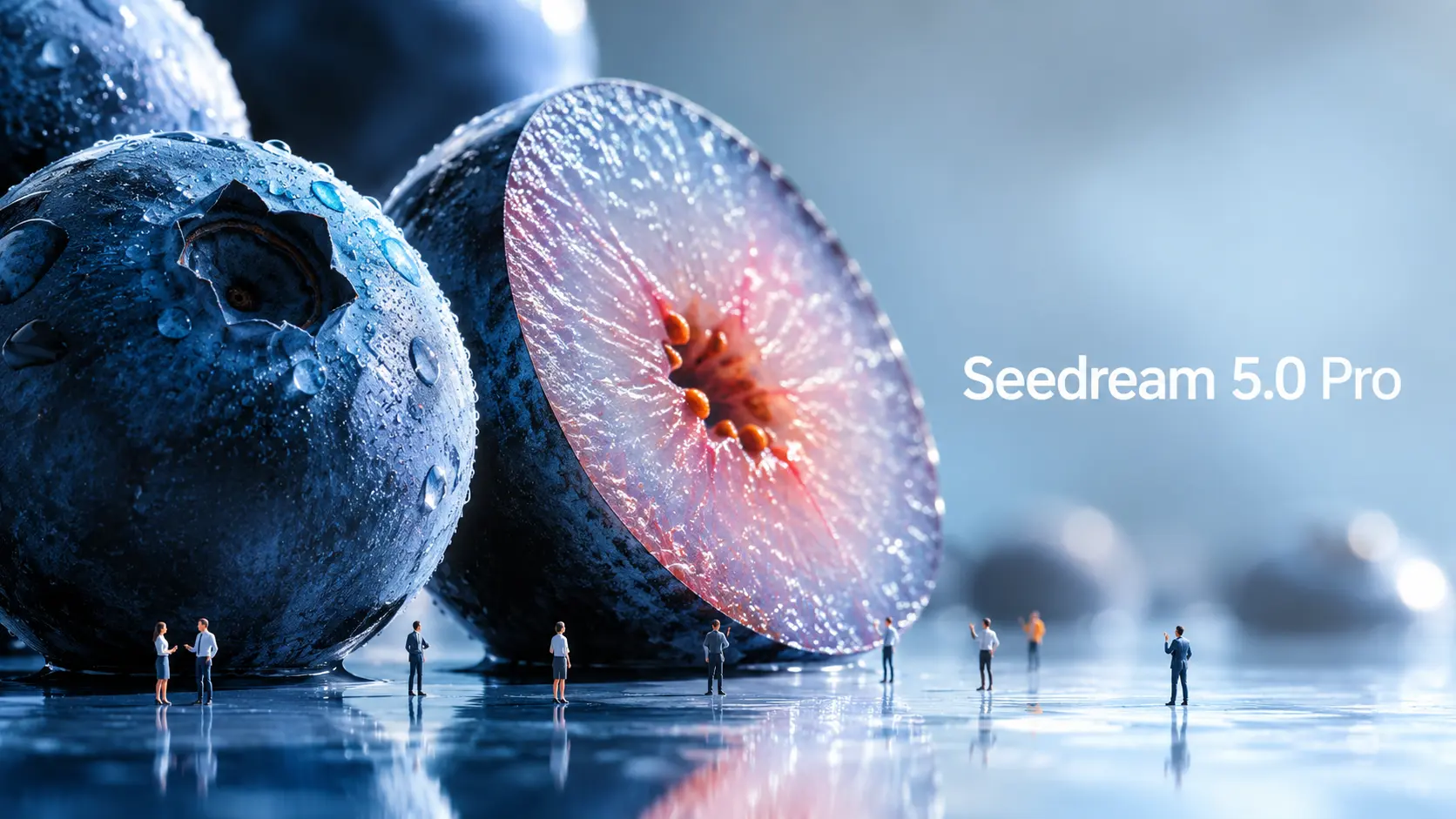
Seedream 5.0 Pro is ByteDance Seed’s new AI image generation and editing model, built for more controlled visual creation.
As image models become more powerful, prompts also need to evolve. A simple subject + style prompt is no longer enough if you want structured infographics, UI mockups, commercial visuals, multilingual posters, or precise image edits.
The real question is: how should you prompt Seedream 5.0 Pro differently?
This guide breaks down official Seedream 5.0 Pro examples and turns them into reusable prompt formulas.
What Makes Seedream 5.0 Pro Different?
Seedream 5.0 Pro is useful because it is built closer to a design tool than a simple image generator.
It does not only create attractive visuals. It tries to understand how information, objects, text, and design elements should be arranged inside an image.
Information-heavy images better
One of the biggest upgrades is complex information visualization.
ByteDance says Seedream 5.0 Pro can turn data, concepts, and dense text into professional layouts. This makes it useful for infographics, educational posters, comparison charts, product explainers, report visuals, and social media knowledge cards.
This matters because information images are difficult.
The model has to plan the layout, place text correctly, separate sections, keep the hierarchy readable, and still make the image look good.
More precise editing
Seedream 5.0 Pro is also designed for interactive precision editing.
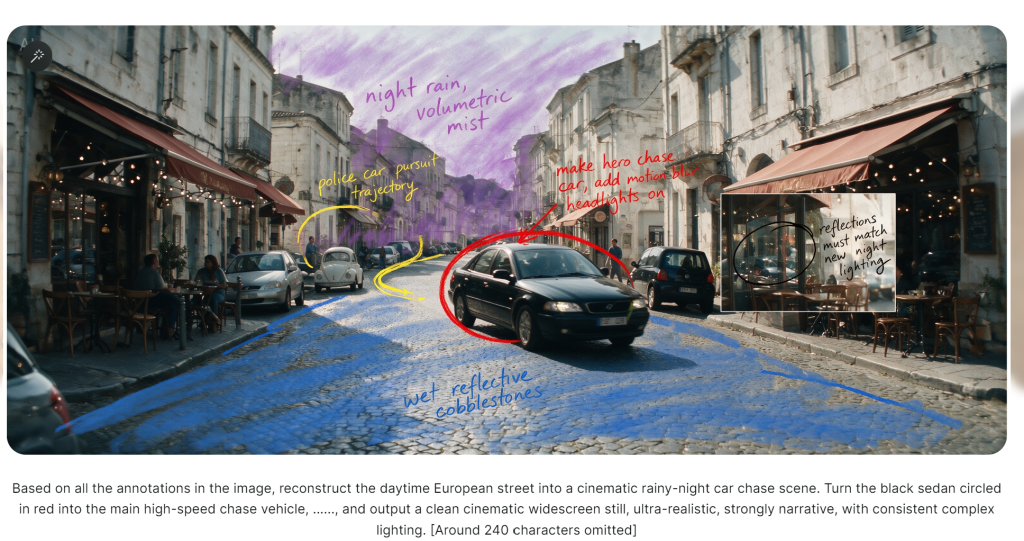
According to the official release, it can use spatial positioning and regional understanding to support point selection, lasso selection, sketch rendering, color editing, material replacement, and multi-image fusion.
In simple terms, you can ask it to change one part of an image without regenerating everything.
For example, instead of saying “make this room look better,” you can say: change only the sofa fabric, keep the lighting and room layout unchanged.
That kind of prompt is much more useful for real design work.
ByteDance also demonstrates layer separation in its official materials. However, as of this writing, the layer separation workflow is not yet broadly available in every public product workflow, so this guide will not treat it as a ready-to-use core method.
Realistic commercial visuals
Seedream 5.0 Pro also focuses on realistic lighting, material behavior, skin texture, reflections, architecture, and photographic quality.
This makes it useful for product ads, fashion visuals, portrait photography, interior design, lifestyle images, and cinematic still frames.
For creators, this means the model can help produce more polished source images before turning them into videos.
Multilingual image generation
Seedream 5.0 Pro can also work with multilingual prompts and generate text in more than ten commonly used languages, including Chinese, English, French, German, Russian, Japanese, Korean, Spanish, and Arabic.
This is useful for global ads, localized posters, multilingual social posts, and international marketing visuals.
How Official Seedream 5.0 Pro Prompts Work
The official examples show that Seedream 5.0 Pro performs best when the prompt is structured like a design brief.
Official example: Antarctic research infographic
One official example asks Seedream 5.0 Pro to create an infographic about scientific research at Antarctica’s Qinling Station.
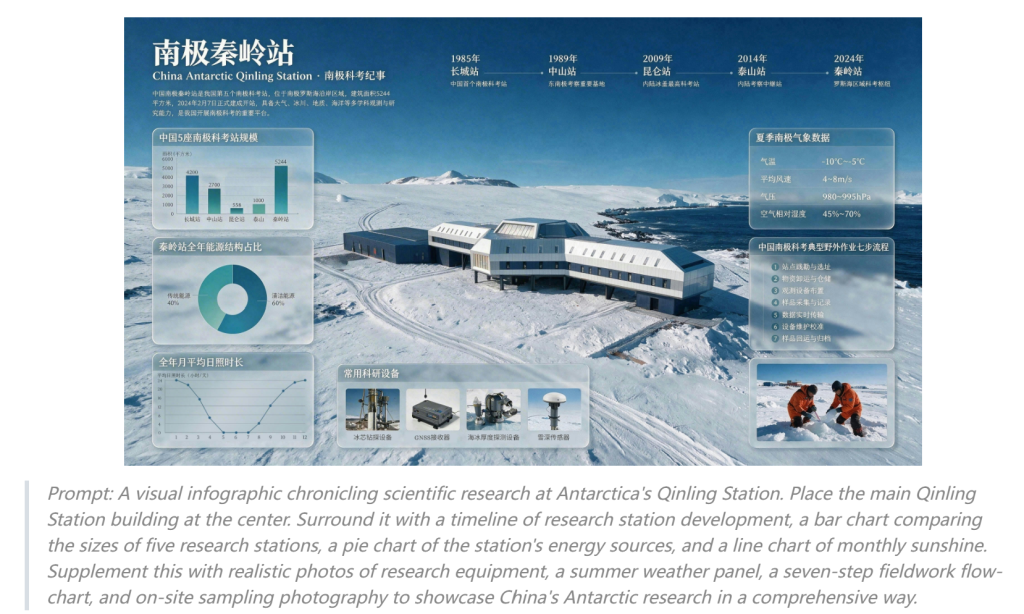
The prompt does not simply say “make an infographic about Antarctica.”
It asks for the main Qinling Station building in the center. Around it, the model should add a timeline, bar chart, pie chart, line chart, equipment photos, weather panel, fieldwork flowchart, and sampling photography.
The lesson is simple:
Tell the model what sections, charts, cards, labels, and panels should appear.
As we early users find, if you don’t specify the layout, labels, or information hierarchy, the model often won’t invent them for you. While this requires more detailed prompting, it also gives creators much more control over the final design.
Official example: pet e-commerce homepage UI
The pet e-commerce example is useful for UI and landing page creators.
The prompt asks for a 16:9 pet e-commerce homepage in warm sunset tones. It includes a top navigation bar, left-side text area, product cards, a capsule-shaped button, and a right-side Golden Retriever image.
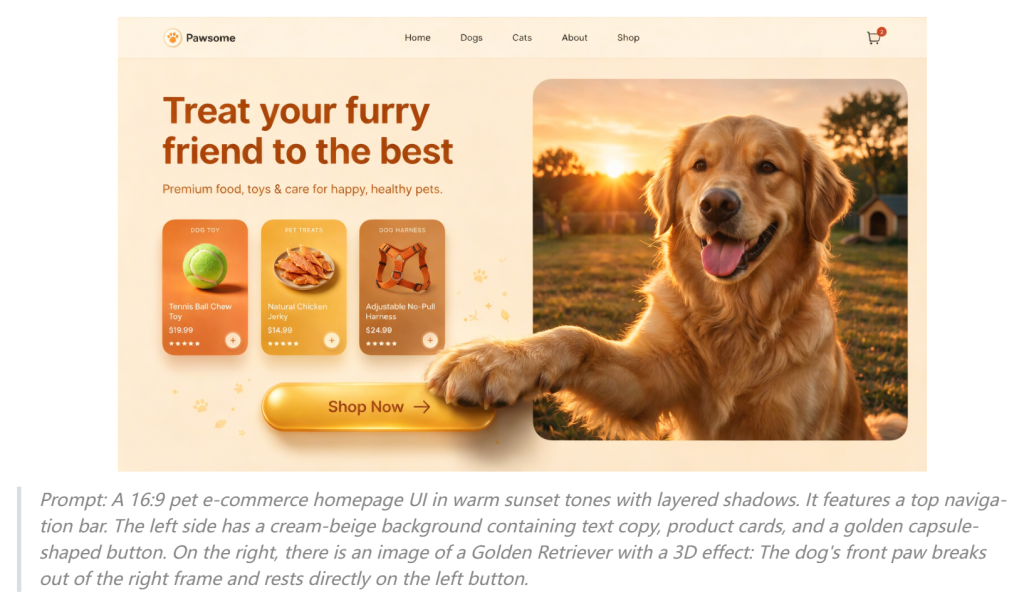
The most brilliant creative touch in this UI design is the cross-layer interaction: the dog’s paw breaks out of the right frame and presses the button on the left.
This shows that Seedream 5.0 Pro can understand spatial relationships inside a designed layout.
But achieving this requires a clearly detailed prompt, as it is not something the model generates automatically.
Official example: material and color editing
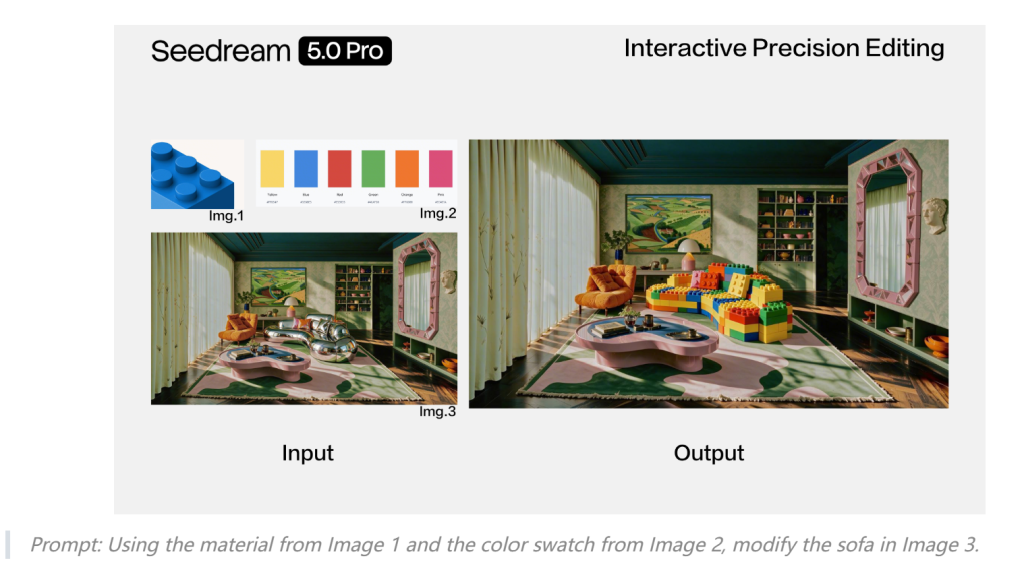
This is one of the cases I feel most interesting.
Another official case uses multiple references: Image 1 provides material, Image 2 provides a color swatch, and Image 3 is the sofa image to edit.
The lesson is important:
When you upload multiple reference images, give each image a job.
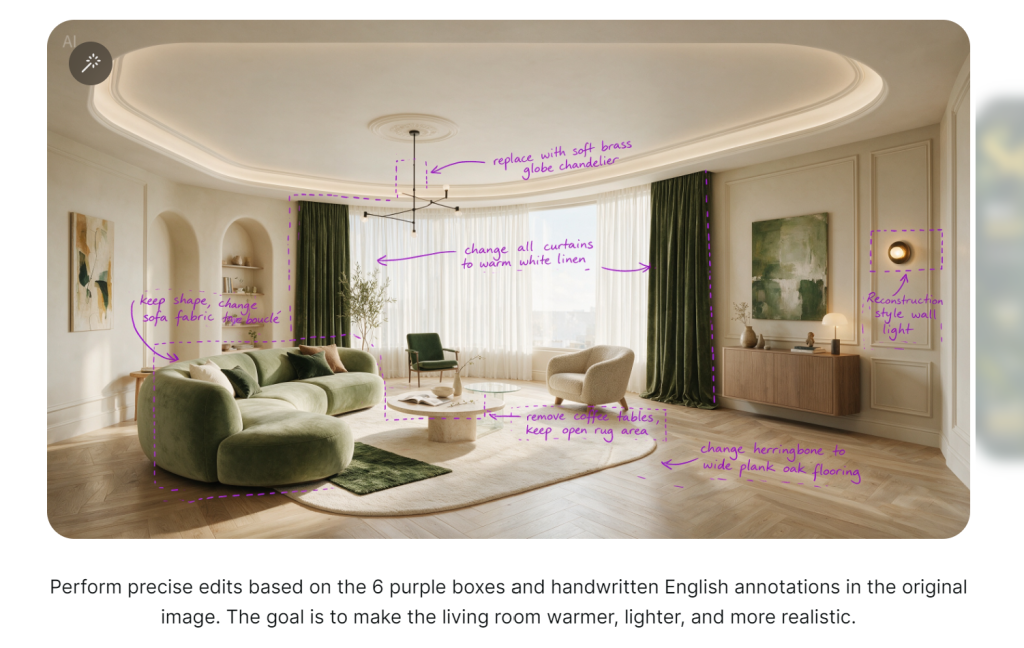
Surprisingly, Seedream 5.0 Pro also has no trouble understanding handwritten draft instructions.
This means that even when you’re outdoors, as long as you have a smartphone or an iPad, you can simply sketch your editing requirements directly onto the original image—eliminating the need to type out lengthy, essay-like prompts.
Official example: panning shot photography
Seedream 5.0 Pro also shows a panning shot example.
The prompt keeps the cyclist and bicycle sharp, stretches the background into horizontal motion blur, and adds rotational blur to the wheel spokes.
This is useful for image-to-video creators.
A motion-ready still image gives the video model a stronger starting point.
Seedream 5.0 Pro Prompt Formula
Based on the official examples, Seedream 5.0 Pro prompting can be grouped into four practical categories.
1. Informational Visual Prompt
Use this for infographics, educational posters, comparison charts, beginner guides, product explainers, report visuals, tutorial cards, and grid-based knowledge images.
The goal is to help the model organize information clearly.
Formula:
“Create a [visual format] about [topic].
Use a [layout type] layout.
Include [main subject or title].
Add [module/card 1], [module/card 2], [module/card 3], and [module/card 4].
Each section should include [labels / short descriptions / icons / charts / illustrations].
Keep the hierarchy clear, text readable, and design style [style].”
Example:
“Create a 16:9 educational infographic about how AI image-to-video generation works. Use a clean modular layout. Place a source image in the center. Add four sections around it: prompt input, motion control, camera movement, and final video output. Include small labels, simple arrows, and a before-and-after preview. Keep the hierarchy clear, text readable, and design style modern SaaS.”
For grid-style guides, use this version:
“Create a beginner guide titled “[title]”.
Use a clean [grid size] grid layout.
Show [number] types of [topic].
Each card should include [illustration/photo], [name label], and [key feature].
Keep the design readable, balanced, and beginner-friendly.”
Example:
“Create a beginner guide titled ‘8 Camera Movements for AI Videos’. Use a clean 2×4 grid layout. Show zoom in, pull back, pan, tilt, orbit, tracking shot, handheld, and FPV. Each card should include a cinematic frame, the camera movement name, and one short explanation. Keep the design readable, balanced, and beginner-friendly.”

2. E-Commerce UI Design Prompt
Use this for landing page hero sections, app screens, product pages, SaaS UI visuals, and e-commerce mockups.
This category can stand alone because the model needs to understand interface structure, not just visual style.
Formula:
“Create a [ratio] [website/app/page type] UI for [product or brand].
Use a [color mood] visual style.
Include [top navigation/header].
Place [copy/cards/buttons] on the left.
Place [main product/character/visual] on the right.
Add a layered interaction where [object] interacts with [UI element].
Use clean spacing, realistic shadows, and polished modern design.”
Example:
“Create a 16:9 AI video generator landing page hero UI. Use a dark modern SaaS style. Include a simple top navigation bar. Place a headline area, two feature cards, and a glowing create button on the left. Place a cinematic image preview transforming into a video preview on the right. Add a layered interaction where the video frame slightly breaks out of the UI card. Use clean spacing, realistic shadows, and polished modern design.”
4. Motion-Ready Image Prompt
Use this when you want to generate a still image that can later become a video.
This is useful for TikTok videos, YouTube Shorts, product ads, cinematic portraits, fashion clips, travel visuals, and action scenes.
Formula:
“Create a [shot type] of [moving subject].
Keep [main subject] sharp and clear.
Add [directional motion cue] to the background.
Add [object-specific motion detail] to show movement.
Use realistic lighting, cinematic composition, and a strong sense of motion.”
Example:
“Create a panning shot of a stylish woman riding a motorcycle through a neon city street. Keep the rider and motorcycle sharp and clear. Stretch the background lights into horizontal motion blur. Add slight wheel blur and wind movement in her hair and jacket. Use cinematic night lighting and a strong sense of speed. This type of image often works better for image-to-video because the first frame already suggests movement.”
Turn Seedream Images into Videos
After creating a strong image, many creators want to turn it into a short AI video for TikTok, YouTube Shorts, Instagram Reels, ads, product demos, or AI filmmaking campaigns.
A simple workflow looks like this:
- Generate a polished source image.
- Write a short motion prompt.
- Choose a camera movement.
- Turn the image into a video.
Our image-to-video tool has not integrated Seedream 5.0 Pro yet, but for now, you can generate high-quality source images with GPT Image 2 or Nano Banana 2, then upload those images into our image-to-video workflow.
We also plan to support Seedream 5.0 Pro in the future.
For the best image-to-video results, create a source image that is already video-ready.
Use a clear subject.
Leave space for movement.
Add a direction of motion.
Use cinematic lighting.
Avoid overcrowding the frame.
For example, instead of creating a flat product photo, create a product ad frame with floating particles, directional light, and a clean camera-ready composition.
Instead of creating a normal portrait, create a cinematic close-up with wind, hair movement, shallow depth of field, and a background that can move naturally.
The better the starting image, the better the final video usually looks.
FAQ
Is Seedream 5.0 Pro free?
It depends on the platform or API provider. Pricing and access may change, so check the latest provider page before starting a large project.
Can Seedream 5.0 Pro edit images?
Yes. Seedream 5.0 Pro is designed for precision editing, including region-based edits, color changes, material replacement, sketch guidance, and multi-image fusion. Layer separation has been shown in official materials, but it may not be available in every public workflow yet.
Does Seedream 5.0 Pro render text accurately?
It performs well for short labels and titles, but early testing suggests that dense paragraphs and information-heavy graphics can sometimes still produce blurry or inconsistent text. As early users, resolution 2K and above output may look significantly better.
What is the best way to prompt Seedream 5.0 Pro?
Use structured prompts.
Start with the output type, then describe the layout, modules, object locations, reference-image roles, and preservation rules.
Seedream 5.0 Pro works best when your prompt reads like a clear visual design brief.