Model
Video Fast 1.5 Lite Free
Premium video quality — 3-second clips free to try. Limited-Time Availability.
Image
Drag & Drop, Paste, or Click to Upload
PNG, JPG, JPEG, WEBP , Max 20 MB
Prompt
0 / 1500
Audio
Prompt Extend
Duration
3s
Resolution
720p
1080p
Number of Results
Create
Sample Video
Sample video preview

Vmake AI Video Generator: Free Image to Video AI Generator with No Sign Up & No Limits

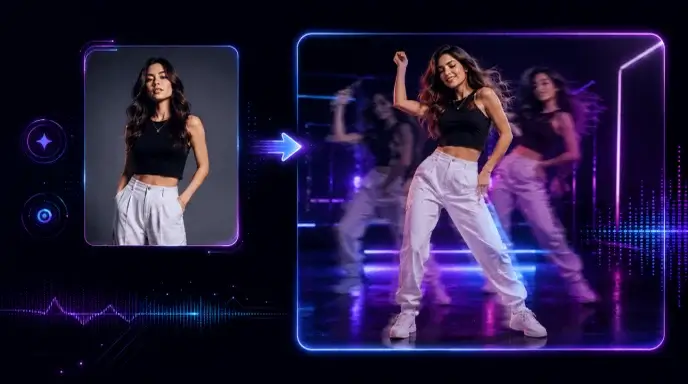
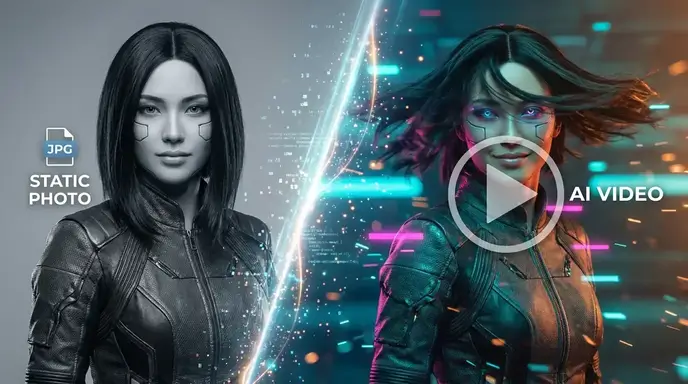
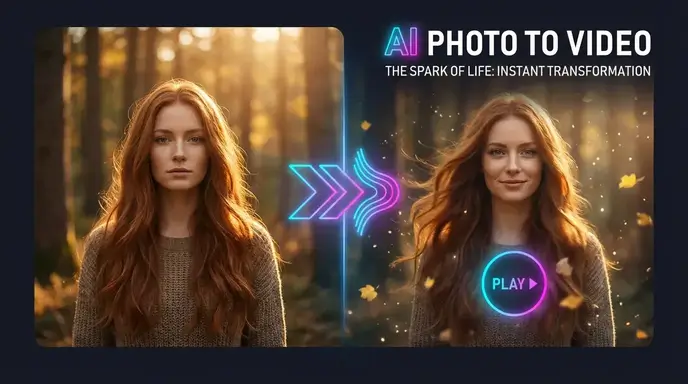
Vmake AI is a powerful free AI photo to video generator designed for creators and marketers. As an AI video maker free of charge, it transforms static images into dynamic clips. Discover what this free image to video AI generator can create for your projects.

Original Image
Prompt
POV gripping weathered broomstick handle with leather-gloved hands launching from grass into exhilarating flight over Quidditch pitch and Black Lake. First-flight wonder moment. Camera mounted at rider eye level captures handle in foreground as ground drops away dramatically, Hogwarts castle towers rush past at increasing velocity. Wind buffets perspective creating natural shake, robes billow into frame edges, other students on brooms blur past in formation flying. Castle turrets provide depth layers against Scottish Highlands beyond, clouds part revealing golden afternoon sun creating lens flare. Wide 24mm action cam aesthetic with motion blur on sides, bright daylight with dramatic cloud shadows racing across landscape, magical flight freedom sensation.
Generated Clip
Original Image
Prompt
A young female runner in vibrant sportswear glides through a sun-drenched city park, bathed in the golden light of the setting sun. Slow motion reveals her power. The Steadicam lens gently follows her every step, tracing her determined arm swing. Cherry blossom petals sway in the warm breeze, and morning mist captures the dazzling sunlight, creating a three-dimensional halo. The lens flare unfolds naturally, and the shallow depth of field perfectly blends the subject with the dreamlike bokeh background. The cinematic 24mm wide-angle lens, bright high-key lighting, and warm golden amber tones create an inspiring aesthetic for a sports commercial.
Generated Clip
Original Image
Prompt
Slow cinematic drift. Smooth dolly glides through futuristic apartment bathed in holographic interface glow. Floating furniture modules rotate autonomously, transparent smart walls shift opacity revealing neon cityscape beyond. Ambient particles dance in volumetric light beams from ceiling. Interactive surfaces pulse with touch-responsive bioluminescence. Wide-angle lens captures sweeping architectural grandeur, cool cyan and warm amber lighting blend, Blade Runner aesthetic meets minimalist luxury.
Generated Clip

Why Choose the Best Free Image to Video AI for Unlimited Creation

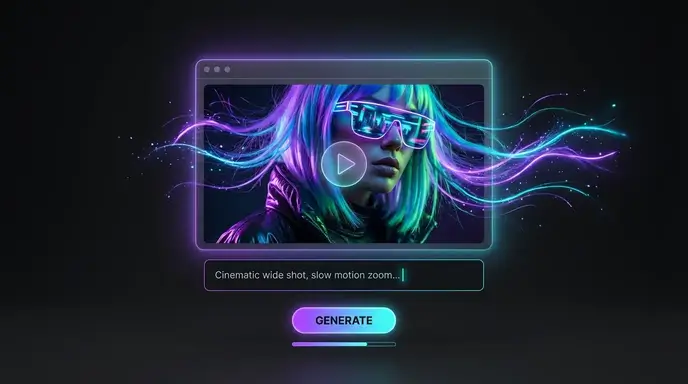
The Vmake AI video generator offers an image to video AI free experience with advanced motion tracking. Enjoy an AI video generator no limits on watermarks, and utilize exclusive rendering tech to produce high-quality, cinematic results effortlessly.

Advanced AI Video Generator from Photo

Our free AI image to video generator uses deep learning to analyze your pictures and add realistic camera movements. As an AI photo to video generator free to use, it automatically detects depth and subjects, ensuring your static photos turn into engaging, lifelike video scenes without requiring complex manual editing or professional animation skills.

Generate Now

Unlimited Credits for AI Video Generator

Experience true creative freedom with our image to video AI free unlimited plan. Unlike other tools, we provide unlimited credits for AI video generator tasks, allowing you to render as many drafts as needed. This free AI video generator no limits approach ensures you never have to pause your workflow due to paywalls or restricted daily quotas.

Generate Now

High-Resolution AI Video Generator No Limits

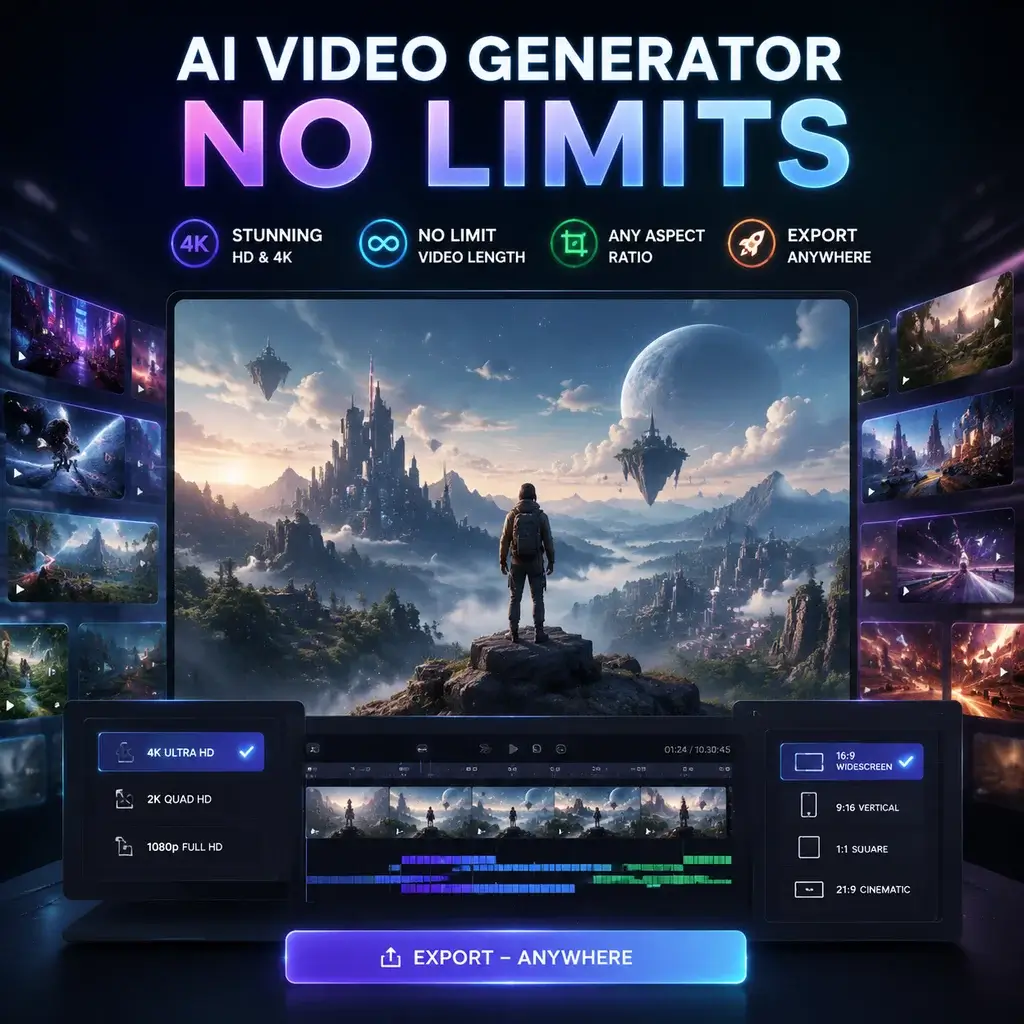
Ranked among the best free AI video generators, our platform exports in stunning HD and 4K resolutions. As a no limit AI video generator, it removes restrictions on video length and aspect ratios. This AI video generator no limits capability guarantees that your final output maintains pristine visual quality, perfectly optimized for any social media or professional presentation format.

Generate Now

How to Use Our Online Free Image to Video AI Generator to Generate Video

Step 1: Upload Your Image or Enter a Prompt

Begin by uploading your favorite photo or typing a detailed text prompt into the free AI image to video generator interface. The system accepts various formats, allowing you to easily prepare your visual assets for the AI video maker free platform.

Step 2: Customize Motion and Video Settings

Adjust the camera movement, motion intensity, and aspect ratio using the intuitive controls. You can fine-tune how the AI photo to video generator free animates your subject, ensuring the generated video perfectly matches your creative vision and storytelling requirements.

Step 3: Generate and Download Your Video

Click the generate button to let the AI video generator from photo process your request. Once rendering is complete, preview the result and download your high-quality video file directly to your device, ready for sharing on any social media channel.

Top Use Cases for the Best Free Image to Video AI

Vmake serves as a versatile tool for diverse content creation needs. Whether you need an AI YouTube video generator to create engaging channel intros or a free AI photo to video generator for TikTok and Instagram Reels, this platform adapts to your workflow. Marketers use it to turn product photos into dynamic ads, while educators animate historical images for interactive lessons. By leveraging this image to video AI free tool, creators can rapidly produce captivating visual stories without needing expensive video production equipment or extensive editing experience.

Social Media
E-Commerce
YouTube
Education

Social Media Shorts and Reels

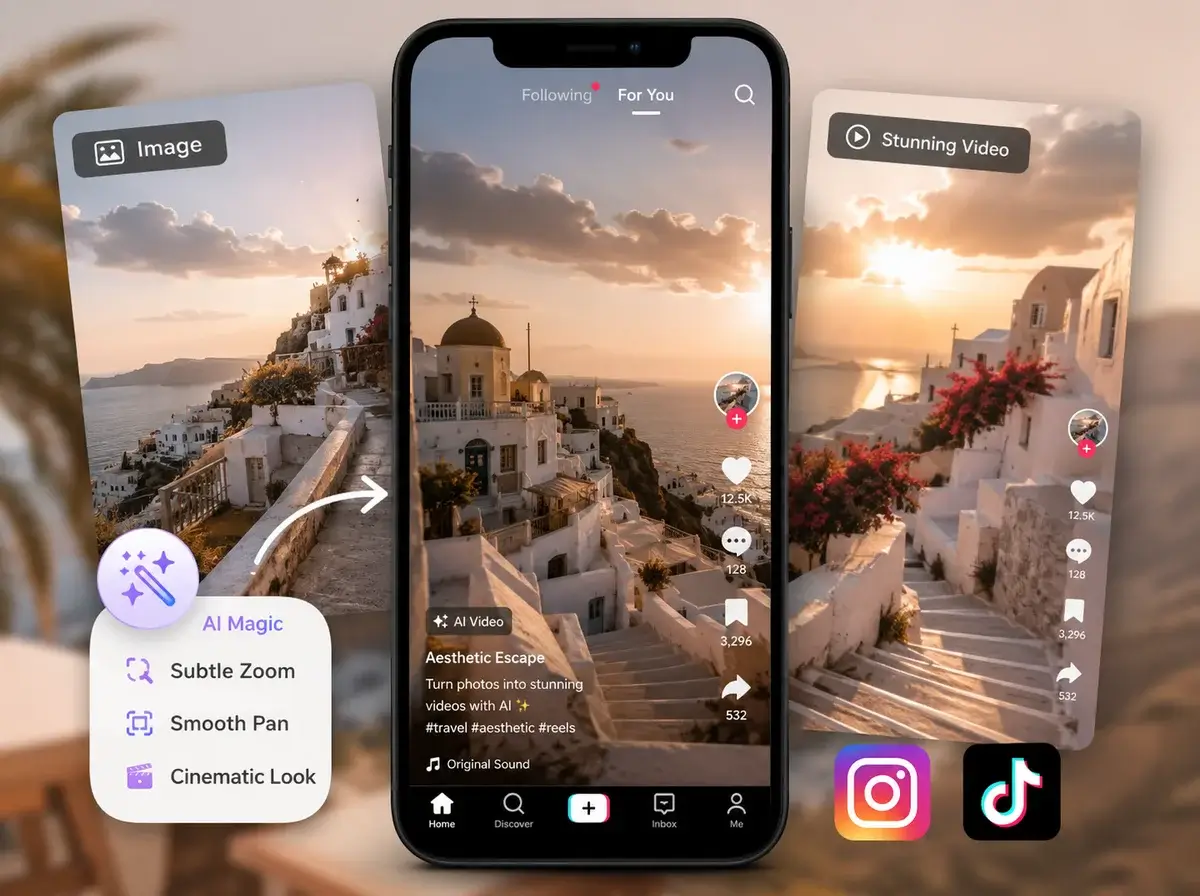
Content creators use our AI video maker free to transform static aesthetic photos into trending short-form videos. This image to video AI free feature adds subtle zoom and pan effects, making your Instagram Reels and TikToks stand out in crowded feeds and driving higher audience engagement.

What Users Say About Our Vmake AI Video Generator

Incredible Tool for Daily Content Creation

"As a social media manager, I need fast results. The Vmake AI video generator is a lifesaver! The image to video AI free unlimited feature lets me test multiple animations for my campaigns without worrying about credits. It's truly the best free image to video AI I've used."

Sarah Jenkins
Female

Perfect for My E-Commerce Store

"I run a Shopify store and needed an AI video generator from photo to showcase my jewelry. This free AI photo to video generator added beautiful, realistic sparkle and motion to my static shots. My conversion rate went up by 20% in just one week!"

Marcus Chen
Male

No Limits Means True Creative Freedom

"Most tools restrict you after three videos, but this AI video generator no limits policy is amazing. I can render dozens of drafts for my short films. The unlimited credits for AI video generator tasks make it an essential part of my daily creative workflow."

Elena Rodriguez
Female

Super Easy to Use Online

"I'm not a tech expert, but this AI video maker free is so intuitive. I just upload a picture, click generate, and get a stunning clip. The fact that it's an AI video generator free no sign up no limits initially hooked me, and the quality kept me staying."

David O'Connor
Male

Great for YouTube B-Roll

"I use the AI YouTube video generator to create B-roll for my tech reviews. The camera movements are incredibly smooth. It's easily one of the best free AI video generators out there, saving me hours of searching for stock footage online."

James Wright
Male

High-Quality Exports Without Watermarks

"Finding a no limit AI video generator that doesn't slap a huge watermark on your work is rare. This free AI video generator no limits approach allows me to export clean, 4K videos for my client presentations. Highly recommended for professionals!"

Aisha Patel
Female

Incredible Tool for Daily Content Creation

"As a social media manager, I need fast results. The Vmake AI video generator is a lifesaver! The image to video AI free unlimited feature lets me test multiple animations for my campaigns without worrying about credits. It's truly the best free image to video AI I've used."

Sarah Jenkins
Female

Perfect for My E-Commerce Store

"I run a Shopify store and needed an AI video generator from photo to showcase my jewelry. This free AI photo to video generator added beautiful, realistic sparkle and motion to my static shots. My conversion rate went up by 20% in just one week!"

Marcus Chen
Male

No Limits Means True Creative Freedom

"Most tools restrict you after three videos, but this AI video generator no limits policy is amazing. I can render dozens of drafts for my short films. The unlimited credits for AI video generator tasks make it an essential part of my daily creative workflow."

Elena Rodriguez
Female

Super Easy to Use Online

"I'm not a tech expert, but this AI video maker free is so intuitive. I just upload a picture, click generate, and get a stunning clip. The fact that it's an AI video generator free no sign up no limits initially hooked me, and the quality kept me staying."

David O'Connor
Male

Great for YouTube B-Roll

"I use the AI YouTube video generator to create B-roll for my tech reviews. The camera movements are incredibly smooth. It's easily one of the best free AI video generators out there, saving me hours of searching for stock footage online."

James Wright
Male

High-Quality Exports Without Watermarks

"Finding a no limit AI video generator that doesn't slap a huge watermark on your work is rare. This free AI video generator no limits approach allows me to export clean, 4K videos for my client presentations. Highly recommended for professionals!"

Aisha Patel
Female

News

Meigen-AI Video Generator: Complete Review of Features, Pricing & Real Results [2026]

Meigen-AI Video Generator: Complete Review of Features, Pricing & Real Results [2026]

A single YouTube tutorial featuring Meigen AI’s open-source InfiniteTalk model has pulled in over 237,000 views — yet most viewers still have no clear picture of what the broader Meigen platform actually does. Between multiple domains and a sprawling feature set, evaluating this tool takes real effort. The AI video generation market is crowded, and Meigen AI’s fragmented ecosystem only adds to the noise. Creators wrestle with opaque credit systems, subscription fatigue, and the persistent question of whether any free tier delivers genuine value. This guide provides an honest evaluation of Meigen AI — covering its prompt gallery, multi-model video generation, InfiniteTalk lip-sync, and credit economics — so you can decide before spending a single credit. What Is Meigen AI? Meigen AI is not a single product but an interconnected ecosystem of AI creative tools spanning video generation, image editing, lip-sync technology, and developer integrations. The Meigen Ecosystem Explained (meigen.cc, meigen.co, meigenai.net & More) The brand operates across several domains: On the open-source side, the MeiGen-AI GitHub hosts InfiniteTalk and MultiTalk under the Apache 2.0 license, widely adopted in the ComfyUI community. Who Is Meigen AI For? Content creators benefit from the prompt gallery and rapid generation. Designers get a Figma plugin for in-tool creation. Developers access a 1,400+ prompt library via MCP server integration with Claude Code, Cursor, and Codex. Marketing teams leverage multi-model access for diverse campaign needs. Meigen AI Key Features: A Full Breakdown No single competing article covers the entire Meigen feature set. Here is what the platform offers. AI Prompt Gallery (3,000+ Reusable Prompts) This is arguably the platform’s true differentiator. The gallery works like a Pinterest-style feed where you browse, copy, and remix proven prompts. Since May 2026, every prompt generates a shareable URL. Think of it as a creative starting library rather than a blank canvas. Text-to-Video Generation Meigen aggregates multiple AI video models under one roof: Seedance 2.0, Veo 3.1, Sora 2, Kling 3.0, Wan 2.6/2.7, and Gemini Omni. This multi-model approach directly addresses the subscription fatigue that AI communities consistently cite as their top frustration. Image-to-Video Animation Upload a product shot, portrait, or concept frame and convert it into a short animated clip. Controls include aspect ratio, motion intensity, and duration, with average generation time around 60 seconds. InfiniteTalk: AI Lip-Sync & Talking Videos InfiniteTalk is the standout open-source offering. It takes a single portrait image plus audio and produces lip-synced talking videos of virtually unlimited length — up to 10 minutes per pass. Features include multi-character conversations, singing mode, full-body animation, and resolution options from 480P to 1080P. For many creators, it is a viable alternative to subscription-heavy platforms like HeyGen. MultiTalk: Multi-Person Conversation Videos MultiTalk handles something no other tool currently does: simultaneous multi-speaker lip-sync with pose and body control. It supports anime, 3D, and live-action output — useful for dialogue scenes, interviews, and animated storytelling. Reference Image Generation The platform generates up to 12 reference images from a prompt and can reverse-engineer prompts from uploaded images. Experienced users note that reference image quality is often the single biggest variable affecting output quality. Figma Plugin & MCP Developer Tools The Figma plugin supports icon generation, PNG/JPG-to-SVG conversion, and Sora2 video with 20 free daily credits. The MCP server connects a 1,400+ prompt library to code editors. Both features have virtually zero third-party coverage — a significant untapped advantage. How to Use Meigen AI Video Generator (Step-by-Step) Getting Started with Free Credits Create an account on meigen.cc to receive 20 free credits daily. On meigenai.net, new accounts start with 300 credits. The free tier works for exploration, but sustained production requires a paid plan. Creating a Text-to-Video from the Prompt Gallery Browse the gallery, find a prompt that fits your vision, select a model (Seedance 2.0 for cinematic quality or Kling 3.0 for realism), and generate. Starting from a proven prompt dramatically reduces wasted credits. Turning a Product Image into an Animated Video Upload your image, set aspect ratio for your target platform, adjust motion intensity, and generate. The process typically completes in under a minute. Creating a Talking-Head Video with InfiniteTalk Upload a clear portrait, add your audio file, select a resolution tier, and generate. You can use the cloud version via credits or install InfiniteTalk locally through ComfyUI for free generation with a compatible GPU. Meigen AI Pricing & Credit Economics Credit transparency is the top concern in AI communities. Here is what the numbers look like. Free Tier vs. Paid Plans meigen.cc offers one-time credit packs: Free (20/day), Starter ($9.99 for 1,000), Pro ($19.99 for 2,200), and Ultimate ($49.99 for 6,000). meigen.co uses annual subscriptions: Starter $99.90/year (7,920 credits), Pro $199.90/year (13,200), and Premium $399.90/year (30,000). The one-time pack model avoids subscription lock-in. Credit Consumption by Feature (Real Numbers) InfiniteTalk cloud pricing by resolution: 480P = 5 credits per 5 seconds, 720P = 10 credits, 1080P = 15 credits per 5-second segment. A 30-second talking-head video at 720P consumes roughly 60 credits. How Far Do Your Credits Actually Go? On the free tier (20 credits/day), expect one or two short test videos daily. The Starter pack (1,000 credits) covers roughly 15-17 videos at 720P/30 seconds. For production output of 5-10 videos per week, plan on Pro or Ultimate tier. Remember: failed iterations also consume credits. Meigen AI vs. Top AI Video Generators Meigen AI vs. HeyGen HeyGen is the established talking-head platform, but community feedback frequently describes its output as “plasticky.” InfiniteTalk delivers more natural expressions and offers a locally deployable open-source alternative at a fraction of the ongoing cost. Meigen AI vs. Kling AI Kling consistently ranks highest for prompt-to-video realism and offers a more generous free tier at 66 daily credits versus Meigen’s 20. However, Meigen provides access to Kling models within its platform, letting users compare without switching services. Meigen AI vs. Google Veo 3.1 Veo 3.1 is genuinely free through Google AI Studio (rate-limited) and generates audio alongside video in one pass. Meigen includes Veo 3.1 as a selectable model, adding workspace

JoyFun AI Video Generator Review 2026: Features, Pricing, and Honest Results

JoyFun AI Video Generator Review 2026: Features, Pricing, and Honest Results

JoyFun AI pulls 3 to 4 million monthly visitors with a bold promise: free video generation, no sign-up required. But if you have ever clicked on a “free AI video generator” only to hit a paywall moments later, you know how common bait-and-switch tactics are in this space. So what does JoyFun AI video generator actually deliver? We tested every major feature — face swap, image-to-video, text-to-video, and one-click effects — then compared results against leading competitors. This review covers real capabilities, transparent pricing, and an honest verdict on whether JoyFun deserves your time in 2026. What Is JoyFun AI Video Generator? JoyFun AI is a browser-based video generation platform that bundles several creative tools into a single interface. It targets casual creators and social media users who want fast results without complex editing software. What sets it apart is immediate access — no email, no password, no verification. The platform uses a credit-based system where each generation consumes credits based on the tool, resolution, and duration selected. How JoyFun AI Works Upload an image or type a text prompt, pick your preferred AI model and output settings (resolution up to 1080p, duration of 6 or 10 seconds), and hit generate. Rendering happens server-side, so your local hardware does not matter. Free users receive a daily credit allotment that resets every 24 hours, while paid subscribers get monthly pools or unlimited access. AI Models Powering JoyFun AI JoyFun integrates several third-party models: Sora Engine, Kling 2.1, Seedance 1.5 Pro, Wan 2.6, and Runway Gen-3. Each brings different strengths — Kling handles realistic motion well, while Seedance excels at cinematic quality. Worth noting: competitors like Nereo and Pollo AI already offer Kling 3.0 and Seedance 2.0. JoyFun’s model lineup sits a generation behind the latest releases. JoyFun AI Key Features Tested Here is what we found testing the four core tools most users care about. Face Swap (Photo and Video) Face swap is JoyFun’s signature feature. Upload a source face and a target image or video clip, and the tool maps the face onto the target with reasonable accuracy. Photo swaps produce cleaner results than video swaps, where inconsistencies sometimes appear between frames. JoyFun handles simple, front-facing swaps competently, but complex angles or fast movement can introduce artifacts — a common challenge across the industry where most tools still struggle with face consistency across consecutive frames. Image-to-Video Generator Upload a clear image, add a motion prompt describing how you want the scene to animate, select your resolution (512p, 768p, or 1080p) and duration (6 or 10 seconds), and generate. Output quality depends heavily on the source image — community consensus suggests the reference image drives roughly 80% of the final result. The 10-second ceiling is the main drawback here. Every video tops out at 10 seconds regardless of your plan, which limits practical use for anything beyond short social clips. Text-to-Video Generator Text-to-video lets you create scenes entirely from written descriptions. Detailed, specific prompts yield significantly better results than vague ones. Describing camera angles, lighting, and movement in your prompt helps the model produce more coherent output. Results are usable for quick social media content, but do not expect the photorealistic consistency you would get from dedicated tools like Kling 3.0 or Seedance 2.0. One-Click Video Effects This is where JoyFun carves out a genuine niche. Preset effects — including AI Dance Video, AI Kissing Video, and AI Hair Color Changer — let you generate share-ready clips with a single tap. No prompt engineering required. For casual creators who want a quick TikTok or Instagram Reel without learning complex tools, these one-click presets offer real convenience that most competitors lack. JoyFun AI Pricing and Plans Breakdown The pricing question dominates nearly every online discussion about JoyFun AI. Here is the full breakdown. Free Plan — What You Actually Get The free tier provides 10 to 50 daily credits with no account required. You also get 3 image messages per day, up to 3 custom personas, and ads are displayed throughout the experience. In practical terms, those credits translate to roughly 2 to 5 video generations per day depending on your chosen resolution and duration. That is enough for light experimentation, but not for consistent content production. Standard Plan ($9.99/month) The mid-tier plan unlocks 5,000 monthly credits, 20 to 100 image messages per day, unlimited text chats, short-term memory, and up to 20 custom personas. Annual billing drops the price by 10%. Power users may still find themselves rationing credits toward the end of each billing cycle. Premium Plan ($19.99/month) The top tier offers unlimited credits and image messages, long-term memory, and up to 50 custom personas. Annual billing brings the effective price down to roughly $15.99 per month (a 20% discount). The unlimited ceiling removes the credit anxiety that plagues lower tiers. Is the Free Tier Worth It? For testing the platform and producing occasional clips, yes. For anything resembling regular content creation, the free tier falls short. The daily credit cap, ad interruptions restrictions mean most serious users will either need to upgrade or look at alternatives. JoyFun AI vs Top Competitors Choosing the right tool depends on what matters most to you. Here is how JoyFun stacks up against four major alternatives. Feature JoyFun AI Kling AI Pollo AI JoyPix AI AI Image to Video Sign-up Required No Yes Yes Yes Yes Max Resolution 1080p 1080p 1080p 1080p 4K Max Duration 10s 10s+ Varies 3-16s Varies Watermark-Free Paid only Paid only Paid only Free tier Free tier Batch Processing No No No No Yes One-Click Effects Yes No Yes Yes No JoyFun AI vs Kling AI Kling AI earns the strongest organic recommendations across Reddit for physics simulation, motion realism, and photorealistic humans. Kling 3.0 represents a clear quality leap over JoyFun’s integrated Kling 2.1. The tradeoff: Kling’s free tier has 45-minute queue times, while JoyFun offers instant access with no account. JoyFun AI vs Pollo AI Pollo AI positions itself as the production-ready option with over 100

Freebeat AI Music Video Generator: Honest Review, Tutorial & Best Alternatives (2026)

Freebeat AI Music Video Generator: Honest Review, Tutorial & Best Alternatives (2026)

With over 125,000 views on a single YouTube review and a user base spanning 100+ countries, the Freebeat AI music video generator is one of the most talked-about tools in the AI music space. It also holds a 1.7-star rating on Trustpilot. So what’s actually going on? Most AI video tools treat your audio as an afterthought, and Freebeat’s polarizing reputation makes it hard to judge. This guide delivers an honest breakdown of Freebeat AI’s features, real-world pricing, step-by-step usage, and the strongest alternatives available right now. What Is the Freebeat AI Music Video Generator? Freebeat.ai bills itself as the world’s first fully autonomous AI music video generator. It’s built around a proprietary music-vision model trained on a massive dataset of beat-paired audio-visual content. How Freebeat AI Works: Audio-as-Prompt Technology Rather than relying on text prompts like Runway or Pika, Freebeat treats your music as the creative driver. The system analyzes your track’s tempo, structure, mood, and lyrics to generate matching visuals. Each playback produces a unique visual interpretation of the same song. Freebeat.ai vs. Freebeatfit: Clearing Up the Brand Confusion Searching “freebeat” often surfaces exercise bike results. Freebeat.ai (AI video tool) is completely separate from Freebeatfit (fitness brand). Double-check you’re on the right site. Who Is Freebeat AI Designed For? The tool targets independent musicians, Suno/Udio creators needing visuals for AI-generated tracks, social media producers, DJs promoting releases, and hobbyists who want music videos without editing software. Key Features of the Freebeat AI Music Video Generator Three Creation Modes: Automatic, Singing, and Storytelling Automatic delivers one-click generation from your track. Singing adds lip-synced AI avatars. Storytelling builds cinematic narrative videos with scene progression. Each mode suits different goals — quick social posts, performance content, or polished YouTube premieres. Beat Sync and Audio-Reactive Visuals Visual transitions align to downbeats, drum hits, and chorus changes instead of random intervals. The proprietary “Onbeat Effect” makes your video feel choreographed to the music rather than generically assembled. AI Music Video Agent (MV Agent) The MV Agent earned “breakthrough” praise on Reddit. It automates the full pipeline: song analysis, creative direction via prompts, storyboard generation, and one-click rendering. Some users report “pathing problems” where the agent makes unexpected creative choices. Bundled AI Video Models and All-In-One Hub Freebeat integrates multiple frontier models — Kling 2.1, Luma Ray2, Runway Gen-3, Pika 2.2, Veo 2/3, and others — in one interface. Some users argue this amounts to reselling existing technology at a premium. Lip Sync, Lyric Videos, and Album Cover Animation Lip sync is available but credit-intensive — approximately 406 credits per 15 seconds, scaling to ~4,872 credits for a three-minute track. Lyric overlay and album cover animation round out the toolkit. Export Options: YouTube, TikTok, Reels, and Shorts Supported aspect ratios include 16:9 for YouTube and 9:16 for TikTok, Reels, and Shorts. Resolution goes up to 4K, and downloads are available with or without lyric overlays. How to Create a Music Video with Freebeat AI (Step-by-Step Tutorial) Step 1 – Upload Your Track or Paste a Link Upload MP3/WAV files, or paste links from Spotify, YouTube, SoundCloud, Suno, Udio, or TikTok. The Suno integration is particularly smooth — users praise the direct link-paste workflow. Step 2 – Choose Your Creation Mode and Visual Style Select your mode, then pick a visual preset. Options include noir cinematic, vibrant pop, and glitch aesthetic. Genre tips: noir complements hip-hop, bright palettes suit pop, glitch fits EDM, and muted tones work for lo-fi. Step 3 – Preview, Edit Your Storyboard, and Customize Review the storyboard before spending credits. Caution: the “Continue” button can accidentally trigger a merge that destroys your project and wastes credits. Step 4 – Generate, Download, and Export Expect 5-7 minutes of processing per minute of video. If generation stalls (a common issue), credits are consumed without automatic refund. Download and export once rendering completes. Freebeat AI Pricing: What It Really Costs Free Plan: What You Actually Get The free tier yields approximately 20 seconds of usable footage. As one Reddit user noted, free tiers across AI video tools rarely deliver meaningful output. Credit System Explained: Cost Per Minute of Video Reported costs vary widely: a $26/month plan might produce 3-4 minutes with retries, while one user was quoted $115 for a single three-minute track. Lip sync burns through credits far faster than Automatic mode. Paid Plans: Which Tier Is Right for You? Casual creators may manage on a basic plan. Musicians releasing multiple tracks monthly should budget for higher tiers. A Pro Annual plan is available through ProAudioStar for better per-credit value. Hidden Costs: Retries, Failed Renders, and Credit Burn The biggest expense is iteration. Every retry consumes more credits. Multiple Trustpilot reviewers report losing credits with no usable output in return. Freebeat AI Pros and Cons: The Honest Verdict What Freebeat AI Does Well Where Freebeat AI Falls Short Customer Service and Subscription Management Concerns Freebeat holds a 1.7/5 Trustpilot rating with 75% one-star reviews. Complaints center on unresponsive support, Discord banning users who raise issues, and hidden cancellation options. Multiple YouTube commenters report continued billing after attempting to cancel. Freebeat AI vs. Top Competitors: Head-to-Head Comparison Freebeat AI vs. Neural Frames Neural Frames specializes in abstract, audio-reactive visuals for electronic and experimental genres. It lacks song-structure understanding, while Freebeat provides end-to-end generation with beat awareness but less reliable output. Freebeat AI vs. Kaiber Kaiber offers Beat Sync through its Superstudio feature starting at $5/month, making it the most affordable entry point. It handles short audio-reactive clips well but can’t generate full-song videos. Freebeat AI vs. AirMusic AI AirMusic AI is gaining Reddit credibility for tracking musical structure — detecting tempo shifts, mood changes, and verse-chorus transitions. It’s becoming the most recommended Freebeat alternative. Freebeat AI vs. Runway ML Runway’s Gen-4.5 produces the highest-quality clips but has no music awareness. It requires manual editing in Premiere or DaVinci Resolve to assemble a music video. Freebeat AI vs. DIY Workflow (Kling + CapCut/DaVinci) Generating clips in Kling or Grok, then beat-aligning them in CapCut

Deevid AI Kissing Video Generator: Honest Review, Tutorial & Best Alternatives (2026)

Deevid AI Kissing Video Generator: Honest Review, Tutorial & Best Alternatives (2026)

AI kissing video generators have become some of the most searched creative tools of 2026. But after sifting through dozens of product pages, Reddit threads, and YouTube reviews, one thing is clear: most “guides” are just marketing in disguise. Users consistently report the same frustrations — tools marketed as “free” that aren’t, confusing credit systems, and surprise billing. This guide provides a transparent look at DeeVid AI, a practical walkthrough, honest pricing, and a head-to-head comparison of the top alternatives. What Is an AI Kissing Video Generator? These tools transform static photos into short animated clips of people kissing. They use AI to analyze facial features, predict natural motion, and generate frame-by-frame video from a single image or photo pair. How AI Kissing Video Technology Works The core technology uses facial landmark detection — the AI maps key facial points (eyes, nose, lips, jawline) and synthesizes realistic kissing motion. The same tech powers AI lip sync and hug generators. Most tools produce 5-to-15-second clips, with sustained motion beyond 10 seconds remaining technically challenging. Image-to-Video vs Text-to-Video: Which Works Better for Kiss Videos? Image-to-video is the preferred method. Upload a real photo, and the AI animates it while preserving likenesses. Text-to-video creates characters from prompts, offering more creative freedom for fictional content but less control over the final look. For personal photos, image-to-video delivers better results. DeeVid AI Kissing Video Generator: An Honest Look What Is DeeVid AI? DeeVid AI is a Singapore-based platform offering text-to-video, image-to-video, and video-to-video generation across web, iOS, and Android. It integrates models including Google Veo 3, with kissing videos being one of many features alongside lip sync, avatars, and ad creation. Key Features for Kissing Videos DeeVid provides a dedicated AI Kissing template with multiple styles, support for couple photos and separate portraits, and three model tiers — Fast V2.0 (quick previews), Quality V2.0, and Master V2.0 (highest fidelity). The AI Hug Generator and Lip Sync features complement the kissing tool. DeeVid AI’s Template-Based Approach (No Prompt Needed) DeeVid’s standout advantage is its no-prompt template system. Unlike competitors where results depend on prompt-writing skill, you simply upload a photo and select a template. This makes it genuinely beginner-friendly. What Real Users Are Saying DeeVid holds a 1.6 out of 5 on Trustpilot (159 reviews, 76% one-star). Key complaints include: On the positive side, free trial quality is decent, the template approach works well, and early users found it comparable to Kling AI for short clips. How to Make an AI Kissing Video with DeeVid AI (Step-by-Step) Step 1: Sign Up and Understand Your Free Credits Create an account to receive 20 free credits. Each kissing video costs about 10 credits, so your free allowance covers roughly 2 videos. Credits expire after 30 days. Step 2: Choose the AI Kissing Template Navigate to the kissing templates and select a kiss style. No prompt writing is required. Step 3: Upload Your Photo(s) Upload a couple photo or two individual portraits. Photo quality determines output quality — use well-lit, clear images with visible facial features and side-profile or three-quarter angles. Step 4: Customize Your Kiss Style and Settings Select your kiss style and model tier. Use Fast V2.0 for cheap previews, then Quality or Master for final renders. Higher-quality models consume more credits. Step 5: Generate, Preview, and Download Generation takes 20-60 seconds. Preview before downloading. Be cautious of the “No Limit” button, which users report triggers unintended purchases. Tips for Creating Realistic AI Kissing Videos Photo Selection Tips (Lighting, Angle, Resolution) Best Prompt Ideas for Different Kiss Styles For prompt-based tools: Common Mistakes to Avoid What DeeVid AI Actually Costs (Pricing Breakdown) Free Trial: What You Really Get DeeVid’s 20 free credits yield about 2 kissing videos. Compare with Vidu AI (fully free), Virbo (“100% free unlimited”), and MyEdit (daily free credits). “Free” means very different things across tools. Paid Plans: Credit Costs and Hidden Charges Paid plans start at $14/month, but the variable credit system means actual output depends on model and video type. Reddit users report getting 12-25 videos from plans advertised as “40 videos.” Annual billing defaults have caught subscribers off guard. Cost-Per-Video: The Real Math At $14/month for 12-25 outputs, DeeVid costs roughly $0.56-$1.17 per video. Higgsfield runs $150-300 per cinematic reel at the premium end, while KissGen AI offers a $5 lifetime deal. Billing Pitfalls to Watch Out For Best AI Kissing Video Generators Compared (2026) DeeVid AI — Best for No-Prompt Beginners Template-based and beginner-friendly, but the 1.6/5 Trustpilot score warrants caution on paid plans. Pollo AI — Best for Multi-Model Access Access Sora 2, Veo 3, Seedance 2.0, and Kling AI through one dashboard. 4.3/5 Trustpilot across 4,000+ reviews. Virbo (Wondershare) — Best for Customization French wedding kiss, parental affection, passionate embrace styles with scene settings like beach sunset. Wondershare brand adds trust. Media.io — Best for Multiple Kiss Effects Named romantic templates (Peak of Eternity, Moonlit Beach Kiss) and a unique Multi-Person Kiss Filter. VEED.IO — Best for Content Creators Full editing suite (subtitles, voiceover, music) with multi-model backend. 4.6/5 rating, used by Fortune 500 companies. Vidu AI — Best Free Option Genuinely free with anime and fictional character focus. Upload, select a template, generate — no credit card needed. ComfyUI + CivitAI — Best for Privacy (Local Generation) Unlimited free generation on your own GPU with community-built kissing LoRAs. Nothing gets uploaded. Requires technical setup. For a simpler privacy-focused alternative with watermark-free output, AI Image to Video handles image-to-video generation without the hardware requirements. Quick Comparison Table Tool Free Tier Paid Price Prompt Needed? Watermark? Trust Score DeeVid AI ~2 videos $14/mo No Varies 1.6/5 Pollo AI Limited Varies Yes Varies 4.3/5 Virbo Claims unlimited Paid tiers Yes Varies N/A Media.io Limited Paid tiers No Yes (free) N/A VEED.IO No card needed Paid tiers Yes Yes (free) 4.6/5 Vidu AI Fully free None No No N/A AI Image to Video Available Paid tiers Yes No N/A ComfyUI Unlimited Free (GPU) Yes No N/A AI Kissing Video Use

InShot vs CapCut in 2026: Which Video Editing App Is Actually Worth It?

InShot vs CapCut in 2026: Which Video Editing App Is Actually Worth It?

CapCut nearly doubled its Pro price, got banned in the US and India, and rewrote its Terms of Service to claim rights over user content. Meanwhile, InShot quietly became the go-to mobile editor for millions of displaced creators. So which app actually deserves your time in 2026? This guide delivers an honest breakdown of features, pricing, privacy, and real-world use cases to help you choose the right editor. InShot vs CapCut at a Glance: Quick Comparison Table Summary Comparison Table Feature InShot CapCut Developer SHANTANU PTE. LTD. ByteDance (TikTok parent) Platforms iOS, Android iOS, Android, Desktop, Web Free Tier Core tools (ads + watermark) Core tools (no watermark) Paid Plans $3.99/mo · $15–20/yr · $40–50 lifetime ~$10–20/mo (Pro) AI Features Basic AI cut Auto captions, background removal, TTS Max Export 4K 4K Video Length Limit None 15 minutes Available in US/India Yes Banned since Jan 2025 Trustpilot Rating N/A 1.2 / 5 Best For Budget creators, beginners, families TikTok creators, advanced mobile editing What Is InShot? InShot is a mobile-first video editor from SHANTANU PTE. LTD., built to get creators from raw footage to a finished post in minutes. Key Features and Strengths Core tools include trim, cut, split, merge, crop, rotate, plus speed adjustment, filters, transitions, text, stickers, music, voiceover, background blur, and color correction. Pro unlocks chroma key and extra effects. InShot supports 4K export on its free plan with no video length limit. Who Is InShot Best For? Beginners, mobile-only editors, budget-conscious influencers, and families. Its lack of a social feed makes it a safer pick for younger users — something Bark has specifically highlighted. What Is CapCut? CapCut is ByteDance’s video editor, tightly woven into the TikTok ecosystem. It gained dominance by offering pro-level tools for free — though that equation has shifted considerably since 2025. Key Features and Strengths CapCut offers multi-layer timeline editing, AI auto-captions (~94% accuracy, 23 languages), AI background removal, text-to-speech, script-to-video, speed ramping, keyframing, and a massive TikTok-synced template library. It also includes royalty-free audio, beauty filters, and auto-reframe across mobile, desktop, and web. Who Is CapCut Best For? TikTok/Reels creators wanting trend-aligned templates, users who rely on AI editing tools, and editors needing a cross-platform workflow across phone, laptop, and browser. Feature-by-Feature Comparison User Interface and Ease of Use InShot uses a clean, single-track layout — most users produce their first video within minutes. CapCut’s multi-track timeline is more capable but has a steeper initial learning curve. AI Features: Auto Captions, Background Removal, and Text-to-Speech CapCut pulls far ahead here. Its auto-captioning benchmarks around 94% accuracy, and it offers AI background removal, voiceovers, and script-to-video. InShot has a basic AI cut tool but can’t match this depth. Note: many of CapCut’s AI features now require Pro. Templates, Effects, and Filters CapCut’s template library is enormous and continuously refreshed with TikTok trends. InShot’s collection is smaller but stable — you won’t find favorite effects suddenly paywalled, a recurring CapCut frustration. Audio and Music Tools Both include music libraries and basic editing. However, creators report that CapCut introduces background noise on export — a dealbreaker for music content. InShot’s audio handling is simpler but more reliable. Text, Titles, and Captions CapCut offers richer text animations and more fonts. InShot’s text tools are basic but functional. CapCut’s removal of its font search bar remains a sore point for many users. Export Quality and Format Options Both export up to 4K. Some users report InShot slightly reduces clarity, while CapCut has documented audio artifacts. Key difference: CapCut caps videos at 15 minutes; InShot has no limit. Timeline and Multi-Track Editing CapCut’s multi-layer timeline with keyframing handles complex projects far better. InShot’s single-track editor is faster for simple edits but limits layering and precise timing. Pricing Comparison: Free vs Paid Plans InShot Pricing Breakdown CapCut Pricing Breakdown Formerly free features like audio import and fade effects have been quietly moved behind the paywall. The True Cost: InShot Lifetime vs CapCut Subscription Over two years, InShot’s lifetime plan costs $50 once. CapCut Pro at $20/month totals roughly $480. Even at the lower official rate, CapCut runs $192–$240. As one Reddit user put it, InShot is “basically the same program” at a fraction of the cost. Safety, Privacy, and Terms of Service Both apps are owned by Chinese companies, and the privacy details matter more than most comparison articles suggest. CapCut’s Data Collection and Content Rights ByteDance’s TOS grant an irrevocable, perpetual, royalty-free license to all user content. CapCut collects personal, device, behavioral, and location data, and requires internet for many features. Its 1.2/5 Trustpilot rating reflects widespread complaints about impossible cancellations and bot-only support. InShot’s Privacy Practices SHANTANU PTE. LTD. is also China-based — a fact rarely disclosed. TechRadar scored InShot 0 out of 5 on privacy, citing 100+ tracking vendors and demands for full photo library access. InShot isn’t the privacy champion some assume. Which App Is Safer for Kids and Families? InShot wins clearly: no social feed, no community features, no stranger interactions. Bark and ProtectYoungEyes recommend it. CapCut embeds a social feed with stranger comments and offers no parental controls. CapCut Ban: Availability and What It Means for Creators Where Is CapCut Banned and Why? CapCut was removed from US and Indian app stores on January 19, 2025 under legislation targeting ByteDance-owned applications over data privacy and national security concerns. How Creators Are Adapting Most displaced creators migrated to InShot and VN Video Editor as natural mobile replacements. Others moved to DaVinci Resolve on desktop or browser editors like Flixier. VPN workarounds exist but are unreliable long-term. Pros and Cons InShot Pros and Cons Pros: Cons: CapCut Pros and Cons Pros: Cons: Which App Should You Choose? (Use-Case Recommendations) Best for Beginners InShot wins. Its minimal interface and single-track editor mean less overwhelm and a faster path to your first finished video. Best for TikTok and Short-Form Creators CapCut wins (where accessible). Native TikTok integration, trending templates, and superior auto-captions make it purpose-built for short-form. InShot is the fallback in banned regions.

Pictory AI Video Generator: Complete Guide, Honest Review & Alternatives [2026]

Pictory AI Video Generator: Complete Guide, Honest Review & Alternatives [2026]

The AI video market topped $847 million in 2026, yet most creators still struggle with tight budgets and limited editing skills. Pictory AI promises to fix that — turning scripts, blog posts, and URLs into finished videos in minutes. With nearly every YouTube review loaded with affiliate links, honest takes are rare. This guide covers how Pictory works, what it costs, where it shines, where it falls short, and how it stacks up against top alternatives. What Is Pictory AI Video Generator? Pictory AI is a cloud-based platform that converts text-based content into finished videos without editing expertise. It’s best understood as a content repurposing engine — not a cinematic production tool. Over 20,000 companies use it, drawing from more than 10 million stock media files. How Pictory AI Works Users provide text — a script, blog post, URL, or presentation — and Pictory’s AI breaks it into scenes, matches stock footage, adds voiceover, generates captions, and exports a platform-ready video. Five creation modes are available: Script to Video, Article/URL to Video, Edit Video Using Text, Visuals to Video, and the newer AI Studio for prompt-based generation. Key Features Overview Who Is Pictory Best For? Pictory works well for content marketers repurposing blogs, B2B teams scaling video production, faceless YouTube creators, and educators converting lessons into video. It is not ideal for creators needing cinema-quality original footage, professional editors wanting granular control, avatar-focused video, or mobile-first workflows — there is no mobile app. Pictory AI Pricing Plans in 2026 Free Trial — What You Actually Get Pictory’s free trial includes 3 watermarked videos capped at 10 minutes — enough to test the interface but barely sufficient for real evaluation. CapCut exports watermark-free for free, and Kapwing offers watermark-free output at 720p. Paid Plans Breakdown (Standard, Premium, Teams) Plan Price Videos/Month Max Length AI Voices Standard $23/mo ($19 annual) 30 10 min 34 Premium $39/mo 60 20 min 60 Teams $99/mo 90 (3 users) 20 min 60 Enterprise Custom Custom Custom Full access A 15% annual billing discount applies across all tiers. How Pictory’s Pricing Compares to Competitors Tool Monthly Price Free Tier Best For Pictory $23+ 3 videos, watermarked Blog/script to video InVideo AI $28+ 480p exports Template variety Synthesia $18+ (annual) Limited demo AI avatar videos CapCut Free / $7.99 No watermark Budget editing HeyGen $24+ Limited Lip-sync dubbing VEED $12+ With limits Team collaboration Fliki $21+ Limited Multilingual voiceovers How to Use Pictory AI Video Generator (Step-by-Step) Getting Started — Account Setup and Dashboard The dashboard presents four creation modes after signup. Choose based on your starting material: a written script, a published blog URL, a video needing trimming, or your own visual assets. Script to Video — Turn Any Script into a Video Pictory’s most popular mode. Paste your script, and the AI segments it into scenes, assigns stock footage, and adds voiceover. Swap clips, adjust timing, and customize fonts and music before exporting. Pro tip: Use ChatGPT to write scripts with concrete visual descriptions — this improves footage matching accuracy. Expect to manually replace 30–50% of auto-selected clips for best results. Article/URL to Video — Repurpose Blog Content Paste a URL or article text and Pictory extracts key points, builds scenes, and assembles a video summary. This is arguably the platform’s strongest differentiator. Listicles, how-to guides, and data-driven posts tend to produce the best scene matches. Edit Video Using Text — Trim by Editing Transcripts Upload a video and Pictory generates a transcript. Edit the text to cut sections, strip filler words, or trim silence — the video updates accordingly. Great for repurposing webinars and long recordings into short clips. Visuals to Video — Upload Your Own Media Bring your own images, clips, or slides and let Pictory handle voiceover, captions, and formatting. This mode sidesteps the stock footage matching problem entirely while still benefiting from AI narration and auto-captioning. Tips for Getting Better Results with Pictory AI Writing Scripts That AI Matches Accurately Stock footage mismatch is the most common complaint. To minimize it, use concrete, visual nouns instead of abstract concepts. Write one idea per scene, avoid metaphors, and keep sentences short. Bracketed visual cues like “[show: person working at laptop]” can guide the AI toward better selections. Customizing Voiceovers and Audio Built-in voices have received mixed reviews, but the ElevenLabs premium voices on paid plans are a clear upgrade. For maximum quality, record narration externally and upload the audio file into Pictory. Branding and Visual Consistency Premium plans include brand kits — custom logos, color palettes, fonts, and templates. Setting up a brand kit early saves significant time when producing videos at scale. Optimizing Output for YouTube, TikTok, and Instagram Use aspect ratio presets (16:9, 9:16, 1:1) to export platform-optimized versions from one script. For YouTube, also optimize title keywords, descriptions, and chapter markers. Pictory AI Pros and Cons — Honest Assessment What Pictory Does Well Where Pictory Falls Short Is Pictory Worth It in 2026? Yes, if you need to repurpose written content at scale or produce quick social media clips without a video editor. No, if you need original AI footage (Runway or Kling), avatar videos (Synthesia or HeyGen), or a free solution (CapCut). Judge Pictory on its core strength: scalable content repurposing. Pictory vs. Top Alternatives Compared Pictory vs. InVideo AI Both convert text into template-based videos. InVideo offers 10,000+ templates and integrates Sora 2 and VEO 3.1 models; Pictory’s blog/URL-to-video repurposing is stronger. Pictory for content recycling; InVideo for template diversity. Pictory vs. Synthesia Different markets entirely. Synthesia specializes in AI avatar videos for corporate training (200+ avatars, ISO 42001 compliance). Synthesia for enterprise training; Pictory for text-to-stock-video repurposing. Pictory vs. CapCut CapCut offers free watermark-free exports, a full mobile app, and deep editing tools. Pictory is simpler for automated text-to-video but costs more. CapCut for budget editing; Pictory for hands-off automation. Pictory vs. Runway Completely different categories. Runway generates original cinema-grade footage (Gen 4.5); Pictory assembles stock media from text. Runway for creative originals; Pictory for scalable

FAQs About the Vmake AI Video Generator

Is the Vmake AI video generator really free with no sign-up?

Yes. You can start using the AI video generator free no sign up no limits feature immediately. While creating an account unlocks advanced saving options, the core free AI image to video generator tools are accessible right from your browser without forcing you to register or enter payment details.

How does the image to video AI free unlimited credits system work?

Yes, we offer an image to video AI free unlimited experience for standard renders. Our system provides unlimited credits for AI video generator tasks, meaning you can generate as many standard-resolution drafts as you need without hitting a daily paywall or restrictive quota limit.

Can I use this AI photo to video generator free for commercial projects?

Yes. The free AI photo to video generator grants you full commercial rights to the videos you create. Whether you are using the AI video maker free for client ads, e-commerce product showcases, or monetized YouTube channels, you retain complete ownership of your generated content.

What makes this the best free image to video AI compared to others?

Yes, it stands out because it combines high-quality rendering with a no limit AI video generator policy. Unlike other best free AI video generators that restrict exports or add watermarks, our platform ensures your AI video generator from photo outputs remain clean, professional, and ready for publishing.

Does the AI video generator from photo support different aspect ratios?

Yes. The AI video generator from photo supports multiple aspect ratios, including 16:9 for YouTube, 9:16 for TikTok and Reels, and 1:1 for Instagram feeds. You can easily adjust these settings within the free image to video AI generator interface before rendering your final video.

Is there an AI YouTube video generator feature for long-form content?

Yes. While primarily designed for dynamic clips, the AI YouTube video generator capabilities allow you to create seamless B-roll, intros, and transitions. You can generate multiple short clips using the free AI video generator no limits and stitch them together in your preferred editing software.

How long does it take to generate a video using the AI video maker free?

Yes, it is very fast. Typically, the AI video maker free processes your image and generates a high-quality video in under two minutes. The exact time depends on server load and the complexity of the motion applied, but the image to video AI free tool is optimized for rapid rendering.

Can I upload my own images to the free AI image to video generator?

Yes. You can upload your own JPG, PNG, or WebP images directly into the free AI image to video generator. The AI photo to video generator free will analyze your custom uploads, detect depth and subjects, and apply realistic motion to bring your personal or professional photos to life.