Viggle AI Prompts You Can Copy Before the Trend Dies
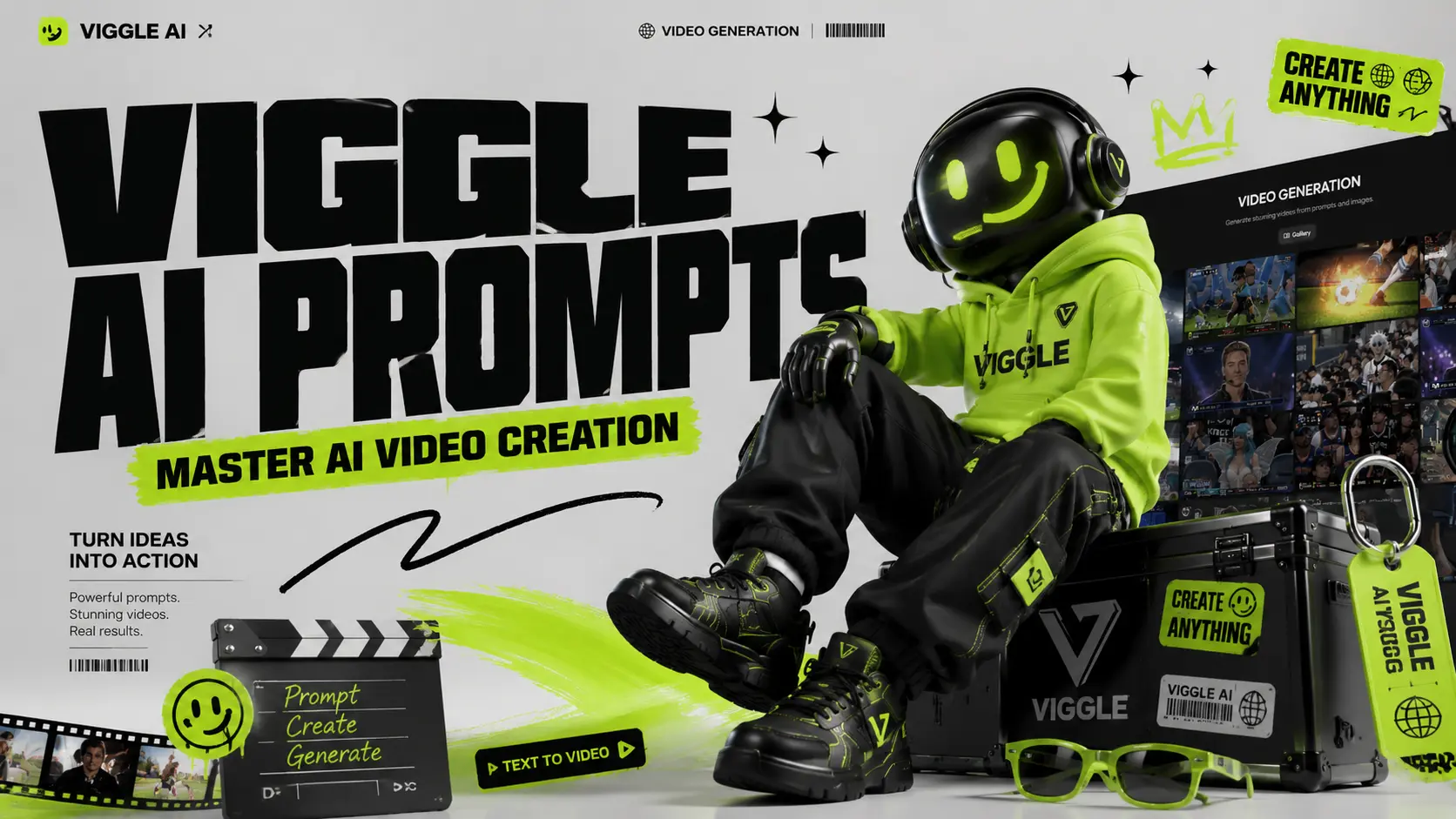
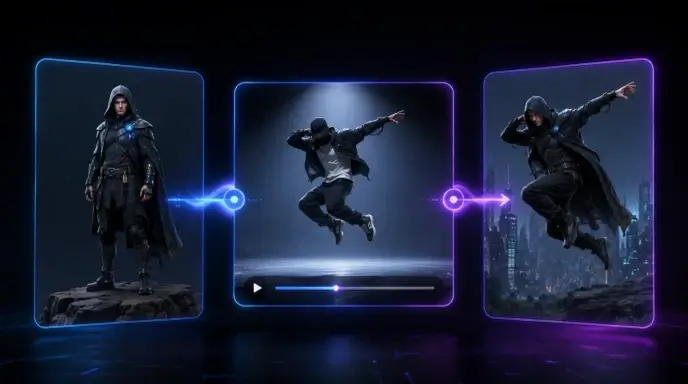
Viral AI videos move fast. One day everyone is making a dancing baby; the next day your feed is full of anime edits, football clips, superhero memes, and lip-sync videos. Viggle AI makes these videos easier to create, but the real shortcut is not the tool itself. It is the prompt. The platform is built for controllable AI video generation, letting users turn photos into dancing, lip-syncing, meme-style, and performance videos. But if your prompt is too vague, your result can look blurry, stiff, or completely off-trend. This guide helps you find practical Viggle AI prompts by category so you can copy, paste, adjust, and generate faster for TikTok, Instagram Reels, YouTube Shorts, memes, fan edits, music videos, and character animations. Where Are Viggle AI Prompts? There are two main places where you can find ready-made AI video prompts on the official Viggle AI website. These prompts come from videos created and shared by real users, so they are useful references if you want to understand how popular Viggle AI videos are made. First path: on the homepage After entering the official Viggle AI website, scroll down until you see the “Video Gallery” section. This area showcases some of the recent popular AI video ideas created with Viggle AI. Click any video in the gallery, and you can view the source materials, prompt, and key settings used to generate that video. If you want to explore more examples, simply click “View More” to browse additional user-created videos. Although the homepage also includes samples such as Sing & Dance, meme creation, and other quick templates, many of these are mainly powered by Viggle AI’s “Mix Video” feature. In this workflow, users can create videos without writing a detailed prompt. However, the result may sometimes look less natural, especially when the character appears to float over the original video layer. This “floating layer” effect will soon be addressed by AI Image to Video’s upcoming Motion Control feature. The second path: Text to Video Click “Text to Video” on the left-side to enter Viggle AI’s video generation page. On this page, Viggle AI also recommends trending AI video examples based on popular usage and creative styles. You can click a recommended video to copy the same configuration into the editing workspace, then study its prompt structure, visual direction, and generation settings. For users who want to create more polished AI videos, ready-made prompts are not just copy-paste templates. They are learning materials. By studying how other creators describe characters, actions, scenes, camera style, and visual mood, you can better understand what makes a prompt effective. Finding Prompts on TikTok, YouTube, and Reddit ● TikTok: Follow the #ViggleAIprompt hashtag for trending prompts attached to viral videos● YouTube: Creator tutorials from channels like AI Andy (177K views) and Sejin AI (138K views) regularly share prompt breakdowns● Reddit: Communities like r/StableDiffusion discuss prompt techniques and compare Viggle results with other tools At AI Image to Video, we aim to make video generation easier while also encouraging users to learn, test, and improve their AI video prompts with different tools and resources. That is why we will continue updating our Prompts Guide blog series. These articles are designed to help users understand how to write better prompts for AI video generation, image-to-video effects, character animation, and viral social media content. You can find our prompt-related articles through the “Prompt” entrance in the top navigation bar of our website. You can also access the series from the “Prompt Enhancer” section on the homepage. Best Viggle AI Dance Prompts Dance videos are the most popular Viggle use case and carry the highest viral potential on TikTok and Instagram Reels. These Viggle AI dance prompts are sourced from trending content and community libraries. Dance prompts are the easiest way to create viral-style clips. They work especially well for TikTok trends, reaction videos, influencer edits, and character memes. Prompt 1:A full-body person wearing a bright neon tracksuit, white sneakers, and sunglasses, standing confidently on a clean white background, high-energy TikTok dance video style. Prompt 2:A person wearing an oversized graphic T-shirt, loose cargo pants, and chunky sneakers, standing straight with arms relaxed, green screen background, trendy streetwear dance video style. Prompt 3:A stylish female performer wearing a glittery stage outfit and boots, standing under colorful concert lights, confident expression, music video performance style. Prompt 4:A male performer in a black leather jacket, dark jeans, and boots, standing in a spotlight on a stage, dramatic pop-star dance performance style. Tip: Dance prompts work best when the outfit has clear shape and contrast. Avoid complicated patterns that may flicker during movement. Best Viggle AI Meme & Comedy Prompts Meme videos work because the character and motion often do not match. A serious character doing a ridiculous dance is funnier than a funny character doing a funny dance. Prompt 1:A serious office worker wearing a formal business suit, holding a folder, standing in a plain office, confused expression, realistic meme video style. Prompt 2:A superhero character wearing a dramatic cape and tight suit, standing in a heroic pose on a green screen background, exaggerated comedy meme style. Prompt 3:A security guard in a clean uniform, standing stiffly at attention in front of a building entrance, serious face, funny viral meme style. Prompt 4:A tired student wearing a hoodie and backpack, standing in a classroom, sleepy expression, relatable school meme style. Tip: The bigger the contrast, the better the meme. Pair serious characters with silly dances, dramatic falls, or awkward movements. Best Viggle AI Anime & Character Prompts Anime prompts need more detail than realistic prompts. Focus on hair, eyes, outfit, and pose. Prompt 1:An anime girl with long blue twin-tail hair, large expressive eyes, wearing a Japanese school uniform with a pleated skirt and knee socks, full body, white background, clean anime style. Prompt 2:An anime boy with spiky silver hair, sharp eyes, wearing a long black coat over a red shirt, combat boots, standing in a ready pose, cinematic anime action style.


Incredible Ease of Use for Beginners
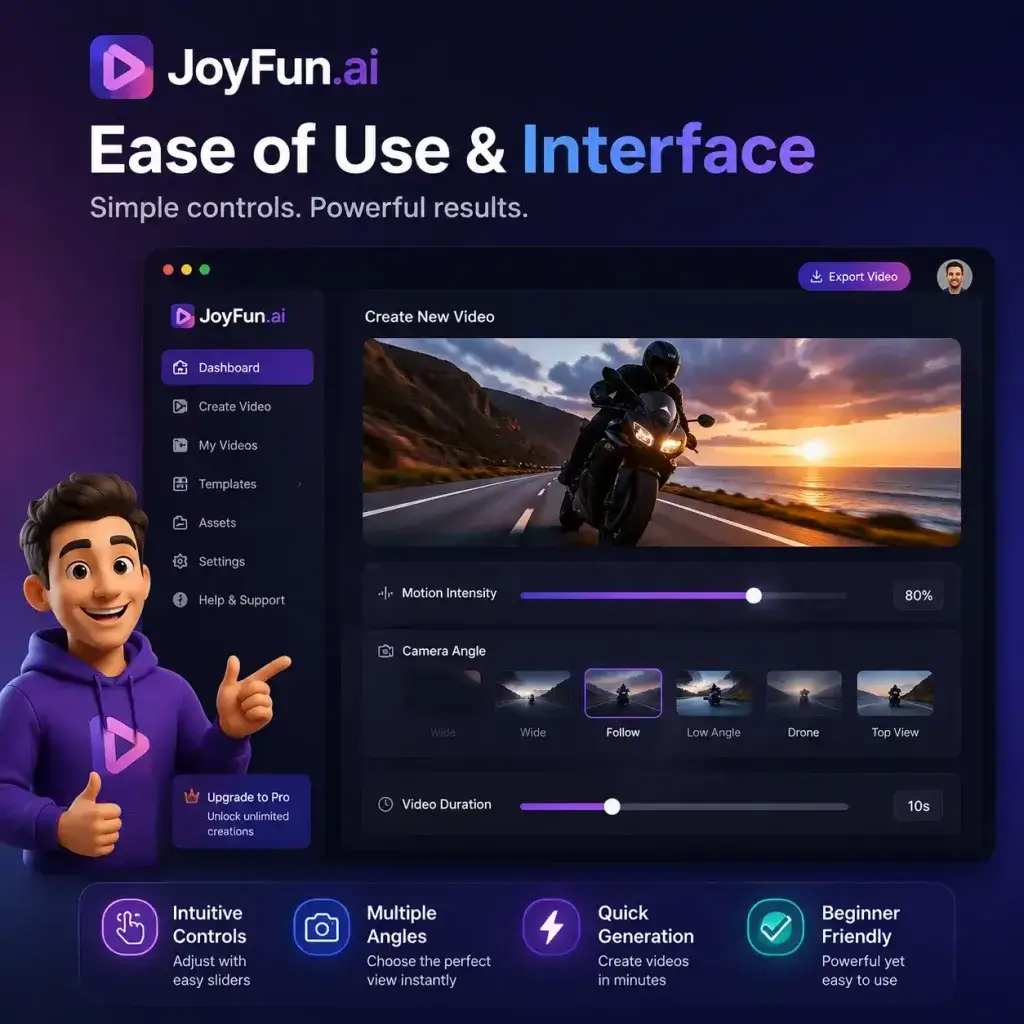
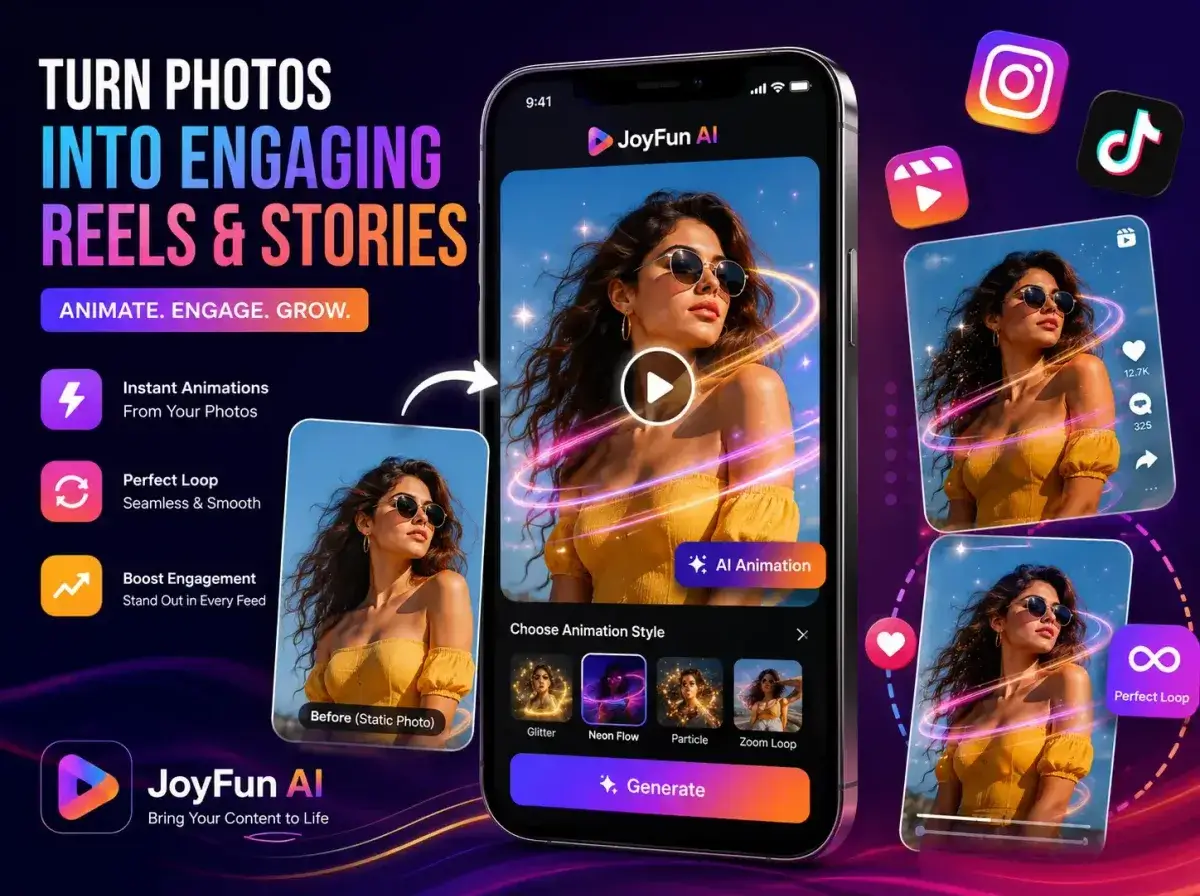
I was looking for a JoyFun AI alternative that wasn't overly complicated. The JoyFun.ai ease of use review I read was spot on. I uploaded my photo, clicked generate, and had a beautiful animated clip in seconds. It is definitely the most user-friendly JoyFun AI video generator I have tried so far.
Great Value with JoyFun AI Free Features
I was wondering about JoyFun AI pricing is it free 2026, and I was thrilled to find the JoyFun AI free tier is quite generous. It allows me to test out the JoyFun AI image to video features without committing upfront. The quality of the free generations is surprisingly high compared to other tools.
Excellent for Digital Art Animation
As an illustrator, finding a good JoyFun AI image to image tool is crucial. JoyFun AI respects my original art style while adding beautiful, subtle motion. It has become my go-to JoyFun app for preparing my portfolio pieces. The rendering speed and output quality easily rival much more expensive JoyFun AI alternatives.
Reliable and Safe for Business Use
Security is a big deal for our agency, so I checked if JoyFun AI safe for commercial assets. Their clear privacy policy gave us confidence. We now use the JoyFun AI video generator for client storyboarding. It is a highly reliable JoyFun alternative that keeps our proprietary concepts secure during the generation process.
Unlimited Uses Boost My Workflow
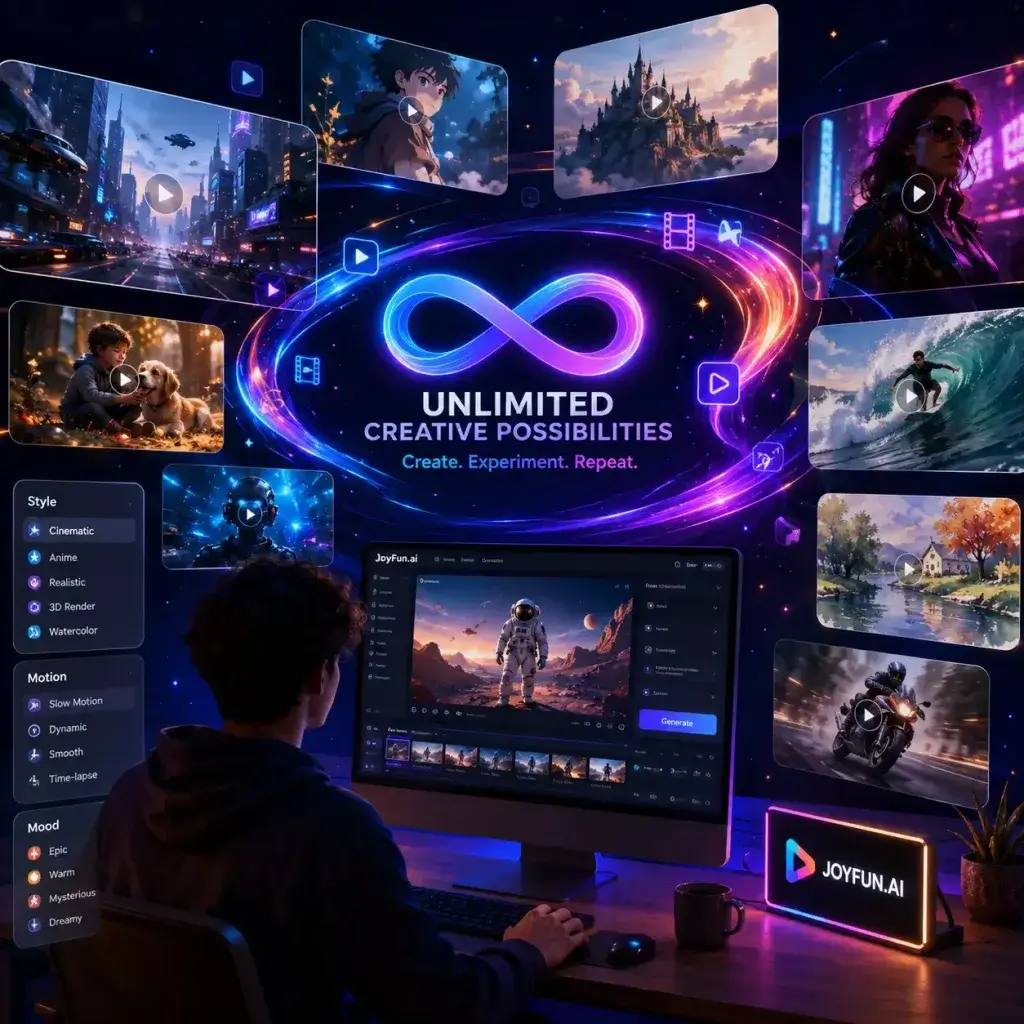
The JoyFun.ai unlimited uses feature is a game-changer for my daily content creation. I can iterate on prompts and motion settings without worrying about running out of credits. This JoyFun AI similar tool gives me the freedom to experiment until the video is perfect, making it an essential part of my creative stack.
A Top JoyFun AI Alternative for Mobile
I mostly work from my tablet, and the JoyFun AI app interface is fully responsive. It is a fantastic JoyFun alternative for creators on the go. The JoyFun AI image to video process is smooth even on mobile browsers, and downloading the final clips directly to my device is seamless and hassle-free.
Incredible Ease of Use for Beginners
I was looking for a JoyFun AI alternative that wasn't overly complicated. The JoyFun.ai ease of use review I read was spot on. I uploaded my photo, clicked generate, and had a beautiful animated clip in seconds. It is definitely the most user-friendly JoyFun AI video generator I have tried so far.
Great Value with JoyFun AI Free Features
I was wondering about JoyFun AI pricing is it free 2026, and I was thrilled to find the JoyFun AI free tier is quite generous. It allows me to test out the JoyFun AI image to video features without committing upfront. The quality of the free generations is surprisingly high compared to other tools.
Excellent for Digital Art Animation
As an illustrator, finding a good JoyFun AI image to image tool is crucial. JoyFun AI respects my original art style while adding beautiful, subtle motion. It has become my go-to JoyFun app for preparing my portfolio pieces. The rendering speed and output quality easily rival much more expensive JoyFun AI alternatives.
Reliable and Safe for Business Use
Security is a big deal for our agency, so I checked if JoyFun AI safe for commercial assets. Their clear privacy policy gave us confidence. We now use the JoyFun AI video generator for client storyboarding. It is a highly reliable JoyFun alternative that keeps our proprietary concepts secure during the generation process.
Unlimited Uses Boost My Workflow
The JoyFun.ai unlimited uses feature is a game-changer for my daily content creation. I can iterate on prompts and motion settings without worrying about running out of credits. This JoyFun AI similar tool gives me the freedom to experiment until the video is perfect, making it an essential part of my creative stack.
A Top JoyFun AI Alternative for Mobile
I mostly work from my tablet, and the JoyFun AI app interface is fully responsive. It is a fantastic JoyFun alternative for creators on the go. The JoyFun AI image to video process is smooth even on mobile browsers, and downloading the final clips directly to my device is seamless and hassle-free.