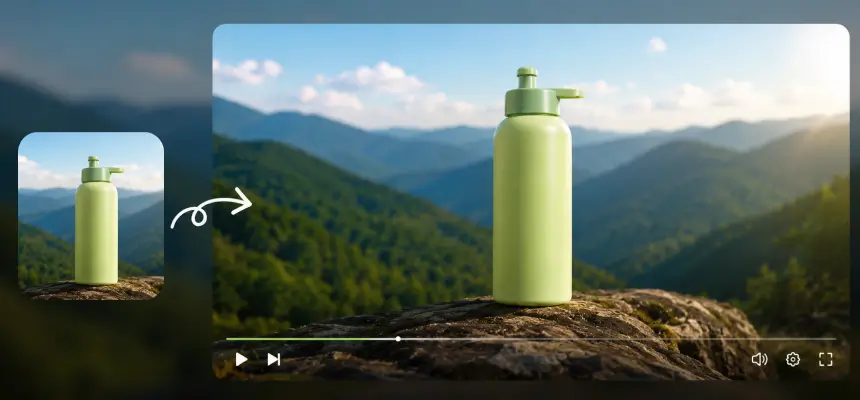
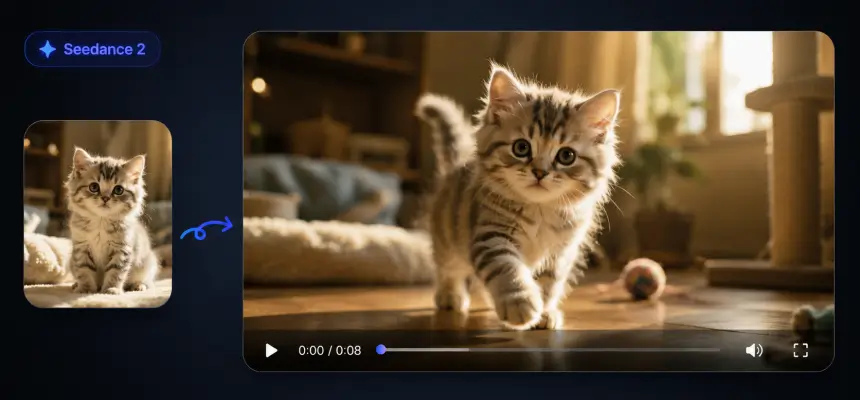
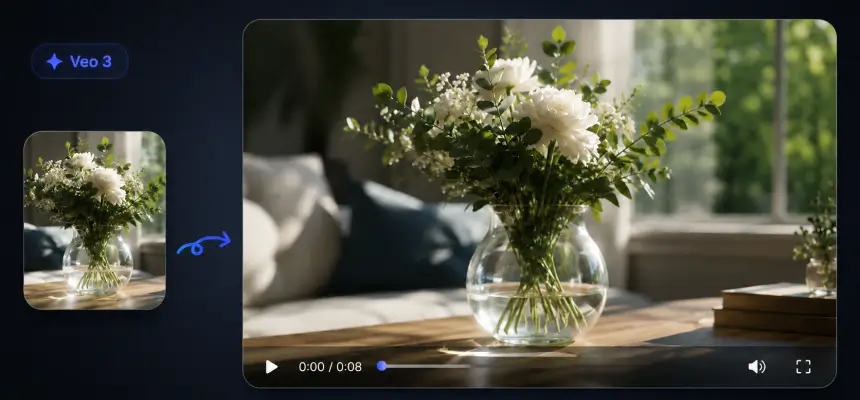
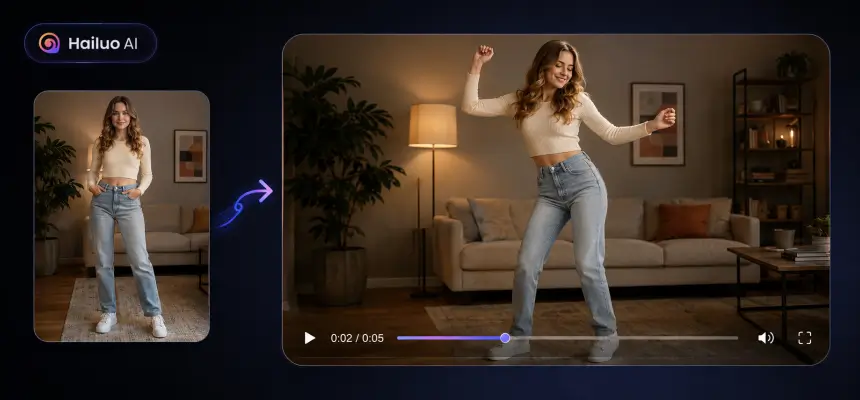
Best Image to Video AI: Free AI Image to Video Generator for Everyone,No limits, Without Login

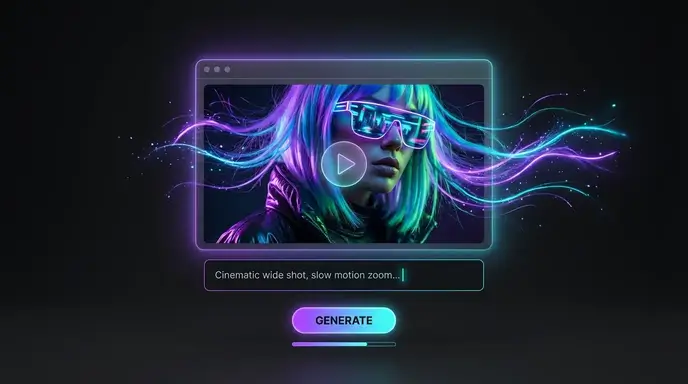
Create stunning animations with aiimagetovideo pro, our free AI video generator. Transform static images into motion using artificial intelligence image to video technology. Whether you explore Google Veo, Veo 3, or Imagen 3, our free tool helps you make video from images for social media. It is the best free image to video AI app to add image to video workflows and convert image to video online free. Use this free generator to make AI video from image files instantly.

Popular Features

Model
Video Fast 1.5 Lite Free
Premium video quality — 3-second clips free to try. Limited-Time Availability.
Image
Drag & Drop, Paste, or Click to Upload
PNG, JPG, JPEG, WEBP , Max 20 MB
Prompt
0 / 1500
Audio
Prompt Extend
Duration
3s
Resolution
720p
1080p
Number of Results
Create
Sample Video
Sample video preview

Top Image to Video AI Generator Online For Movie Maker — Turn Any Photo Into Video without Credits

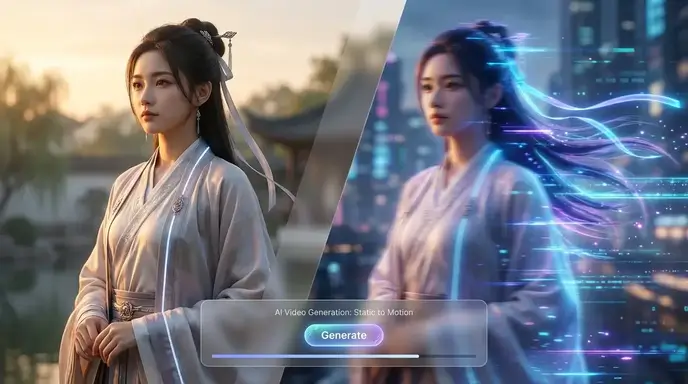
Animate still images with intelligent motion and scene-aware effects powered by next-generation AI models. Upload a product shot, portrait, or concept art, describe the movement you envision, and watch your photo to video transformation happen in real time. Our AI picture to video engine delivers fluid animations with watermark-free 1080p export across every aspect ratio for YouTube, TikTok, and Instagram. No editing software needed — just an image and an idea.

Original Image
Prompt
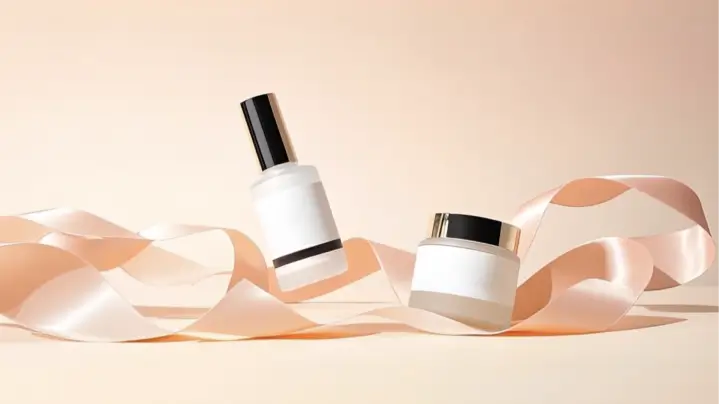
Two minimalist skincare products on a flowing ribbon, soft pink background with bokeh effects.
Sample Video
Original Image
Prompt
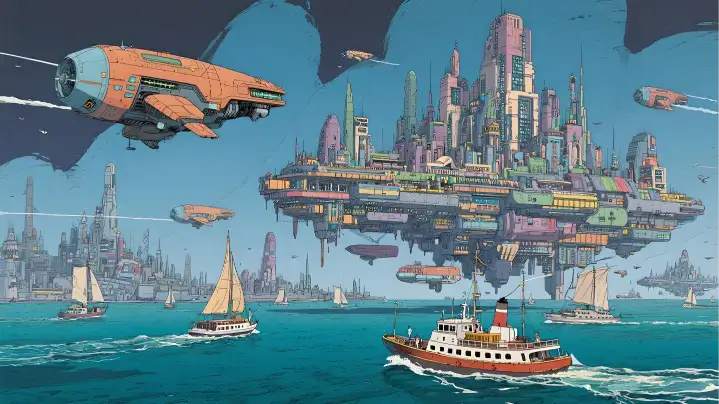
A solar-powered sailboat drifts past a floating city. The camera pushes through a biodome roof, revealing vertical gardens and hoverbike riders.
Sample Video
Original Image
Prompt
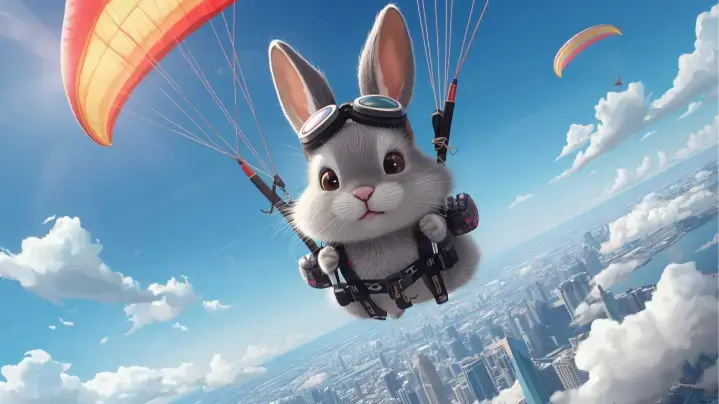
A rabbit paraglides above a city. The camera follows movement over colorful rooftops and clouds.
Sample Video

Key Features of Our Image to Video AI Generator

Discover the power of aiimagetovideo pro, our free image to video AI generator. Turn image into video with this dynamic image to video maker. Like the Luma AI video generator or Kling AI video generator, we offer high-quality results to convert image to video online free. You can generate unlimited possibilities with this free image to video tool. Add image files and make video magic with our free AI generator online.

Versatile Visual Options with AI Image to Video Converter

Explore endless creative directions with aiimagetovideo pro, our free images to video AI. Whether you want to turn image into video for storytelling or marketing, our platform adapts styles seamlessly. It is the most versatile free image to video maker, rivaling Hunyuan image to video and Runway image to video style transfer capabilities. Add image to video projects to make unique video content. Convert image to video styles easily with AI online.

Generate Video from Images

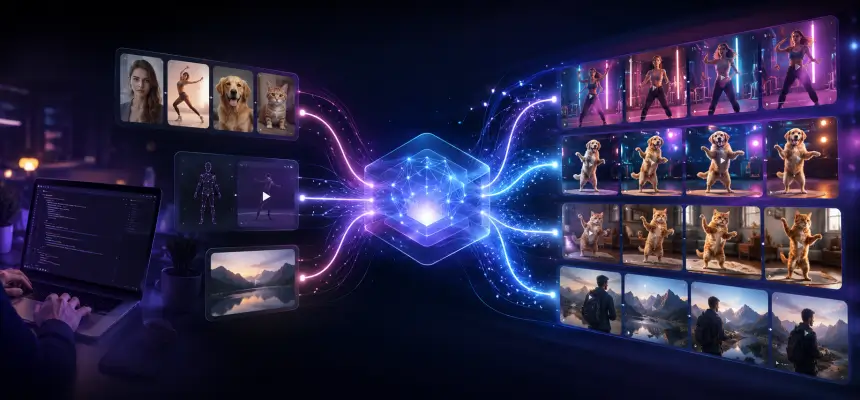
Multi-Input Prompts: Image & Text to Video AI Generator

Combine your image with descriptive text prompts using aiimagetovideo pro and our free text to video AI generator features. Just like a Google Veo 3 AI video generation process, mixing image + text ensures creative control. Use it to prepare video from images with cinematic motion. Make video with text and add image inputs easily. This free generator lets you convert image to video with precision.

Generate Video from Images

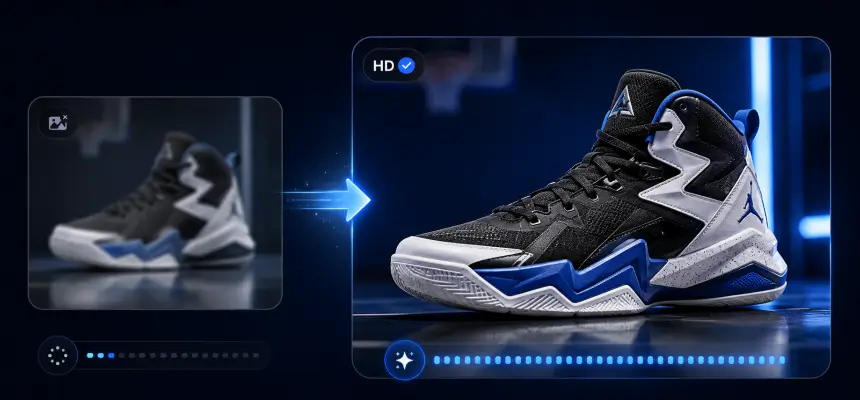
HD AI Image to Video Output Without Watermarks

Get professional video from image results with aiimagetovideo pro, our image to video AI generator free. Create stunning HD results without watermarks, unlike some AI video generator no restrictions tools. Perfect for creators seeking high-quality images to video output, ensuring your content looks like it came from a premium video to video AI generator. This free app helps you convert video from image flawlessly. Add image assets and make video exports in HD.

Generate Video from Images

How to Create Video with Images using AI Video Generator?

Upload Your Image to AI Video Creation

Begin by uploading an image (JPG, PNG, WEBP) to aiimagetovideo pro, our free image to video converter. You can crop or frame to match your desired aspect ratio. This step is essential to convert image to video ai successfully. Add image files to start the free video generator process. Make video from image setup quickly.

Type in Prompt & Customize Your Video

Enter a description to guide the free AI video generator from text (or leave blank). Adjust settings like the AI model (we aim to match Gemini Veo 3 quality), duration, and resolution. This helps you make video from images that match your vision perfectly. Our online tool makes it simple to add video effects to your image. Convert image settings to customize output.

Click "Generate" and Wait for Export

Click to let the AI render. Review motion and effects before you generate AI video from images. You can preview the result, similar to how you might using ComfyUI image to video or Hailuo AI image to video workflows, before exporting. With aiimagetovideo pro, the free generator works fast to convert image to video. Add image tweaks if needed before you make video final.

Innovative Cases of Multiple Image to Video AI

See how aiimagetovideo pro, a free image to video AI generator, brings ideas to life. Easily turn any image into motion and create AI video from image for marketing or stories. We support various styles, from Flux image to video aesthetics to realistic motion. Use our free tool to make video content stand out. Add image creativity with our generator.

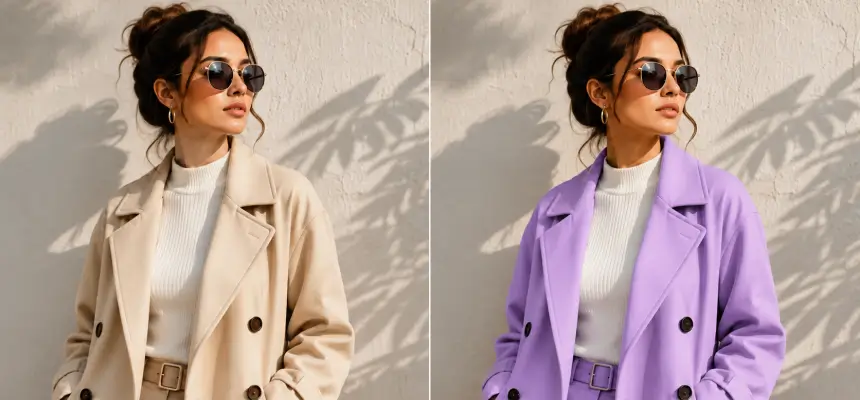
Moving Photos
Dynamic Ads
Presentation Demos
Travel Stories

Bring Still Images to Life with Motion

Transform static images into vivid videos with aiimagetovideo pro. Perfect for product showcases, our free AI lets you create video from images easily. Unlike basic animation AI generator tools, we provide dynamic content that feels alive, similar to results from Wan 2.1 image to video or Minimax AI image to video. Add image to video transitions for better flow. Make video memories from any image.

Users' Views on AI Image to Video

Best Image to Video AI for Beginners: Easy, Fast, and Intuitive

I'm not tech-savvy, but this was effortless. Compared to Vidnoz AI Image to Video or image to video ai kling, this is more intuitive. I uploaded an image, added a prompt, and the free AI created a stunning video. It's the best image to video ai generator free tool I've found to make video content. I can add image files easily.

Maya Rodriguez
Beginner User

AI Video Generator from Image: Simplify Marketing in Minutes

As a manager, I need speed. This platform works like a free image to video AI generator, turning product images into clips in minutes. The AI video generator free online access with trial credits let me test it easily. Better than some AI image to video Rutracker cracks I've seen. A great app for marketing. It helps me convert image to video ads.

Liam Johansson
Marketing Manager

AI Picture to Video Tool Every Creative Designer Will Love

I love how easy it is to make video from images. The free AI handles the heavy lifting. It saves hours and helps create professional content. It feels like having a personal Civitai image to video model at my fingertips. The generator is powerful and free to try. I add image details to every video.

Sophie Turner
Designer

Turn Real Estate Photos into Cinematic Property Tours

I used to spend hours editing. Now, I just upload images, and the free AI turns them into elegant clips. It helps clients visualize spaces. A great alternative to complex ComfyUI image to video setups for quick tours. I can add image details easily and make video tours fast.

Gabriela Santos
Realtor

Best Picture to Video Tool for Turning Photos into Viral Clips

I am always racing to post. This free AI tool transforms images into lively short videos. The animations look smooth, like a high-end AI video generator from image. My engagement doubled. It is a must-have app for influencers who want to convert image to video fast. I use it to make video viral hits.

Ava Reyes
Social Media Influencer

Boosting Product Sales with Photo to Video Animation Tools

Visuals make or break sales. These photo to video animation tools create promo videos straight from images. The results look professional. It is fast, easy, and better than trying to hire a team to create a video using AI manually. The best free generator online to convert image to video.

Leo Martens
Shopify Store Owner

Best Image to Video AI for Beginners: Easy, Fast, and Intuitive

I'm not tech-savvy, but this was effortless. Compared to Vidnoz AI Image to Video or image to video ai kling, this is more intuitive. I uploaded an image, added a prompt, and the free AI created a stunning video. It's the best image to video ai generator free tool I've found to make video content. I can add image files easily.

Maya Rodriguez
Beginner User

AI Video Generator from Image: Simplify Marketing in Minutes

As a manager, I need speed. This platform works like a free image to video AI generator, turning product images into clips in minutes. The AI video generator free online access with trial credits let me test it easily. Better than some AI image to video Rutracker cracks I've seen. A great app for marketing. It helps me convert image to video ads.

Liam Johansson
Marketing Manager

AI Picture to Video Tool Every Creative Designer Will Love

I love how easy it is to make video from images. The free AI handles the heavy lifting. It saves hours and helps create professional content. It feels like having a personal Civitai image to video model at my fingertips. The generator is powerful and free to try. I add image details to every video.

Sophie Turner
Designer

Turn Real Estate Photos into Cinematic Property Tours

I used to spend hours editing. Now, I just upload images, and the free AI turns them into elegant clips. It helps clients visualize spaces. A great alternative to complex ComfyUI image to video setups for quick tours. I can add image details easily and make video tours fast.

Gabriela Santos
Realtor

Best Picture to Video Tool for Turning Photos into Viral Clips

I am always racing to post. This free AI tool transforms images into lively short videos. The animations look smooth, like a high-end AI video generator from image. My engagement doubled. It is a must-have app for influencers who want to convert image to video fast. I use it to make video viral hits.

Ava Reyes
Social Media Influencer

Boosting Product Sales with Photo to Video Animation Tools

Visuals make or break sales. These photo to video animation tools create promo videos straight from images. The results look professional. It is fast, easy, and better than trying to hire a team to create a video using AI manually. The best free generator online to convert image to video.

Leo Martens
Shopify Store Owner

News About Convert Image to Video for Youtube Short Video Maker

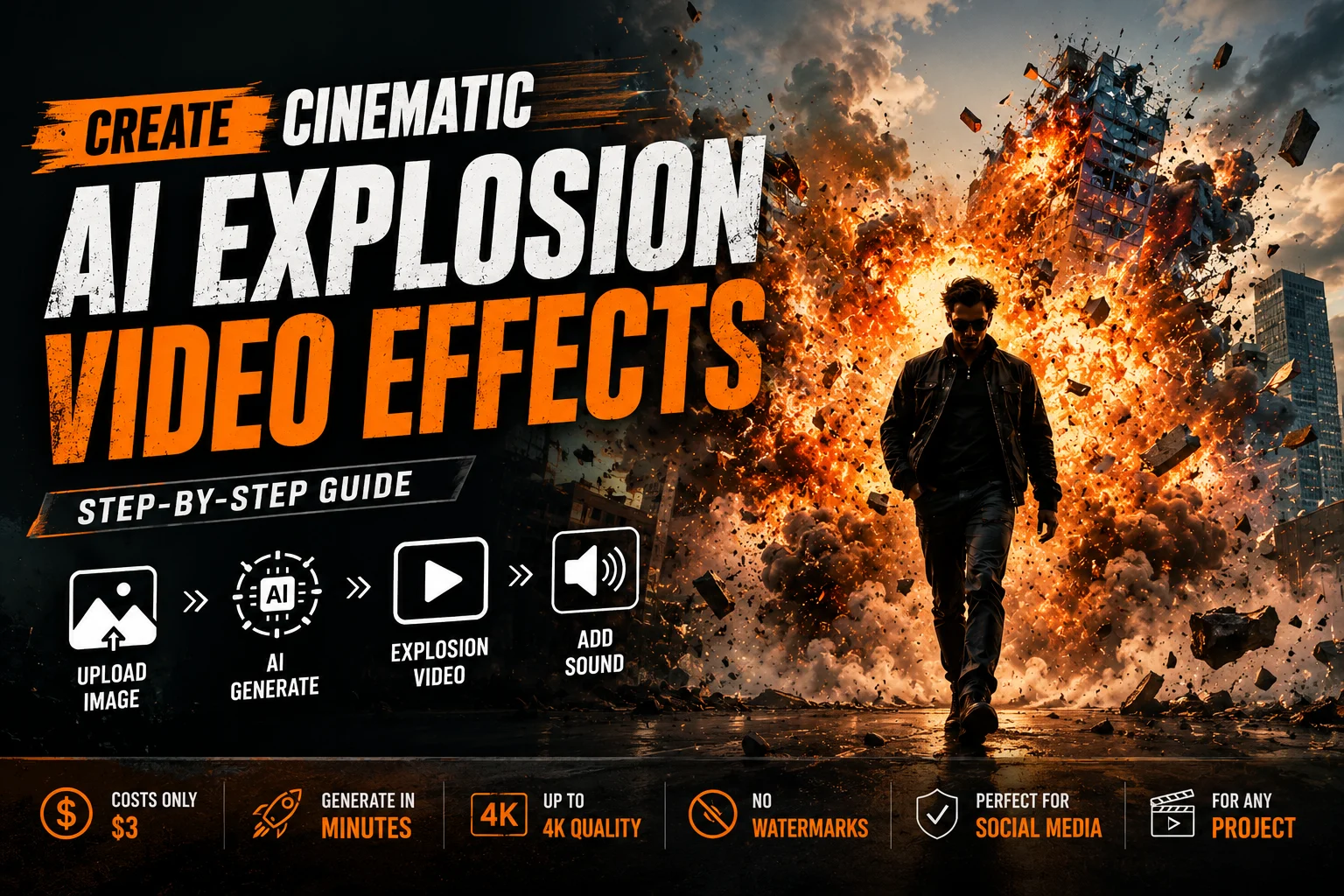
How to Create AI Explosion Video Effects Free Unlimited

How to Create AI Explosion Video Effects Free Unlimited

You’ve seen the viral explosion videos flooding TikTok and Reels — buildings detonating, products shattering, people walking away from fireballs. And you’re wondering how creators pull it off without a VFX budget or After Effects expertise. This guide covers the full process — from picking the right source image and writing effective prompts, to fixing common realism issues and adding sound. Every section includes prompt templates you can copy and use right away. What Is the AI Explosion Video Effect and Why Is It Everywhere? How AI Turns a Still Image Into an Explosion Video You upload a photo — a building, a product, a person — and an AI model generates a short video of that subject exploding with realistic debris, smoke, and fire. Most tools use image-to-video generation, though some support text-to-video where you describe the scene from scratch. Platforms like AI Image to Video, Higgsfield, and Kaze.ai have made this a one-upload process. Why Explosion Effects Are Dominating Social Media in 2026 AI explosion content has generated billions of views across TikTok and Instagram, driven by the “cool guy walkaway” meme and product reveal explosions. The cost advantage is dramatic: an AI explosion runs around $3, compared to $2,000–$3,000 for traditional VFX with cameras, crew, and practical effects. How to Create an AI Explosion Video Effect Step by Step Choosing the Right Source Image or Video Your input determines the output. Use high-resolution images with a clear subject and good contrast against the background. Buildings work best from a slight low angle, products should be centered with clean backgrounds. Avoid blurry photos or cluttered compositions. For video clips, keep them under five seconds with minimal camera movement. Step-by-Step Walkthrough: Generating Your First Explosion Effect AI Image to Video works well as a starting point, supporting multiple AI models (Kling, Veo, Wan) with 4K output, no watermarks, and controls for aspect ratio, duration, and motion intensity. Other AI Tools Worth Trying for Explosion Effects How to Write Prompts That Produce Cinematic AI Explosions The Explosion Prompt Formula Use this structure: [Subject] + [Explosion Type] + [Intensity] + [Camera Angle] + [Speed] + [Lighting] + [Style]. A prompt like “building explodes” gives flat results. Compare that to: “A 10-story concrete office building hit by a massive fireball from the ground floor, debris and glass flying outward in slow motion, low-angle shot, golden hour lighting, cinematic film grain.” Specificity is everything. Prompt Modifiers That Change Your Results Category Modifiers Intensity subtle crack · medium blast · massive detonation · catastrophic nuclear-scale Speed real-time · slow motion · 1000fps extreme slow-motion · time-lapse collapse Camera low angle · aerial drone shot · first-person POV · 360-degree orbit Style photorealistic · cinematic film grain · comic book impact · anime-style Atmosphere golden hour · night with fire glow · overcast dusty · rain and lightning Hailuo 02 handles physics terms best, Kling responds well to camera direction, and Seedance excels at narrative prompts. Ready-to-Use Prompt Templates How to Make Your AI Explosion Effects Look More Realistic Common Problems and How to Fix Them If the explosion looks “pasted on,” add “environmental interaction, debris hitting surroundings, dust settling on surfaces” to your prompt. If it moves too slowly, add “real-time speed” — real building-scale explosions last one to three seconds, not ten. For morphing or reappearing objects, use shorter durations and simpler compositions. Quick Post-Generation Fixes: Color, Timing, and Composition Use CapCut or DaVinci Resolve (free version) to match color temperature to surrounding footage. Trim the first and last frames where artifacts cluster. Add a subtle two-frame camera shake at detonation to sell the impact. Adding Explosion Sound Effects for Maximum Impact Most generators produce silent video. Layer three elements: the initial low-frequency boom, secondary debris sounds (glass, concrete), and sustained fire crackle with reverb. Free sources include Filmora’s AI Sound Effect Generator, Freesound.org, and CapCut’s built-in library. Best Use Cases for AI Explosion Video Effects Short-Form Social Media: TikTok, Instagram Reels, and YouTube Shorts Popular formats include the cool guy walkaway, before-and-after reveals, and comedic explosion bait. For TikTok, use 9:16 at three to five seconds with trending audio. CapCut templates are the fastest path for mobile-first creators. Gaming Highlights, Fan Edits, and Creative Projects Gamers use explosion effects as montage transitions. Fan creators add destruction to trailers and short films on zero budgets. Generate the explosion separately, then overlay it using CapCut or DaVinci Resolve. Product Promos, E-Commerce, and Brand Content Product explosion reveals — packaging bursting apart to showcase what’s inside — have become an e-commerce staple on TikTok. Keep the product visible before the effect triggers and match explosion style to brand energy. FAQs About AI Explosion Video Effects What Is the Best Free AI Explosion Effect Generator? Kaze.ai offers up to 8K resolution and multiple styles at no cost. HitPaw Online is a solid browser-based alternative. Can I Add an AI Explosion Effect to an Existing Video? Yes. Extract a still frame, generate the explosion from it, then composite it back into the original using CapCut or DaVinci Resolve. How Long Does It Take to Generate an AI Explosion Video? Most tools produce a clip in one to three minutes. Budget ten to fifteen minutes total including prompt refinement. Do AI Explosion Videos Look Realistic Enough for Professional Use? For social media, yes — platform compression hides minor artifacts. For film or commercial work, raw AI output needs post-production to look convincing. Is It Ethical to Post AI Explosion Videos on Social Media? AI explosions for entertainment are widely accepted. Label AI-generated content clearly, avoid simulating real emergencies, and don’t create content that could be mistaken for actual disasters. What Aspect Ratio and Duration Should I Use? 9:16 for TikTok, Reels, and Shorts. 16:9 for YouTube and websites. Keep explosions between three and five seconds to minimize visible artifacts. Conclusion Creating a convincing AI explosion video comes down to three things: a clean source image, a structured prompt with specific modifiers, and a few minutes of post-generation polish. The tools are accessible, the cost is minimal, and the creative possibilities stretch from TikTok memes to product reveals

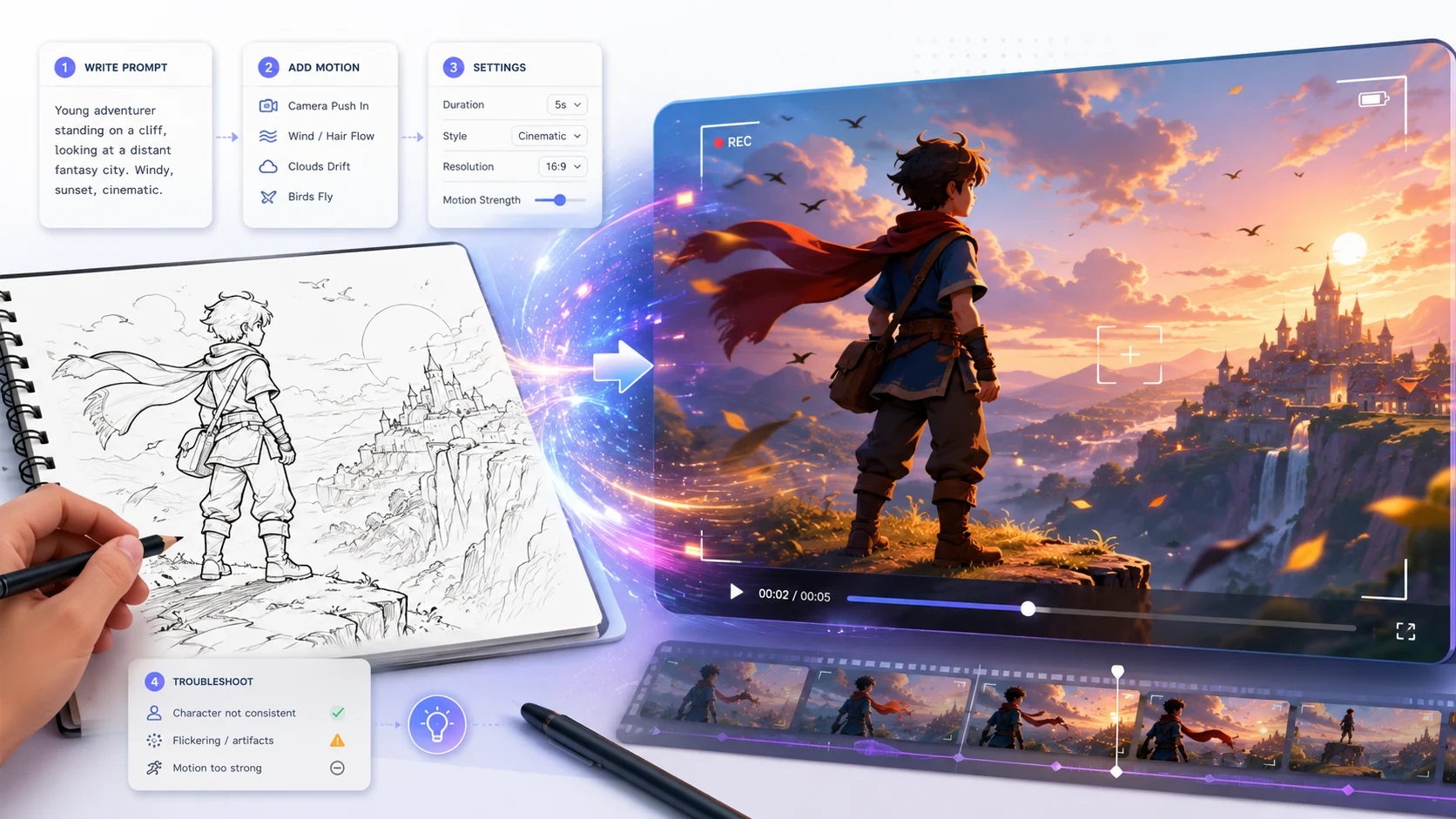
How to Turn a Sketch to Video AI: Step-by-Step Beginner Guide (2026)

How to Turn a Sketch to Video AI: Step-by-Step Beginner Guide (2026)

Your sketch is already a better prompt than any paragraph you could write — but only if you prepare it correctly. Most beginners upload a rough drawing, type a vague prompt, and get a result that looks nothing like what they drew. The AI reinterprets the composition, adds unwanted details, or produces flickering artifacts. Sketch to video AI converts hand-drawn sketches, doodles, or storyboards into animated video clips using artificial intelligence. Instead of describing a scene in words, you draw the composition you want — giving the AI a spatial anchor that text prompts alone can’t provide. This guide covers the complete workflow: sketch preparation, prompt writing, generation settings, and troubleshooting the most common problems. How to Prepare Your Sketch for AI Video Generation The most overlooked step in sketch to video AI is input preparation. Getting this right is the difference between 15 failed attempts and nailing it in two or three tries. File Format, Resolution, and Background Setup Start with the right file format. PNG is the best choice — it preserves clean line edges without compression artifacts. JPG works but can blur fine details. Most tools accept JPG, PNG, and WebP, while SVG support varies. Aim for at least 1024×1024 pixels. Lower-resolution inputs force the AI to guess at details, and those guesses rarely match your intent. Use a clean, solid-color background — white or transparent. Paper texture, shadows, or background noise get interpreted as scene elements. If you’re photographing a paper sketch with your phone, ensure even lighting with no shadows. Crop tightly to the subject. Line Clarity, Contrast, and Composition Rules AI treats faint pencil lines as noise. Use dark, confident strokes on a light background for maximum contrast. If your original sketch is light, bump up the contrast in any basic photo editor before uploading. Keep the main subject centered or clearly dominant in the frame. Avoid cluttered scenes with overlapping elements — the AI struggles to separate objects that blend together. Leave breathing room around characters so the AI has space to add motion. One critical point: perspective errors in your sketch will be amplified in the video. The AI cannot fix bad foreshortening or inconsistent vanishing points. In practice, simple sketches with clear outlines produce the most faithful results. You don’t need a photorealistic drawing — you need clean lines and clear spatial intent. How to Write Prompts That Control Your Sketch to Video AI Output Here’s what most beginners get wrong: they describe the scene in their prompt. But the sketch already defines the spatial composition. Repeating it in text just confuses the AI — it tries to reconcile two sets of instructions and the result drifts from both. What to Describe in Your Prompt (and What to Leave Out) Your prompt should specify what the sketch cannot show: motion direction, animation style, lighting mood, camera movement, and temporal flow. The sketch handles the “what” and “where.” The prompt handles the “how it moves.” Here’s what actually works: Keep prompts short and specific to motion and style. Two focused sentences outperform a paragraph of description every time. Common Prompt Mistakes That Ruin Your Output Mistake 1: Restating the sketch layout. Scene descriptions that duplicate the drawing cause the AI to reinterpret your composition. The fix is to focus only on motion, style, and camera. Mistake 2: Vague motion instructions. “Moving” means nothing. Specify direction and speed — “walking slowly from left to right” or “camera orbits clockwise.” Mistake 3: Conflicting styles. “Realistic cinematic anime style” sends the AI in three directions at once. Pick one style per generation. Mistake 4: Over-prompting. Long prompts dilute the sketch’s influence. Start with 15-25 words and add only if needed. Generation Settings and Motion Control: What to Adjust Most beginners leave every setting on default and blame the tool when results look wrong. A few targeted adjustments make a big difference. Duration, Resolution, and Frame Rate Most tools generate clips between 4 and 15 seconds. Start with 4-5 second clips to test your sketch and prompt before committing credits to longer durations. For resolution, 1080p is the sweet spot. 720p looks noticeably soft, and 4K increases cost without a proportional quality jump for sketch inputs. Frame rate offers a creative choice. 24fps gives a cinematic feel. 12fps creates a hand-drawn animation look — the “animated on twos” technique. The lower frame rate also makes minor AI artifacts between frames less noticeable. Motion Intensity and Camera Movement Presets Motion intensity controls how much movement the AI adds. Low intensity produces subtle effects like breathing or gentle swaying. High intensity generates dramatic action — but on detailed sketches, it often causes distortion. The fix is to start low and increase gradually. A static or slow-zoom camera paired with low motion intensity gives you the most controlled output. Camera movement presets — pan, zoom, orbit, and static — change the feel dramatically. Static works best for close-ups. Slow zoom adds drama without distortion. Pan and orbit suit wider compositions. Key Takeaway: Low motion intensity with a static camera is the safest starting point. Increase settings only after reviewing your first test clip. Troubleshooting Common Sketch to Video AI Problems Even with good preparation, some outputs miss the mark. Here’s how to fix the most frequent problems without wasting credits. The AI Changed My Sketch Beyond Recognition The most common cause is a low-contrast sketch on a noisy background. The AI treats faint lines as suggestions, not instructions. The fix is to increase line contrast, switch to a clean white background, and shorten your prompt. If your prompt contradicts the sketch composition — describing a layout that differs from what you drew — the AI splits the difference and neither version wins. Remove scene-layout descriptions and let the sketch define spatial elements. Some tools have a creativity or imagination slider. If yours does, lower it to prioritize sketch fidelity over artistic reinterpretation. Flickering, Artifacts, and Distorted Motion Flickering between frames usually means motion intensity is too high for the detail level in your sketch. Reduce it by 20-30% and regenerate. Extra limbs or morphing body parts happen when the sketch has ambiguous anatomy — overlapping arms, unclear joint positions. Redraw those areas

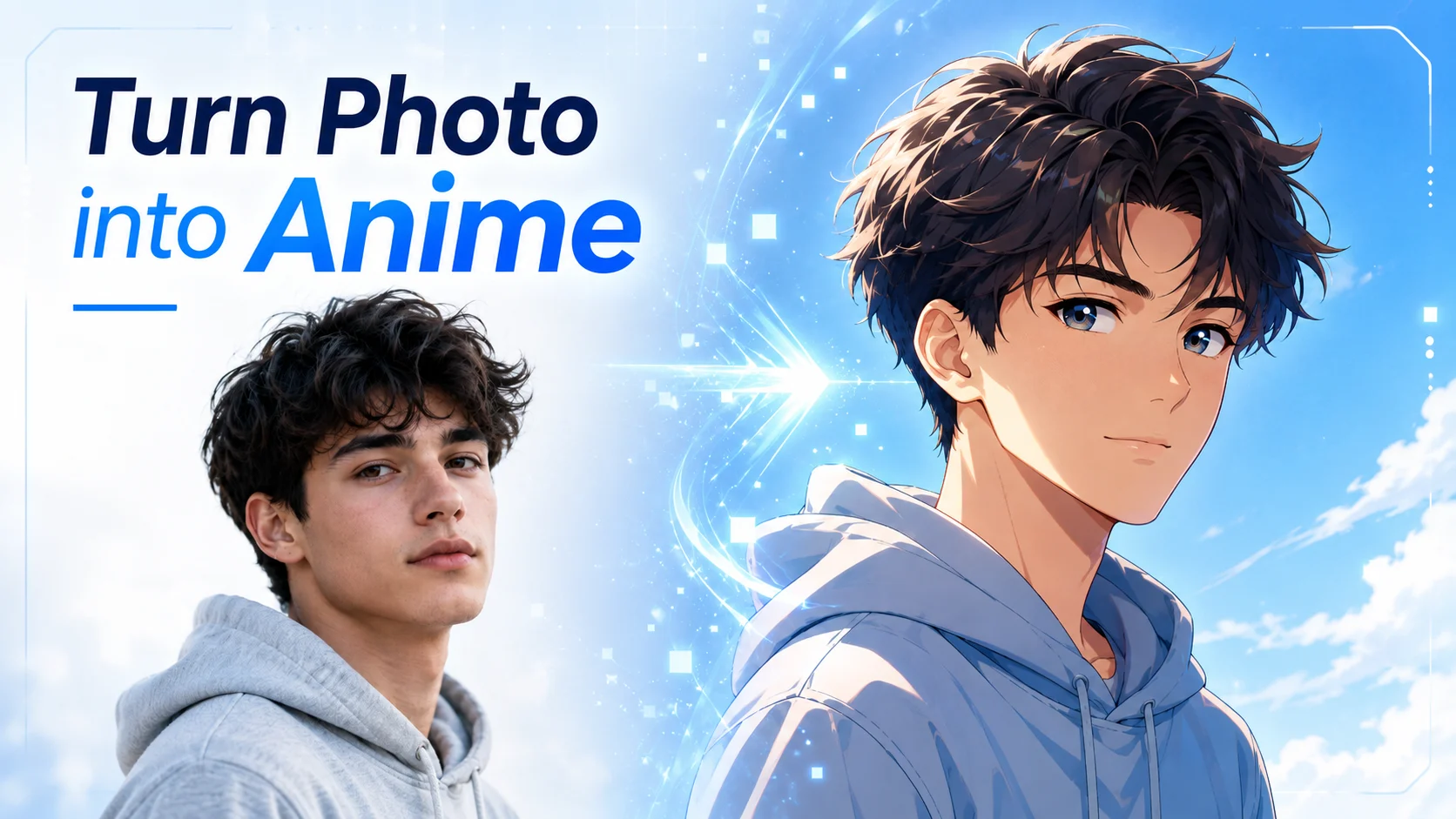
How to Turn a Photo into Anime: Free Tools, Styles & Video Tips

How to Turn a Photo into Anime: Free Tools, Styles & Video Tips

Anime selfies are everywhere — and making one is easier than most people think. Whether you want a fun profile picture, an anime version of your pet, or a creative couple portrait, all you need is a photo and the right tool. The problem is that most guides just push a single product without telling you what actually works. Many tools slap on watermarks, require signups, or spit out a generic anime face that looks nothing like you. This guide walks you through the easiest free methods to turn any photo into anime, the most popular anime styles to try, and practical tips to get a result that actually resembles you. We’ll also cover how to animate your anime photo into a short video. Note: this article is about converting existing photos into anime art — if you want to create an original anime character from scratch, that’s a different process entirely. How to Turn Your Photo into Anime (3 Easy Methods) Here are three beginner-friendly ways to convert a photo into anime, ranked from quickest to most flexible. Method 1 — Use a Free Online Anime Converter The fastest path is a free online converter. Upload your photo, pick a style, and download — often without creating an account. These tools handle selfies, couple photos, and pet photos without any learning curve. Method 2 — Use ChatGPT or Google Gemini with a Prompt AI chatbots like ChatGPT and Google Gemini can turn photos into anime when you upload an image and describe the style you want. This gives you much more creative control over the result. Try a prompt like this: “Turn this photo into Studio Ghibli anime style. Keep my facial features, hair color, and clothing accurate.” Or go for something more specific: “Convert this photo into 1990s retro anime style with cel-shading and warm tones.” Results may need a couple of prompt tweaks, but detailed descriptions produce noticeably better output. Method 3 — Use Canva’s Anime Filter Canva has a built-in anime conversion feature through its Animeify app. Open Canva, upload your photo, apply the effect, and download. It’s a solid option if you also want to use the anime photo in a design — like a social media post, avatar, or card. Popular Anime Styles to Try on Your Photos Not all anime art looks the same. Here are the most popular styles people request — and what to ask for in your prompt. Studio Ghibli Style Soft watercolor-like colors, gentle facial features, and dreamy painted backgrounds — think Spirited Away or My Neighbor Totoro. This is the most requested anime style across the board. Prompt tip: mention “Studio Ghibli” and “painterly, warm lighting.” Classic Japanese Anime & Shonen Style Bold outlines, vibrant colors, large expressive eyes, and dynamic shading. This is the look of Dragon Ball, Naruto, and Jujutsu Kaisen. It works great for action-oriented or energetic portraits. Chibi & Kawaii Style Oversized heads, tiny bodies, and adorable simplified features. Chibi is perfect for fun profile pictures, stickers, and pet photos. Prompt tip: say “chibi style with cute proportions.” Manga (Black & White) Style Black-and-white ink linework with screentone shading, like a page from a manga book. It’s a unique look that really stands out on social media. More Styles to Explore Tips to Make Your Anime Photo Actually Look Like You The biggest complaint people have with anime converters is that the result looks like a random anime character — not them. Here’s how to improve your results. Choose the Right Source Photo Your input photo matters more than the tool you use. For the best likeness: Fix Common Issues Turn Your Anime Photo into a Short Anime Video Once you have an anime photo you like, you can take it a step further by animating it into a short video. Why Animate Your Anime Photo A moving anime portrait is far more eye-catching than a still image on TikTok, Instagram Reels, or a profile page. People use animated anime photos as social media content, couple portrait gifts, streaming avatars, and shareable pet tributes. How to Turn an Anime Photo into Video (Step-by-Step) No video editing skills needed. The process takes just seconds. FAQs About Turning Photos into Anime Is there a free photo-to-anime converter with no watermark? Yes. Anifun, BeautyPlus, and AIEnhancer all offer free conversion with no watermark and no signup. ChatGPT also produces watermark-free anime images on its free tier. Can I turn my photo into anime using ChatGPT? Yes. Upload your photo and use a prompt like “Turn this photo into Japanese anime style, keeping my facial features accurate.” More detailed prompts give better results. Why doesn’t my anime photo look like me? Common causes are low-quality source photos, obstructed features (sunglasses, hats), and tools that prioritize style over likeness. Use a well-lit, front-facing photo and add “preserve my facial features” to your prompt. Can I convert couple photos or group photos to anime? Yes, but results are less reliable with multiple people — faces can merge or lose individual features. For best results, convert each person separately and combine them, or try Media.io, which handles couple photos well. Can I turn my pet’s photo into anime? Most converters work with pet photos, though results vary since many tools are trained on human faces. ChatGPT handles pets well — try “Turn this photo of my dog into a Studio Ghibli character.” Chibi style tends to work especially well for pets. Is it safe to upload my photo to an AI anime tool? Reputable tools like Anifun, BeautyPlus, and Fotor state they delete uploaded photos within 24 hours and use SSL encryption. For extra privacy, use ChatGPT or a local tool like Stable Diffusion. Avoid unknown tools without a published privacy policy. Can I turn my anime photo into a video? Yes. Upload your anime image to an AI image-to-video tool like AI Image to Video to add motion and animation. You can generate high-quality anime videos from still images in seconds, no editing skills needed. Got your anime photo ready? Take it further

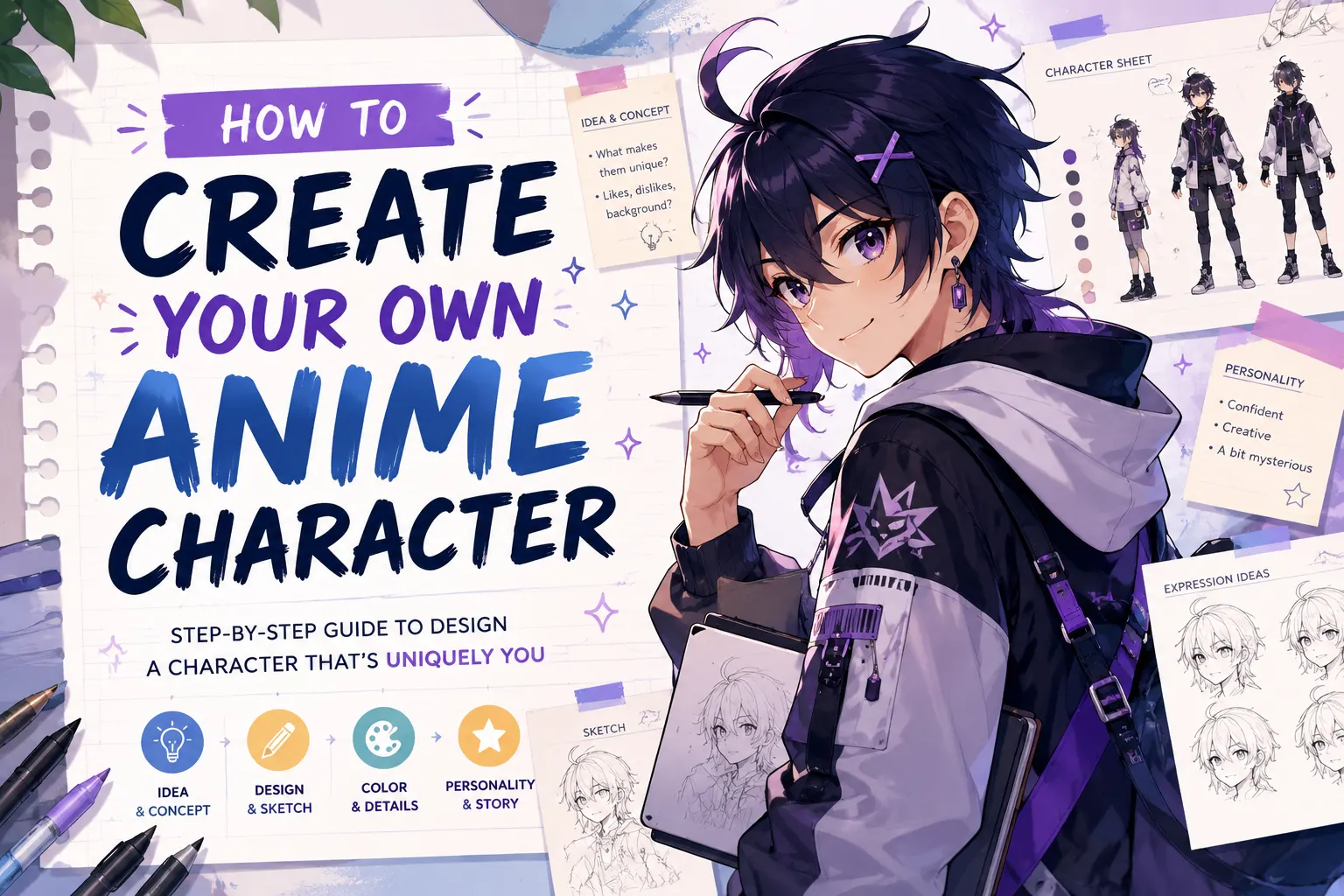
How to Create Your Own Anime Character Online (Free AI Tools + Easy Steps)

How to Create Your Own Anime Character Online (Free AI Tools + Easy Steps)

You’ve had an anime character living in your head for months, maybe years. A hero with a scar and a secret. A villain no one sees coming. A chibi sidekick that steals every scene. The only problem? You can’t draw. You’re not alone. “I have this character in my head but I can’t get it out” is the single most common frustration in anime fan communities across Reddit and YouTube. But in 2026, drawing skills are no longer required to create your own anime character. Free AI tools can turn a short text description into a finished character design in minutes. This guide walks you through the full process. You’ll learn which free tools to use, how to write prompts that produce great results, and what to do with your character once it exists. Best Free AI Tools to Create Your Own Anime Character Before creating anything, you need the right tool. Here are the best free options. AI Anime Character Generators These tools create unique characters from text descriptions or uploaded photos. Tool Free? Best Feature Best For Fotor Yes (limited) Photo + text to anime Photo conversion LlamaGen.ai Yes Character consistency Manga, reference sheets Canva Yes (limited) Full design suite Social media content SeaArt AI Yes (limited) Partial redraw Fixing details [Image: Screenshot comparison of the four AI anime generators showing their interfaces] Browser-Based Anime Avatar Makers For something even simpler, avatar makers let you pick and combine pre-made parts with no prompts needed. Key difference: Avatar makers are faster but every character shares the same base parts. AI generators create truly unique designs but need good prompts to work well. How to Create Your Anime Character Step by Step Start With a Simple Character Idea Before opening any tool, take five minutes to decide four things: Use this template: “My character is a [personality] [type] with [hair] hair and [eye color] eyes, wearing [outfit], in a [genre] setting.” Example: “My character is a fierce young woman with silver hair and red eyes, wearing a black military coat, in a dark fantasy setting.” Write an AI Prompt That Gets Great Results A good prompt is the difference between a generic anime face and a character that matches your vision. Follow this formula: [art style] + [character description] + [clothing] + [pose/expression] + [background] + [quality words] Here are three examples at different levels: Words that improve results: cel-shaded, shonen, shojo, chibi, full body, portrait, dynamic pose, clean lines, high detail. Mistakes to avoid: Being too vague (“anime girl” gives generic output). Forgetting to specify full body vs. portrait. Contradicting styles like “realistic AND chibi.” Improve and Refine Your Character Design Your first result won’t be perfect. Here’s how to fix that: Once you’re happy, download the highest resolution and save your exact prompt. You’ll need both for consistency later. How to Use Your Anime Character After You Create It Keep Your Character Consistent Across Multiple Images If you need your character in multiple scenes, consistency is the biggest challenge. These strategies help: Turn Your Anime Character Into Video or Animation A static image is just the beginning. AI tools can make your character move. AI Image to Video converts your anime character image into video using AI models like Kling, Veo, and Wan. It supports up to 4K resolution with no watermarks, and you control aspect ratio, duration, and motion intensity. For more control, Mango Animate lets you add a bone rig to your character and choose from 100+ motion templates. For longer anime scenes, platforms like Higgsfield AI and Seedance 2.0 offer multi-scene generation with lipsync and character consistency. Tip: Start with a short 3-5 second clip to see how your character looks in motion before attempting longer content. Share Your Character on Social Media and Creative Platforms Copyright note: Original characters you create with AI are yours to use. Avoid copying existing copyrighted anime characters. Picrew avatars have specific usage restrictions — always check the creator’s terms. FAQs of Creating Your Own Anime Character Can I create an anime character if I can’t draw? Yes. AI generators like Fotor, LlamaGen.ai, and Canva create characters from text descriptions. Avatar makers like Charat Genesis let you build characters from pre-made parts. No drawing needed. What is the best free anime character creator? For unique AI-generated characters, try Fotor (free, no watermarks) or LlamaGen.ai (free, best for consistency). For quick avatars, Charat Genesis is the easiest. For 3D characters, VRoid Studio is free and professional-grade. How do I write a good prompt for an AI anime character? Use this formula: [art style] + [character description] + [clothing] + [pose] + [background] + [quality words]. Be specific about colors and style. Add “cel shaded” or “anime illustration” for a more stylized look. Can I use my AI-generated anime character for commercial projects? Most AI generators allow commercial use, but always check each tool’s terms of service. Picrew creations are typically personal use only. Design fully original characters to avoid copyright issues. How do I keep my anime character looking the same in every image? Reuse the exact same prompt text. Upload your best image as a reference. Use consistency-focused tools like LlamaGen.ai. Save a reference sheet with front view, side view, and key details alongside your prompt. Can I turn my anime character image into a video? Yes. AI Image to Video converts static anime character images into animated clips up to 4K with no watermarks. Alternatives include Higgsfield AI for lipsync video and Mango Animate for rigged animation. Conclusion Creating your own anime character online is now possible for anyone, even without drawing skills. Pick a free tool, write a clear prompt, and refine until it matches your vision. From there, keep your character consistent, bring it to life with animation, and share it with the world. Start now — choose Fotor for AI generation or Charat Genesis for a quick avatar, and create your first character today. The character in your head has waited long enough.

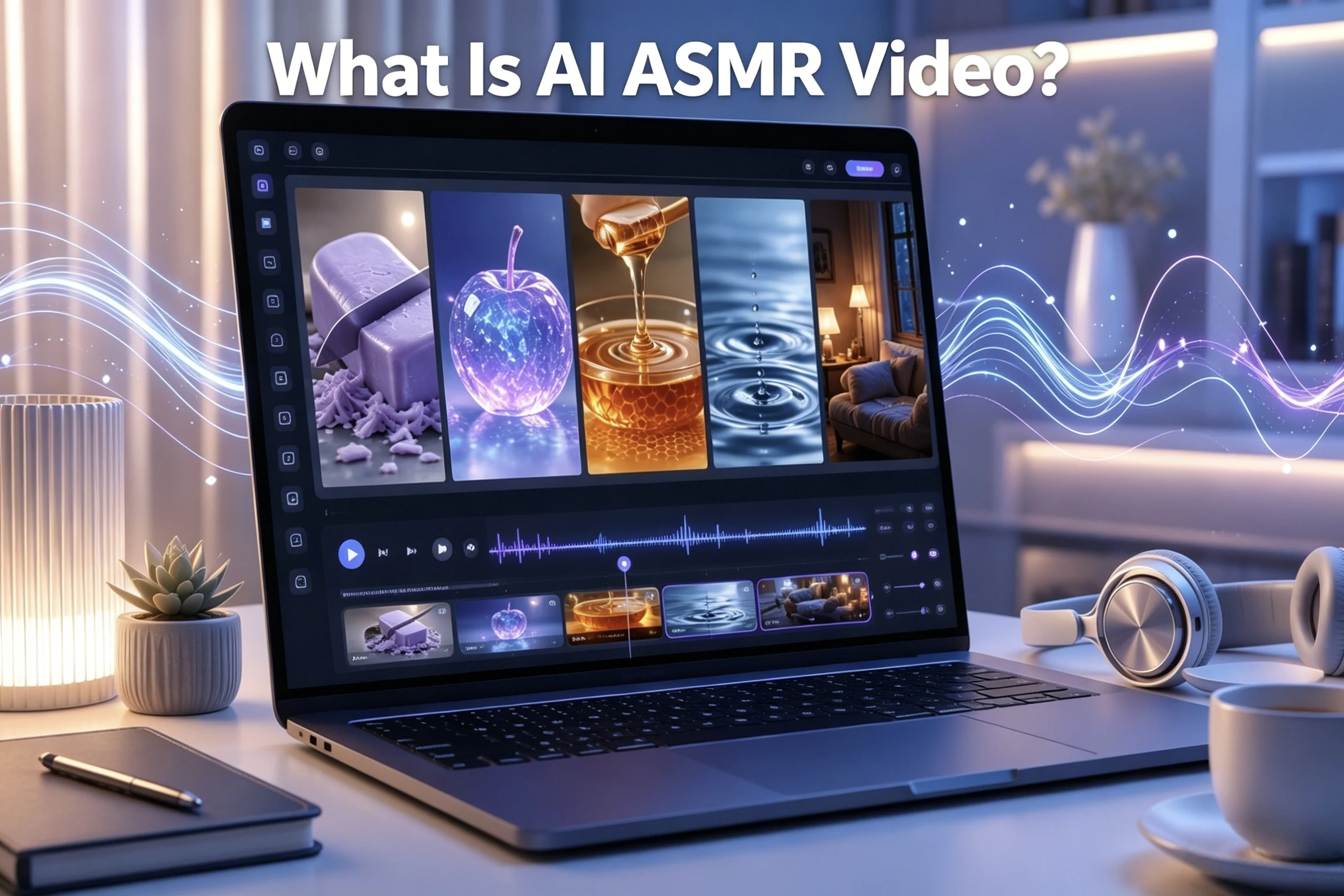
What Is AI ASMR Video? A Beginner’s Guide to AI-Generated Relaxing Content

What Is AI ASMR Video? A Beginner’s Guide to AI-Generated Relaxing Content

You are scrolling through TikTok before bed. A knife slices through a transparent glass banana with a crisp, satisfying crunch. It looks impossibly perfect — because it is. This is AI ASMR, and it is everywhere. AI ASMR video is content that uses artificial intelligence to generate visually satisfying clips with synchronized sounds designed to trigger a relaxing, tingling sensation known as ASMR (Autonomous Sensory Meridian Response). Unlike traditional ASMR filmed with microphones and cameras, AI ASMR is created entirely through text prompts — no studio, no equipment, no face on camera. This guide walks you through the most popular formats, explains why these videos dominate short-form platforms, and shows you how to start creating your own. How Do AI ASMR Videos Work? Making an AI ASMR video is simpler than most people expect. The entire process starts with words — a text description of what you want to see and hear — and ends with a finished clip ready to publish. From Text Prompt to Finished Video The core workflow breaks down into three steps. First, you write a text prompt describing the scene, materials, actions, and sounds. Something like: “Macro close-up of a knife slicing a translucent glass apple on a marble surface. Crisp crunching sounds. Soft studio lighting. 4K.” Second, an AI model processes that prompt and generates a short video clip — typically 5 to 15 seconds — with matching visuals and audio. Tools like Google Veo 3 produce both the video and synchronized sound in a single generation step, while other platforms may require you to layer audio separately. Third, you edit the clips together, trim any visual artifacts, and publish. No camera, no microphone, and no prior video editing experience required to get started. AI ASMR vs. Traditional ASMR Production Traditional ASMR relies on physical equipment — specialized microphones ranging from $50 to $800+, a quiet recording space, and usually an on-camera presence. The creator whispers, taps, and crafts real sounds in real time. AI ASMR collapses all of that into a text prompt and an AI tool. Traditional ASMR excels at personal, human connection — the intimacy of a real voice, the subtle imperfections of live sound. AI ASMR excels at creating physically impossible scenarios no real-world setup could produce: glass fruit, planets as sandwich spread, clouds being kneaded like dough. Both approaches serve different audiences, and both have a place in the broader ASMR world. Popular Types of AI ASMR Videos AI ASMR videos span a surprising range of formats. Here are the three categories that dominate feeds right now. Glass Cutting, Soap Slicing, and Satisfying Object Transformations This is the signature AI ASMR format. Transparent, glass-like objects — fruit, eggs, geometric shapes — get sliced, crushed, or peeled with exaggerated crisp sound effects. Soap shaving, kinetic sand compression, and crystal cracking fall into the same category. These satisfying AI videos work because the materials and physics do not exist in reality. A single “Planet Spread on Toast” clip reached over 3.5 million views, and the format keeps expanding into more surreal territory — ice melting into gold, lava being kneaded, frozen matches snapping. Food ASMR and Fantasy Kitchen Scenes AI-generated food ASMR takes colorful candy crushing, chocolate pouring, and fruit slicing into surreal dimensions. The “Melty ASMR” format — featuring 3D AI fruit characters — racked up 11.1 million views in just seven weeks. Fantasy kitchens, alien ingredients, and oversized miniatures add visual novelty that real food ASMR cannot match. Since food ASMR is already one of the largest traditional ASMR categories, AI versions tap into a massive existing audience. Nature Loops, Ambient Soundscapes, and Fantasy Rooms The quieter side of AI ASMR generates rain on forest canopies, fireplace loops, ocean waves, and crackling campfires. Interactive poll formats like “Which dream bed would you choose?” and “Which fantasy pool would you dive into?” drive strong engagement — one such video pulled over 336,000 views. These AI relaxing videos serve sleep, study, and meditation use cases, and jungle survival ASMR is emerging as a popular sub-niche. Why AI ASMR Videos Are Trending on TikTok, YouTube Shorts, and Instagram Reels AI ASMR is not just popular — it is algorithmically supercharged. Short-Form Algorithms Love Satisfying Loops TikTok, YouTube Shorts, and Instagram Reels algorithms reward high watch-through rates and replays. AI ASMR clips are typically 15 to 60 seconds of continuous, mesmerizing action — viewers watch to the end and often loop multiple times. This signals quality to the algorithm, pushing the content to more feeds. TikTok’s #ASMR hashtag has surpassed 324 billion views, and the faceless, no-commentary format crosses language barriers effortlessly, reaching global audiences without translation. The “Oddly Satisfying” Factor and Impossible Novelty AI ASMR combines two powerful psychological triggers: the satisfaction of watching materials transform and the novelty of seeing physics that cannot exist in reality. This combination engages even viewers who do not experience traditional ASMR tingles. The community phrase “I hate that I love this” captures the guilty pleasure effect perfectly. Some viewers do report discomfort or nausea from audio-visual mismatch — the brain receives conflicting sensory cues, creating a polarizing but high-engagement dynamic. How To Create AI ASMR Videos as a Beginner Ready to make your own? Here is how to get started with minimal experience and budget. Choosing the Right AI Video Tool Google Veo 3 is the current benchmark — it generates synchronized audio and video in a single step, making it ideal for AI ASMR. Kling AI offers a solid free-tier alternative with image-to-video animation, though generation wait times are longer. AI Image to Video is a beginner-friendly option that turns images and text into video content with customizable motion and output settings, supporting multiple AI models including Kling and Veo. For voice-based ASMR, creators often pair a video generator with ElevenLabs for realistic AI whisper narration. The best tool depends on your format and budget — free options exist but may require more editing work. Writing Prompts That Actually Work A good AI ASMR prompt follows a simple template: [Shot type] of [subject/material]. [Key visual details]. [Action] in [speed]. [Lighting]. [Sound description]. For glass cutting: “Macro close-up of a

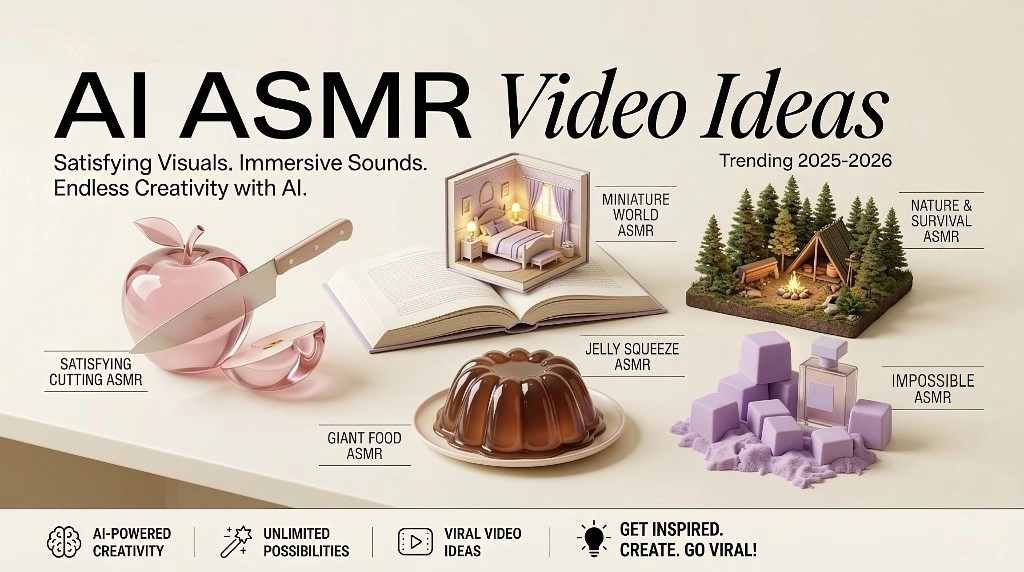
AI ASMR Video Ideas to Make Money in 2026

AI ASMR Video Ideas to Make Money in 2026

AI ASMR channels are pulling in 100K+ views per day, and one creator earns $7,500/month selling prompt packs — not from YouTube ads. You don’t need a camera, microphone, or even your face on screen. New creators see AI ASMR blowing up but don’t know which video ideas actually work or how to turn views into income. This guide covers the best AI ASMR video ideas for 2026 with realistic monetization paths, platform strategy, and beginner mistakes to avoid so you can pick a niche and start earning. Why AI ASMR Is a Real Money Opportunity in 2026 AI ASMR is one of the fastest-growing content niches on YouTube and TikTok. Two things changed: the tools got dramatically better, and audiences for “oddly satisfying” content exploded. That said, ASMR ad RPM sits around $1–3, so smart monetization matters more than raw views. What Changed: AI Tools Now Generate Video and Sound Together Tools like Google Veo 3 now generate native synchronized audio with video, removing the biggest barrier to ASMR creation. Platforms like AI Image to Video give creators access to multiple AI models (Kling, Veo, Wan) with 4K output and no watermarks, making professional-quality content accessible without expensive software. This shift is why the niche exploded in late 2025. Why the Opportunity Is Still Early for Beginners AI ASMR was ranked as a low-saturation faceless niche in 2026 creator surveys. Glass cutting is maturing, but survival ASMR, dream beds, and newer formats are still wide open. Traditional ASMR channels have years of head start — AI ASMR channels don’t, which levels the playing field for newcomers. Best AI ASMR Video Ideas That Make Money Here are the proven AI ASMR video ideas with real audience demand, organized by format with monetization angles for each. Satisfying Glass and Object Cutting ASMR This is the most established AI ASMR format. A knife slicing through a translucent glass apple, soap being carved in slow motion, crystals cracking — content that’s physically impossible to film in real life. Prompts and tutorials are widely available, making it the easiest entry point for beginners. Monetize through YouTube Shorts and TikTok at scale, affiliate links to AI tools, and selling prompt packs. Competition is growing, but views remain massive. Dream Bed and Fantasy Room ASMR The “which dream bed would you choose?” format drives huge comment engagement. Viewers pick favorites from magical crystal rooms, glowing nature beds, and cozy fantasy environments. One 6-month-old channel hit 138,000 views in a single day with this format. The forced-choice mechanic means comments pile up, which boosts algorithmic reach. Pair with affiliate links to sleep products or AI tools. Survival and Nature ASMR Forest building, jungle shelters, wilderness cooking — all generated with AI. This is the fastest-growing AI ASMR sub-niche in 2026, with tutorial videos hitting 248K+ views in just two months. Long-form ambient videos (1–3 hours) earn steady watch time for sleep audiences, while Shorts clips drive discovery. Affiliate opportunities include outdoor gear and meditation apps. Food and Cooking ASMR AI-generated food preparation sounds, texture-focused eating, and cooking ASMR remain consistently popular. The niche has evolved from excess-focused mukbang toward texture-focused content in 2026. Surreal impossible food — giant gummy meals, golden chocolate — performs especially well because AI creates what real kitchens can’t. Luxury Product, Kinetic Sand, and Transformation ASMR This groups together the “oddly satisfying” category: kinetic sand molding, luxury product unboxing, slime stretching, and satisfying transformations. These formats are TikTok-native and perform well in short-form. Monetize through luxury brand affiliate programs and prompt template sales. AI character ASMR — where AI-generated personas deliver whispered content — is also emerging as a sub-niche worth watching. How to Turn AI ASMR Videos Into Income ASMR RPM is $1–3, so you need millions of monthly views to live on ad revenue alone. The creators earning real money diversify early. Ad Revenue from YouTube Shorts and TikTok Post 8–12 second clips to identify winners, then expand top performers into longer compilations for better watch time and higher ad rates. YouTube’s AI content policy allows monetization for value-added content, but template clones with tiny swaps get flagged as inauthentic. Selling Digital Products and Prompt Packs Every popular AI ASMR tutorial’s top comment is someone asking for the prompt. That’s your market. Prompt packs sell for $5–$15 each. One documented creator earns $7,500/month from tutorials and prompt packs, not ad revenue. Patreon memberships with exclusive prompts are another proven model. Affiliate Marketing and Brand Partnerships Link to AI tools, sleep and relaxation products, meditation apps, and niche-matching products — camping gear for survival ASMR, skincare for spa ASMR. Creators using platforms like AI Image to Video with batch processing and multi-model access can mention workflow tools naturally, building affiliate opportunities into each video description. Choosing the Right Platform for Your AI ASMR Content Don’t spread thin across every platform. Pick one primary channel and expand after you find traction. TikTok and Instagram Reels (Discovery and Growth) Best for 8–60 second clips of satisfying cutting, transformation, and “oddly satisfying” content. TikTok’s algorithm surfaces new creators faster than any other platform. Keep in mind that TikTok requires a 1-minute minimum for Creator Fund monetization. YouTube Shorts and Long-Form (Monetization and Watch Time) Shorts work for discovery and testing ideas. Long-form (10–60+ minutes) works for ambient and sleep ASMR with higher ad rates. The Shorts-to-long-form pipeline is the proven growth strategy: seed with short clips, then expand winners into full-length content. Affiliate Blogs and Niche Websites Repurpose AI ASMR content into blog posts — tool reviews, prompt libraries, “best ASMR for sleep” roundups — that earn affiliate commissions. This diversifies income beyond platform-dependent ad revenue. Common Mistakes Beginners Make With AI ASMR Knowing what doesn’t work saves you months. These mistakes kill channels in their first 90 days. Posting Mass-Produced Identical Videos YouTube’s “inauthentic content” policy specifically targets channels posting template clones with tiny swaps — same rain sound, different thumbnail. Each video needs a distinct creative element. Quality and variety beat volume every time. Ignoring Audio-Video Sync Issues The #1

FAQs About AI Image to Video Generator

Is there an image to video AI free option?

Yes, aiimagetovideo pro offers a free plan to try image to video AI. Create a video from an image, test features, and generate clips. It is the best way to explore our free AI image to video generator capabilities without risk. You can access image to video ai free unlimited trial features with daily credits. Make video from image for free.

What is the best image to video AI tool?

The best image to video AI depends on your goals. Our aiimagetovideo pro is one of the best ai photo to video apps for creators. Our free AI Image to Video generator lets you convert image to video easily, striving to match Google Veo and Veo 2 quality. Use it to make video magic online. Add image assets to generate video.

Do you integrate Veo 3 model or other AI engines?

We integrate leading technologies. While we admire Veo 3, Kling AI Image to Video, and Runway AI Image to Video, our custom models deliver competitive results to create high-quality videos from images. We add image support for various formats in our free generator.

How to create video with images?

Image to video AI uses deep learning. Simply upload an image, add prompts, and the AI turns it into a dynamic video. It is the simplest way to learn how to make a video with photos and videos using a free generator. Convert image to video steps are simple.

Do you integrate with other AI models like Veo 3?

We are evaluating integrations with Veo 3, Imagen 3, and Pollo AI Image to Video. We also look at image to video trends and tools like HeyGen image to video to improve our service. We aim to provide the best online free experience. Make video innovation your goal.

Is there an AI image to video no account option?

Currently, you need an account for our AI Image to Video generator. Registration is free and includes credits to test image-to-video creation. This allows you to save your AI video from image projects. Sign up to use our free app features. Add image projects to your portfolio.

How can I create professional results with free image to video AI?

Even with free image to video AI, you can get professional results. Use high-quality images and our aiimagetovideo pro. We ensure smooth rendering, making us a top choice for those looking to convert image to video AI free. Start to convert image to video today with our free tool.